Calendar
Track hearings, filing deadlines, and client meetings in one place — with view options that match how your day actually flows.
What This Does
The Calendar gives you one place for every hearing, filing deadline, drafting block, and client meeting. It opens to today and switches between four views — Day, Week, Month, Year — so you can look at the next two hours, the next two weeks, or the rest of the year without leaving the page. New events take a few seconds to create, and every event can carry a reminder that emails you ahead of time. Built for Indian-legal practice rhythms: hearings get prominent colour, drafting time can be blocked, and client meets sit alongside.
Video Walkthrough
Step-by-Step Guide
Creating an event
There are two ways to add a new event. Both end at the same New Event dialog.
-
From any empty time slot. In Day or Week view, click an empty hour cell. The dialog opens with that date and start time already filled in. End time defaults to start + 30 minutes — change it if your hearing is going to be longer.
-
From the top-right
+ New Eventbutton. Click it from any view. Start time defaults to “now + 30 minutes” rounded up to the next half-hour slot — useful when you’ve just been told about a hearing and need to add it quickly. -
Fill in the title, location, start and end times, and an optional description. Title is the only required field beyond the date and time.
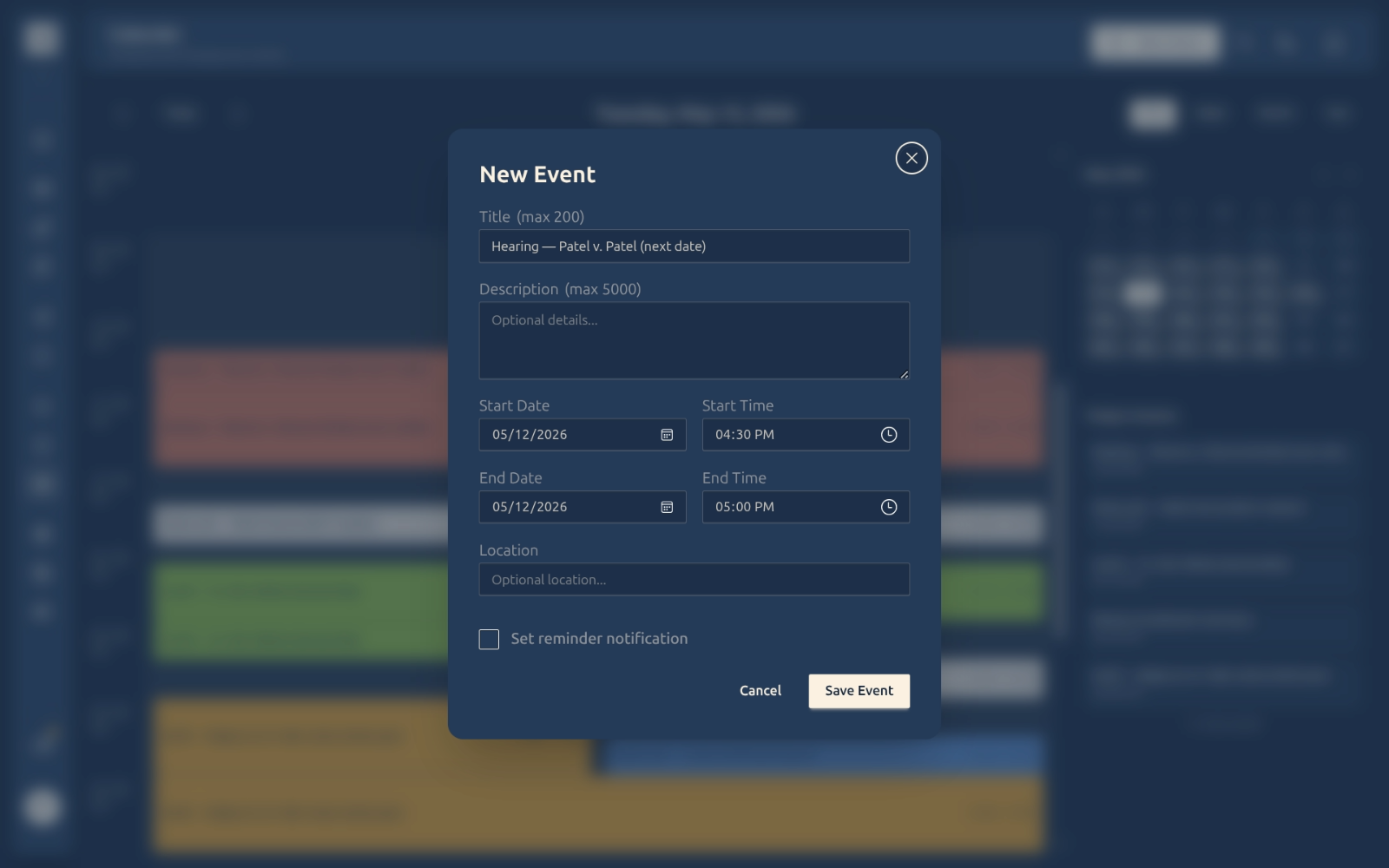
-
Toggle Set reminder notification if you want an email before the event starts — pick one of the presets (5 min, 15 min, 30 min, 1 hour, 2 hours, 1 day) or choose a custom date and time.
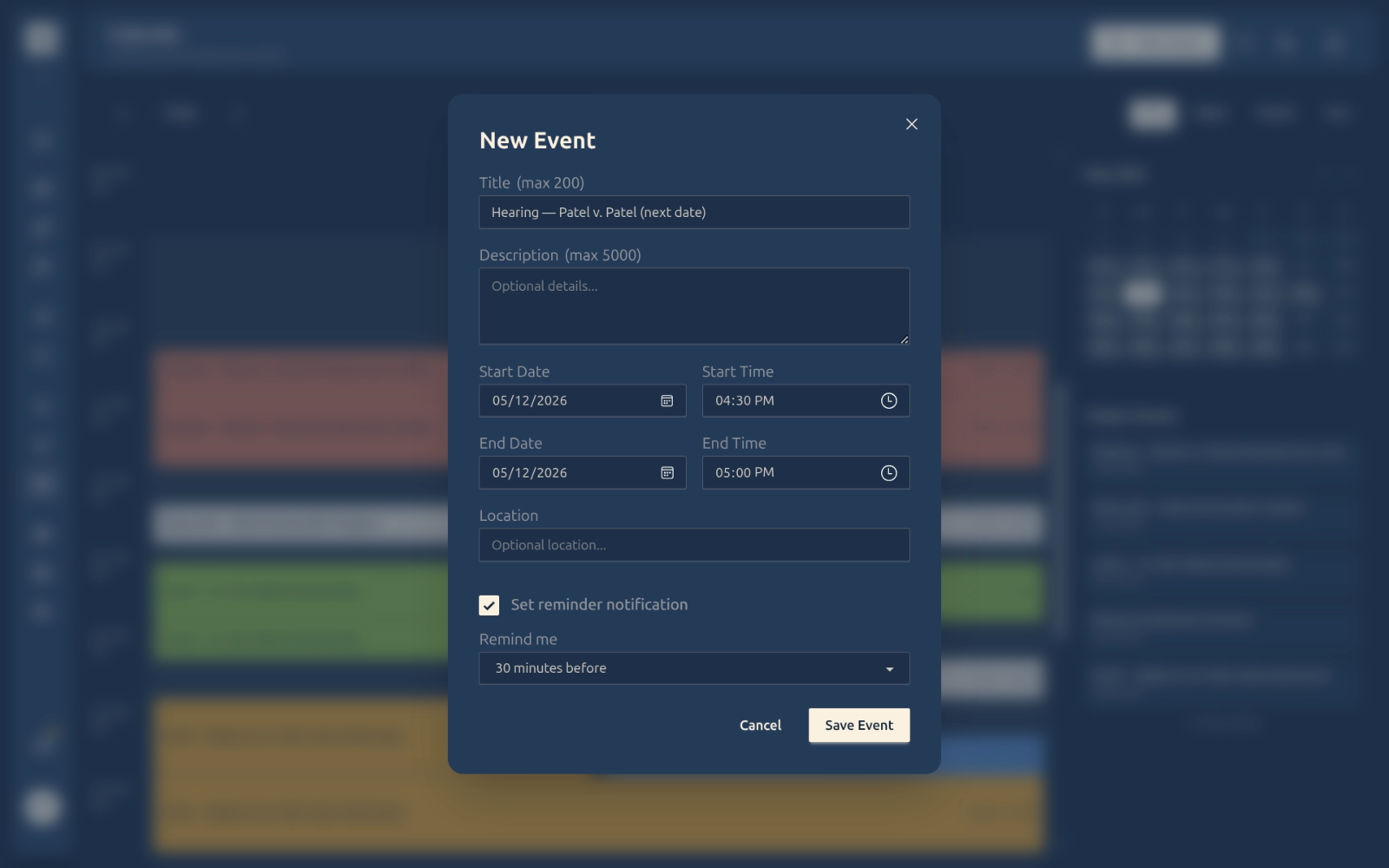
-
Click Save Event. The new event appears on the calendar immediately and you’ll see a “Event saved successfully” confirmation.
Things to keep in mind when creating events
A few rules the New Event dialog enforces — knowing them upfront saves a few “why won’t this save?” moments.
- Events must start in the future. You can’t save an event whose start time is in the past. There’s a small buffer (a few minutes), but if you try to log a hearing that happened yesterday, the dialog blocks the save with a clear error. This is intentional — the calendar is forward-looking for reminders and planning.
- End time must be at or after start time. Zero-duration events (start == end) are allowed and render as a thin pill. Negative-duration events are rejected.
- Reminders must be before the event starts AND in the future. A reminder set after the event start, or in the past, is rejected with a message at the bottom of the dialog.
- Working hours are subtly tinted. 9 AM — 6 PM cells in Day and Week views get a soft primary-color background. This is a visual cue — anything outside is rendered against the default background — so you can scan a week and instantly see how much non-business-hours work you’ve taken on.
- Reminders are an entitled feature. Pro and Firm plans get them by default. On the Starter plan the reminder toggle is hidden — you can still create the event, just without the email.
- Editing a past event needs a future time. If you open an old event and try to save it without bumping the start time forward, validation still applies. Change the start (and end) to a future time before saving, or it’ll reject.
Switching views
Use the Day / Week / Month / Year toggle in the top-right to change how much of your schedule is on screen at once.
-
Day view is the default — your full hour-by-hour day with the mini-month and today’s event list in the sidebar. Best for “what’s next” and tracking overlapping items.
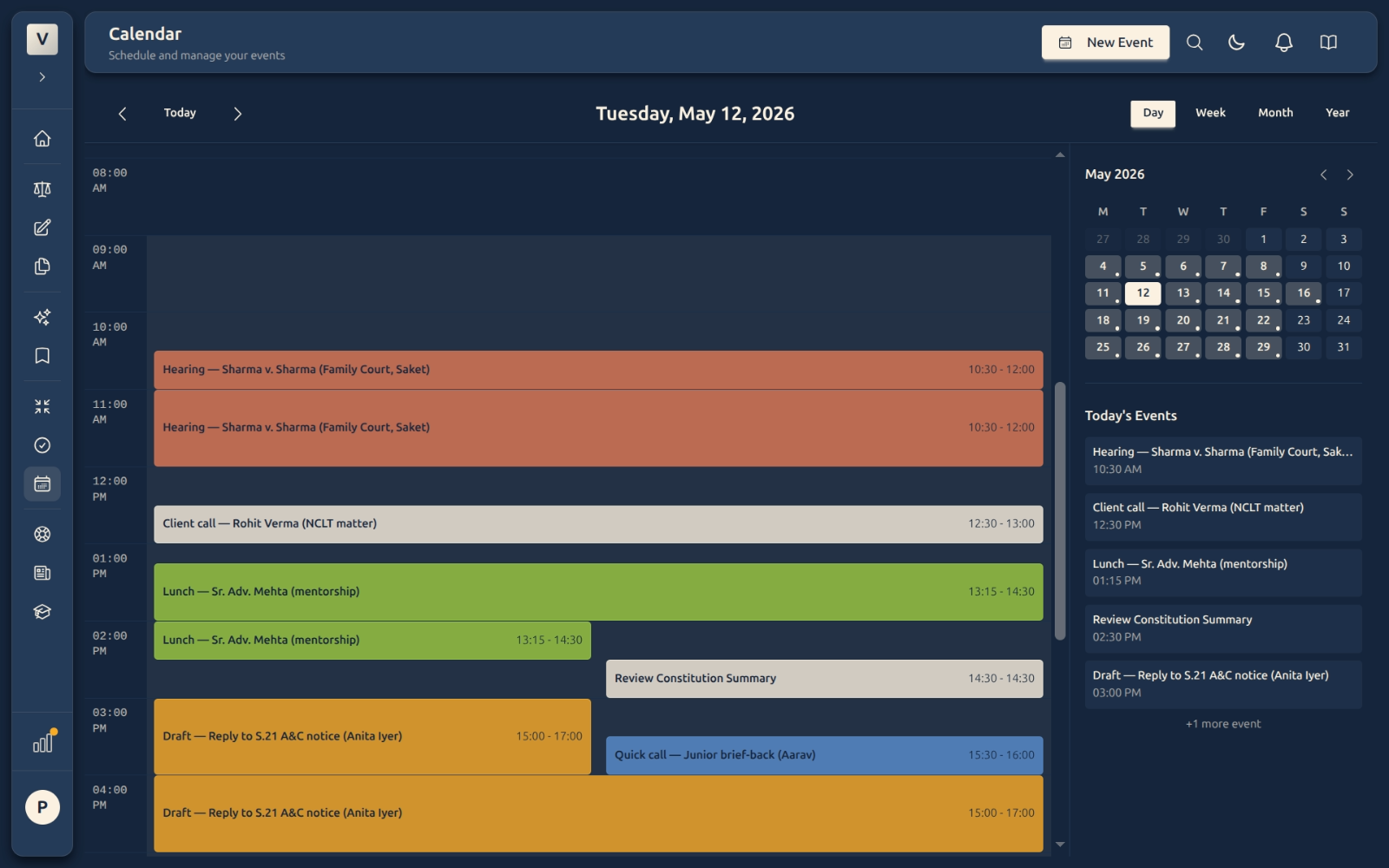
-
Week view gives you the seven-day grid Mon–Sun. Hearings, mediation, drafting, and meetings line up across days so you can spot a heavy afternoon or a free morning at a glance.
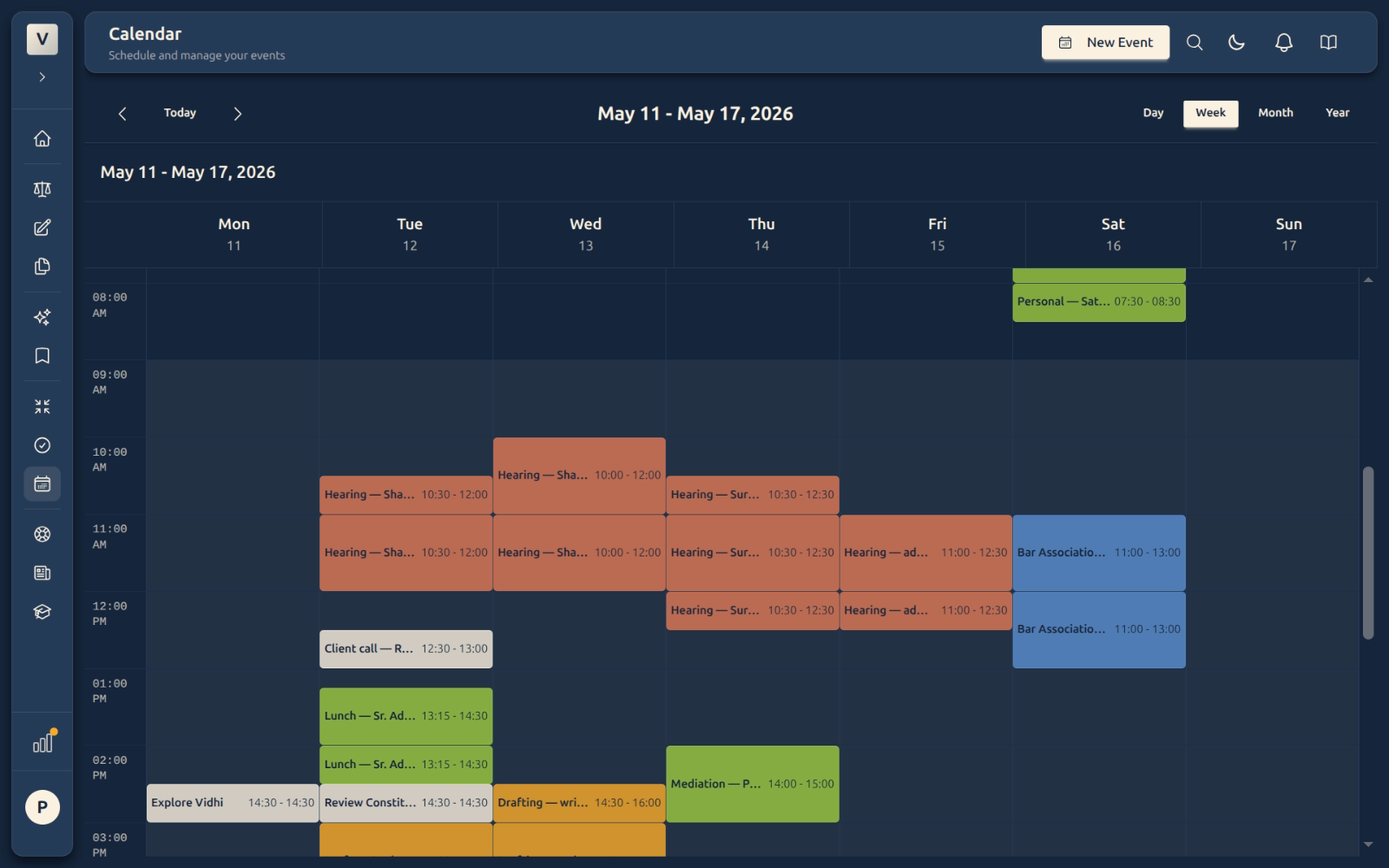
-
Month view is for planning ahead — filing deadlines, listed dates, and any block that needs a heads-up sit on the day they fall, with a
+N more eventslink when a day overflows.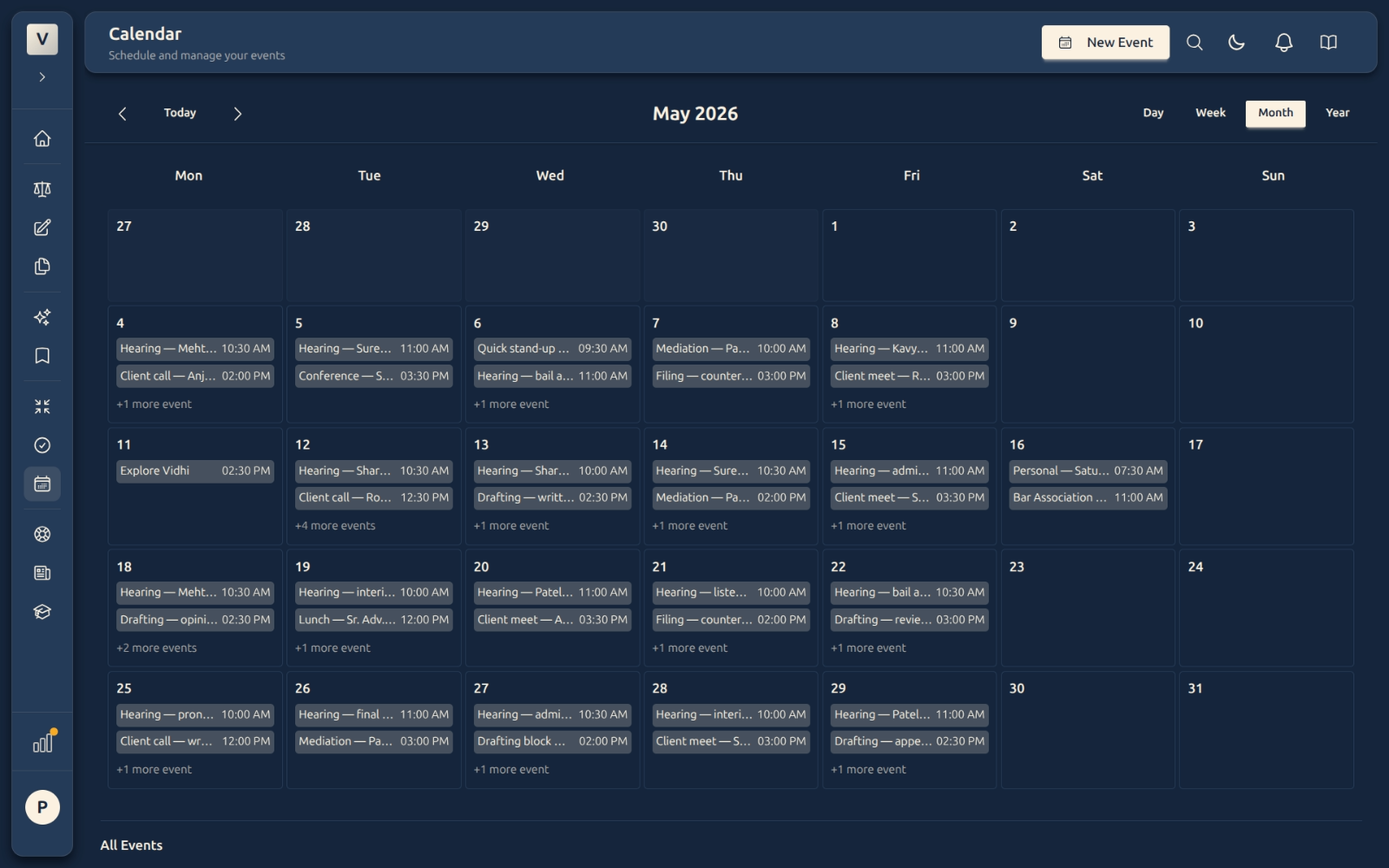
-
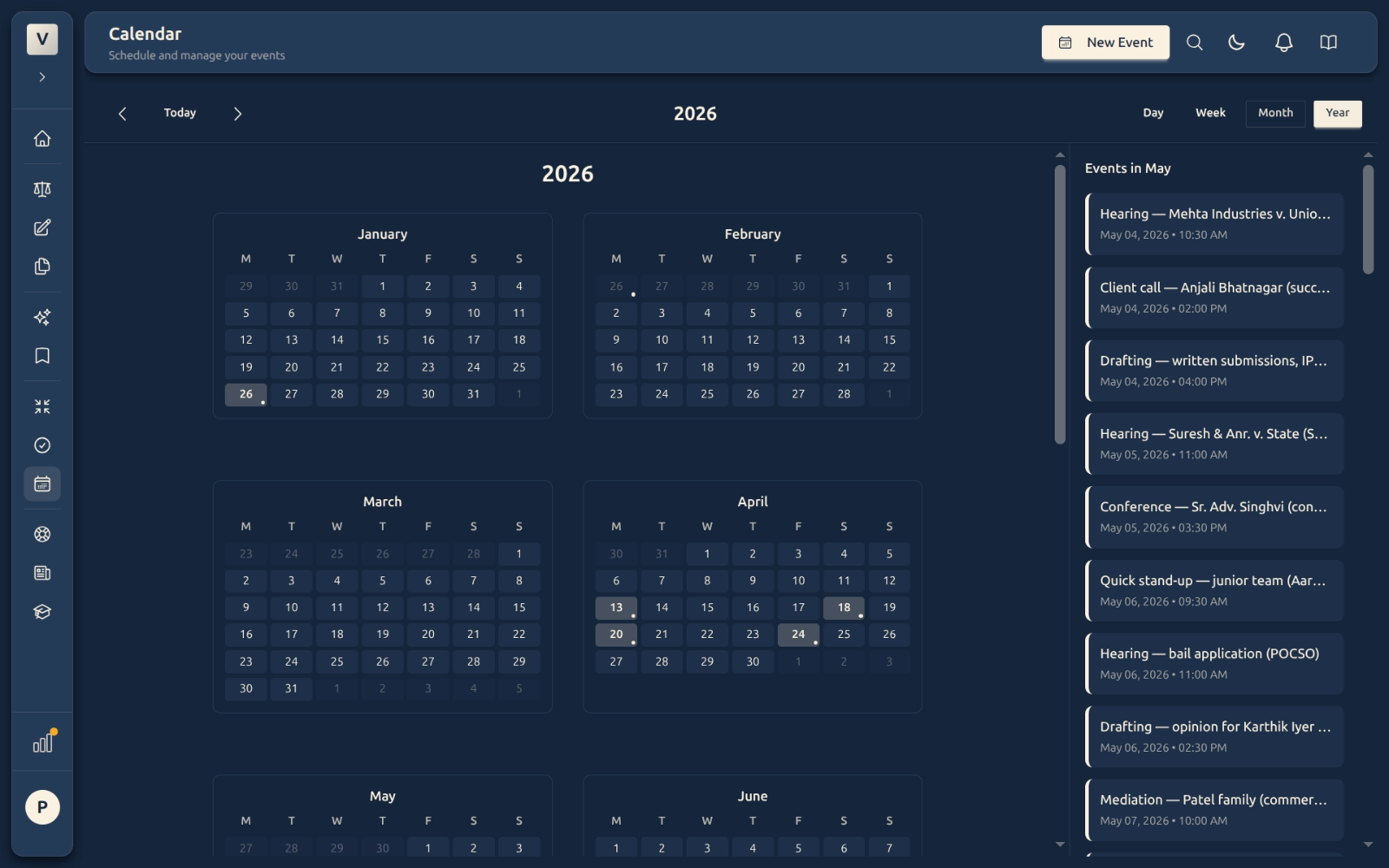
Year view gives you the whole year as twelve mini-months with density dots, so you can spot the long-term shape of your matters — e.g. a thin August before a busy October.
What clicking does in each view
The same calendar grid behaves slightly differently per view — by design — so you don’t need a separate “create event” button on a packed day.
| View | Click an empty cell | Click an existing event | Other |
|---|---|---|---|
| Day | Opens the New Event dialog with that hour pre-filled. | Opens Event Details (read-only; click the pencil to edit). | Click the date in the mini-month sidebar to jump to that day. |
| Week | Opens the New Event dialog with that hour + that day-column pre-filled. | Opens Event Details. | Mobile only: the day-of-week chips at the top switch the focused day. |
| Month | Opens that date in Day view (it doesn’t create an event). | Opens Event Details. | Hover any day cell and a small + button appears in the top-right of the cell — click it to create a new event on that date. |
| Year | Opens that date in Day view. | (Year view shows events as dots, not pills — click a date to drill in.) | The right-hand sidebar lists every event for the currently focused month. |
Day and Week behave the same. Month and Year give the empty cell to “navigate to that date” because that’s what users want there — and put the create button in a small + on hover instead.
Editing or deleting an event
-
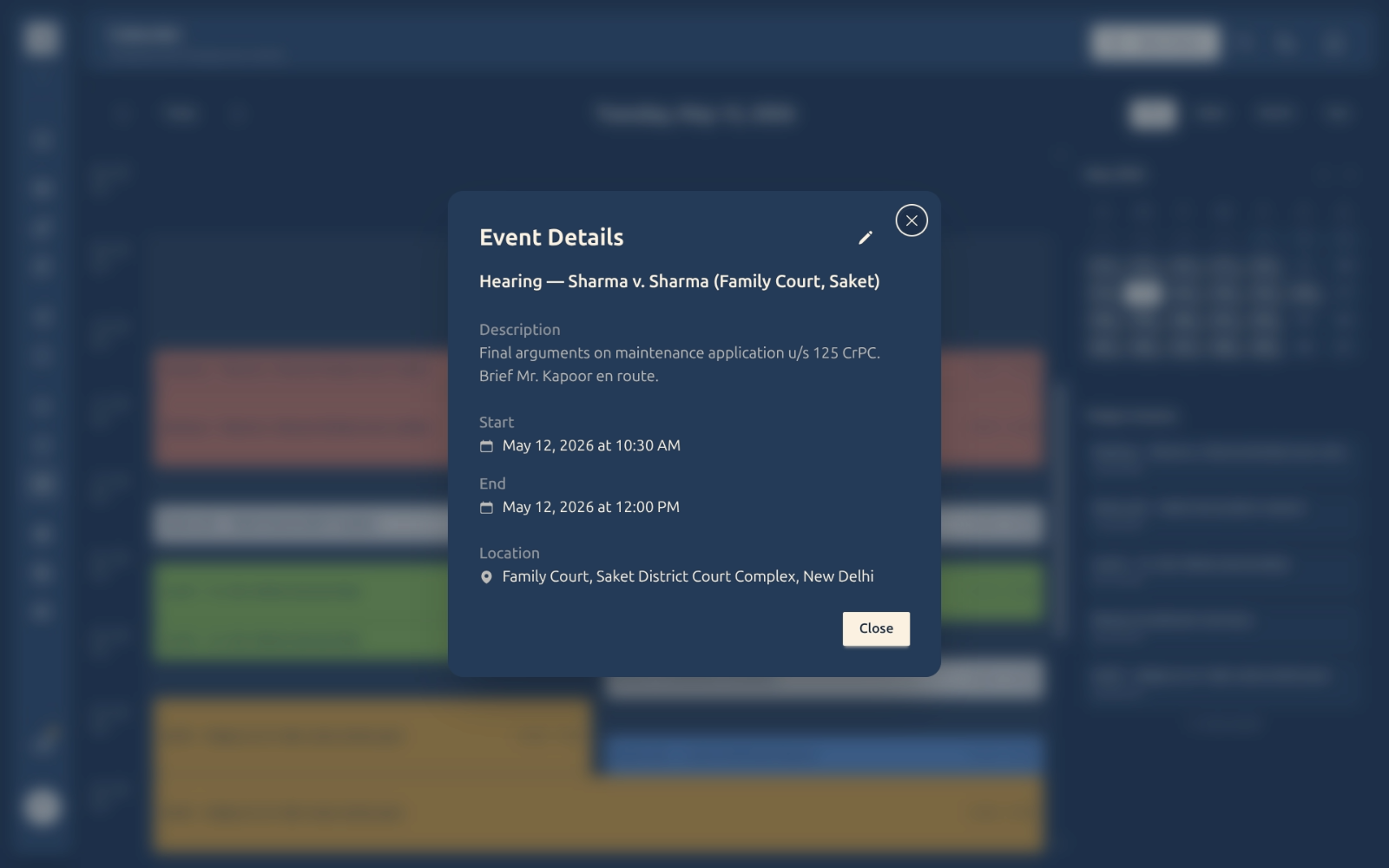
Click any existing event tile. The Event Details dialog opens showing the full event — title, description, start and end times, and location.
-
Click the Edit pencil icon (top-right of the dialog) to switch to edit mode. Change anything and click Save Event.
-
To remove the event, switch to edit mode and click Delete. Deletions are permanent.
Tip: opening an old (past) event in edit mode is allowed, but saving still requires the start time to be in the future. If you’re updating a finished matter for record-keeping, bump the start time forward by a few minutes before saving.
FAQ
Can two events share the same time slot?
Yes. When events overlap, the calendar splits the column so both fit side by side — you’ll see them as adjacent tiles in Day and Week views.
What timezone are events stored in?
Events display in the timezone on your profile (typically Asia/Kolkata for Indian-legal users). Under the hood they’re stored in UTC, so they stay consistent if you ever travel or your timezone changes.
Why can’t I set a start time in the past?
To protect against accidental data — if you genuinely need to log a hearing that’s already happened, create it for a future time and edit the date back after saving. Most users don’t need this; reminders are forward-looking by design.
How far ahead can I create events?
There’s no upper limit. You can add a hearing for next year, a filing deadline for two years out, or a personal block for whenever. The Year view is built to show density that far ahead.
Does the calendar sync with Google Calendar / Outlook / iCloud?
Not yet. Two-way sync with external calendars is on the roadmap — for now the Vidhi calendar is the canonical record. You can export events case-by-case if needed.
Which view should I start the day with?
It depends on your practice. Adv. Priya Sharma uses Week view on Monday morning — she scans Mon–Fri for hearings (red) and drafting blocks (orange) before deciding what to delegate that week. Adv. Arjun Mehta runs a hearing-heavy practice and prefers Day view, because he needs to see the hour-by-hour overlap of court dates and client calls in front of him at all times. Try both and pick whichever feels less stressful.
What happens if I close the browser before saving an event?
The event isn’t created — the New Event dialog holds its values locally until you click Save Event. Closing the dialog (X, Cancel, or Escape) or navigating away discards your input. If you’ve spent time on a detailed event, save it first and edit later if needed.