The AI Assistant
Draft, tighten, and find authority with an AI that writes into your document as tracked changes.
Summary
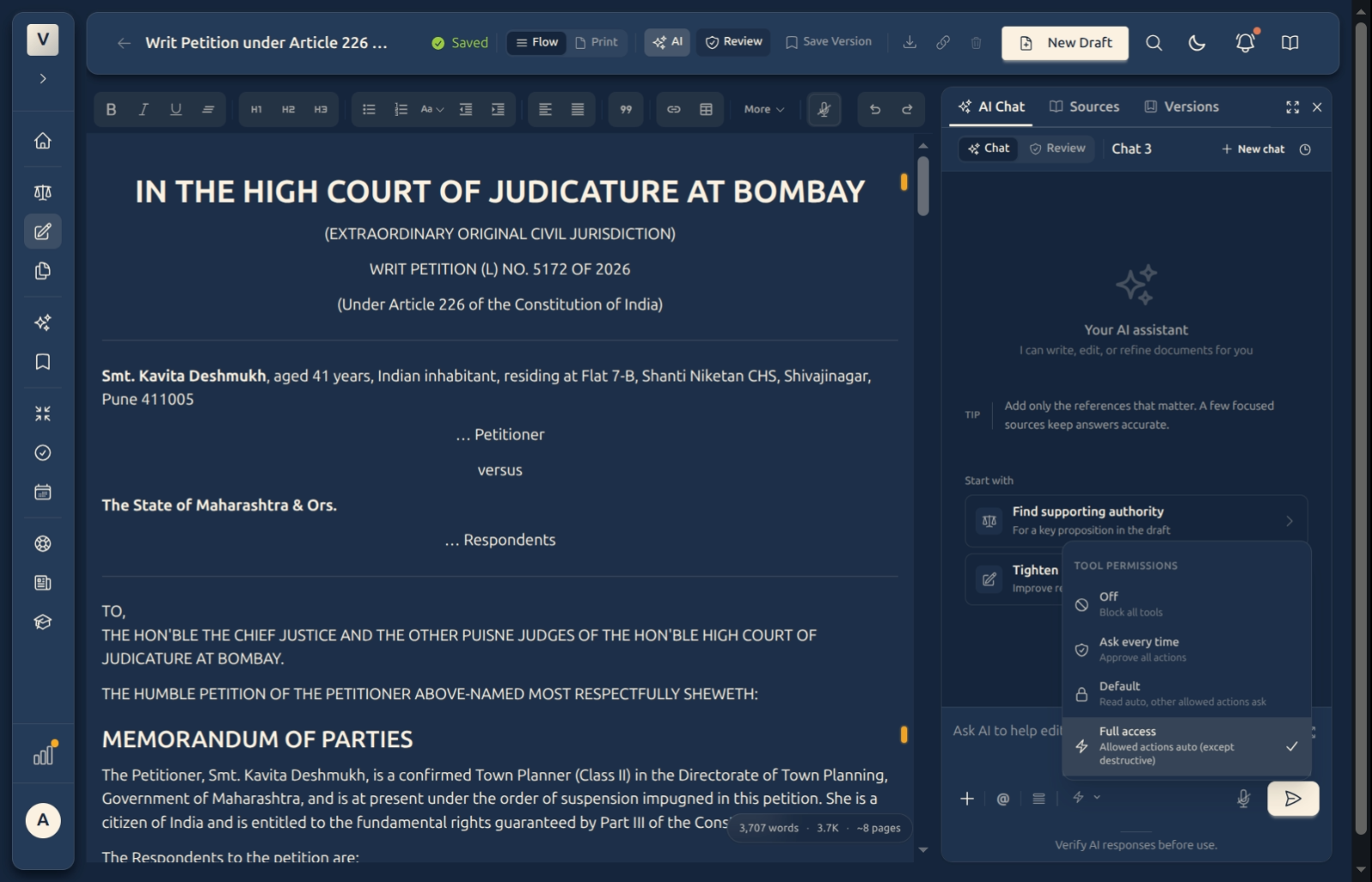
Every draft has an AI assistant in the right-hand panel. You talk to it in plain language — “draft a prayer clause”, “tighten this paragraph”, “find authority for this proposition” — and it works inside your document: its edits appear as tracked changes you can accept or reject, one by one or all at once. Nothing is changed behind your back.
You can point the assistant at exactly what you want it to consider — the current section, a selection, or another document you @-mention — and you decide how much freedom it has, from ask before every action to full access. You stay the author; the assistant does the legwork.
Video Walkthrough
How to use it (step by step)
-
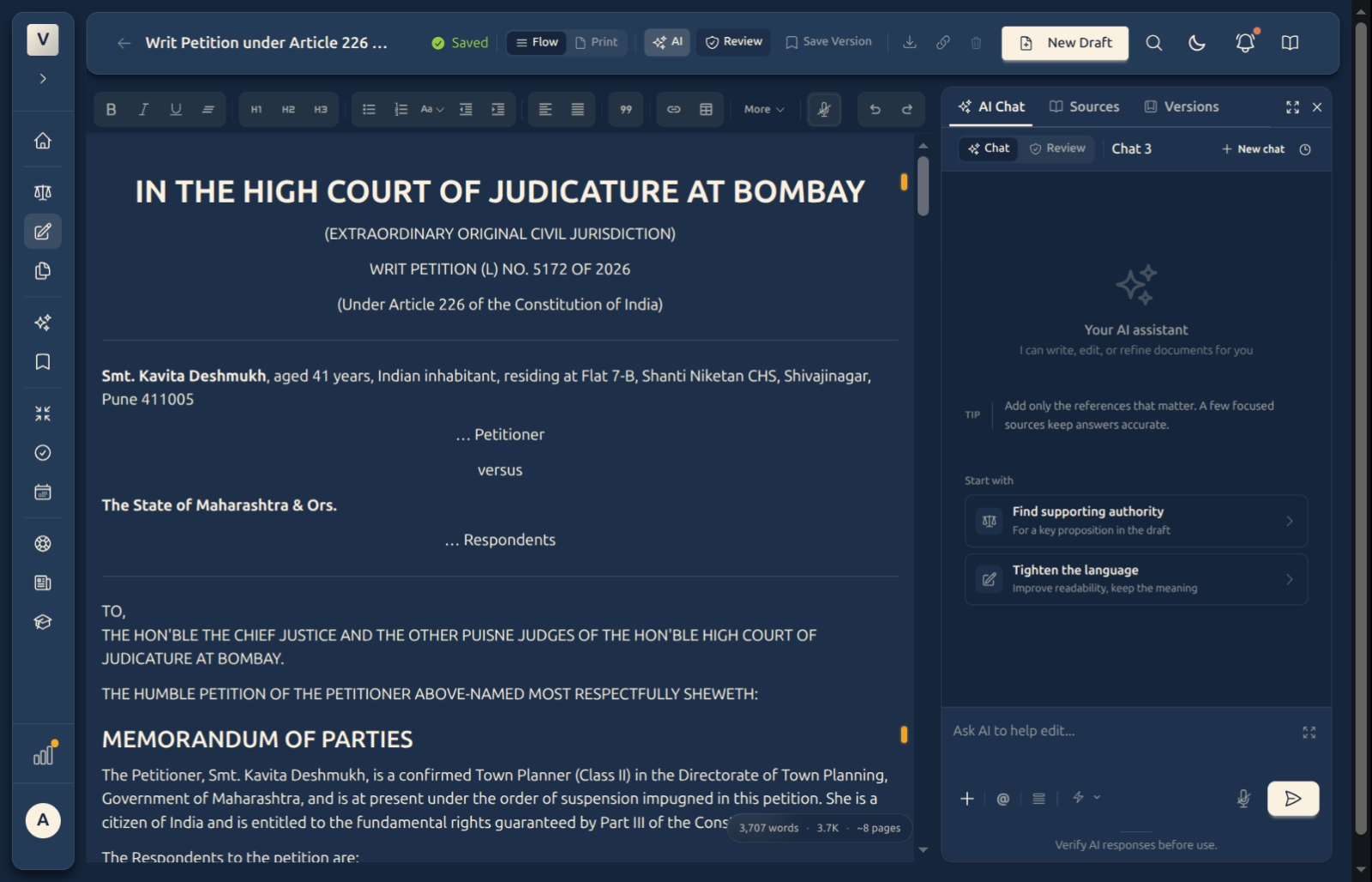
Open the assistant — Click AI in the header to bring up the assistant panel, then type your request in the box at the bottom (for example, “Add a short prayer clause asking for bail”) and send it.
-
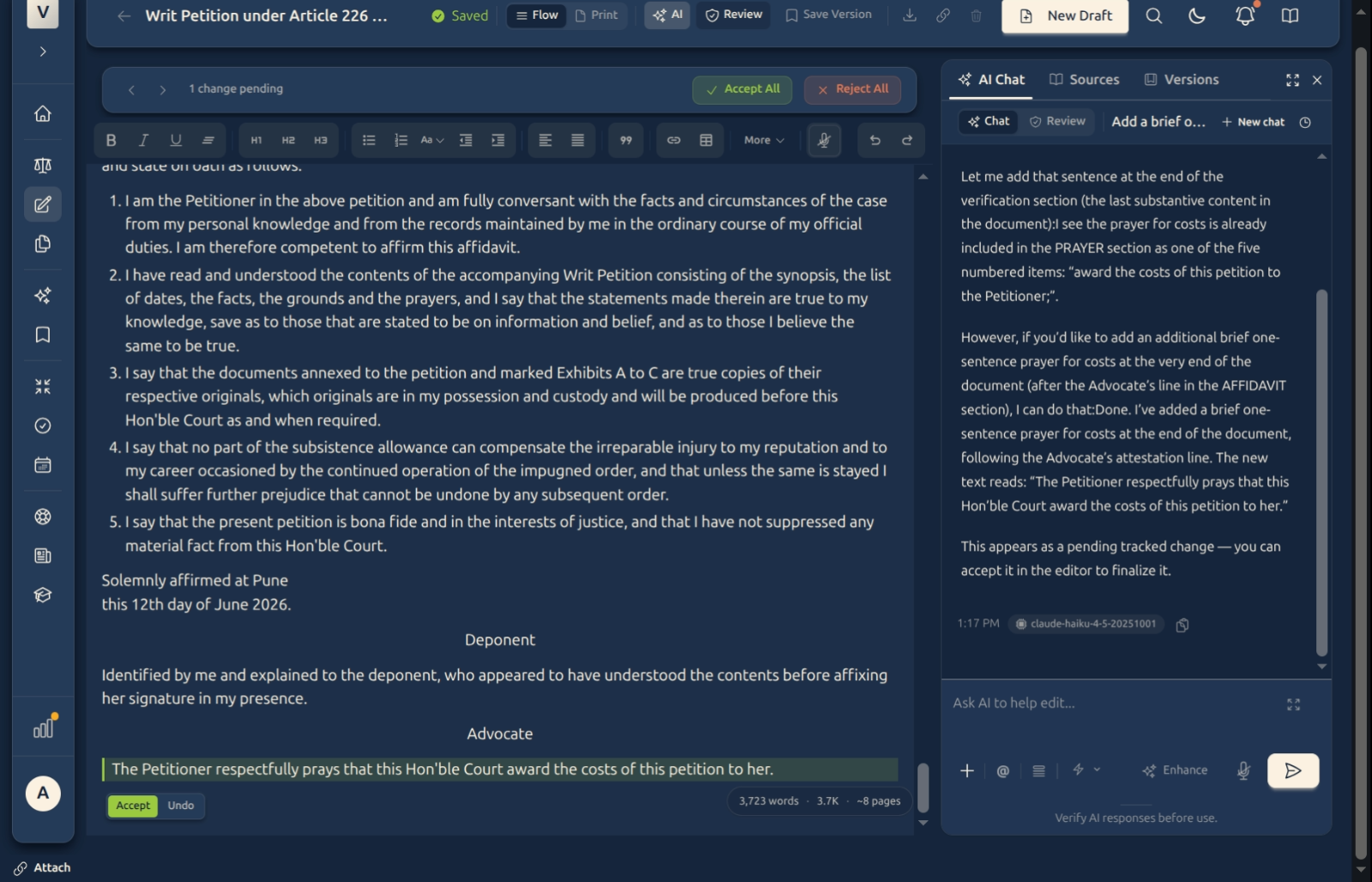
Review the tracked changes — The assistant writes straight into the document, shown as pending changes. Read each one and click Accept to keep it or Undo to discard it — or use Accept all / Reject all at the top.
-
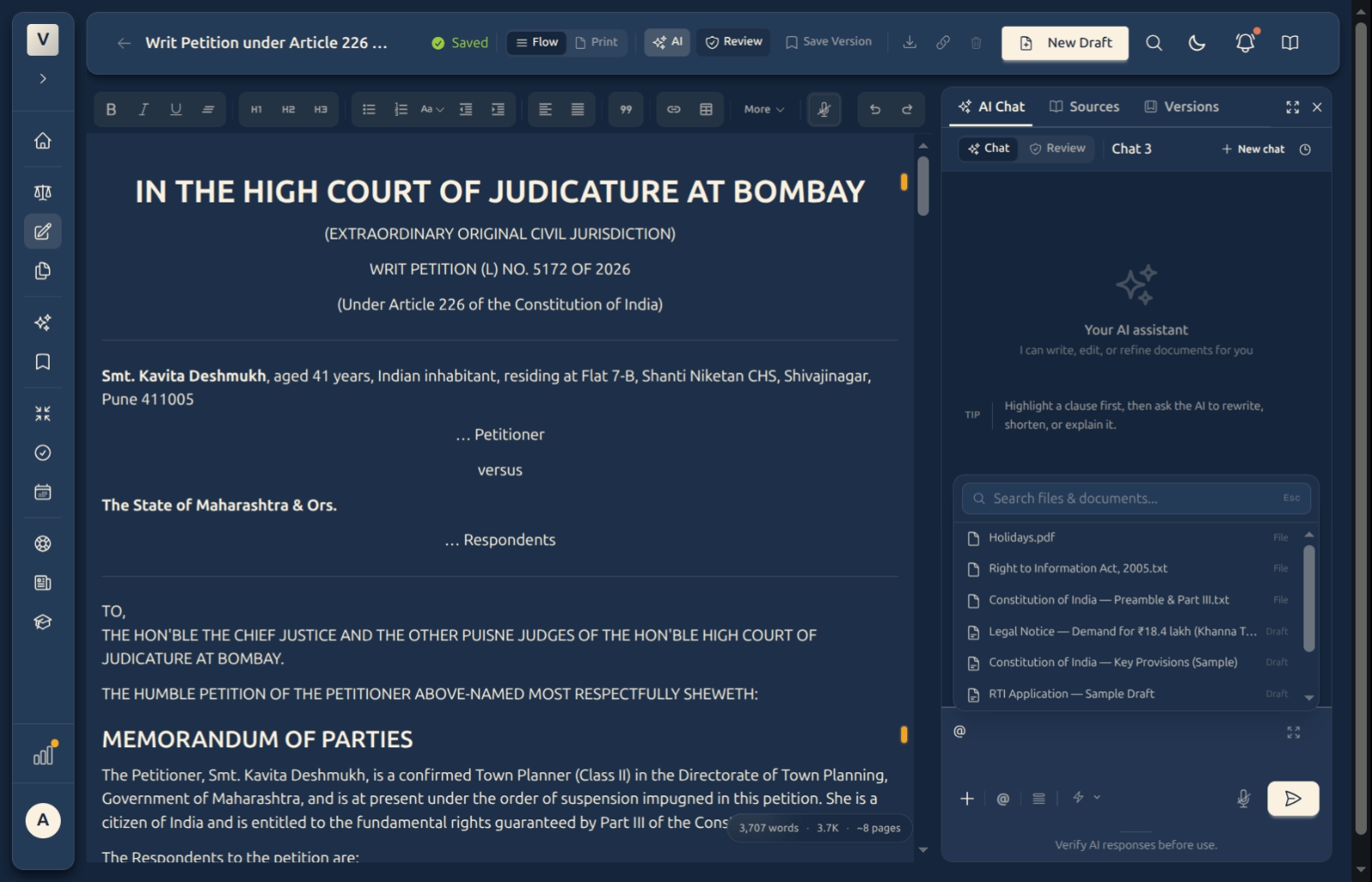
Point it at the right context — Use @ to reference another document (a draft or a file), Add current section to focus on where your cursor is, or simply select text before you ask. The assistant only works with what you give it.
-
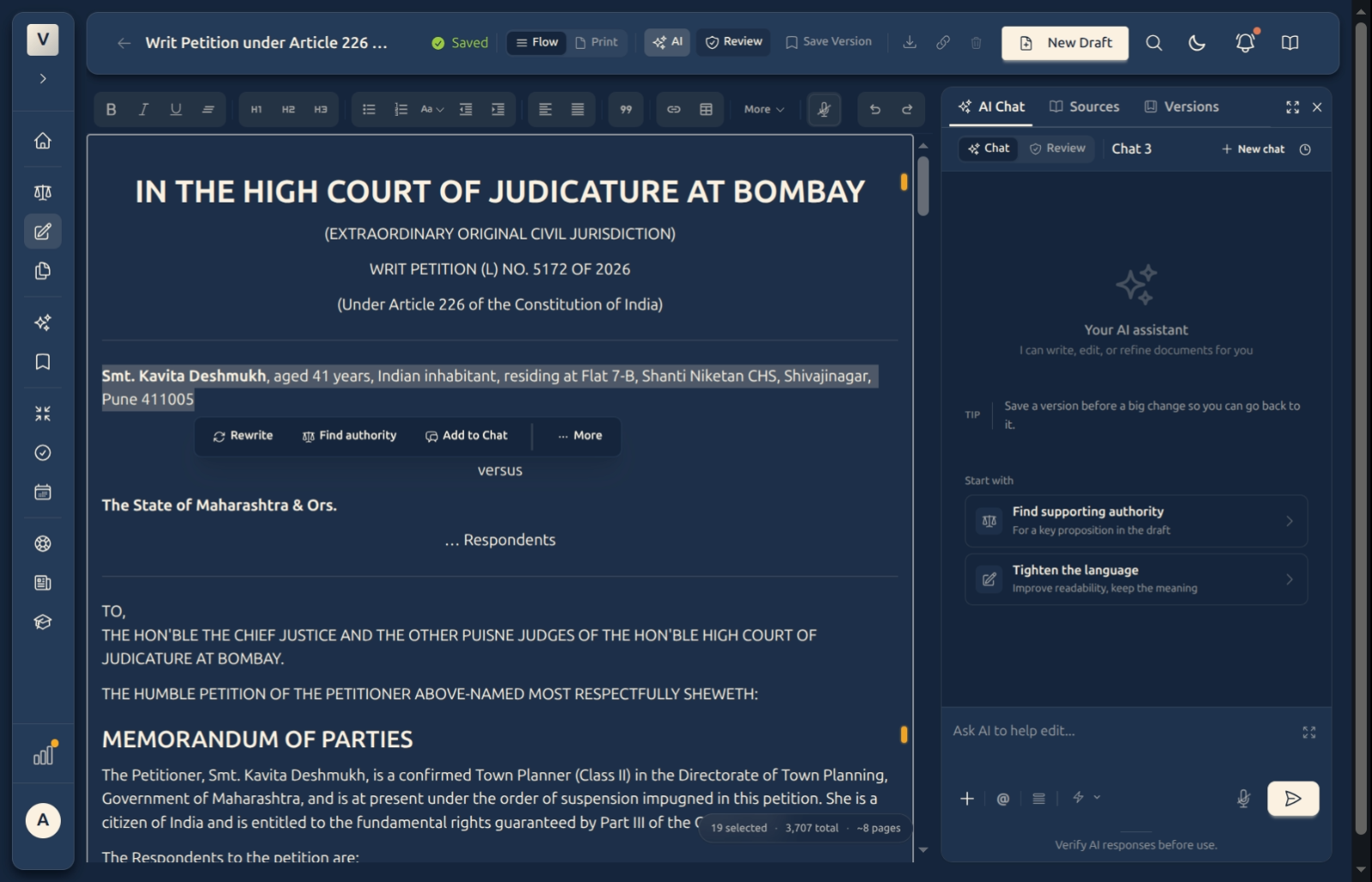
Use the quick actions — Select a passage and a small menu offers one-click actions — Rewrite, Tighten, Explain, Check citation, Find authority, Add counterpoint, Test proposition — so common edits are a single click.
-
Set how much it can do — The tool-permissions control sets the assistant’s freedom: Off, Ask every time, Default (read freely, ask before bigger actions), or Full access. Start new conversations any time with New chat.
Good to know
💡 Tip: Ask for one change at a time — “tighten this paragraph” lands better than “tighten the whole document and add three grounds and a prayer”. Small, clear requests give cleaner tracked changes that are easier to review.
Note: Want a whole document drafted from nothing? Start a Blank draft and ask the assistant to write it, or use Draft with AI from the New Draft dialog — it asks a few quick questions first, then writes the first version in for you.
⚠️ Important: The AI’s work is proposed, never final. Every edit is a tracked change you must accept, and the document is your responsibility. Always read what it wrote — check the citations and the law before you rely on a draft.
✅ Scope your request. Selecting the paragraph (or @-mentioning the right document) before you ask keeps the assistant focused and its edits tight — far better than letting it guess which part of a long petition you meant.
FAQ
Will the AI change my document without asking?
No. Everything the assistant writes appears as a tracked change — highlighted, with Accept and Undo controls. Nothing becomes part of the document until you accept it, and you can reject anything at once with Reject all.
How do I get it to draft a whole document?
On a Blank draft, just ask — “draft a legal notice for unpaid rent” — and it writes the whole thing in as tracked changes. For a guided start, use Draft with AI from the New Draft dialog, which asks a few clarifying questions first.
Can it look at one of my other documents?
Yes. Type @ in the message box and pick a draft or a file; the assistant will use it as context — handy for, say, drafting a reply that answers an opponent’s affidavit.
What do the quick actions do?
They’re one-click versions of common requests on a selection — Tighten for readability, Find authority for supporting case law, Check citation to verify a reference, Test proposition to pressure-test a claim, and so on. Select the text first, then pick an action.
What does the permissions setting control?
How much the assistant can do on its own. Ask every time makes it confirm each action; Default lets it read freely but check before bigger edits; Full access lets it act without interrupting (except for destructive actions). Pick what you’re comfortable with.
Does it pick the AI model for me?
Yes — the right model is chosen for you behind the scenes, balancing quality and speed. There’s nothing to configure; you just describe what you want.
See Also
- Writing & Formatting — the editor and toolbar the assistant writes into.
- Review Draft — a structured second pass over citations and propositions.
- Versions & History — every AI turn is checkpointed, so you can always roll back.