Storage & Files
See how much storage your account is using and manage your uploaded files.
What This Does
The Storage tab shows how much of your storage quota is used, how many files you have uploaded, and gives you quick access to manage them. The storage quota included with your account depends on your plan; the exact limit for your plan is always shown on the card.
Video Walkthrough
Step-by-Step Guide
Checking Your Storage Usage
-
Go to Settings → Storage tab.
You will see:
- A progress bar showing the percentage of your quota used
- The exact amount used and how much is free (e.g. 5.4 GB used · 4.6 GB free of 10.0 GB)
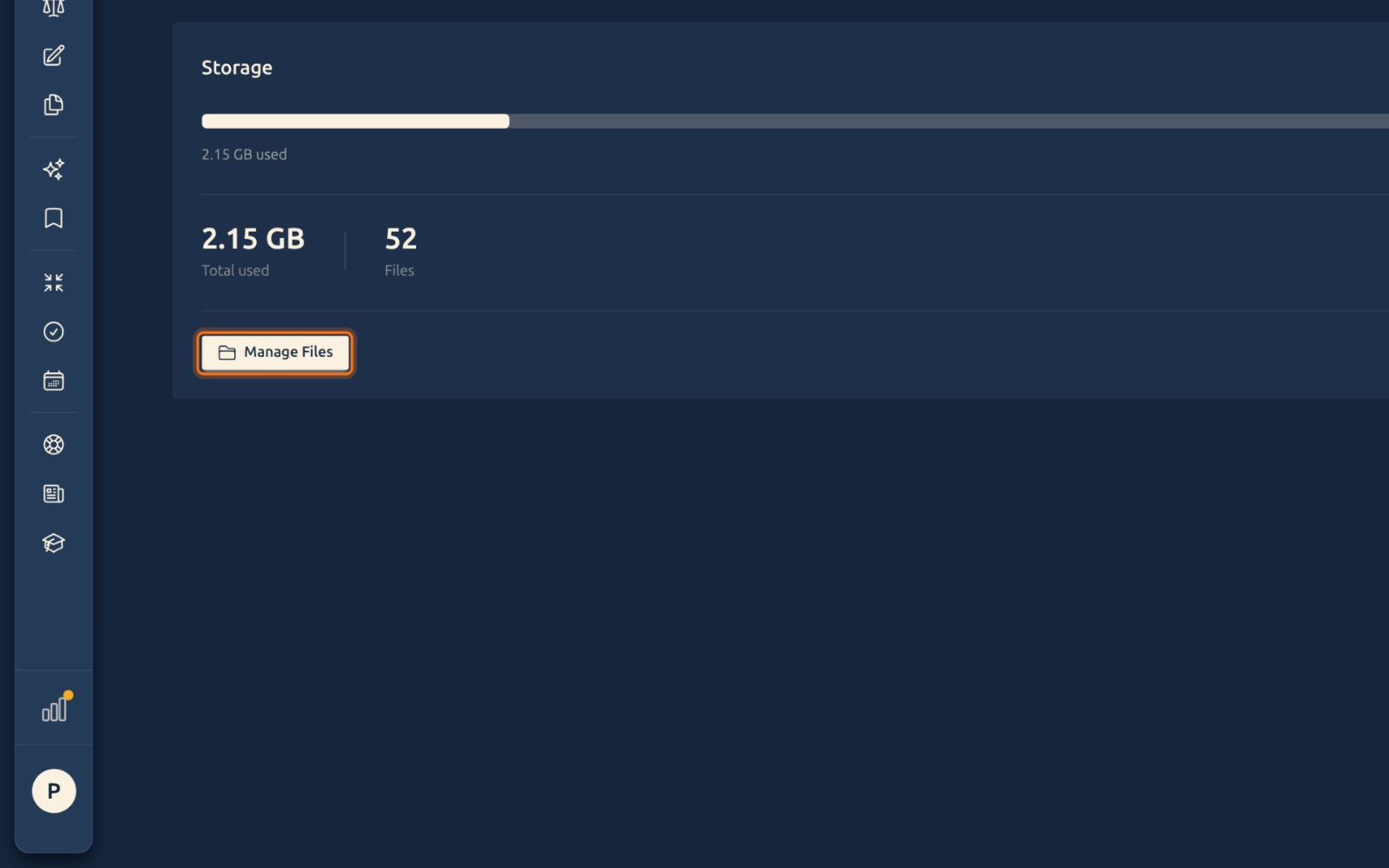
- Total used in GB and total file count
-
Click anywhere on the card — or the Manage Files button — to open your document library.
-
The Documents page opens, where you can browse, upload, or delete files.
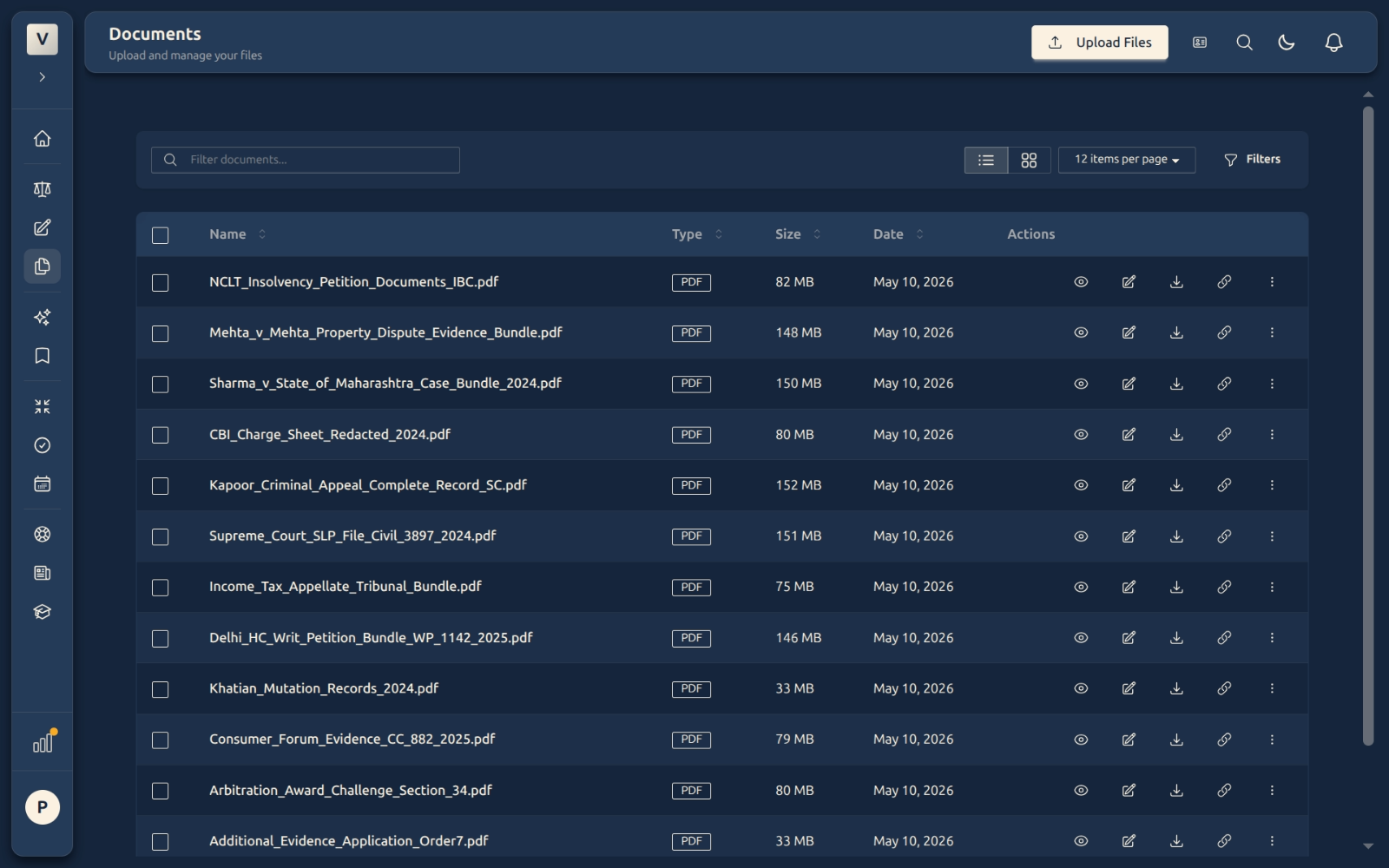
File sizes vary widely. A text document is small; a scanned PDF bundle can be much larger, depending on page count and image content.
Storage Indicator in the Sidebar
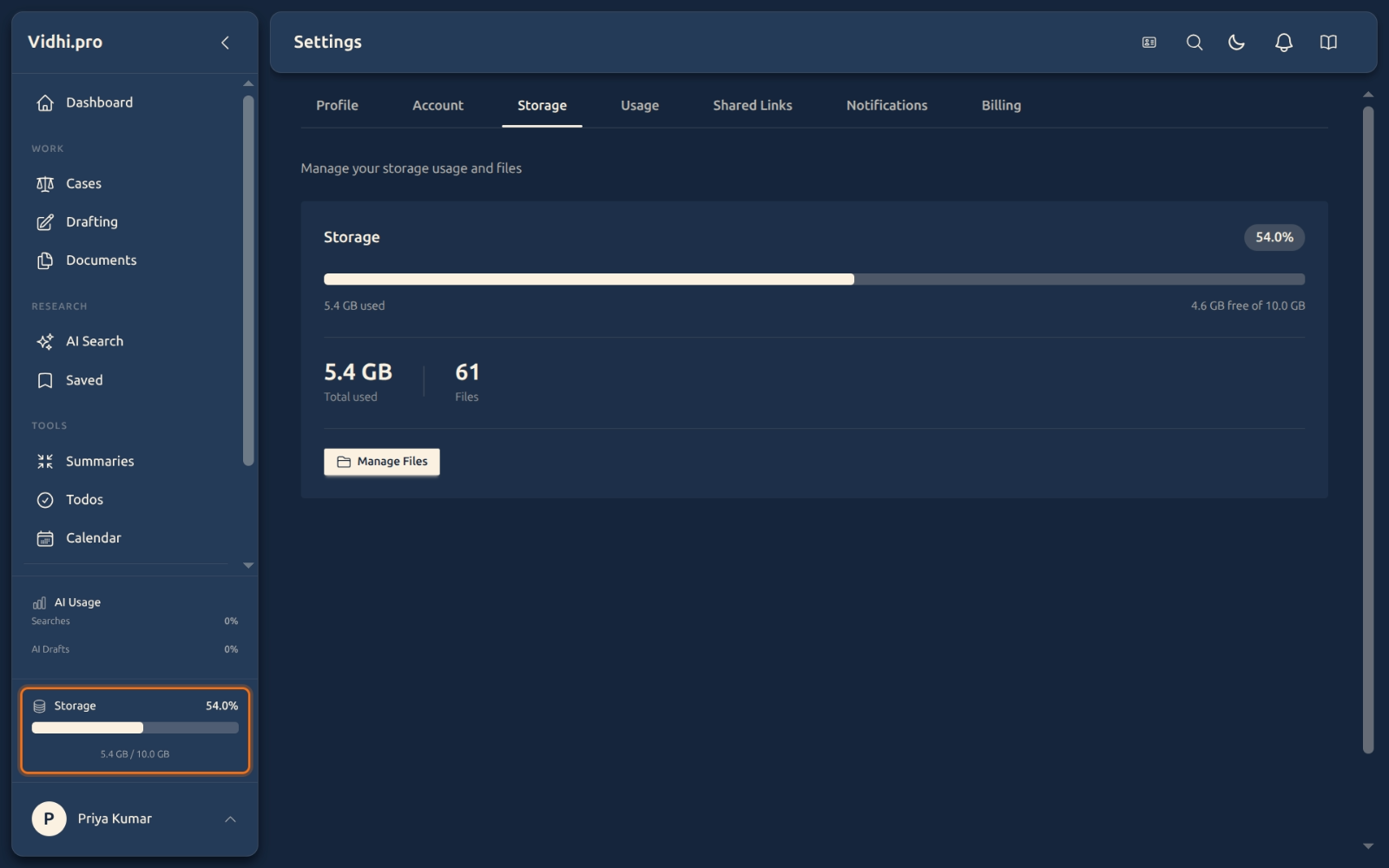
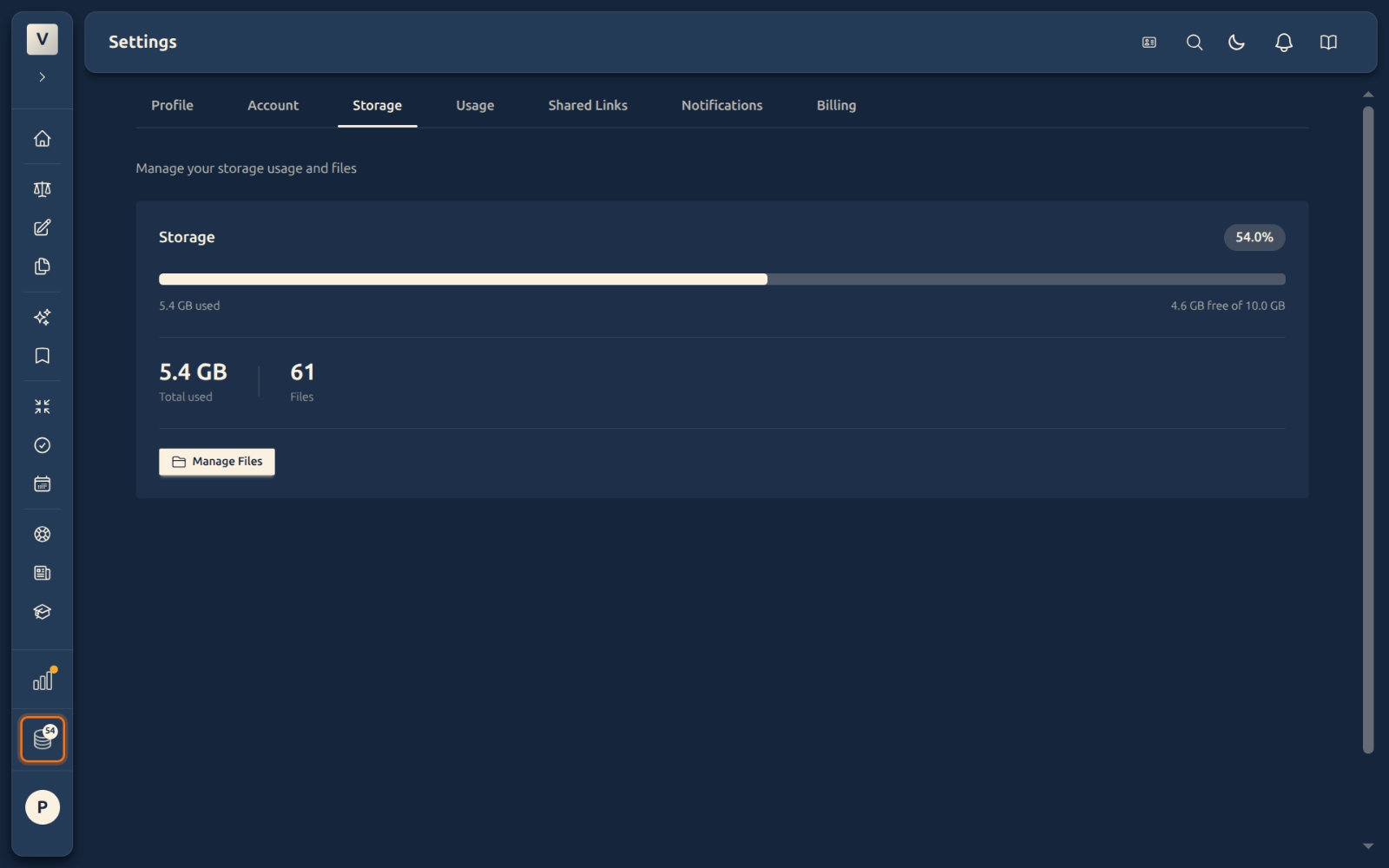
Once your usage crosses 50%, a storage meter appears at the bottom of the sidebar as a quick reminder — without you having to open Settings.
Expanded sidebar — shows the full progress bar, percentage, and GB used:
Collapsed sidebar — the meter shrinks to a stack icon with a percentage badge. Hovering shows a tooltip with exact usage; clicking takes you straight to the Storage tab.
The indicator changes colour as you approach your limit:
- Blue — below 75%
- Yellow — 75–89% (getting full)
- Red — 90%+ (near limit)
FAQ
How much storage do I get?
It depends on your plan. The exact quota and remaining space are always shown on the Storage card. If you need more, contact support or check your billing page for upgrade options.
What counts towards storage?
Every file you upload — PDFs, Word documents, scanned images, and other attachments. AI-generated drafts and research notes do not count.
What happens when I reach the limit?
You will see an error when trying to upload new files. Deleting files from your library frees up space immediately.
How do I free up space?
Go to Manage Files (or Documents in the sidebar) and delete files you no longer need. The storage meter updates automatically.
Can I see a breakdown by file type?
The storage view shows total usage only.
Why does the sidebar indicator only appear sometimes?
The sidebar meter only shows when your usage is above 50%. Below that threshold it stays hidden to keep the sidebar uncluttered.
Examples of when you’d check storage:
- Advocate Priya Sharma notices uploads are failing and checks whether she has hit her plan’s limit
- Advocate Arjun Mehta sees the yellow sidebar indicator and opens Settings to review usage before a billing cycle
See Also
- Documents — browse, upload, search, and delete your uploaded files.