My Documents
Your secure shelf for legal files — upload, preview, download, and find any document in seconds.
Summary
My Documents is your secure shelf for files — the PDFs, scanned orders, statutes, and notes you want to keep handy. Upload them once and they’re always a click away: preview without downloading, download the original, share a link, or open one in the editor.
Everything sits in one searchable list. Filter by name as you type, switch between a compact list and roomy grid, sort by name, size, or date, and narrow the view with Filters — so even a crowded shelf stays easy to navigate.
Video Walkthrough
How to use it (step by step)
-
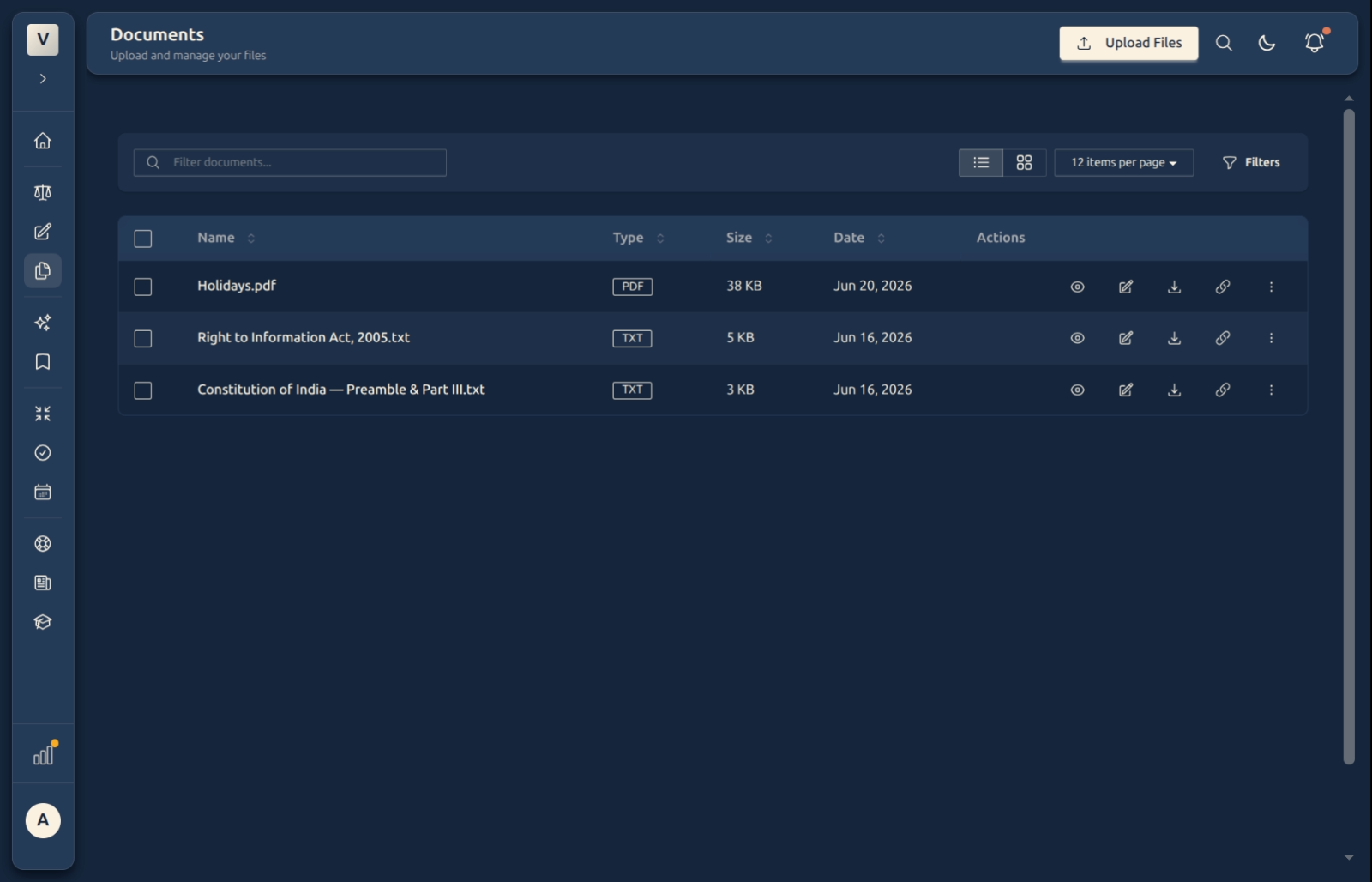
See your files — Every document you’ve uploaded appears in one list, each row showing its name, type (PDF, TXT, …), size, and date. Type in the Filter box to find one by name, or click a column header to sort.
-
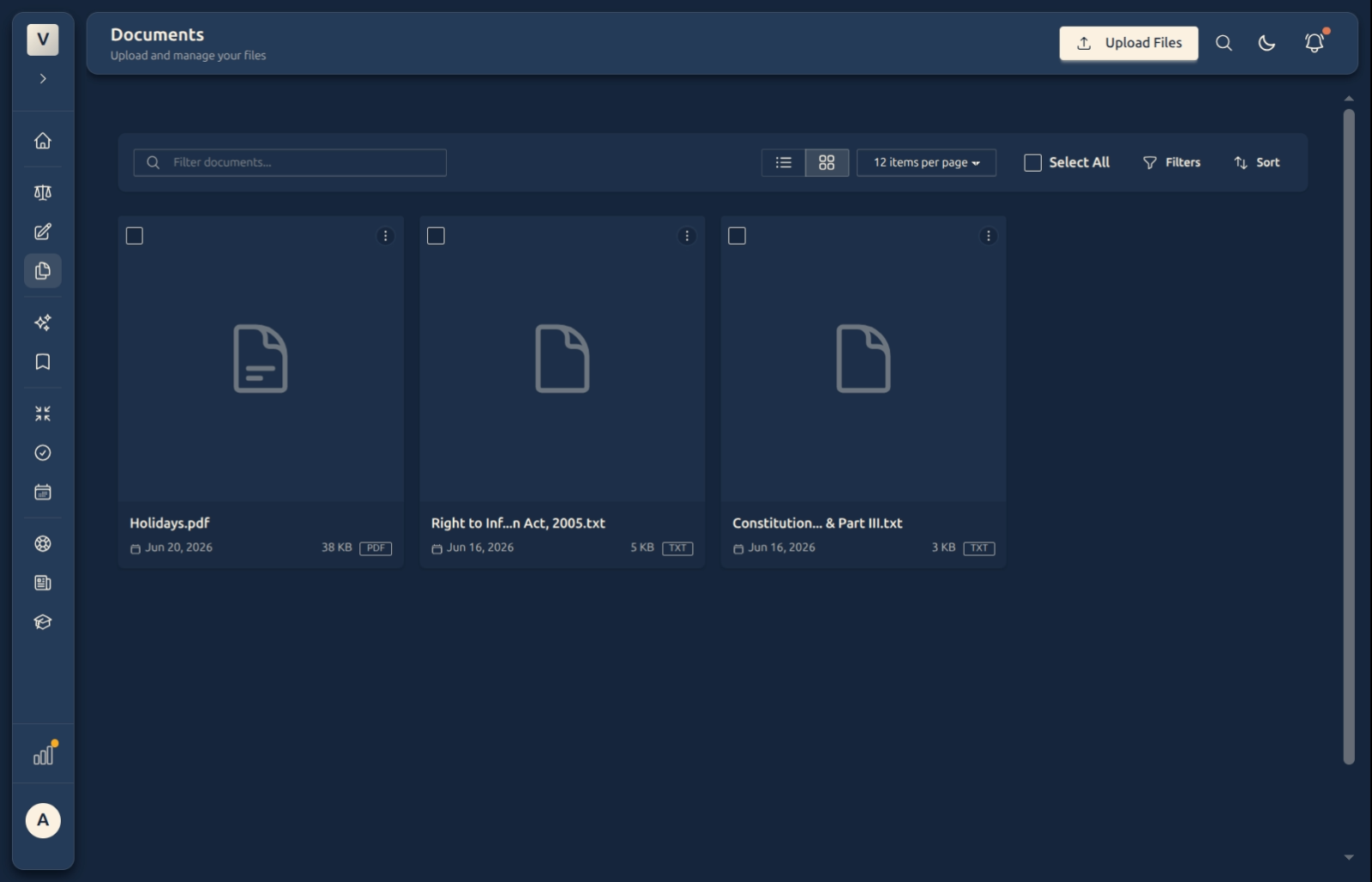
Switch the view — Use the list / grid toggle near the top. List is compact and scannable; grid shows larger cards with a file icon — handy when Meera is browsing by sight rather than name. Change items per page to show more or fewer at once.
-
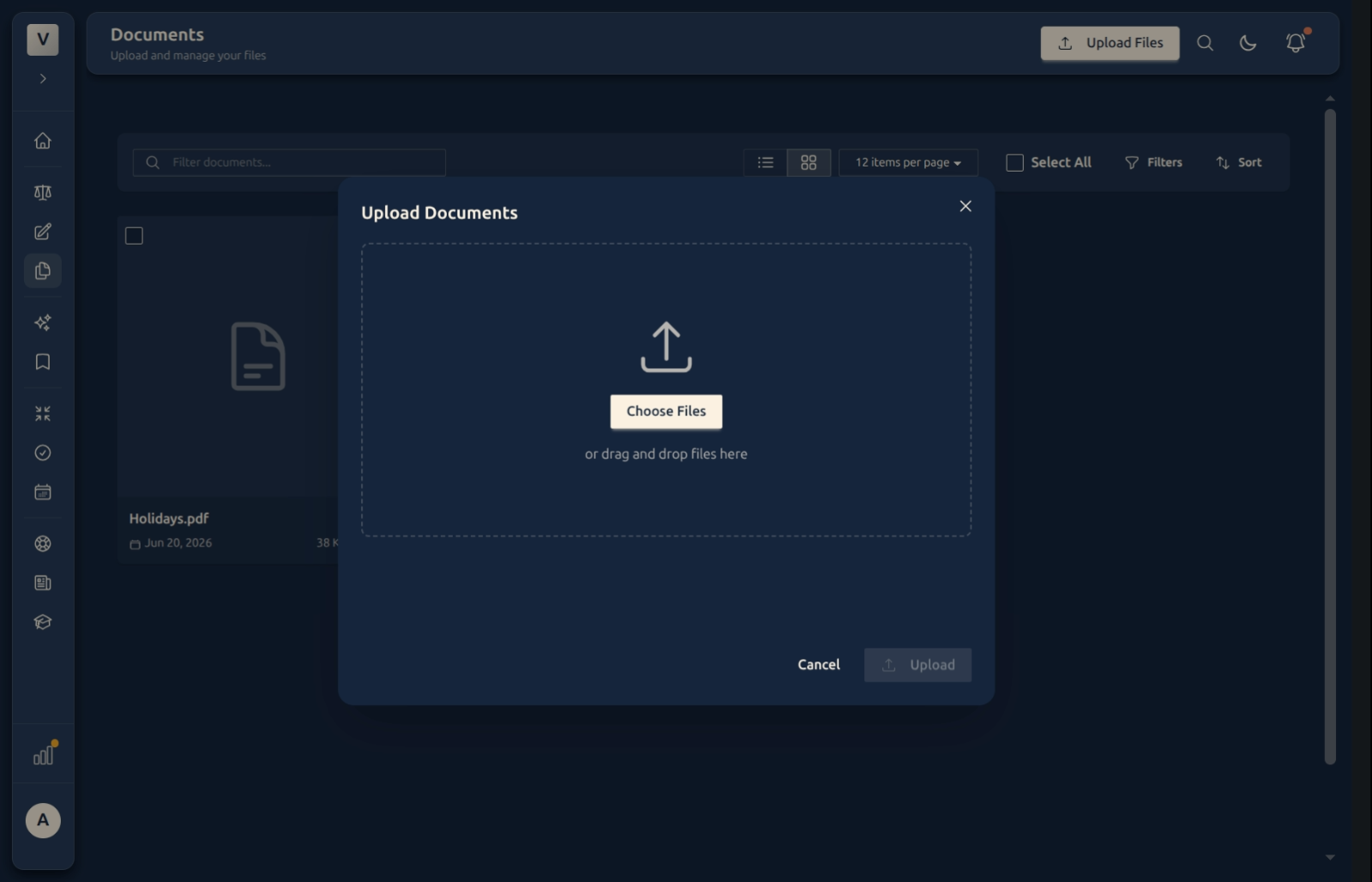
Upload a file — Click Upload Files, then Choose Files or drag and drop them into the box, and confirm with Upload. Your file joins the list right away.
-
Act on a document — Each row (or card) has quick actions: preview it in place, download the original, copy a share link, or open the more menu for the rest. Preview lets Rohan check a file without downloading it first.
-
Tidy up — Use Filters to narrow by type or date, Select All to act on several at once, and Sort to bring the newest — or largest — to the top.
Good to know
💡 Tip: Give files clear names before you upload — “Deshmukh — impugned suspension order.pdf” is far easier to find later than “scan_0042.pdf”.
Note: Preview opens the file without downloading it, so you can glance at a judgment or order in seconds and keep your Downloads folder clean.
✅ Your files are yours. Documents you upload here are your private storage — use them as references while drafting, or keep them simply as a tidy, searchable archive.
FAQ
What kinds of files can I keep here?
Everyday legal files — PDFs of orders and judgments, text files, and similar documents. Each one shows its type and size in the list so Aditi can tell them apart at a glance.
How do I find one file among many?
Type part of its name in the Filter box, or click a column header to sort by name, size, or date. Switch to grid view if you’d rather browse by sight.
What’s the difference between Preview and Download?
Can I upload more than one file at once?
Yes — choose several files, or drag and drop a batch into the upload box, and they upload together.
Are these the same as my Drafts?
No. Drafts are documents you’re writing in the editor; My Documents is your storage for finished or reference files you’ve uploaded. You can lean on both while you work.
See Also
- Drafting — Getting Started — write new documents in the editor.
- Linking & Exporting — attach an uploaded file to a draft as a source.