Your Dashboard
Your home base — a quick read on your cases, files, todos, and hearings, with one-click shortcuts to start work.
Summary
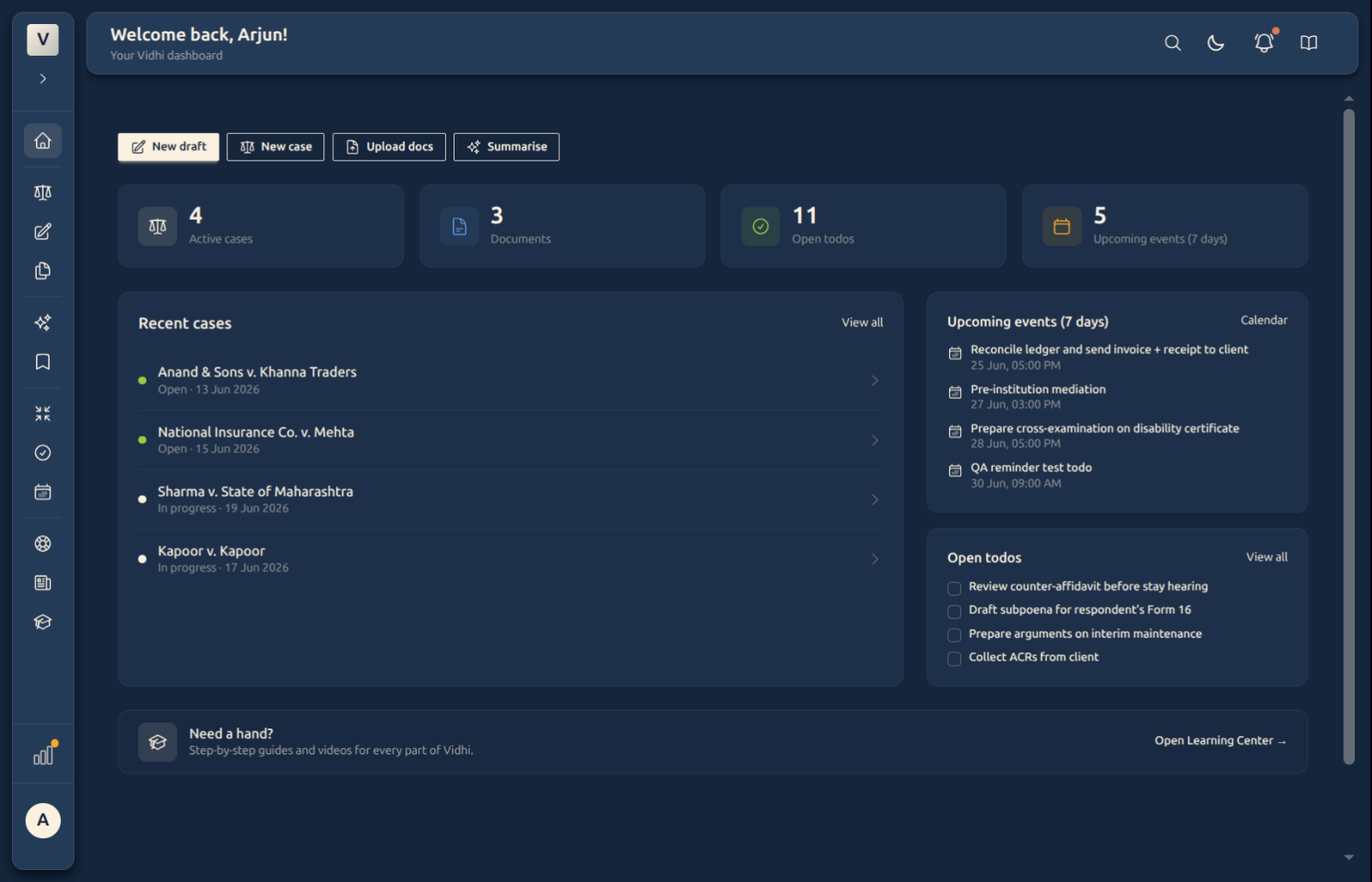
The Dashboard is the first thing you see when you sign in — think of it as your morning briefing. At a glance it tells you how much is on your plate (active cases, documents, open todos, and upcoming events), shows your most recent cases, your upcoming hearings, and the todos waiting for you — and gives you one-click buttons to start a new draft, open a case, upload documents, or summarise, plus a shortcut to the Learning Center whenever you need help.
You don’t do work on the Dashboard so much as launch into it. Every number and row is a doorway: click it and you land on the full page behind it.
Video Walkthrough
How to use it (step by step)
-
Read the quick stats. Four cards across the top give you the headline numbers — Active cases, Documents, Open todos, and Upcoming events (7 days). These are live counts of your whole workspace, not just what fits on the screen, so the number is always the real total. Click any card to open that full list.
-
Use the quick actions. The row of buttons — New draft, New case, Upload docs, Summarise — are shortcuts to the things you do most, and each one lands you ready to go: Priya clicks New draft and the document creator opens straight away, or Upload docs and the upload box is already waiting — no hunting through the sidebar. (To search, use the search box in the top bar, which looks across your whole workspace.)
-
Scan your recent cases. The Recent cases panel lists the matters you’ve touched most recently, each with a small coloured dot for its status (open, in progress, on hold, closed). Click any case to jump straight into it, or View all to see your full case list.
-
Check what’s coming up. The Upcoming events (7 days) panel shows your next hearings and calendar entries, each with its date and time in your own timezone. If Rohan has an “Arguments — interim maintenance” hearing on Wednesday, it shows here so it doesn’t slip past.
-
Clear your todos. The Open todos panel lists tasks still to do, soonest first, with overdue ones flagged in red. Tick them off on the Todos page, or click View all to see everything.
Good to know
💡 Tip: The four stat cards are the fastest way to navigate — instead of reaching for the sidebar, just click the number that’s on your mind. The Open todos card takes you straight to your task list; Upcoming events opens your calendar.
Note: Event times are shown in your timezone (the one set in Settings → Profile), so the hearing time on the Dashboard matches what you see in the Calendar. If a time looks off, check your profile timezone.
✅ Documents vs Drafts. The Documents card counts the files you’ve uploaded to your library (PDFs, scans, statutes). The documents you’re writing in the editor live under Drafts — a separate place. So a smaller “Documents” number doesn’t mean work has gone missing; your drafts are simply counted on the Drafts page.
🔄 It’s always current. Every count and list refreshes from your live workspace each time the Dashboard loads, so what you see reflects exactly where things stand right now.
Finding help
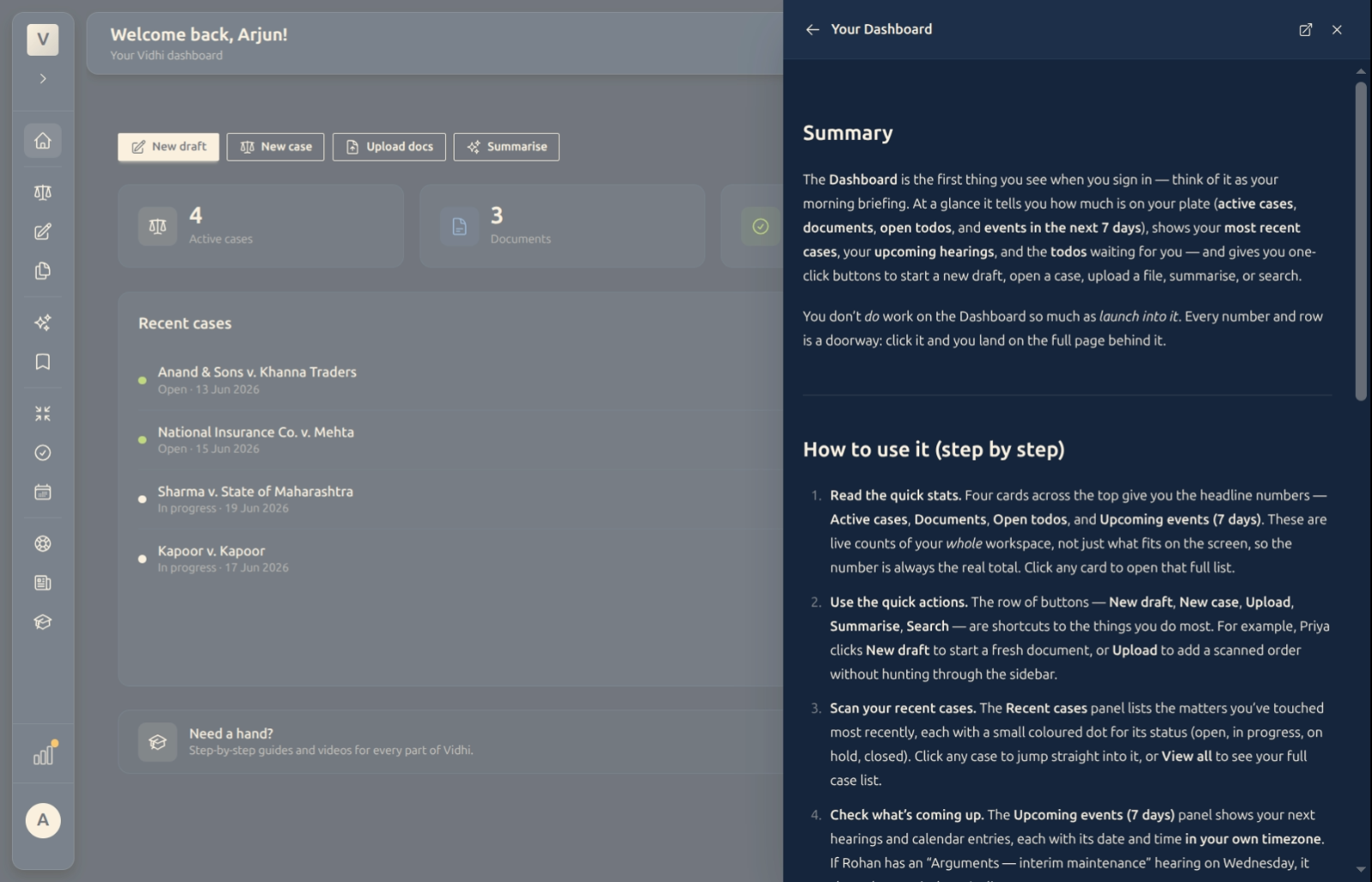
The Dashboard doubles as your help home. The book icon in the top bar opens the Help drawer for whatever page you’re on — on the Dashboard it shows the getting-started guides, so a new joiner like Vikram can orient himself without leaving the page. For the full library, the Need a hand? strip at the bottom opens the Learning Center — every guide, with screenshots and short videos.
FAQ
Why does the Dashboard look different for me than for a colleague?
It adapts to where you are. A brand-new user sees a welcome layout with sample content and getting-started shortcuts; once Aditi has cases and files of her own, it switches to the working view with her real stats, recent cases, and hearings.
The “Documents” card says a different number than I expected — why?
That card counts uploaded files in your library, not editor drafts. If Kabir has three uploaded PDFs but eleven drafts in progress, the card shows 3 — his drafts are counted on the Drafts page instead.
What does “Upcoming events (7 days)” count?
Every calendar event — hearings, meetings, reminders — scheduled between now and seven days from now. It’s a rolling window, so it always means “the next week from today.”
Are the hearing times correct for my city?
Yes. Times are converted to the timezone in your profile, so they match your Calendar and your actual court times. Meera in Mumbai and a colleague abroad each see the same hearing in their own local time.
Can I do work directly on the Dashboard?
The Dashboard is a launchpad, not a workspace. Use the quick-action buttons and the clickable cards to jump to the right page — drafting, cases, todos, or calendar — and do the work there.
See Also
- Getting Started — a tour of the whole platform and the sidebar.
- My Documents — your uploaded-files library.
- Drafting — Getting Started — write new documents in the editor.
- Todos and Calendar — manage tasks and hearings in full.