Reading a single summary
Deep-view of one finished summary — switch length, rewrite in a different style, see version history, share, or open in the editor.
What This Does
This guide covers the single-summary view and its actions — the same set of result tabs you’d see right after creating one, but with two extras: a version history of every rewrite you’ve done on this document, and a share action that produces a public read-only link your client can open without a Vidhi account.
For the broader summariser experience — how to create a new summary, what each results tab shows, and the input methods (text / file) — see Document Summariser. To browse and manage every summary you’ve made, see Your summary history.
Step-by-Step Guide
Video Walkthrough
What you see on this page
Three things, top to bottom:
- Action toolbar — Copy / Export / Share / Print / Editor / Re-summarise / Rewrite. Same actions as on a fresh summary, plus an “Open editor” shortcut that hands the summary to the document editor for turning into a draft brief.
- Version history sidebar — every rewrite and re-summarisation is kept. Click any version to view it; the URL deep-links so you can share a specific version. The default view is always the latest.
- Result tabs — Summary / Key Points / Entities / Q&A / Action Items / Sections / Original. Detailed coverage of what each shows is in the main summariser guide.
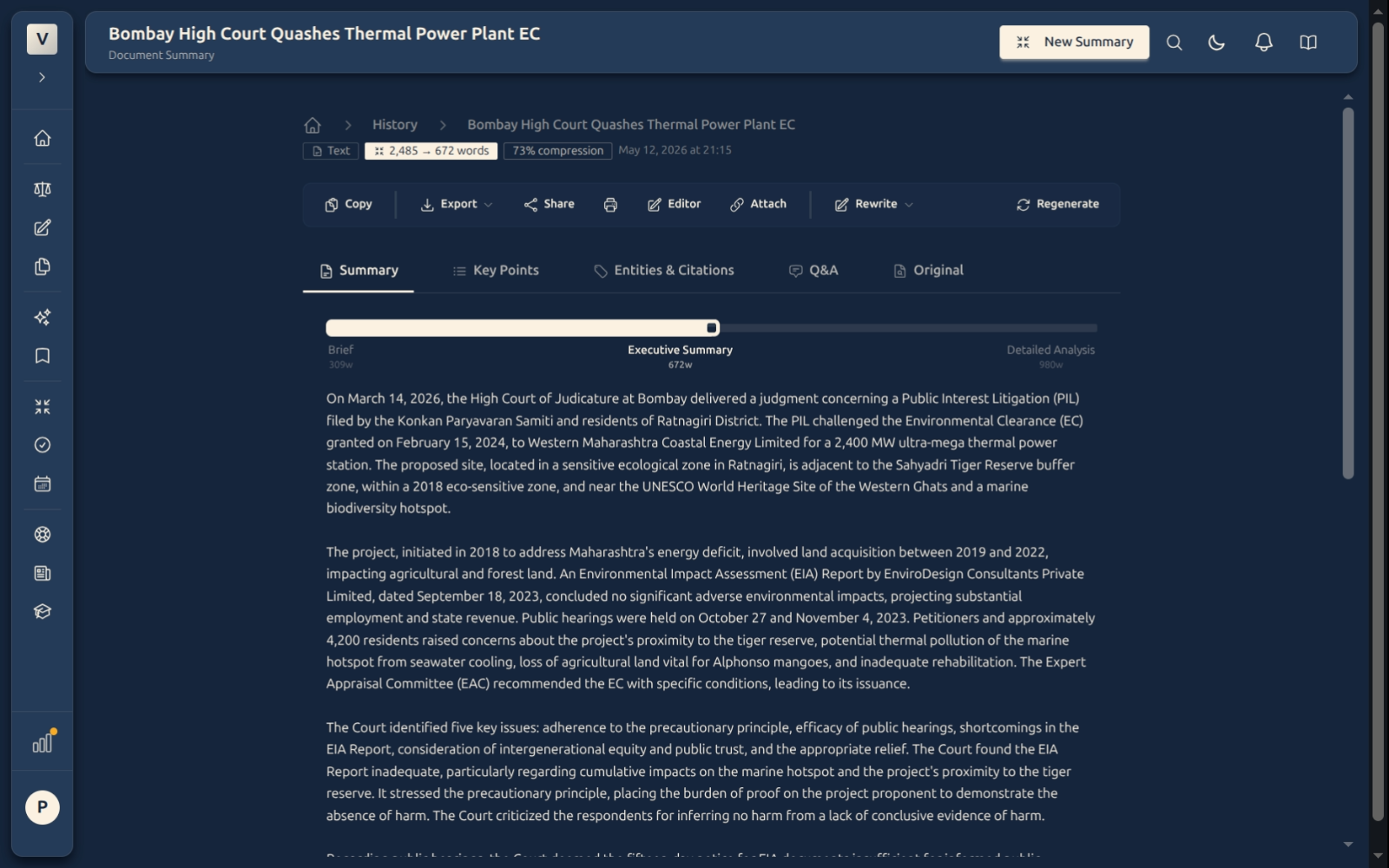
The Summary tab is what opens by default — a prose digest of the document with a slider at the bottom to switch between shorter and longer versions without re-running the AI.
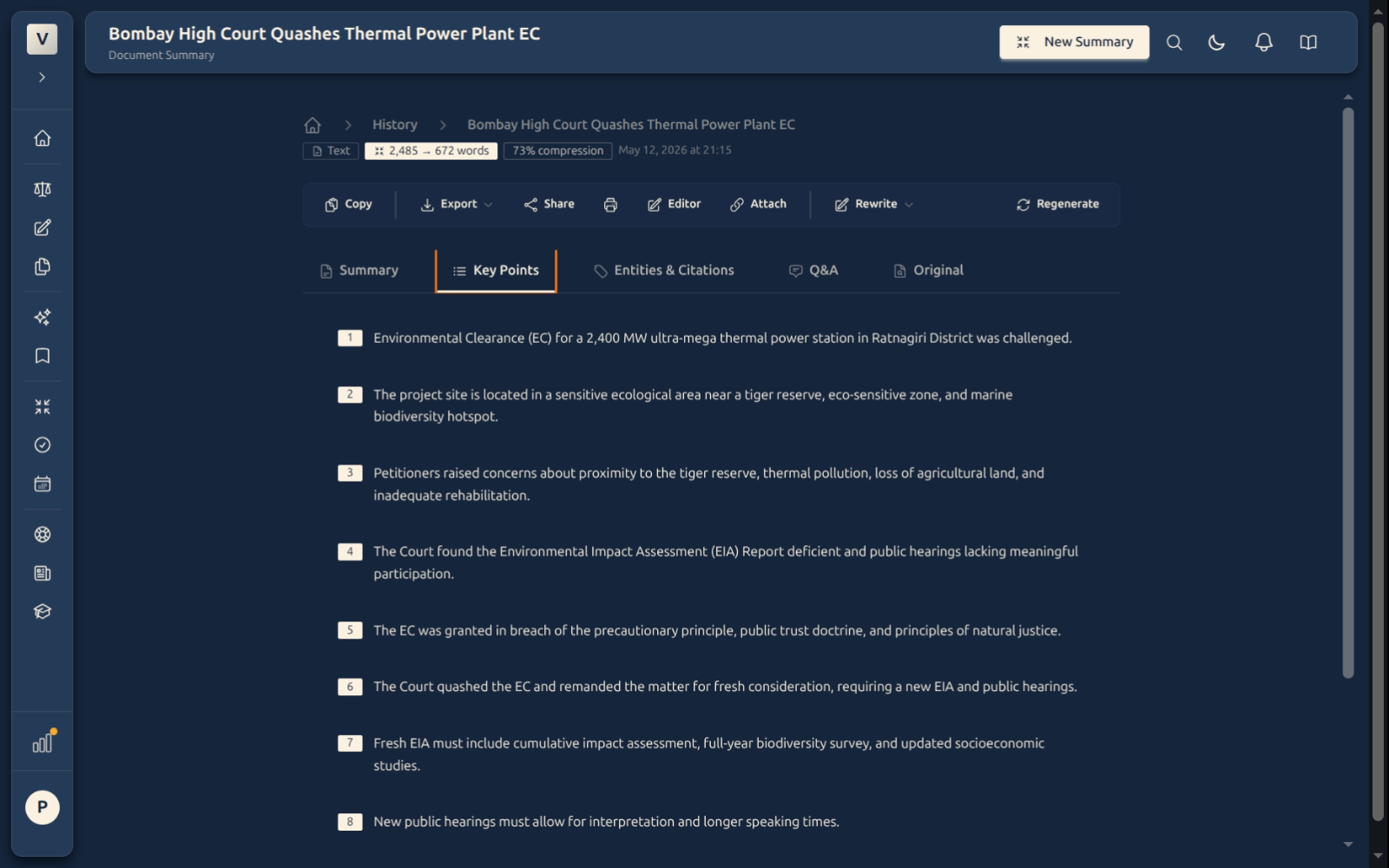
Key Points distils the document to a handful of forwardable bullets — useful when a client wants the upshot and not the full essay.
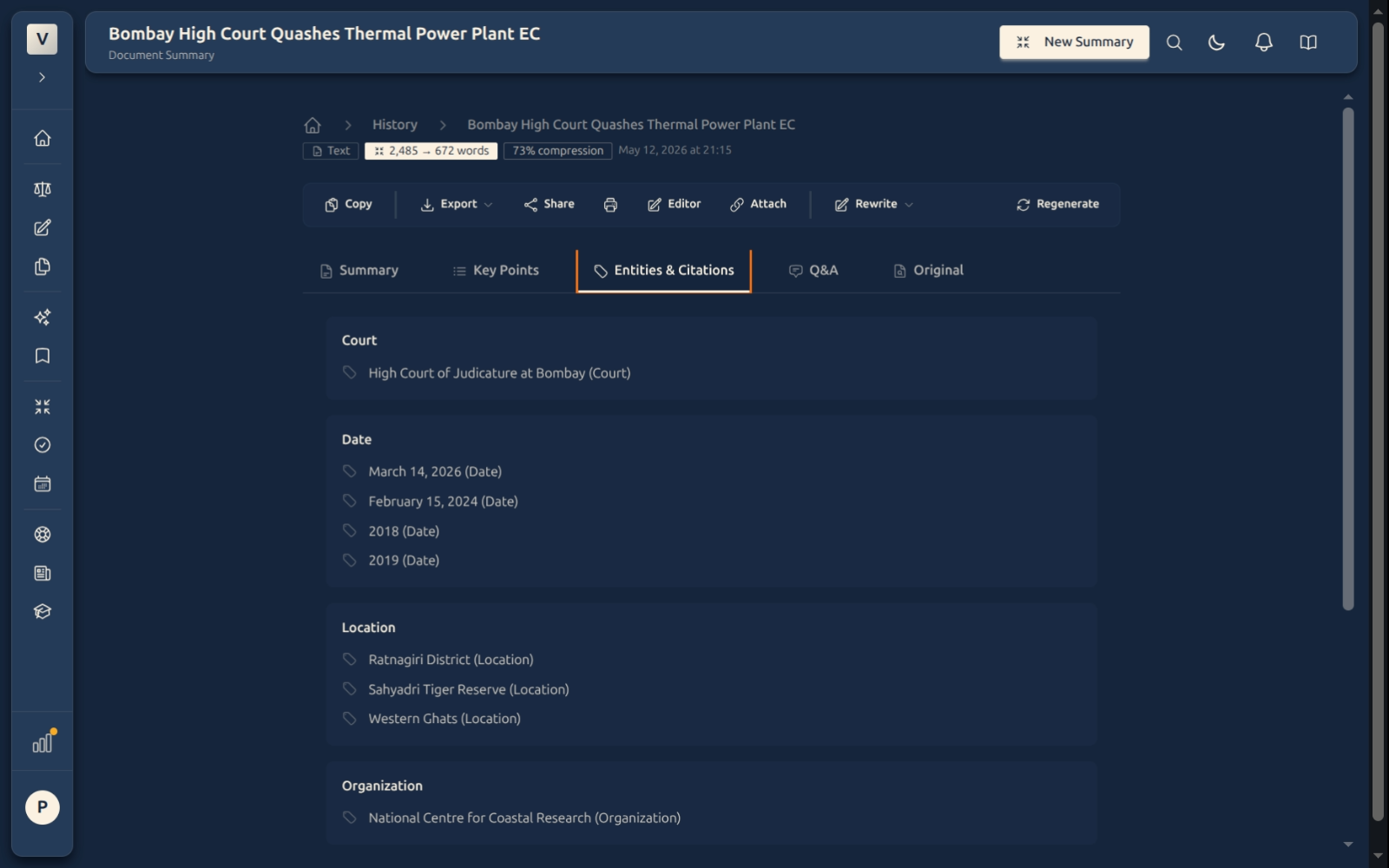
Entities & Citations is the lift-and-paste section: every party, court, statute, citation, and key date, grouped — drop the citation block straight into your brief.
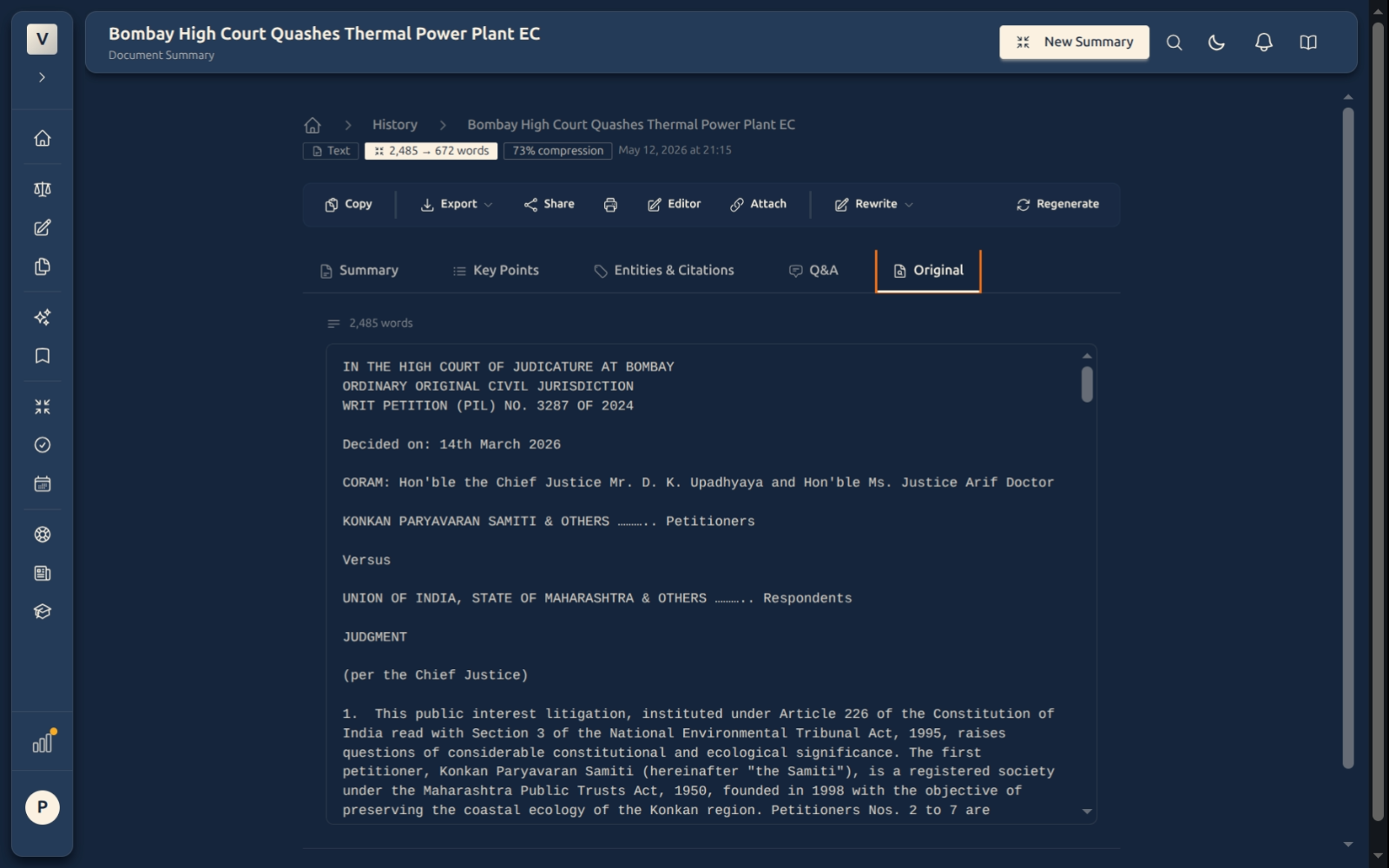
The Original tab keeps the raw extracted source one click away, so you can verify any line in the summary against the underlying document before relying on it.
Rewrite for a different tone
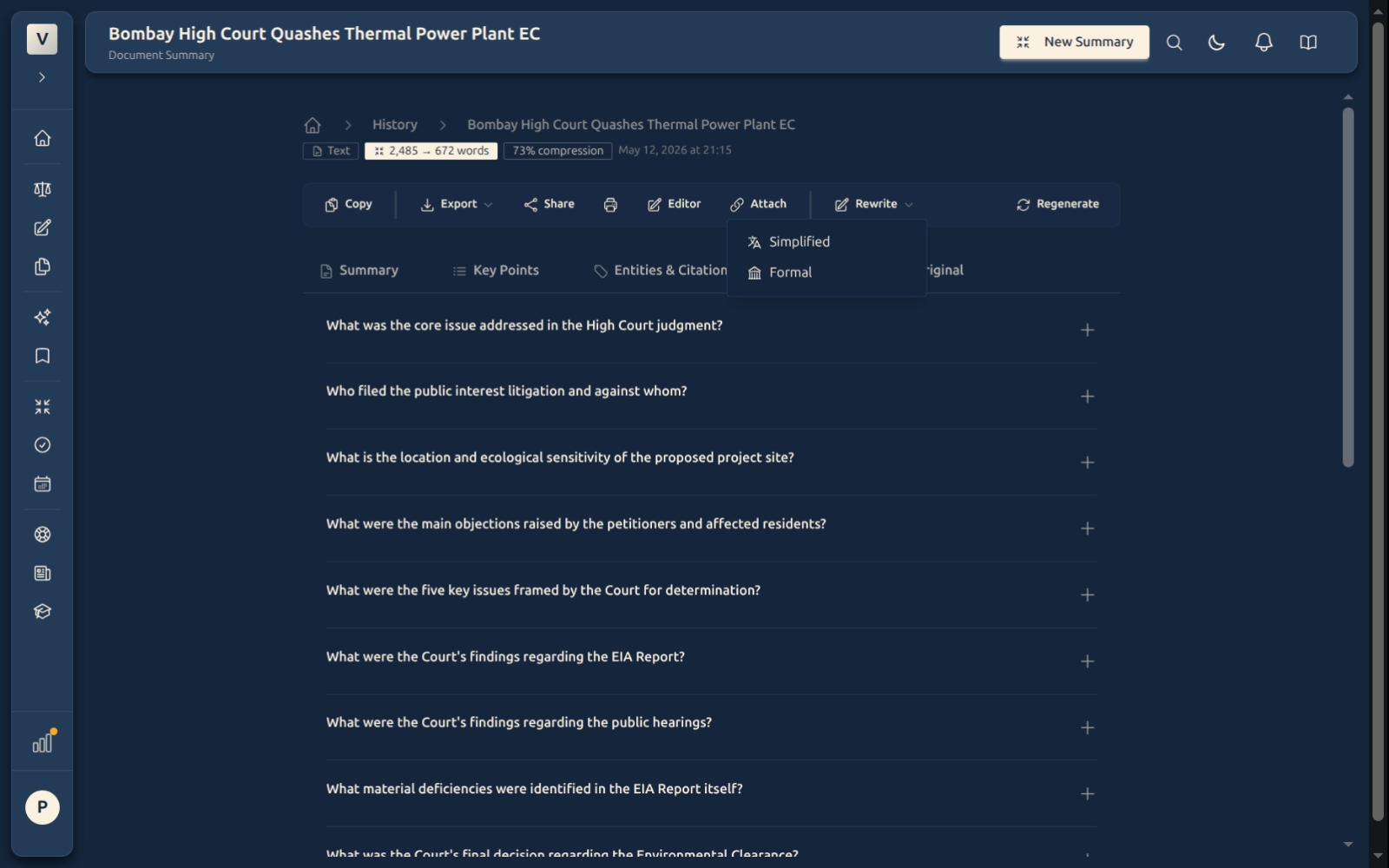
Click Rewrite and pick a tone — plainer prose for a client, more formal prose for a filing. The rewritten copy is saved as a new version alongside the original, so neither replaces the other.
Version history
When you click Rewrite or Re-summarise, the original isn’t replaced — a new version is created and linked back. The sidebar lists them with a timestamp, the rewrite style used (or “Original”), and a quick word-count delta.
- Earlier versions stay available until you delete the summary from the history page, subject to current product limits.
- Each version has its own share link, so you can share a client-friendly rewrite without exposing the original working copy.
- Word counts and AI costs are tracked per version; the totals you see in Settings → Usage roll up across all versions.
Sharing this summary
- Click Share in the action toolbar.
- A modal appears with a URL — that’s the read-only public link. Anyone with the link can read but not modify, share, or export the underlying source.
- Copy the URL and paste it into your email / WhatsApp / Slack. Recipients see a clean Vidhi-branded reader; no login required.
- To stop the link working, revoke it from the Shared Links tab in Settings. The link returns a “no longer available” page after that — no data is sent.
Opening in the editor
Click Editor at the top right. The summary opens in Vidhi’s document editor with the prose as the starting point. From there you can mark up, add headings, and turn the summary into a draft pleading or brief — the editor saves to your Documents and connects back to this summary via a backlink.
FAQ
If I rewrite, do I lose the original summary?
No. Every rewrite creates a new version. The original sits in the sidebar and is one click away. Versions count within your current summary/storage limits.
Can I edit the summary directly on this page?
This page is read-only. To edit, click Editor at the top right, which opens the summary in the document editor.
The summary says something wrong. How do I correct it?
Either re-summarise from scratch (with the original source) to give the AI another go, or open the editor and correct it manually. For one-line corrections the editor is faster.
How this fits with the other Summariser pages
Where this summary came from — the main Summariser page
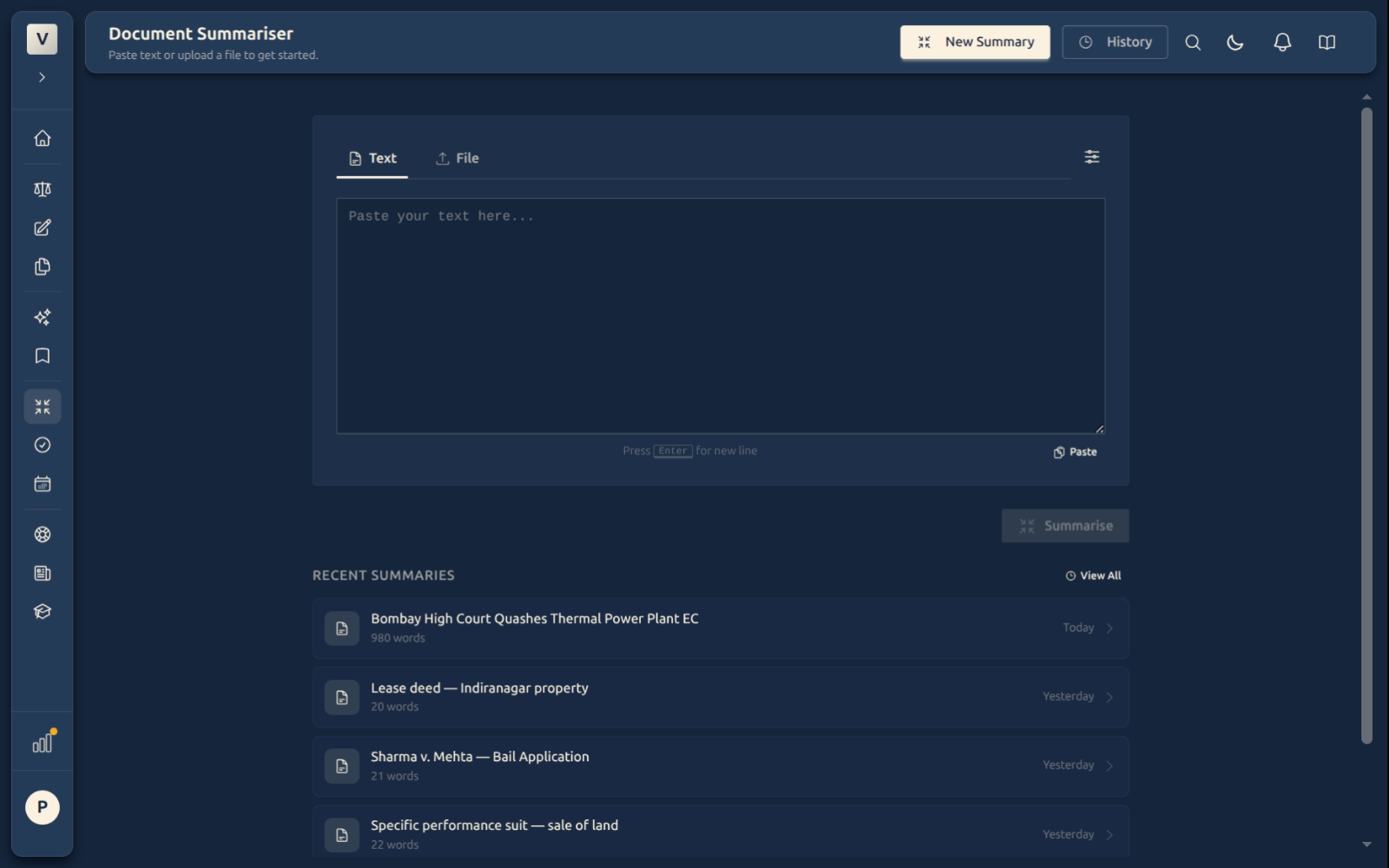
Every summary you read here was created on the main Summariser page — paste text or upload a file, click Summarise, and the AI fills in the prose, key points, entities, and (where applicable) Q&A or action items you see across these tabs. To create another one, head back there.
Where all your summaries live — the history page
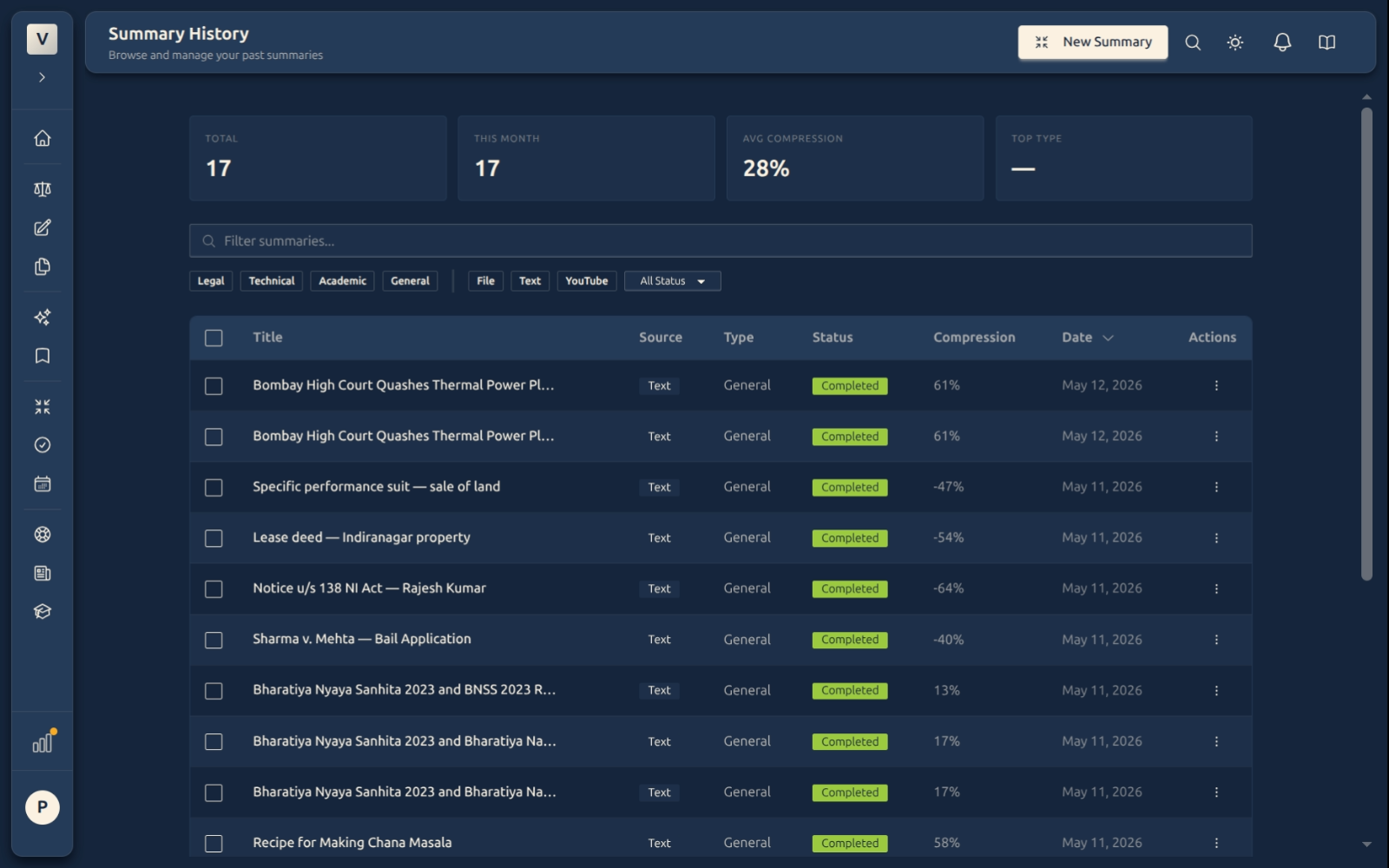
This deep-view shows one summary; to browse, search, filter by status, or bulk-delete across all summaries in your history, open Your summary history. Each row in the history opens this same deep-view.