Settings
Customize your Vidhi platform experience, manage account preferences, monitor usage, and configure notifications.
Overview
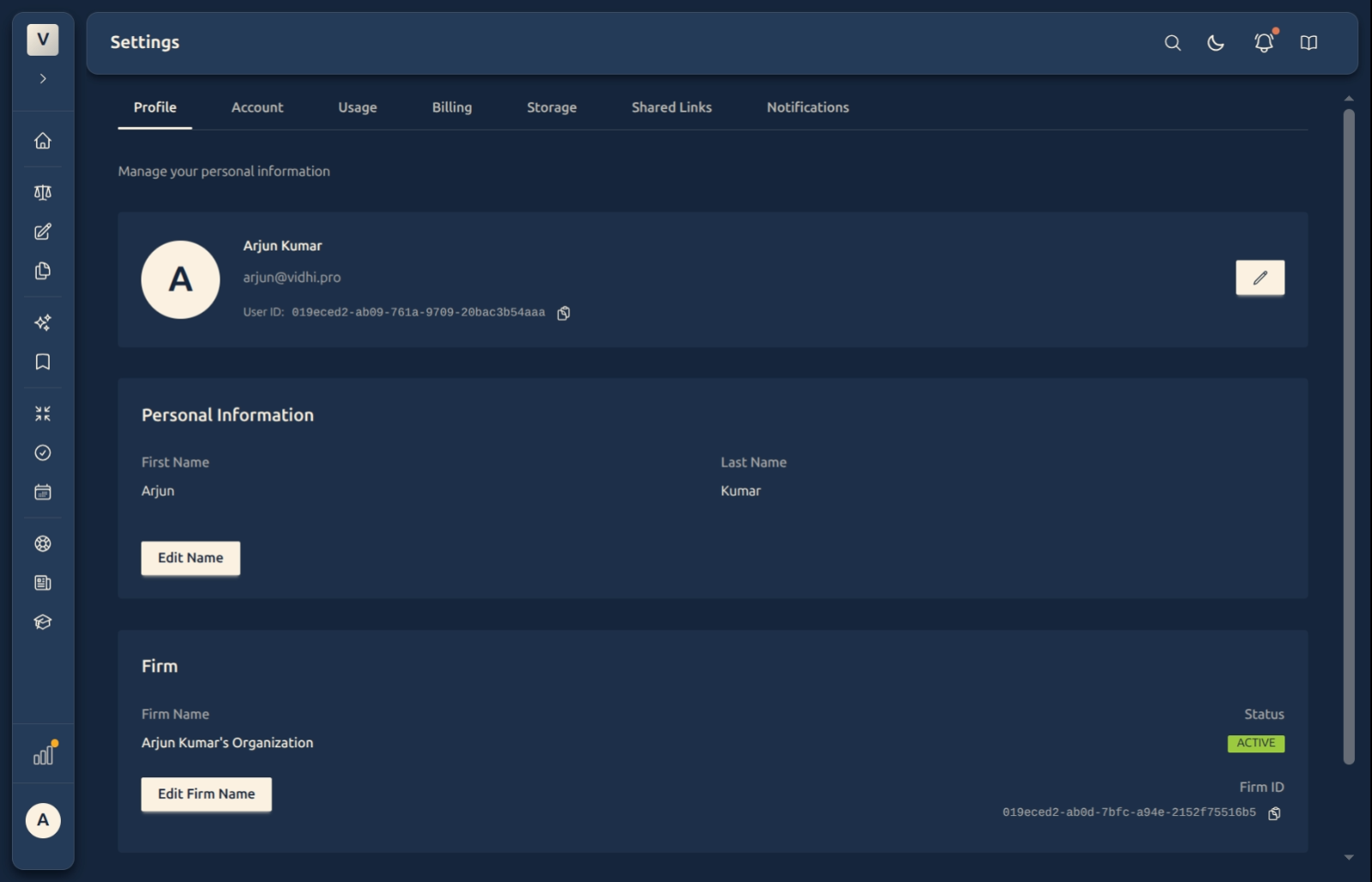
Settings is where you manage your account and tailor Vidhi to how you work — your profile, account security, usage, billing, storage, shared links, and notifications. Everything lives under one tabbed page, and each tab has its own focused guide.
Video Walkthrough
What You’ll Learn
- What each Settings tab does
- Where to go for each account task
- Which dedicated guide covers each tab in detail
Getting Started
Click Settings in the sidebar. The page opens on a set of tabs along the top. Pick a tab to jump to that area — or use the guide links below to read about each one.
The Settings tabs
Each tab has a dedicated guide with step-by-step detail:
- Profile — your name, professional details, country, and timezone. This information appears across the platform and sets your jurisdiction and scheduling context.
- Account — change your password, update your login email, and delete your account. Account deletion is permanent, with a grace period to restore via support.
- Usage — see how much you’ve used against your plan this period.
- Billing — your current plan, billing cycle, invoices, and upgrade options.
- Storage — how much of your storage quota is used, your file count, and a shortcut to manage files. The exact quota is always shown on the Storage card.
- Shared Links — review and revoke the read-only links you’ve created for documents and summaries.
- Notifications — choose which categories of email you receive. Security email is always on.
Team settings appear as an extra tab only if your account belongs to an organisation. If you don’t see a Team tab, your account isn’t part of a team.
FAQ
How do I change my password or email?
Both live on the Account tab. Password changes take effect immediately; email changes are confirmed before they apply.
Where do I check how much storage I’ve used?
On the Storage tab — it shows used space, remaining space, and your file count. A storage meter also appears in the sidebar once you cross 50% usage.
How do I stop certain emails?
Open the Notifications tab and turn off the categories you don’t want. Security email can’t be switched off.
Do settings changes apply right away?
Yes — profile, notification, and account changes take effect immediately across the platform.
Getting Help
- Open the dedicated guide for the tab you’re working in (linked above).
- Contact Support for anything a guide doesn’t cover.