Shared Links
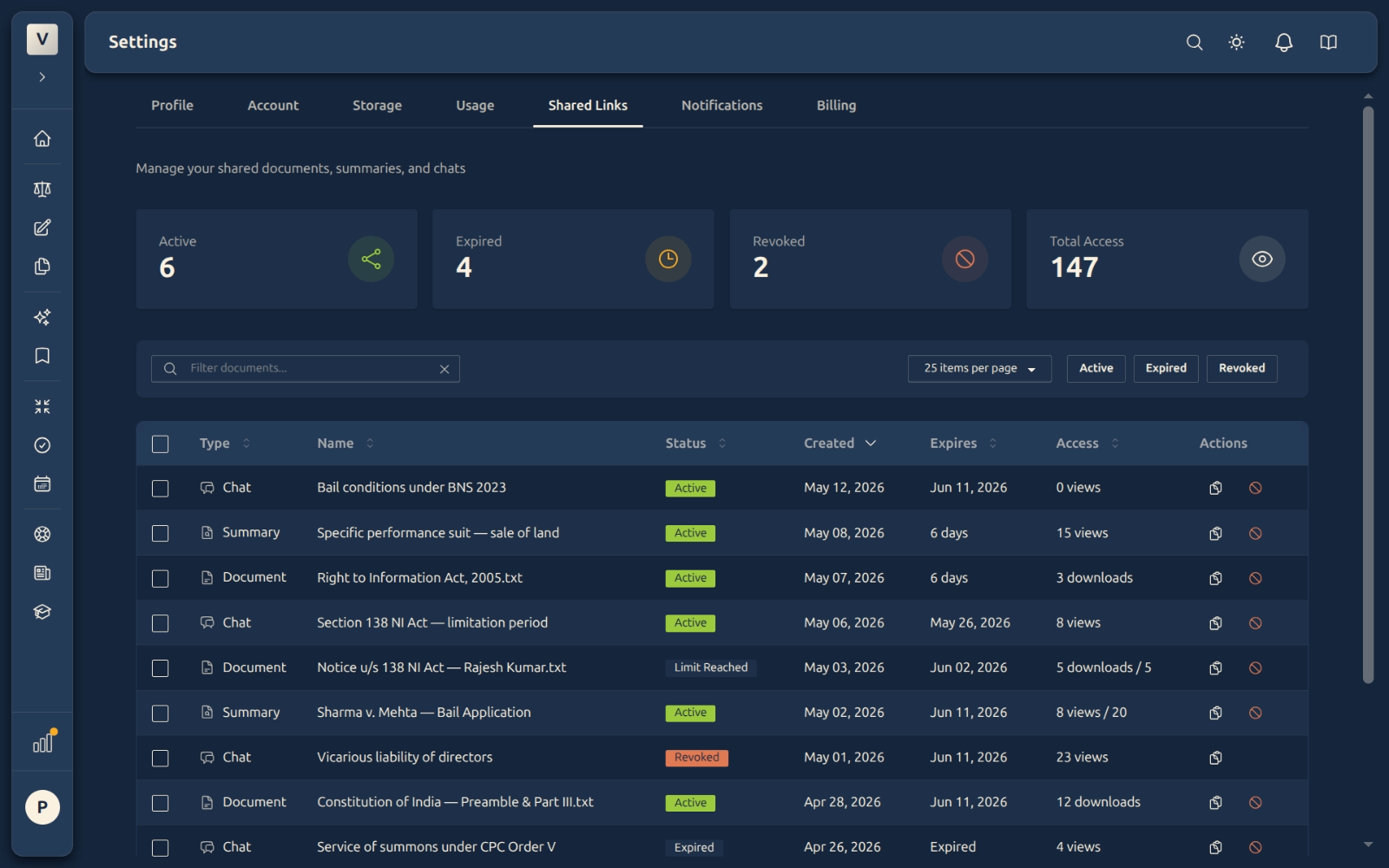
Manage every link you've shared — documents, chats, summaries, transcriptions — from one place. Search, filter by status, see who's accessed what, and revoke any link in one click.
What This Does
Every time you share a document, chat thread, summary, or transcription, a short-lived link is created. The Shared Links tab brings them all together so you can see — at a glance — which links are still working, which have expired, which you’ve revoked, and how often each one has been opened. You can copy a link again, revoke it instantly, or filter the list by status to find the one you care about.
Video Walkthrough
Section 1 — Status at a glance
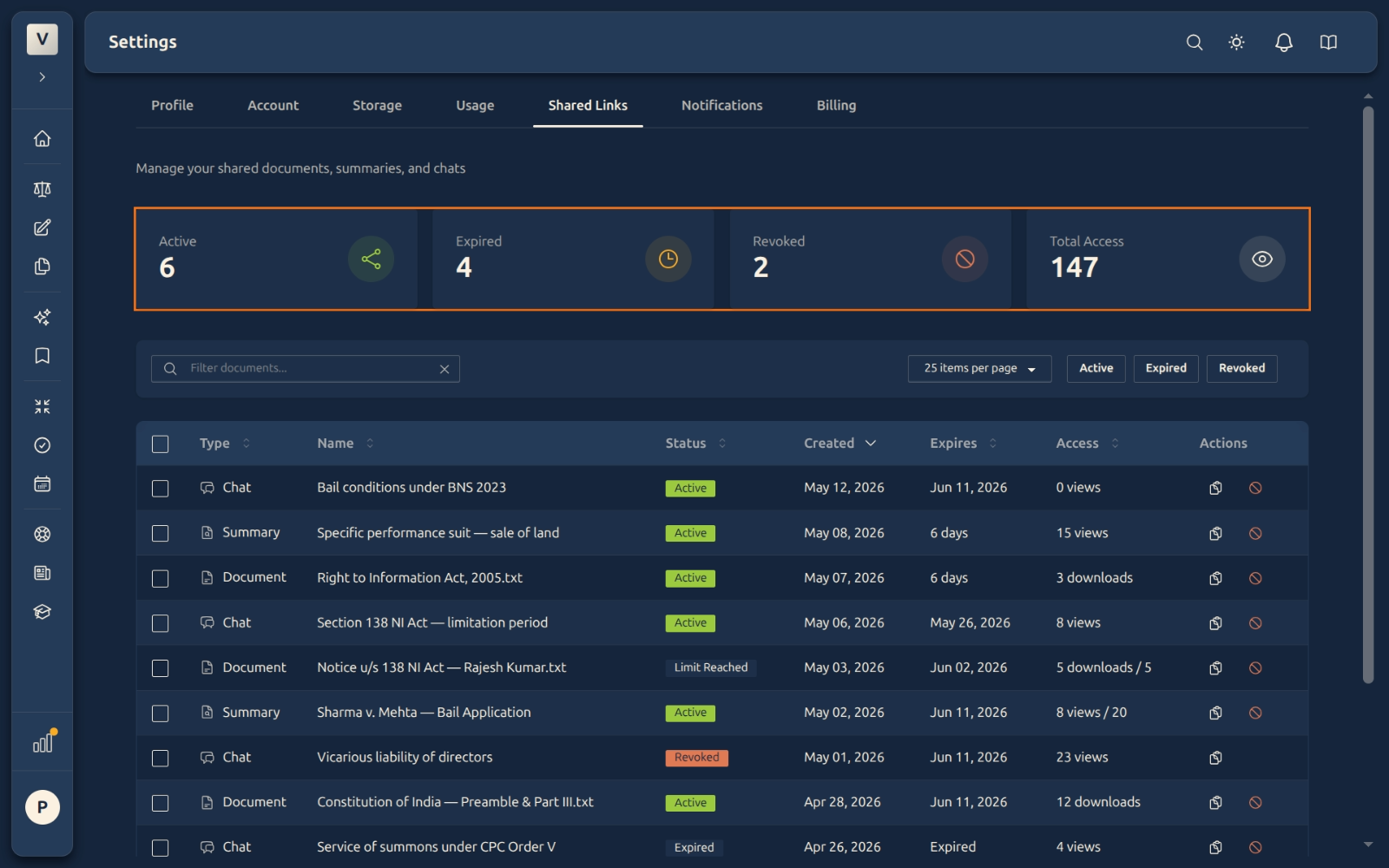
Four cards across the top of the page count your share activity in real time:
- Active — links that still work right now (not revoked, not past expiry, not download/view-limit reached).
- Expired — links that aged past their expiry date, or hit their access limit. They still appear in your log; they just no longer open.
- Revoked — links you cancelled manually with the revoke button. Once revoked, they cannot be reactivated; create a new share instead.
- Total Access — the running total of how many times your shared content has been opened across every active and expired link. A quick health-check for “how much is my shared material being read.”
Section 2 — Searching and filtering
Just below the stats, the toolbar gives you three ways to narrow down a large list of shares:
- Search by name — type any part of the shared item’s name (e.g. “Lease deed” or “Bail Application”). The table filters live as you type. Click the × inside the field to clear.
- Items per page — pick 10, 25, 50, or 100 rows per page from the dropdown.
- Status chips — three toggle chips: Active, Expired, Revoked. Click one to see only that status. Click more than one to combine — e.g. Active + Expired shows everything that isn’t revoked. Click an active chip again to deselect.
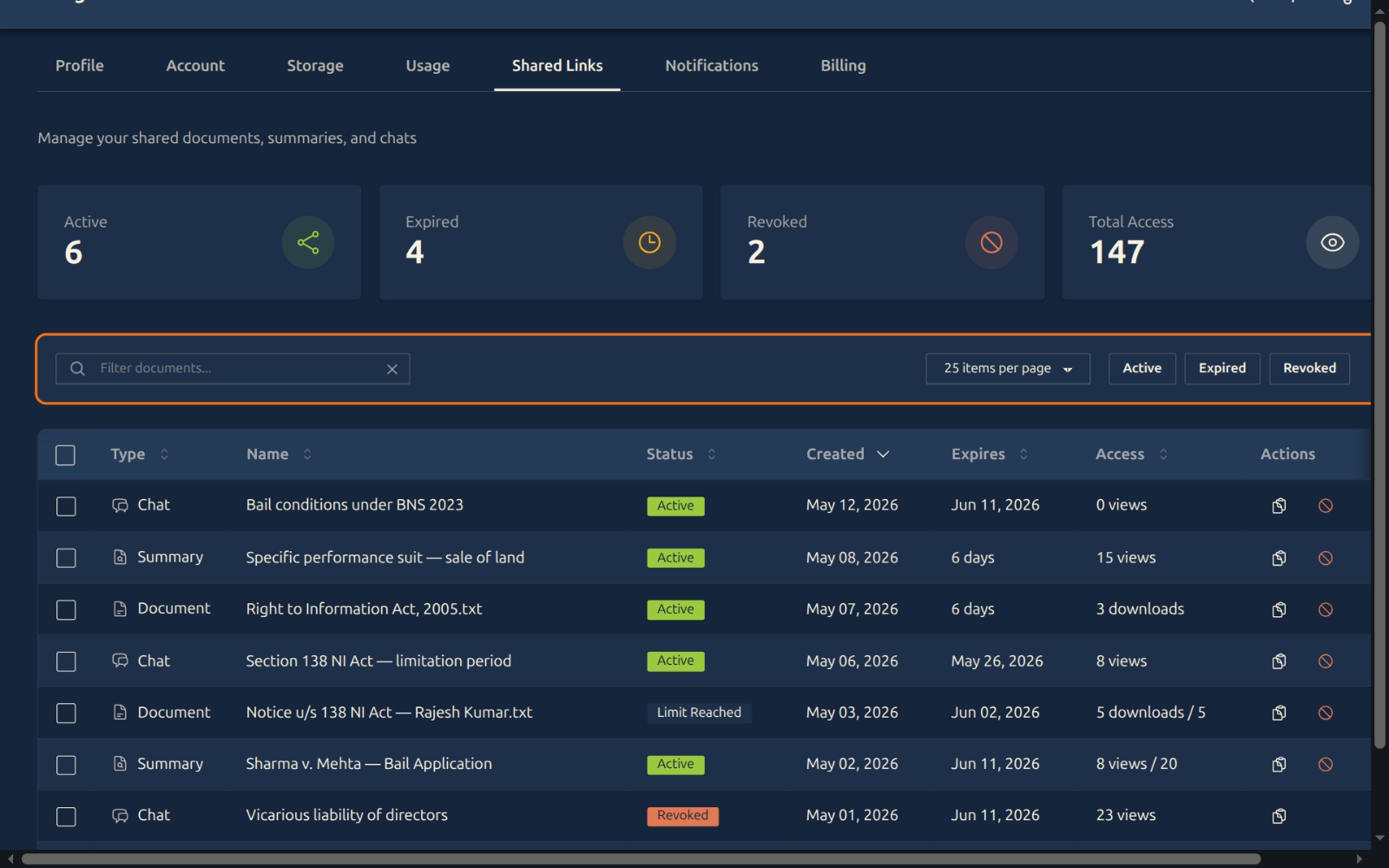
Searching and filtering are stackable. You can be searching for “Indiranagar” AND filtering to Active only, and the results respect both at once.
Section 3 — Reading the table
Every row is one share. Seven columns tell you everything:
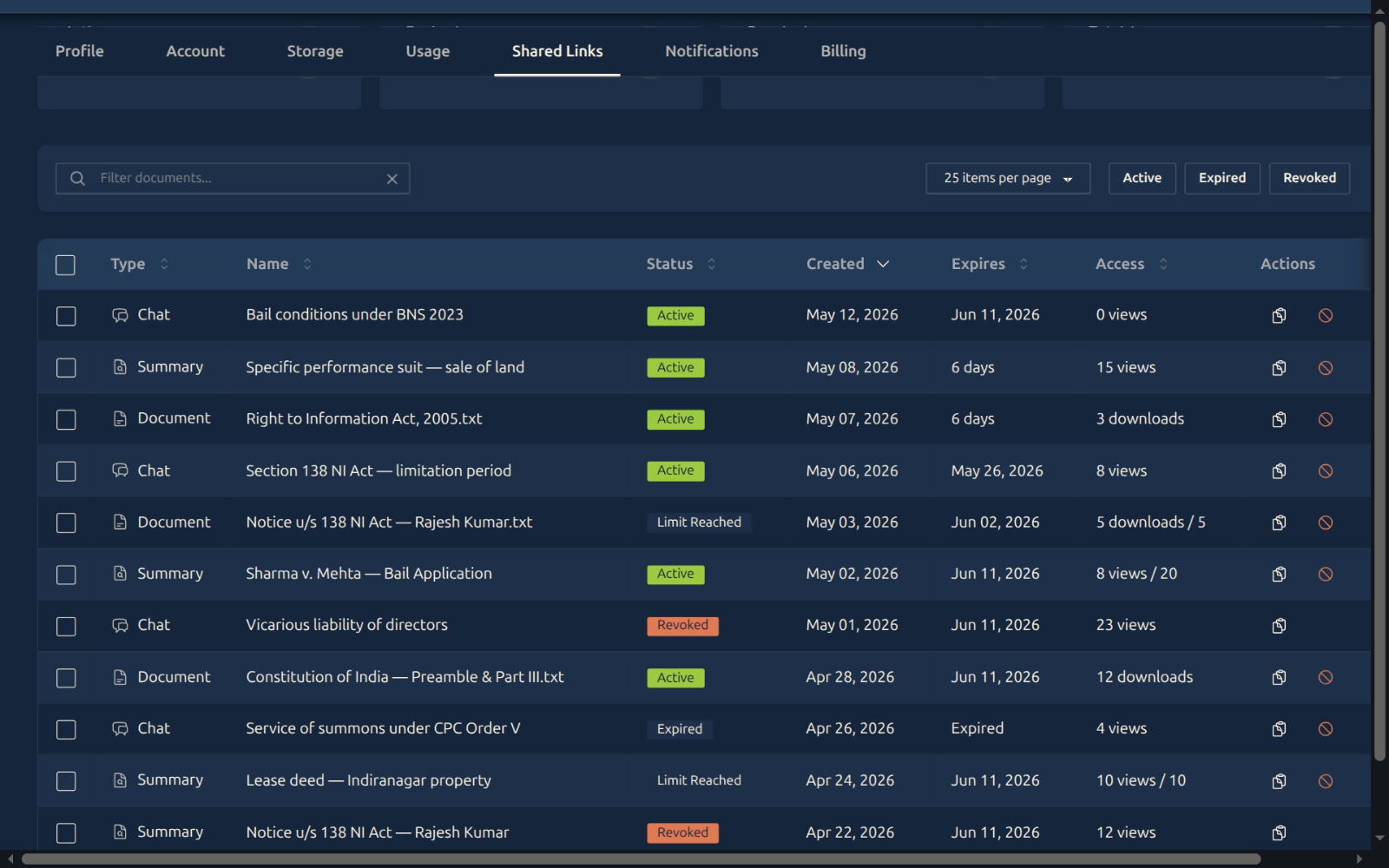
- Type — what kind of thing was shared. Four types: Document (an uploaded file), Chat (a conversation thread), Summary (an AI-generated summary), or Transcription (an audio-to-text). Each has a distinct icon.
- Name — the title of the shared item. Clicking the name opens the original in a new tab, when it still exists. If the underlying item was deleted, this column reads “Chat deleted” or similar.
- Status — a coloured badge: Active (green), Expired (gray), Limit Reached (gray, distinct from expired — it means you hit the max download/view count), or Revoked (red).
- Created — the date you generated the share.
- Expires — when the link will stop working. Reads as a calendar date for far-future expiries, or
6 days/Tomorrow/Todayas it gets close, orExpiredonce past. - Access — how many times the link has been opened. For documents this is
12 downloads; for chats/summaries/transcriptions it’s8 views. If you set a maximum (e.g. max 20 views), this column reads8 views / 20. - Actions — see Section 4.
Sorting
Every column header has a small arrow. Click any header to sort by that column; click again to flip ascending ↔ descending. Default sort is Created, newest first.
Pagination
The table shows up to your selected page size; if you have more shares than that, page controls appear at the bottom. The total count is shown at the top of the section so you know how many shares the current filter is matching.
Section 4 — Copying and revoking links
The last column gives you two icon buttons on every active row:
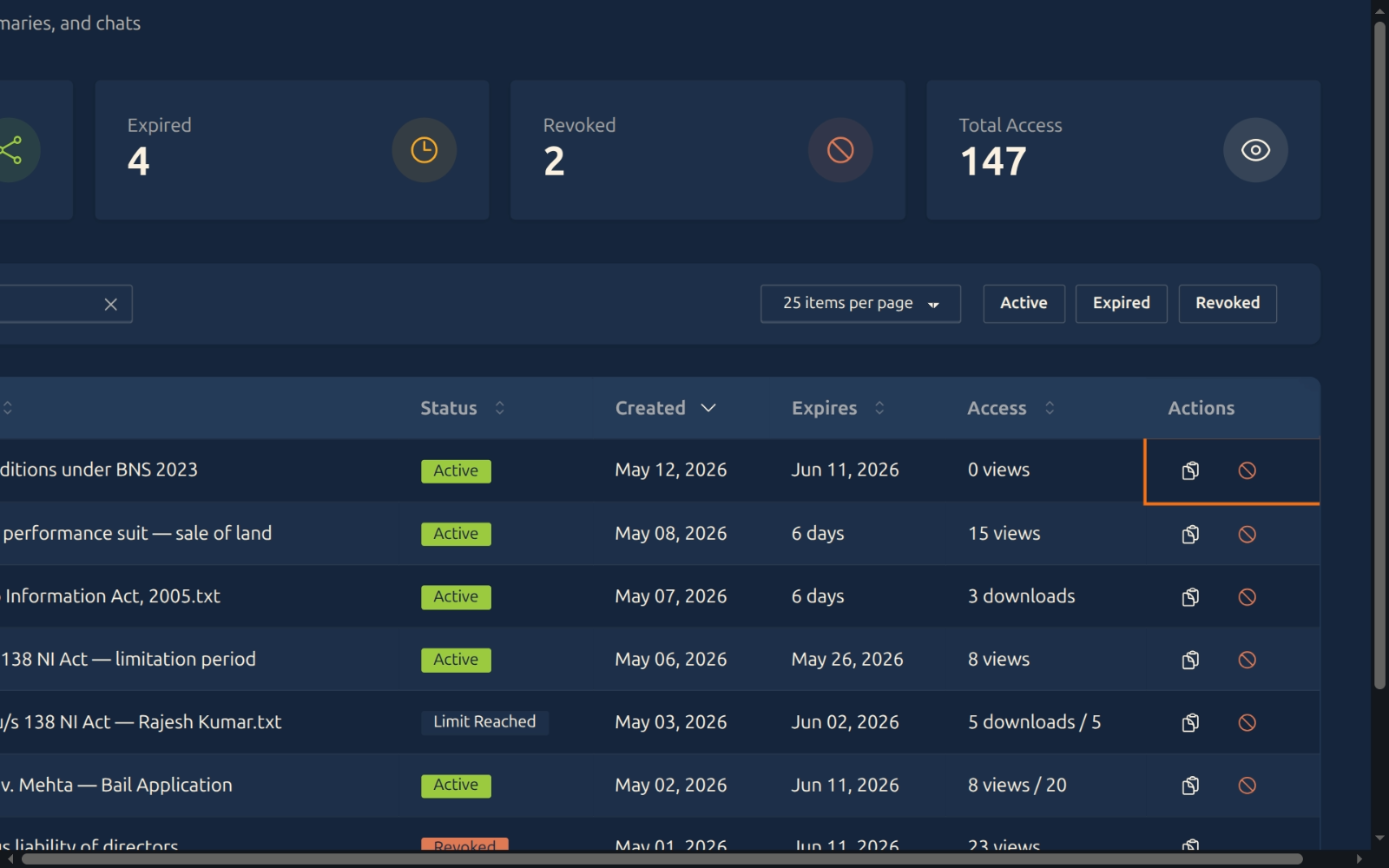
- Copy (clipboard icon) — copies the share link to your clipboard, ready to paste into an email, WhatsApp, or anywhere else. A toast confirms the copy.
- Revoke (slash-circle icon) — instantly disables the link. Anyone who tries to open it after revoke sees “This link has been revoked.” Revoke is irreversible — once you revoke, the row’s status flips to Revoked and the link is dead. To re-share the same item, open the original document/chat/summary and create a fresh share.
Revoked rows lose the Revoke button (since there’s nothing left to revoke), but the Copy button stays — useful if you want to check what the URL was, even if it no longer opens.
Bulk revoke
The checkbox at the start of each row lets you select multiple links and revoke them in one click using the toolbar that appears once anything is selected.
Section 5 — Creating a new share
You don’t create shares from this tab; you create them from the source — the document page, the chat thread, or the summary page. Look for the Share button (sometimes hidden under a 3-dot “more actions” menu).
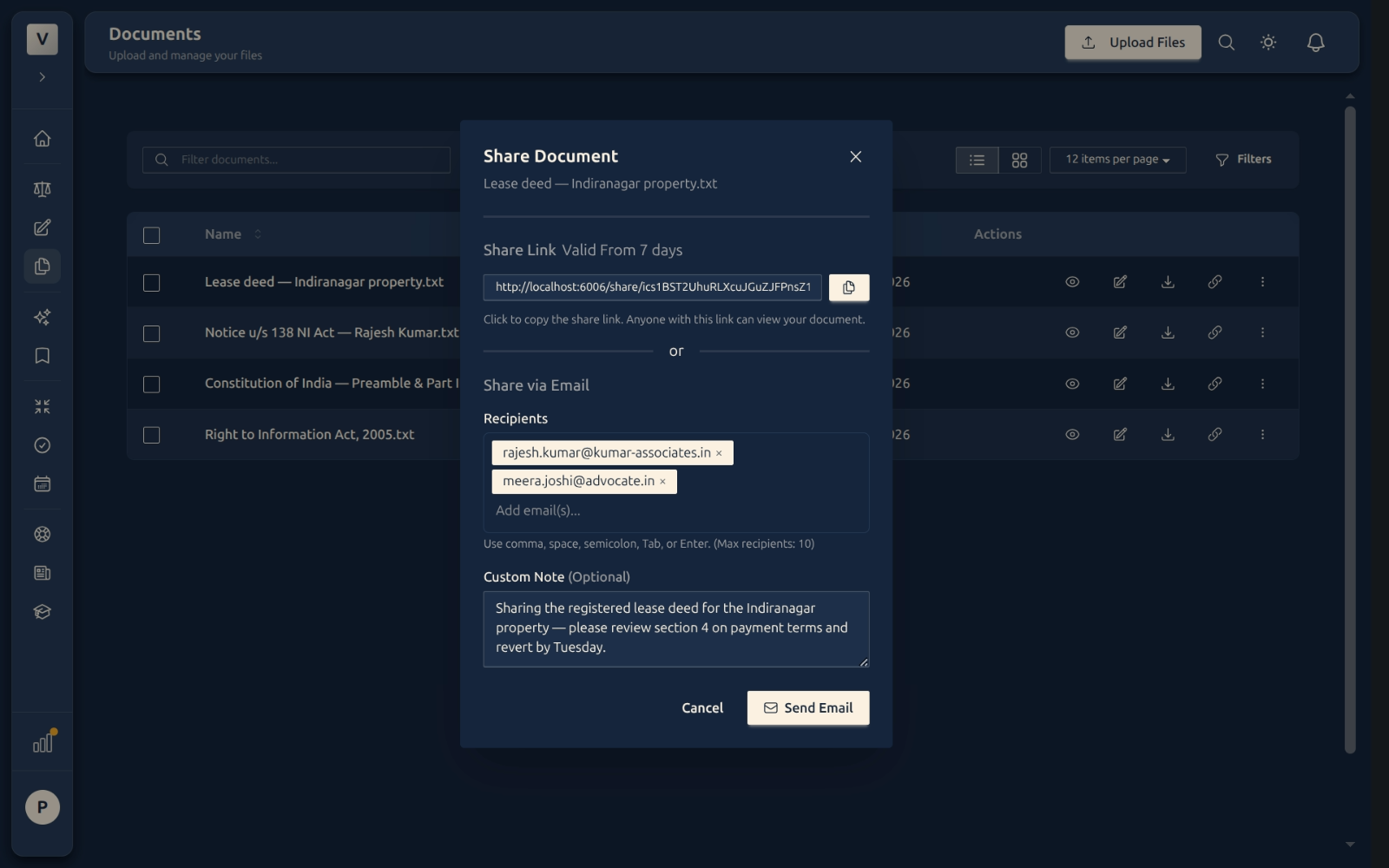
The Share dialog gives you:
- Share Link — a ready-to-copy link that’s valid for 7 days by default. Click the clipboard icon to copy it.
- Share via Email — type one or more recipient addresses (use commas, spaces, or Tab to add multiple). Add an optional Custom Note that goes into the email body. Click Send Email and we deliver the link straight to those inboxes.
- Social shortcuts — quick buttons to send the link via WhatsApp, X (Twitter), LinkedIn, Telegram, or Facebook for things you want to share publicly.
Every share you create from anywhere in the app shows up on this page within a few seconds, so you can always come back here and revoke it if needed.
FAQ
How long do shared links last?
Seven days by default. The Expires column shows the exact date for each link. There is no automatic renewal — once a link expires it stays expired; to re-share, open the original item and create a fresh share.
Can I extend a link that’s about to expire?
Not directly. You can revoke the old one and create a new share with a new 7-day window. The new link will have a fresh URL.
What happens if I revoke a link by mistake?
Revoke is irreversible — the link itself can never be reactivated. But the underlying document, chat, or summary is untouched. Go back to it and create a new share.
Why does one of my shares say “Limit Reached” instead of Expired?
Some shares have a download or view cap (e.g. “max 5 downloads”). When the cap is hit, the link stops working even if it hasn’t reached its expiry date yet. The badge says Limit Reached to distinguish that case from time-based expiry.
Does shared content count against my storage or AI quota?
No. Sharing a document or summary creates a public-but-tokenised URL — it doesn’t copy or re-generate the content, so it has no impact on your storage or AI usage meters.
Examples of when you’d open this tab:
- Advocate Priya Sharma sent a draft lease deed to a client last week and wants to revoke the link now that the matter is resolved.
- Advocate Arjun Mehta is curious how many times his client has actually opened the bail-application summary he shared — the Access column tells him at a glance.
- A senior partner notices an “Expired” row for an important note and wants to re-share the underlying summary with a fresh link.
See Also
- Storage & Files — manage the underlying documents you’ve uploaded and may want to share.
- Usage & AI Activity — see how much of your monthly AI quota you’ve spent.