Global Search
One search box for your whole workspace — find a case, a draft, an uploaded file, or a guide in seconds.
Summary
Global Search is the quickest way to find anything you’ve got — it looks across your whole workspace at once. Type a name, a number, a party, or a phrase into the search box in the top bar, and it pulls matching cases, drafts, uploaded documents, and even help guides into one list, with your search term highlighted.
It’s different from Legal Research: that searches the case-law library; Global Search searches your workspace — the matters and files you already have.
Video Walkthrough
How to use it (step by step)
-
Search from anywhere — Click the search icon in the top bar and type — a case number, a client’s name, a draft title, a phrase. Results appear instantly, and See all results opens the full page.
-
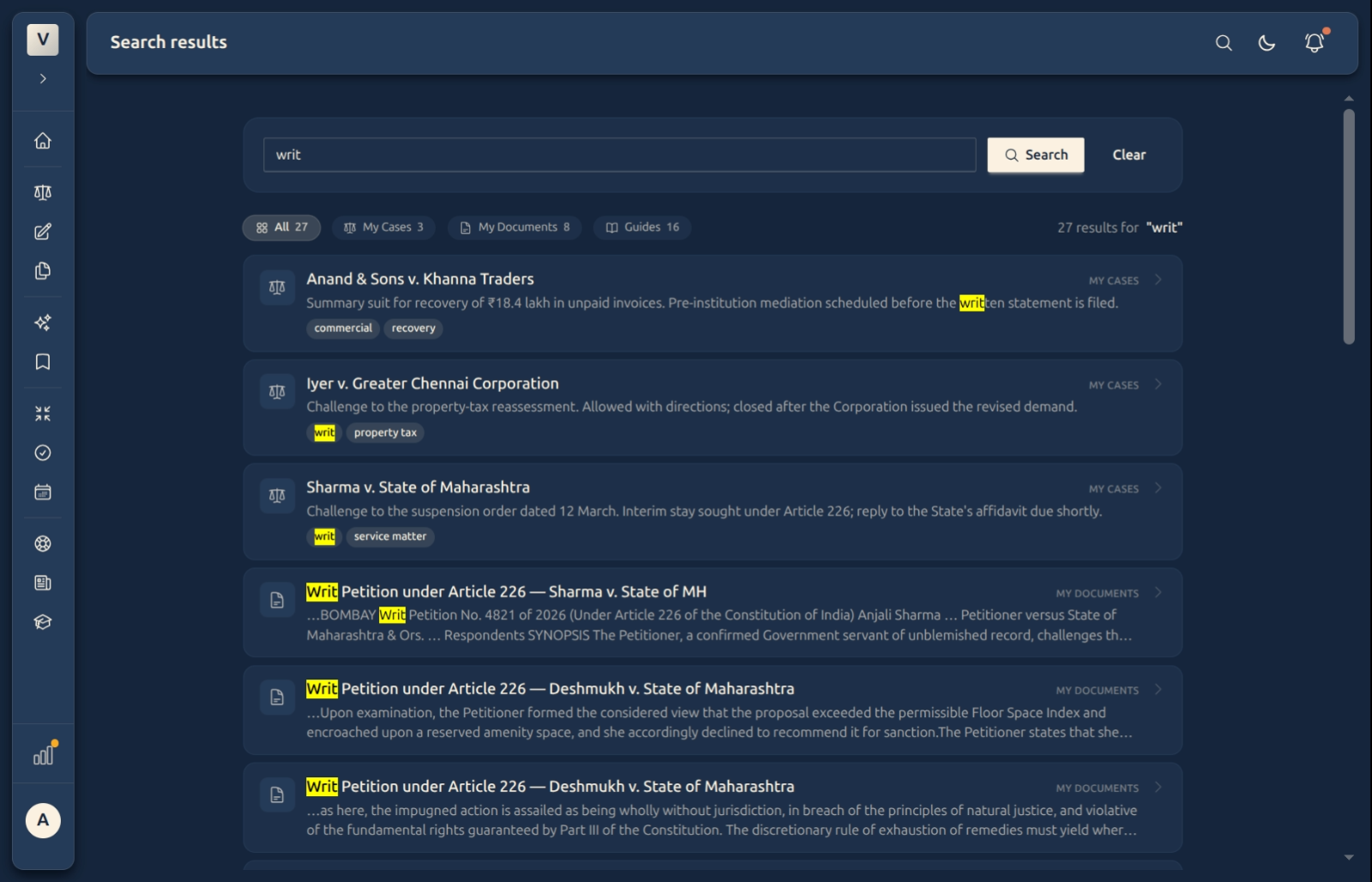
Read the results — Every match shows where it came from — a My Cases, My Documents, or Guides badge — with your term highlighted in the snippet, so Meera can see at a glance why it matched.
-
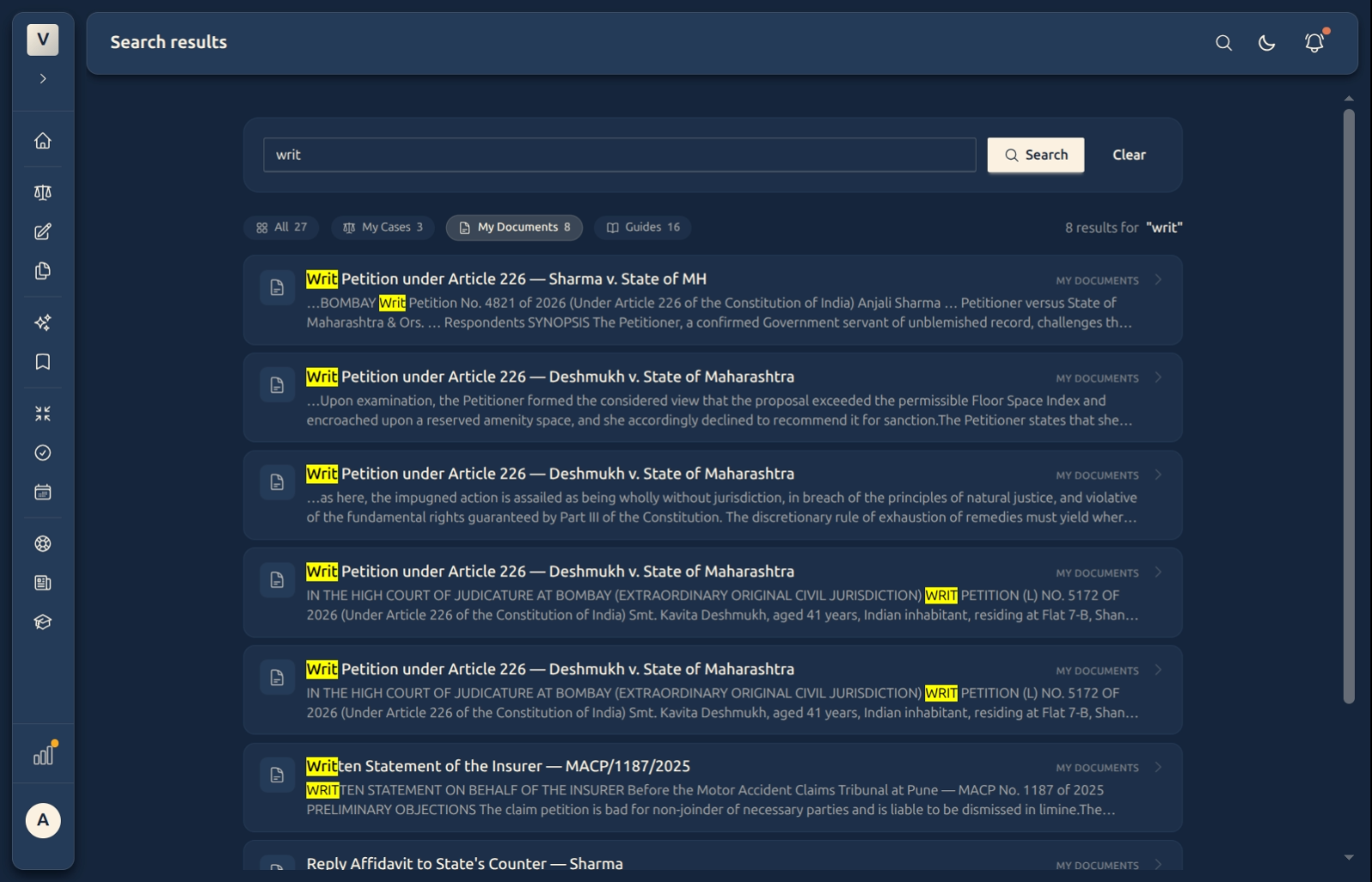
Narrow by type — Use the pills — All, My Cases, My Documents, Guides — to focus on one kind of result. The count on each pill tells you how many matches it found.
-
Jump straight in — Click a result to open it — the case, the draft, the document, or the guide — right where you left off.
Good to know
💡 Tip: Global Search matches on titles and content — so even if Rohan can’t remember a draft’s name, a distinctive phrase from inside it will surface it.
Note: This searches your workspace — your cases, drafts, and files. To search judgments and statutes from the case-law library, use Legal Research instead.
✅ One box, everything. No need to remember which section a thing lives in — search once and the results tell you whether it’s a case, a document, a draft, or a guide.
FAQ
What does Global Search look through?
Your own workspace — cases, drafts, uploaded documents, and the help guides. Each result is badged with its type so Priya knows where it lives.
How is this different from Legal Research?
Can I focus on just one type?
Yes — click a scope pill (My Cases, My Documents, or Guides) to filter, and the pill’s count shows how many matches are in that type.
Why is part of my result highlighted?
That’s where your search term was found — highlighting shows the matching words in the title or snippet so Kabir can judge relevance at a glance.
Where do I start a search?
The search icon in the top bar, on any page. Type, glance at the quick results, or open See all results for the full, filterable page.
See Also
- AI Legal Research — search judgments and statutes (the case-law library).
- My Documents — browse all your uploaded files.
- Cases — open a matter found in your results.