Document Details
Open any uploaded file to read its text, preview it, see its activity, and summarise it with AI.
Summary
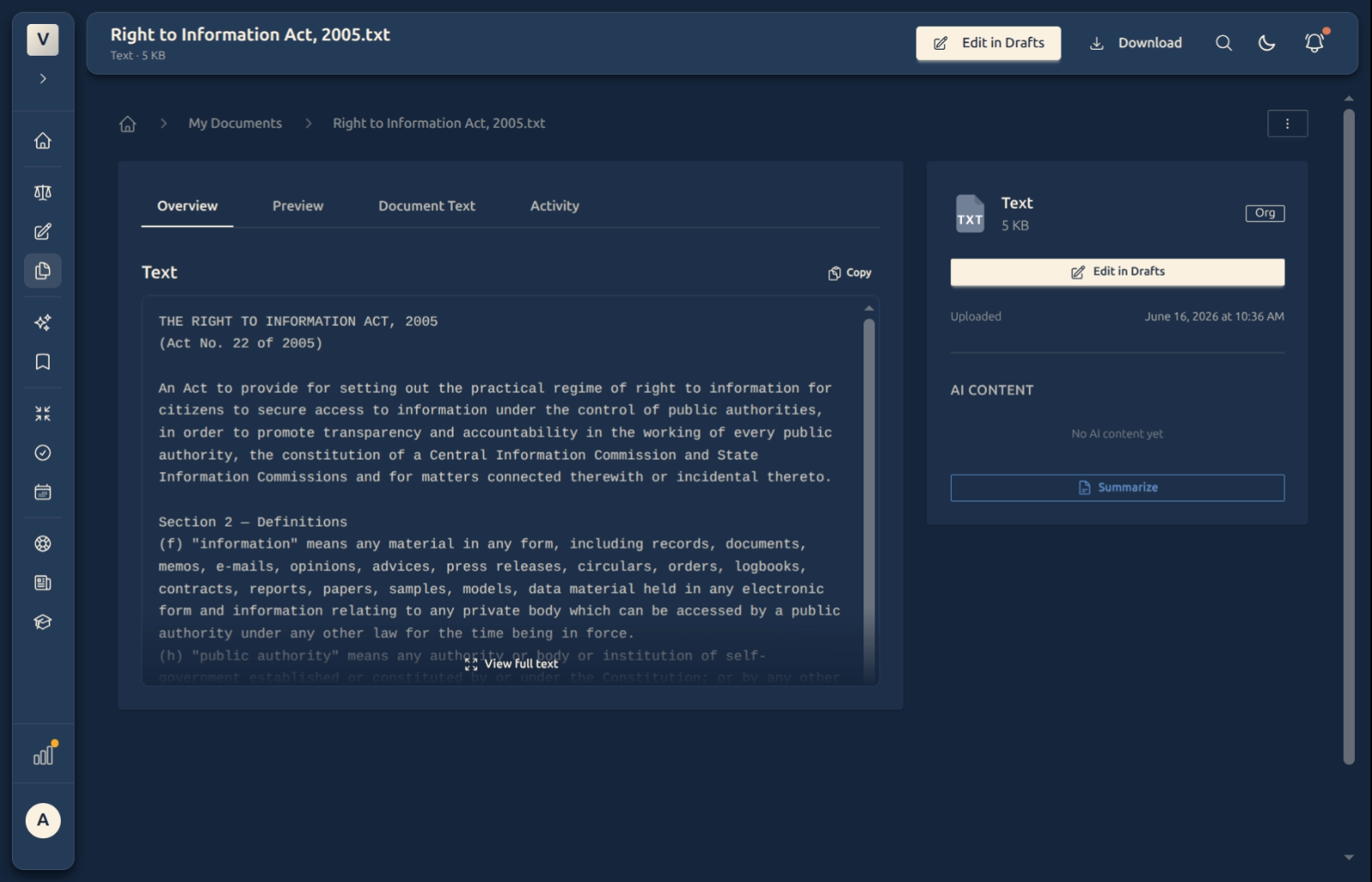
Open any file from My Documents and you land on its detail page — a single place to read it, preview it, check what’s happened to it, and put it to work. Four tabs organise everything: Overview, Preview, Document Text, and Activity.
From here you can open it in the editor to draft from it, download the original, or ask the AI to summarise it — the summary appears right alongside, in the file’s own panel.
Video Walkthrough
How to use it (step by step)
-
Open a document — From My Documents, click a file to open its detail page. The header shows its name, type, and size, with Edit in Drafts and Download always to hand. The right panel carries the file’s facts and its AI Content.
-
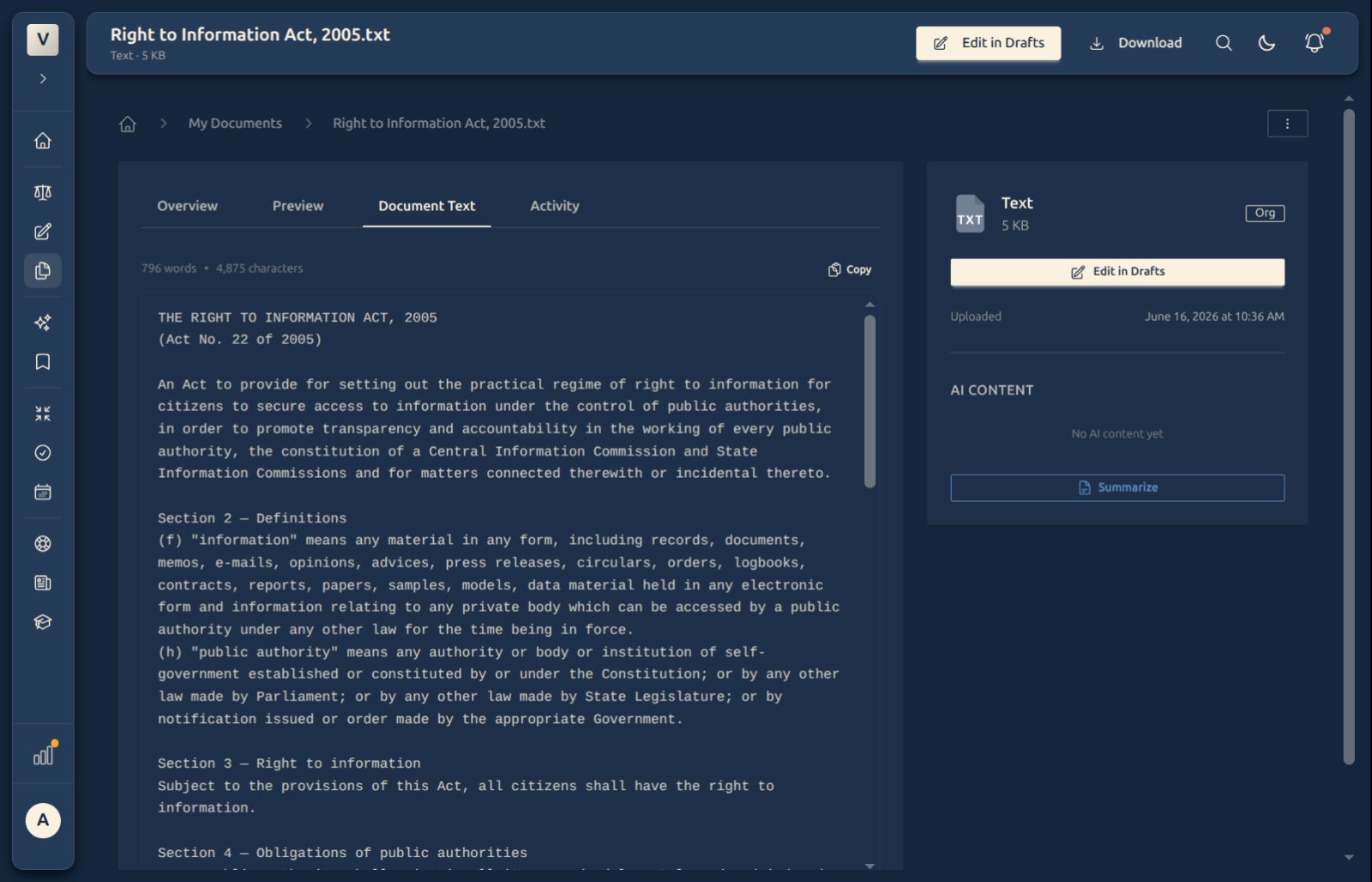
Read the full text — The Document Text tab shows the extracted text — every word and character counted — with a Copy button. Handy for lifting a clause from a statute Meera uploaded straight into a draft.
-
Preview the file — The Preview tab renders the file as it actually looks — useful for a PDF order or a scanned page where layout matters.
-
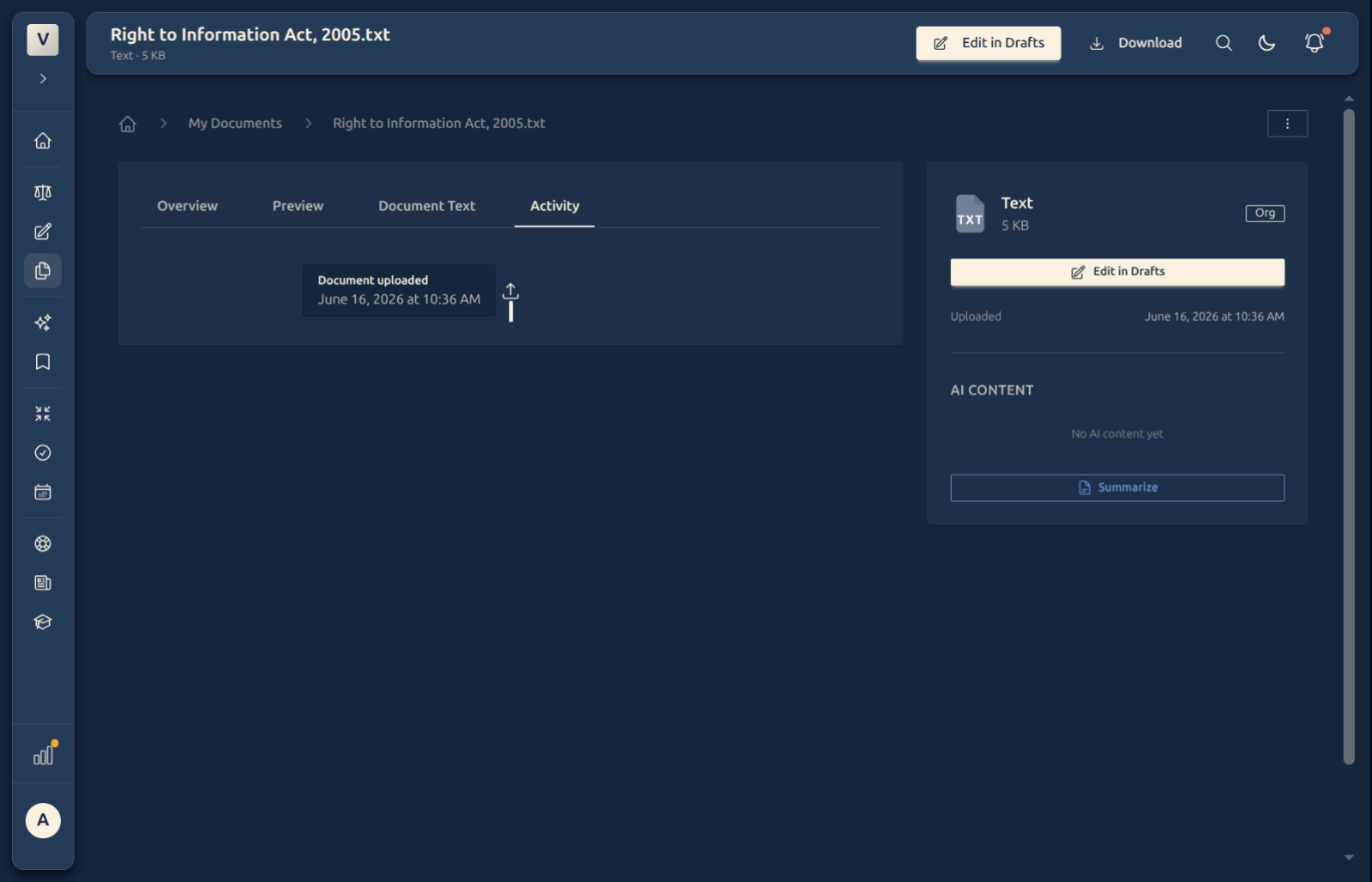
Check its history — The Activity tab is a simple timeline of what’s happened to the file — when it was uploaded, and any later actions.
-
Put it to work — Edit in Drafts opens the document in the editor so Rohan can build a draft from it; Download saves the original; and Summarize asks the AI for a concise summary, shown in the AI Content panel.
Good to know
💡 Tip: Use Document Text → Copy to pull an exact passage into a draft, and Preview when you need to see the original formatting rather than just the words.
Note: Summarize is a quick way to get the gist of a long file before you read it in full. The summary lands in the AI Content panel on the right; you can re-summarise any time.
✅ Read it before you rely on it. An AI summary is a fast orientation, not a substitute for reading the source — check the document itself before you act on it.
FAQ
What do the four tabs do?
How do I draft from a document?
Click Edit in Drafts — it opens the document in the editor, where Priya can rewrite, format, and build on it like any other draft.
What does Summarize do?
It asks the AI to produce a short summary of the document, which appears in the AI Content panel. It’s a quick orientation; for the detail, read the Document Text.
Where did the summary go?
To the AI Content section in the right-hand panel. If Aditi wants a different length or style later, she can re-summarise.
See Also
- My Documents — the list of all your uploaded files.
- Summaries — more on creating and managing AI summaries.
- Linking & Exporting — attach this file to a draft as a source.