Case Portfolio
Every matter in one place — a searchable, sortable list of all your cases, one click into each.
Summary
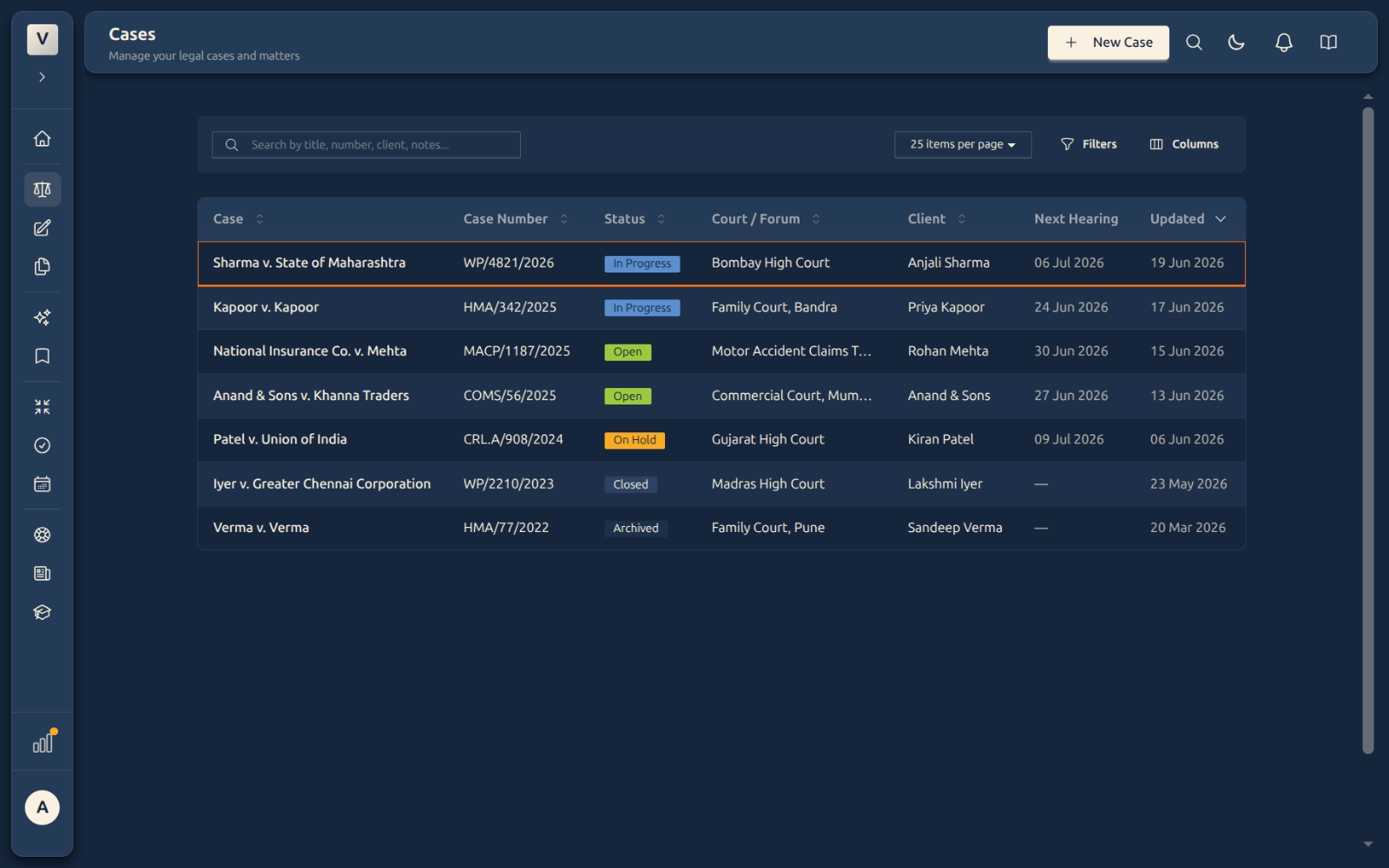
The Case Portfolio is the front door to your practice — one list of every matter you’re handling. Each row is a case, showing its title, case number, status, court, client, next hearing, and when it was last touched. From here you create new cases, search and filter to find the one you want, and click straight through to a case’s full file.
Think of it as the index of a filing cabinet: scan the list, spot the matter, and open it — the detailed tabs (Overview, Diary, Documents, Todos, Hearings, Activity) all live one click inside each case.
Video Walkthrough
How to use it (step by step)
-
Open the portfolio — Click Cases in the left sidebar. You’ll see every matter as a row, newest changes near the top.
-
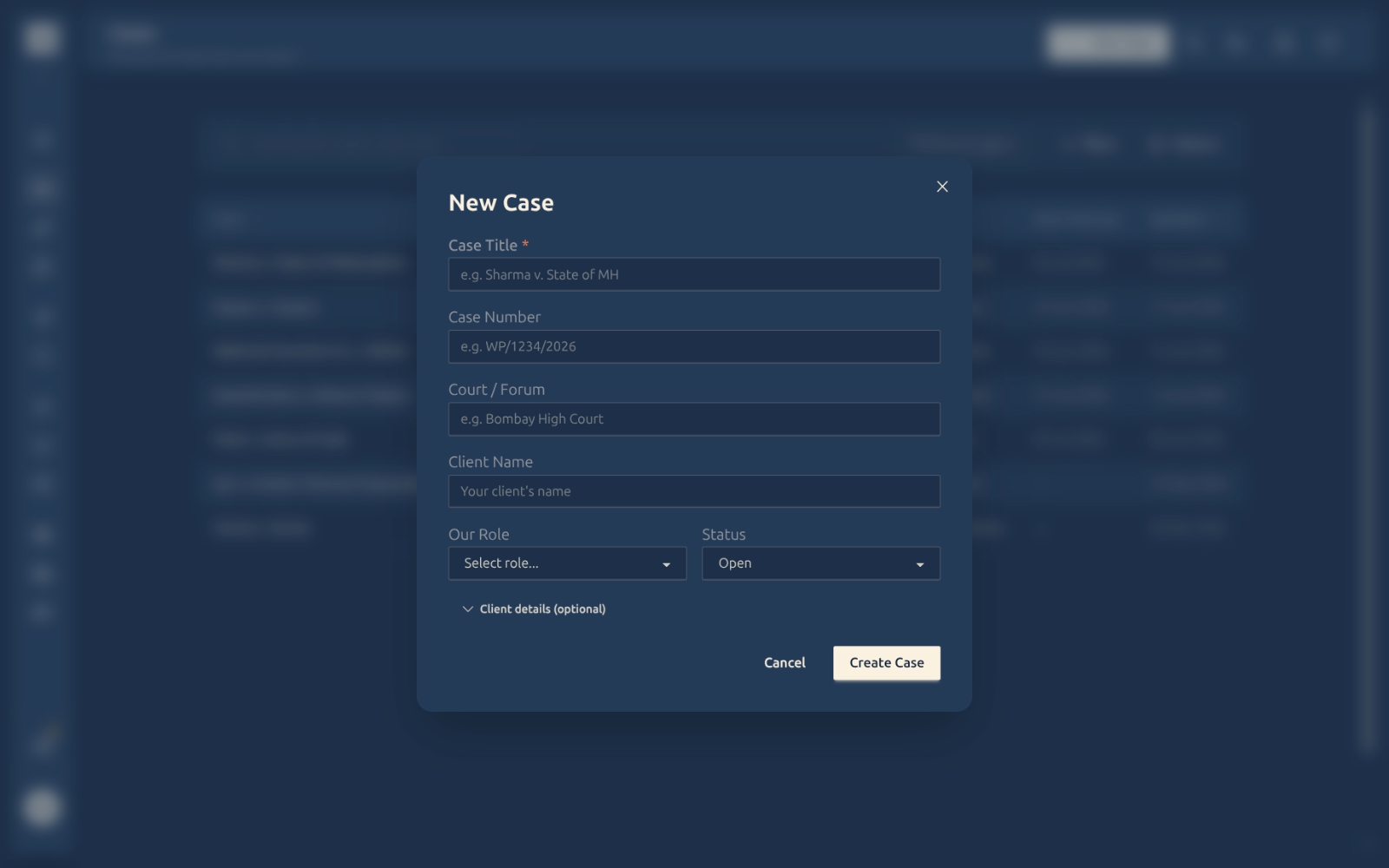
Create a case — Click New Case (top right). Give it a Title (the only required field — e.g. Sharma v. State of Maharashtra), and optionally a case number, court, client name, your role, and status. The extra Client details are tucked behind an optional section. Click Create Case.
-
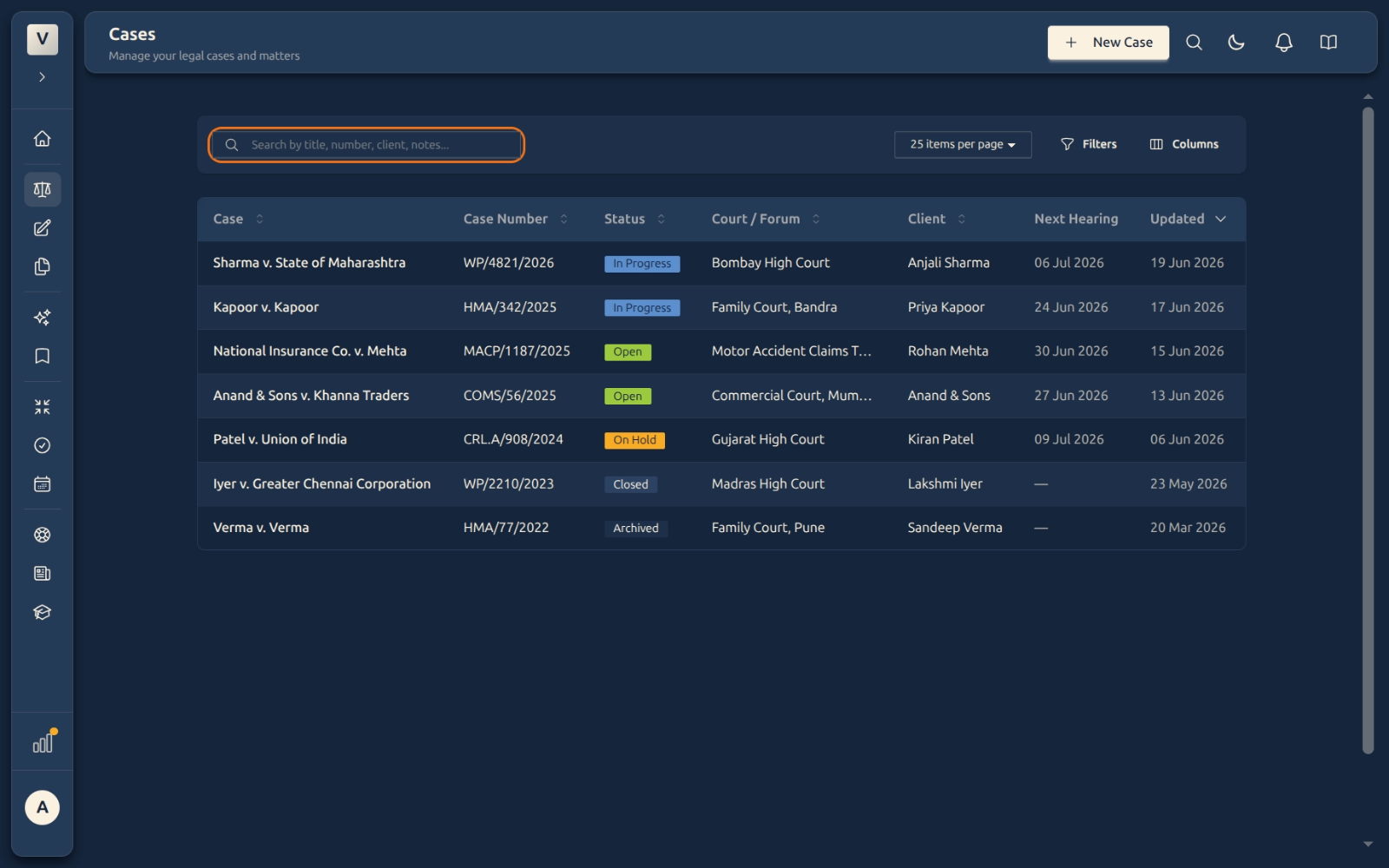
Search for a matter — Start typing in the search box to match on title, case number, client, or notes. The list narrows as you type.
-
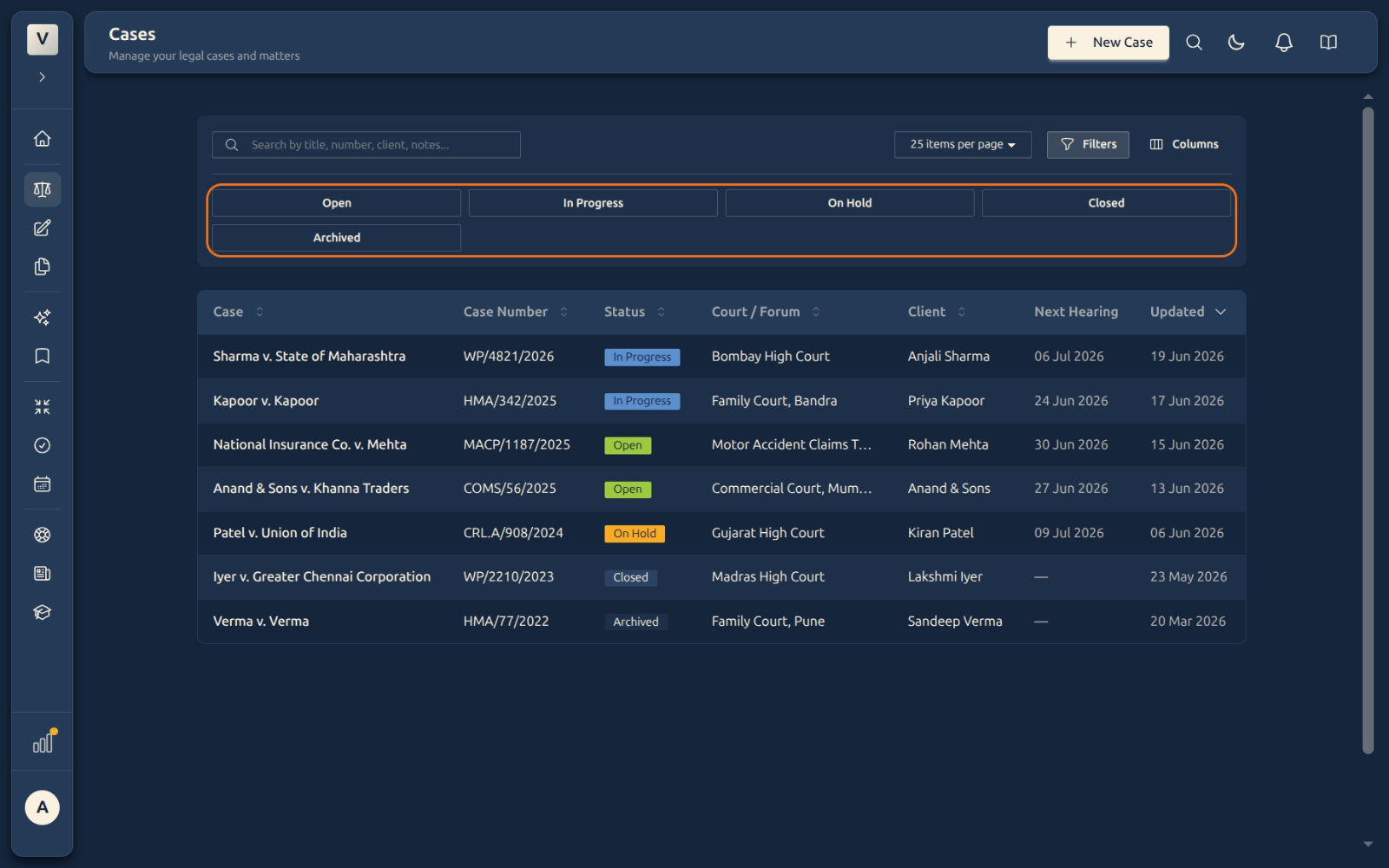
Filter by status — Click Filters and pick one or more statuses (Open · In Progress · On Hold · Closed · Archived) to show only those matters.
-
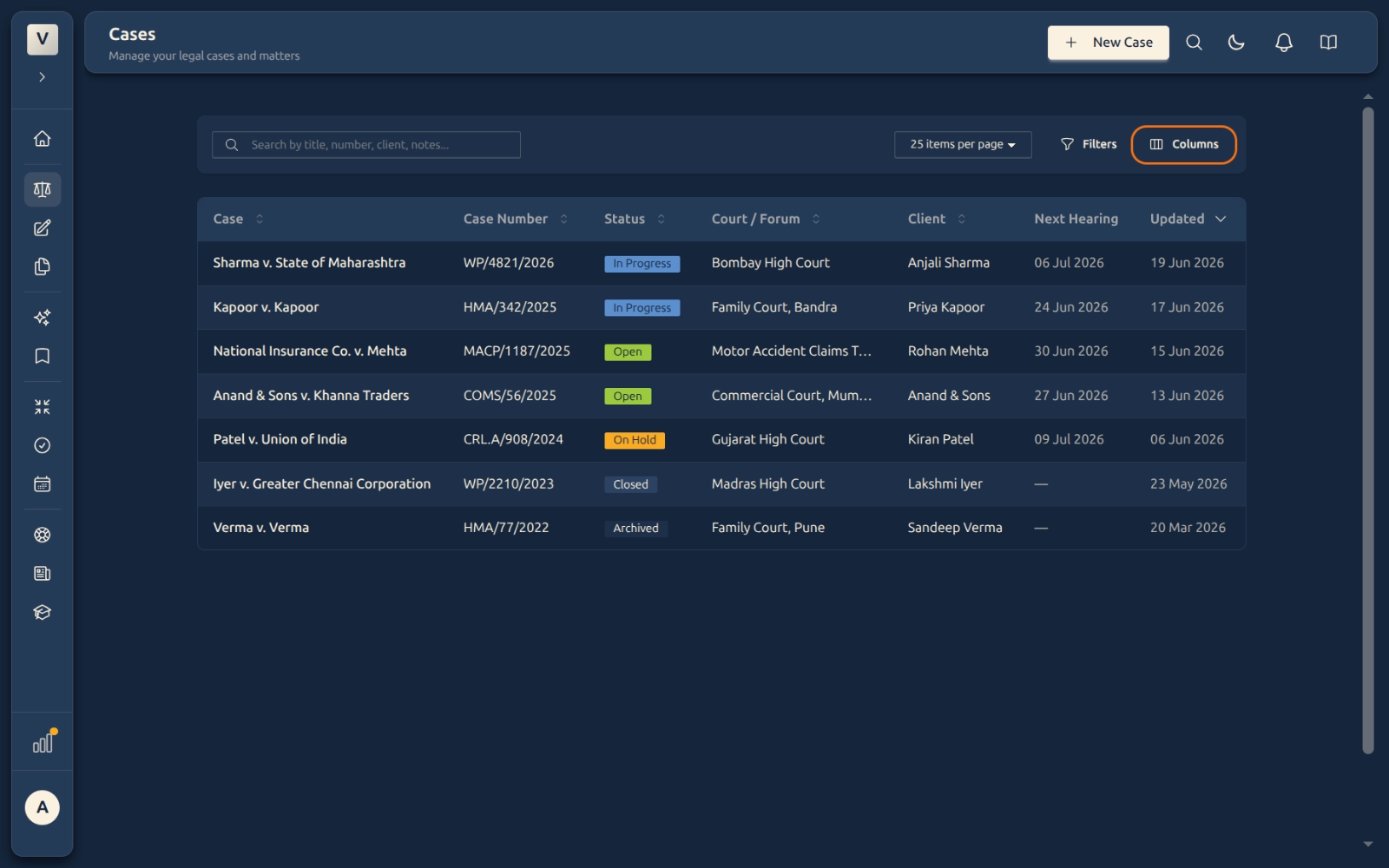
Shape the view — Use Columns to show or hide columns, the per-page control to change how many rows you see at once, and click any column header to sort (for example, by Next Hearing to see what’s coming up).
-
Open a case — Click any row to open that matter’s full file. It lands on the Overview tab, with Diary, Documents, Todos, Hearings & Events, and Activity along the top.
Good to know
💡 Tip: The only thing a new case truly needs is a Title. You can add the case number, court, parties, and client details later from the case’s Overview tab — so start the file the moment a matter walks in, and fill in the rest as you learn it.
Note: Closed and Archived cases never disappear — they stay in the list and stay fully searchable. Use Filters to hide them from the day-to-day view, then bring them back whenever you need to look something up.
⚠️ Important: The Next Hearing column is pulled from each case’s Hearings & Events, not typed by hand. Sort by it to see which matters are due soonest — for example, Priya’s bail application before Arjun’s commercial suit.
✅ Name cases consistently. A clear title like Sharma v. State of Maharashtra (rather than just Sharma) makes the list, the search, and the global search far easier to scan when you’re juggling dozens of matters.
FAQ
What’s the difference between the Case Portfolio and a single case’s tabs?
The Portfolio is the list of all your matters. A single case’s tabs (Overview, Diary, Documents, and so on) are the inside of one matter. You move from the list into a case by clicking its row, and back to the list via the breadcrumb at the top.
What do I have to fill in to create a case?
Only the Title. Everything else — number, court, client, role, status, and the optional client details — can be added now or later. Meera can open a file with just a name and flesh it out after the first client meeting.
How do I find one matter among hundreds?
Type in the search box (it matches title, number, client, and notes) or use Filters to narrow by status. Combine them — for example, search “insurance” with the Open filter on — to zero in fast.
Why is the Next Hearing date blank for some cases?
Because no upcoming hearing or event has been added to that matter yet. Add one from the case’s Hearings & Events tab and the date appears here automatically.
Can I hide columns I don’t use?
Yes. Click Columns and toggle any column off — handy if, say, Vikram never uses Court / Forum and wants a tighter list. Your choice sticks while you work.
Do closed cases get deleted?
Never. Marking a case Closed or Archived only changes its status — the full file stays searchable and readable. It’s housekeeping, not deletion.
See Also
- Case Overview Tab — the home screen for a single case: status, parties, notes, and quick edits.
- Case Diary Tab — the dated running record of everything that happens on a matter.
- Case Documents Tab — one shelf for every draft, file, summary, and saved snippet.