Case Documents Tab
One shelf for everything attached to a case — drafts, uploaded files, summaries, transcriptions, and saved research.
Summary
The Documents tab is the shelf for everything that belongs to one case. Instead of hunting through your drafts, your files, your summaries, and your saved research separately, this tab gathers them all in one place — every pleading, order, uploaded file, AI summary, transcription, and research snippet you’ve attached to the matter.
Think of it like the section dividers in a physical case file. Whatever kind of material it is, if it relates to this case, it lives here — and you can jump straight back to the full item with one click.
Video Walkthrough
How to use it (step by step)
-
Open the Documents tab — From any case, click Documents in the tab row. You’ll see cards for everything attached to the matter so far.
-
Attach something — Click Attach (top right).
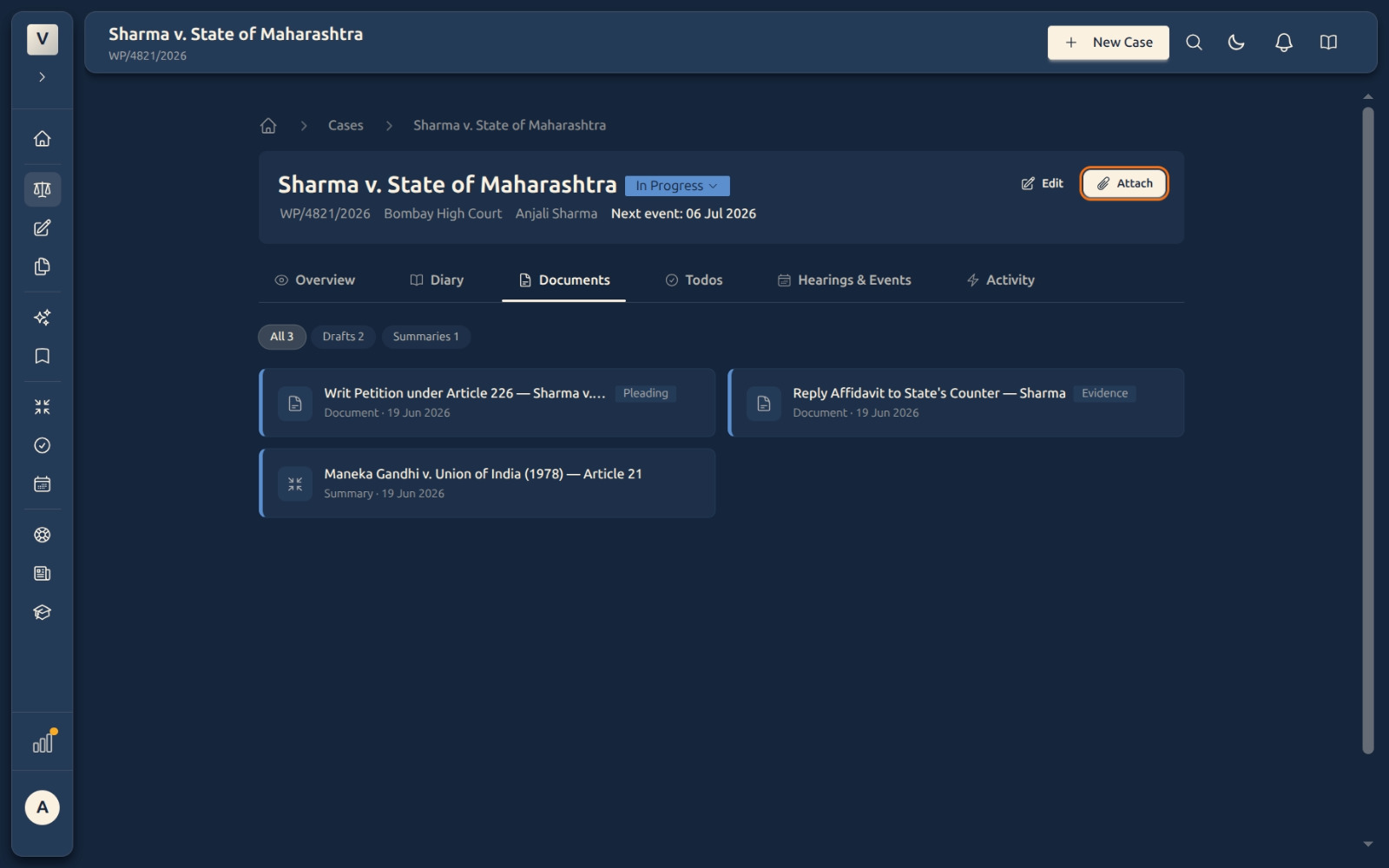
A dialog opens where you can upload a new file from your computer, or pick a file you’ve already uploaded. Choose what you need and it’s added to the case.
-
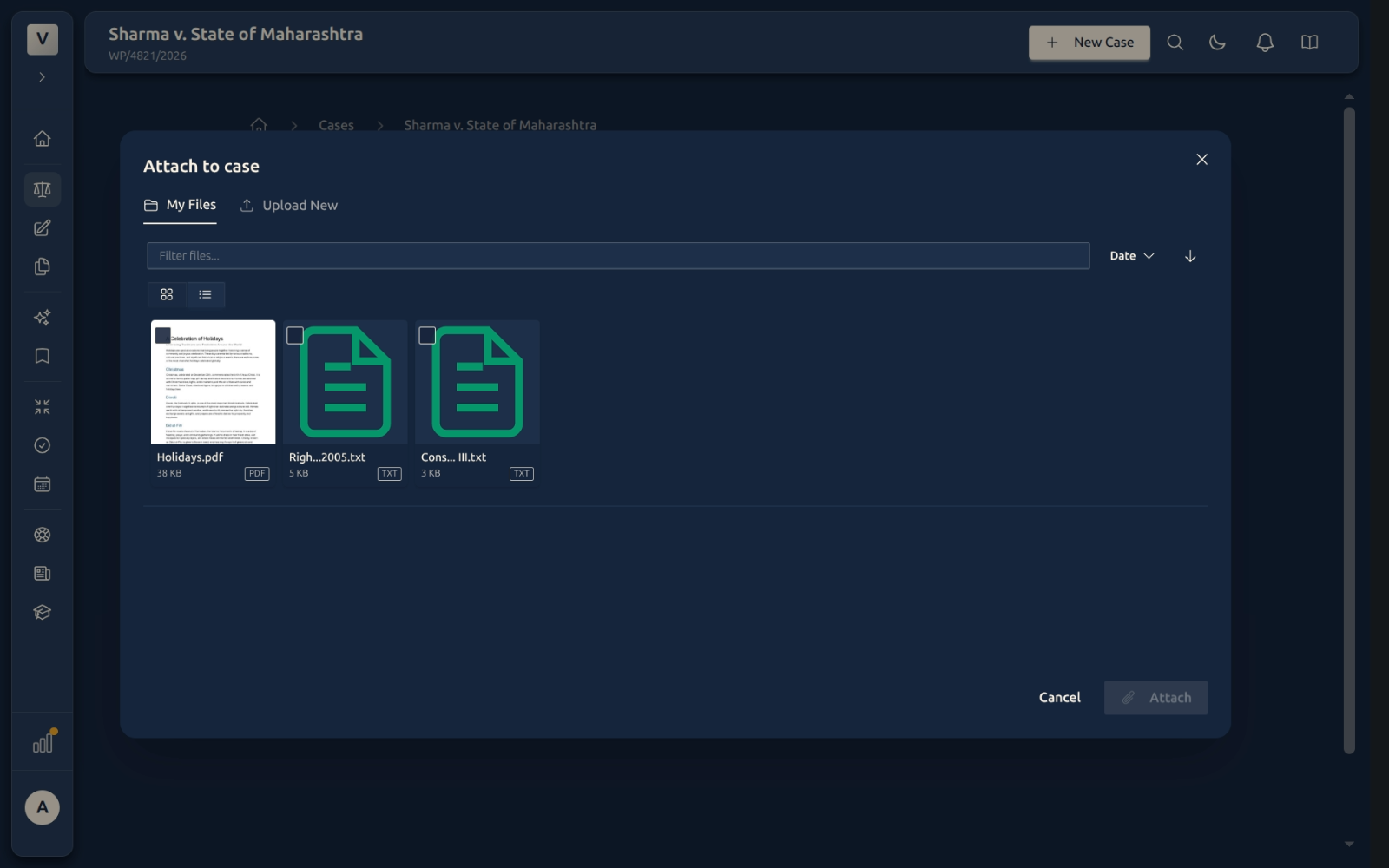
Filter by kind — Use the pills above the cards (All · Drafts · Files · Summaries · Transcriptions · Snippets) to show just one type. A pill only appears when you actually have that kind attached.
-
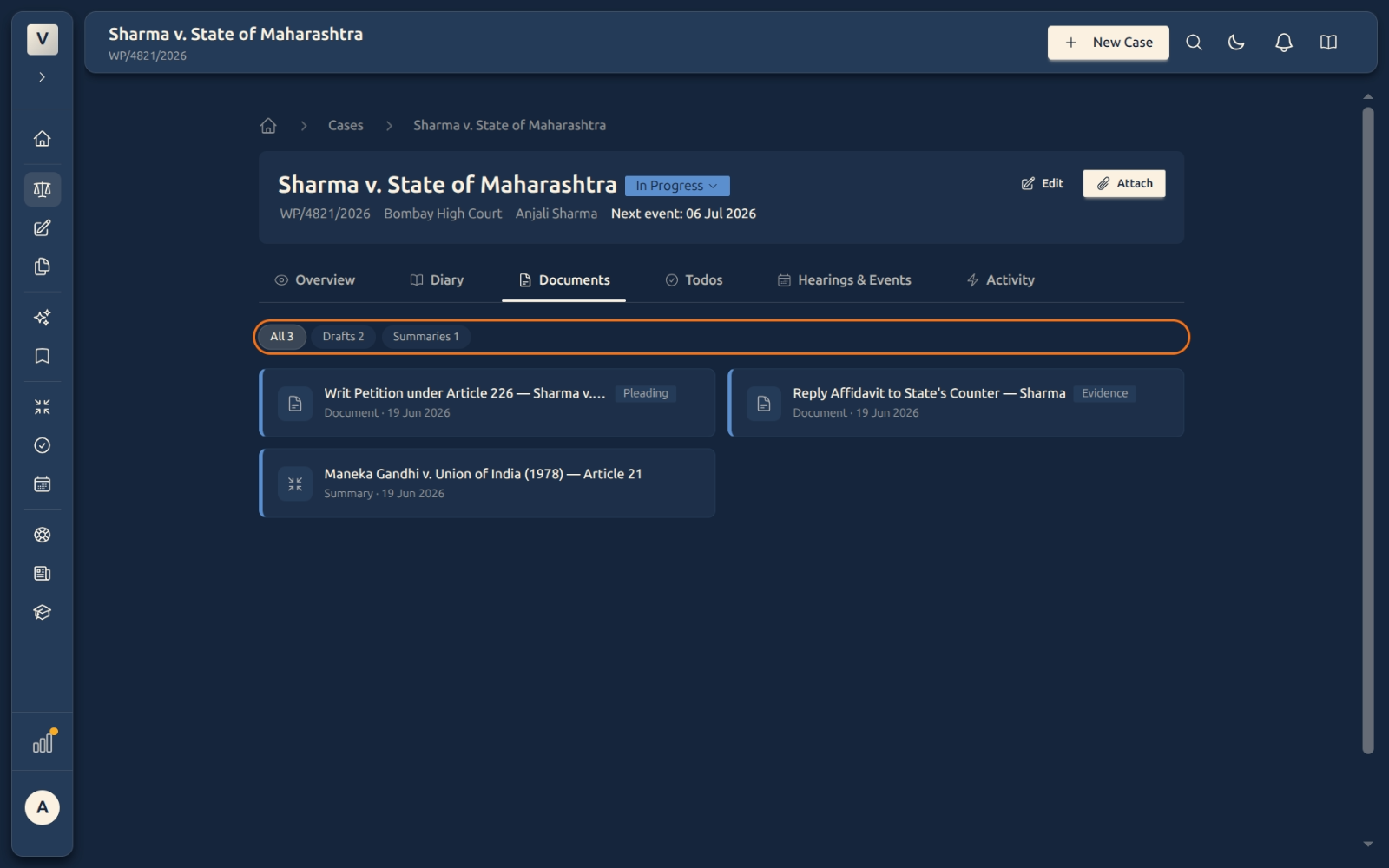
Open the full item — Click a card to jump to the full document, summary, or transcription on its own page.
-
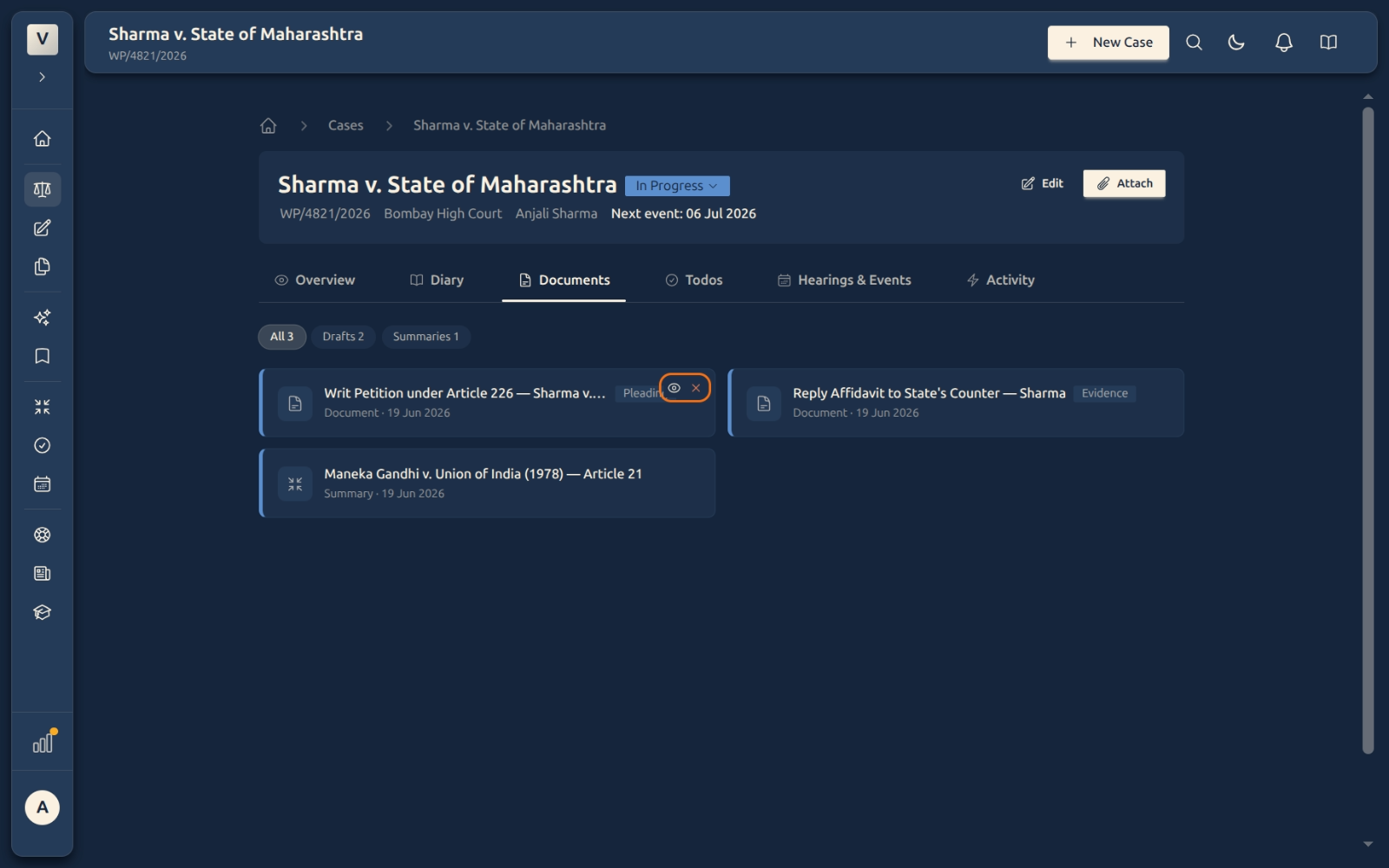
Peek without leaving — Hover a card and click the eye icon for a quick preview, so you can check the right item before opening it.
-
Remove an attachment — Hover a card and click the ✕. This only un-links it from this case — the original file or document is never deleted.
Good to know
💡 Tip: Most things attach themselves from where you create them. When you save a summary, finish a transcription, or save a research snippet, use its Attach to case button — and it lands here on the Documents tab without any extra typing.
Note: A card can carry a small role badge like
Pleading,Evidence, orNote. That’s the role you gave the item when you attached it, so you can tell a filed pleading apart from a working draft at a glance.
⚠️ Important: Detaching (the ✕) only removes the link between the item and this case. The document, file, or summary itself stays safe in its own home — so Priya can move a file off the wrong case without any fear of losing it.
✅ Keep one home per matter. Attaching the writ petition, the client’s PDFs, the judgment summary, and your saved research to the same case means Arjun can open the matter cold and find everything in seconds, instead of searching five different screens.
FAQ
What kinds of things can live on the Documents tab?
Five kinds: Drafts you’ve written in the editor, Files you’ve uploaded, AI Summaries, Transcriptions of audio, and Snippets you’ve saved from legal research. Whatever the kind, attaching it to the case puts it here.
Do I have to attach everything by hand?
Mostly no. Summaries, transcriptions, and saved snippets come with their own Attach to case button, so they arrive here when you create them. The Attach button on this tab is mainly for uploading or picking files.
If I detach a document, is it deleted?
No. Detaching only breaks the link to this case. The original is untouched and still lives in your Drafts, Files, or Summaries — so if Meera detaches the wrong item, she can simply attach it again.
Why do some cards show a badge like “Pleading” or “Evidence”?
That’s the role chosen when the item was attached. It’s a quick label — for example marking which documents are filed pleadings versus working notes — so a long case file stays easy to read.
The same file belongs to two matters. Can I attach it twice?
Yes. Attaching links a copy of the reference to each case, so Vikram can keep one shared exhibit on both related matters without making duplicates of the file itself.
Why is a filter pill missing?
Pills only show for kinds you actually have. If there are no transcriptions on the case yet, the Transcriptions pill simply won’t appear — it shows up the moment you attach your first one.