AI Legal Research
Search judgments and statutes in plain language — get an AI overview of the strongest results, then open any case to read it in full.
Summary
Legal Research lets you search the case-law and statute library the way you’d ask a colleague — type a case name, a statute, a provision, or a plain question, and get back the most relevant results. You don’t need exact citations or boolean operators; describe what you’re looking for.
Two search modes sit side by side: Smart, ranked by meaning — best for issues and concepts — and Exact, which matches your words literally. Alongside the results, an AI Summary pulls together an overview from the strongest matches, each point linked to the case it came from.
Video Walkthrough
How to use it (step by step)
-
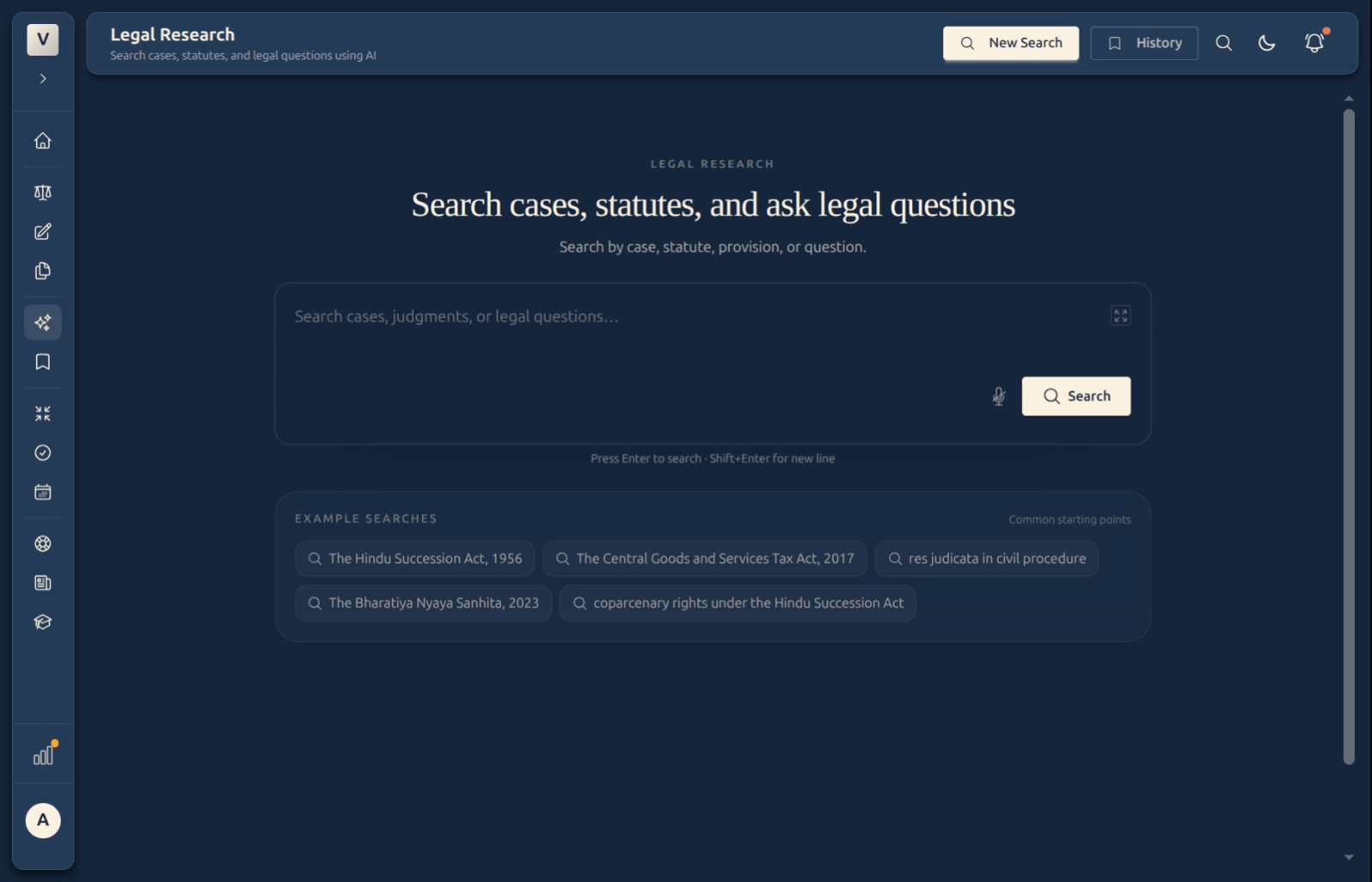
Ask in plain language — Type into the search box — a case name, a statute, a provision, or a question like “coparcenary rights under the Hindu Succession Act”. Press Enter (or click Search). The example chips below are good starting points.
-
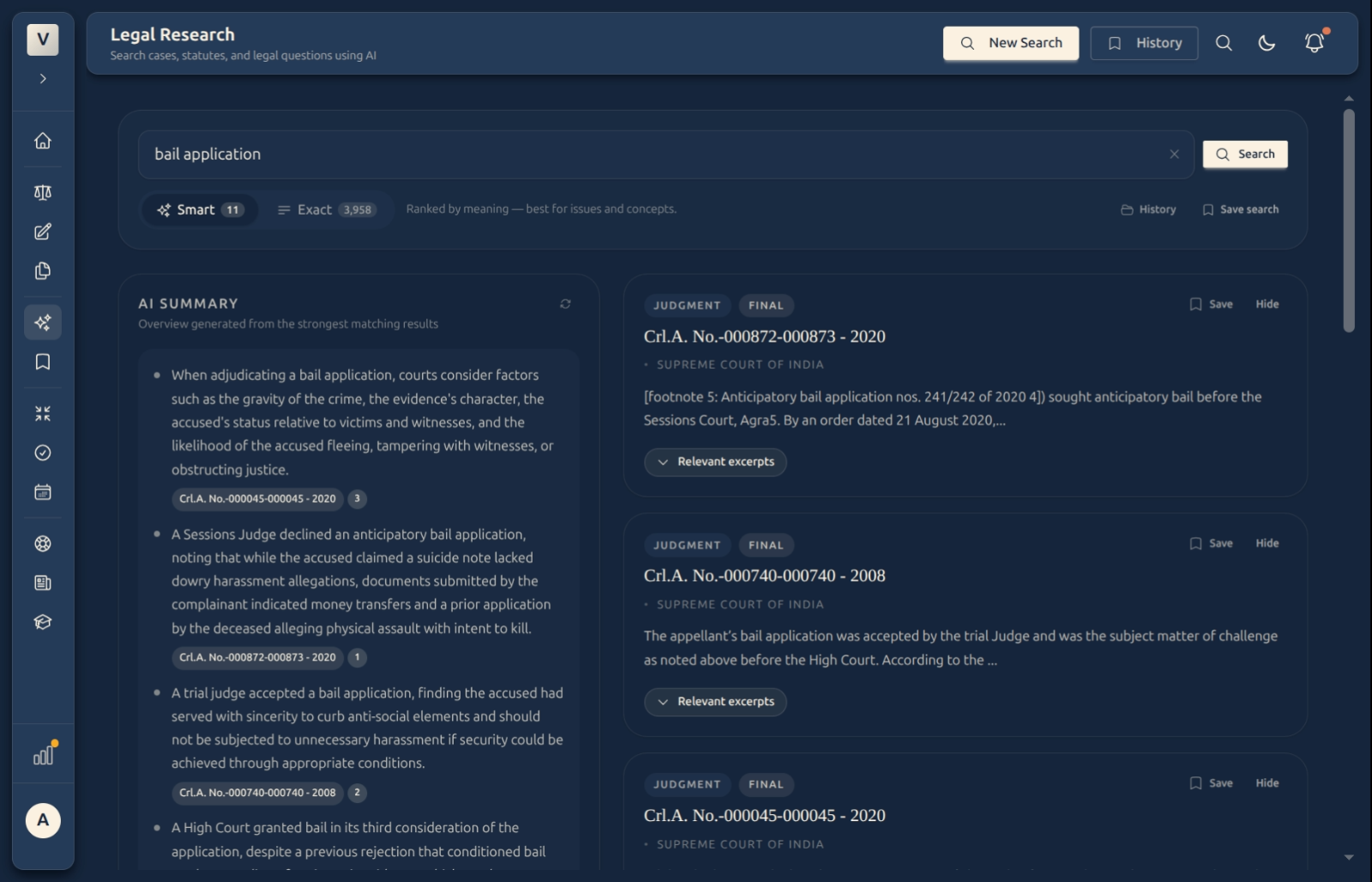
Choose Smart or Exact — Smart ranks by meaning — best when Meera is exploring an issue or concept. Exact matches the literal words — best when Rohan knows the precise phrase or citation. The count on each tab shows how many results it found.
-
Read the AI Summary — The left panel gives an AI overview drawn from the strongest results, with each point tagged to the case it came from — a fast orientation before you open anything.
-
Scan the results — Each result card shows the case, court, and a matching excerpt; expand Relevant excerpts to see more. Save a result for later or Hide ones that don’t fit.
-
Open a case — Click a result to open it in the Reader, where you can read the full judgment and ask questions about it.
Good to know
💡 Tip: Start with Smart for an unfamiliar issue, then switch to Exact once you know the precise term or citation you need.
Note: The AI Summary is a quick orientation built from the top results — always open the actual judgments and read them before relying on anything.
✅ Save what matters. Use Save search to keep a query and its results, and Save on a result or excerpt to build a shortlist — they all live in your Research History.
FAQ
Do I need exact citations to search?
No. Describe what you want in plain language — a case name, a statute, or a question. Smart mode is built for natural-language queries; Exact is there when Kabir already knows the precise phrase.
What’s the difference between Smart and Exact?
Where does the AI Summary come from?
It’s generated from the strongest matching results, with each point linked back to its source case. It’s an overview to orient you — not a substitute for reading the judgments.
What if I get no results?
Try broader or alternative keywords, check spelling, or rephrase as natural language (e.g. “cases about property dispute”). The empty-results screen suggests these too.
How do I keep a search or a result?
See Also
- Reader — open any result to read the full judgment and ask questions about it.
- Research History — your saved searches, recent queries, and saved excerpts.