Reader
Read a judgment in a clean, sectioned view — with the case's facts at a glance and an AI that answers questions grounded in the text.
Summary
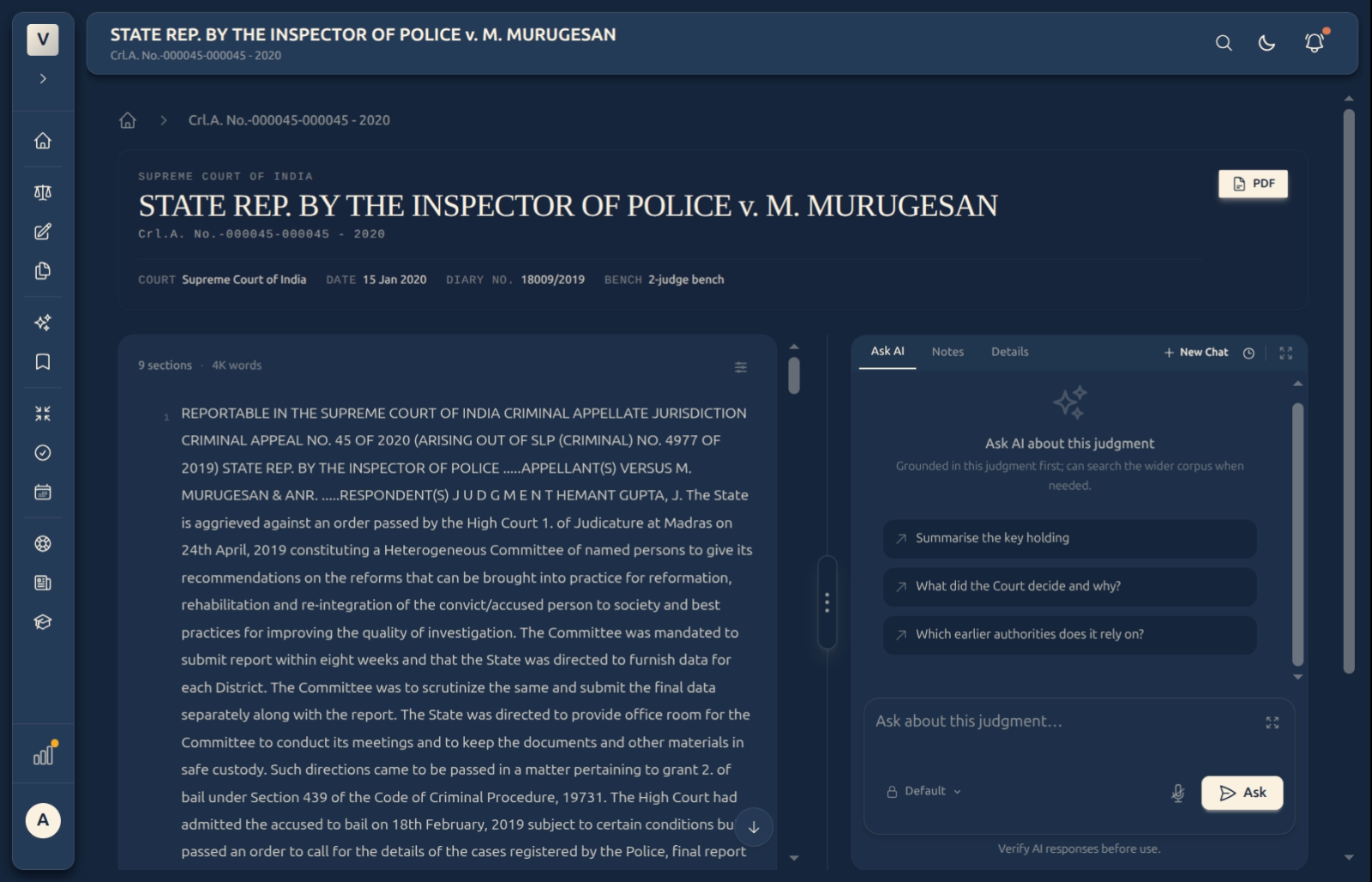
Open any case from your search and you land in the Reader — a calm, two-pane view built for reading judgments. The left is the judgment itself, laid out in numbered sections with the court, date, bench, and diary number set out at the top. The right is a companion that travels with the text.
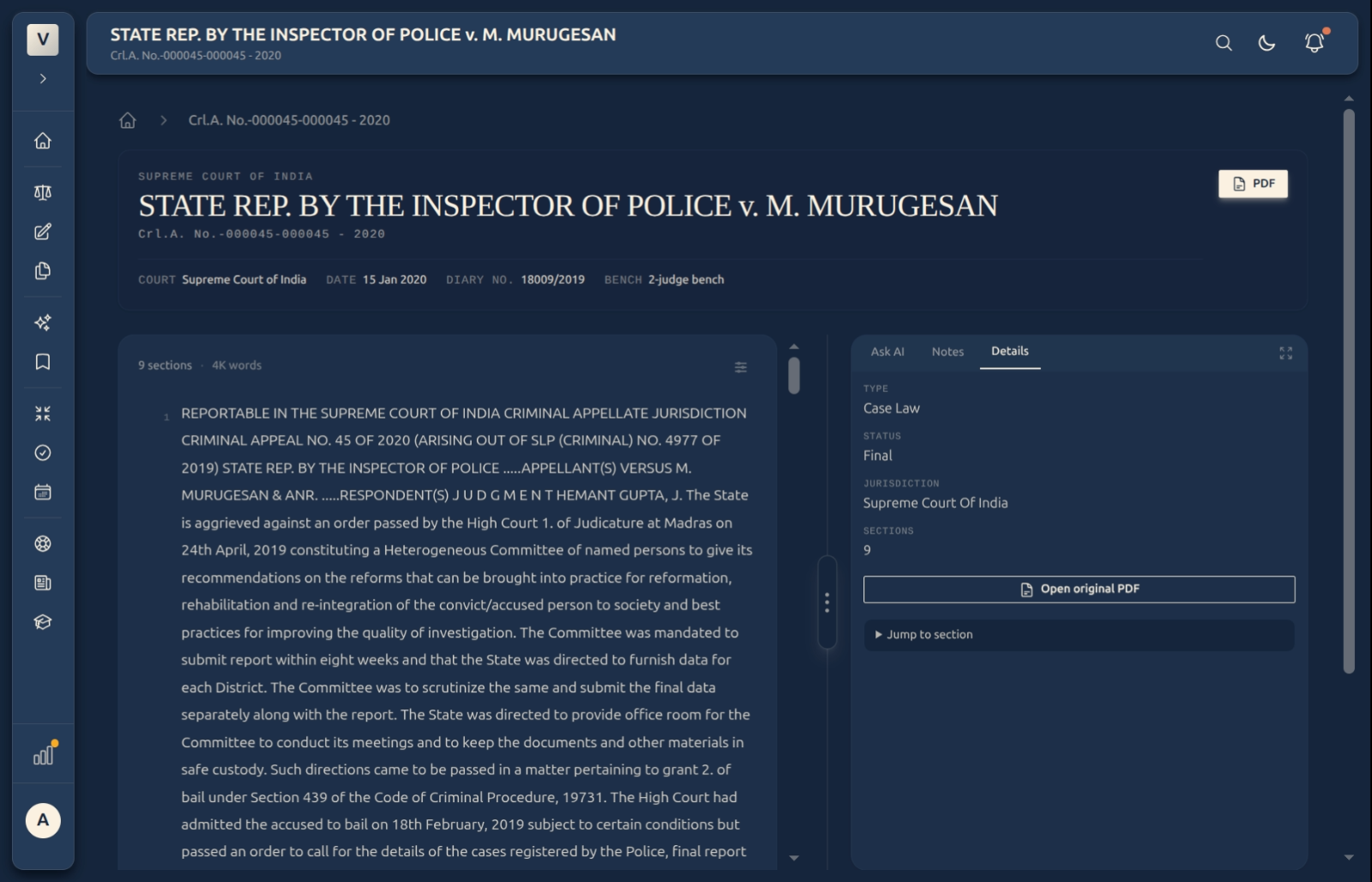
That companion has three tabs: Ask AI, to ask questions answered from this judgment first; Notes, for your own annotations; and Details, the case’s facts at a glance. The original is always one click away as a PDF.
Video Walkthrough
How to use it (step by step)
-
Read the judgment — The masthead shows the court, date, bench, and diary number; below it, the full text is broken into numbered sections so you can find your place and cite precisely. The word and section count sits at the top.
-
Ask about this judgment — In the Ask AI tab, ask a question — or use a starter like “Summarise the key holding”, “What did the Court decide and why?”, or “Which earlier authorities does it rely on?”. Answers are grounded in this judgment first, reaching into the wider library only when needed.
-
See the facts at a glance — The Details tab lists the case’s type, status, jurisdiction, and section count, with Open original PDF and a Jump to section shortcut.
-
Keep your own notes — The Notes tab is your private space to jot points as you read — they stay with the judgment.
-
Open the original — Click PDF (top right) any time to see the document exactly as filed.
Good to know
💡 Tip: Use the section numbers when you cite — they make it easy for Priya to point a colleague straight to the passage she means.
Note: The assistant answers from this judgment first. It’s a fast way to test your reading — but always confirm the holding against the text itself before you rely on it.
✅ Grounded, not guessing. Because answers are tied to the judgment in front of you, you can check every point against the numbered sections beside them.
FAQ
What can I ask the assistant?
Anything about the judgment — its holding, reasoning, the authorities it cites, or a plain-language summary. The starter prompts are good first questions; Aditi can also type her own.
Is the answer only from this case?
It’s grounded in this judgment first, and only reaches into the wider library when the question needs it. Either way, check the answer against the text.
How do I cite a specific passage?
Use the numbered sections — they give you a precise point to reference. The Jump to section shortcut in Details helps you navigate.
Can I see the original document?
Yes — the PDF button (top right) and Open original PDF in Details both open the filed version.
Where do my notes go?
To the Notes tab, kept with that judgment so Rohan finds them whenever he reopens the case.
See Also
- AI Legal Research — search for the cases you open here.
- Research History — save searches and excerpts for later.