My Todos
Capture every task — hearings to prepare for, drafts to revise, clients to call back — set a priority, and tick them off as you finish.
What This Does
A simple, focused task list for everything you owe yourself in a working week: hearings to prepare for, drafts to revise, filings to track, clients to call back. Each todo carries a priority (High / Normal / Low), an optional due date and time, and an optional reminder — set a time, and we email you ahead of when the task is due. Sort by priority or date, filter by Pending vs Completed, and bulk-mark or bulk-delete when your list gets noisy.
For something on a specific date that you need a meeting / event for (a hearing, a deposition, a client meeting), use the Calendar instead — every todo with a due date automatically links to a calendar entry, so you only need to add it in one place.
Video Walkthrough
Step-by-Step Guide
Your starting point
The first time you open Todos, you’ll see a quiet welcome with three steps — add a task, set a reminder, tick it off. Once you’ve added one task the welcome goes away and stays away.
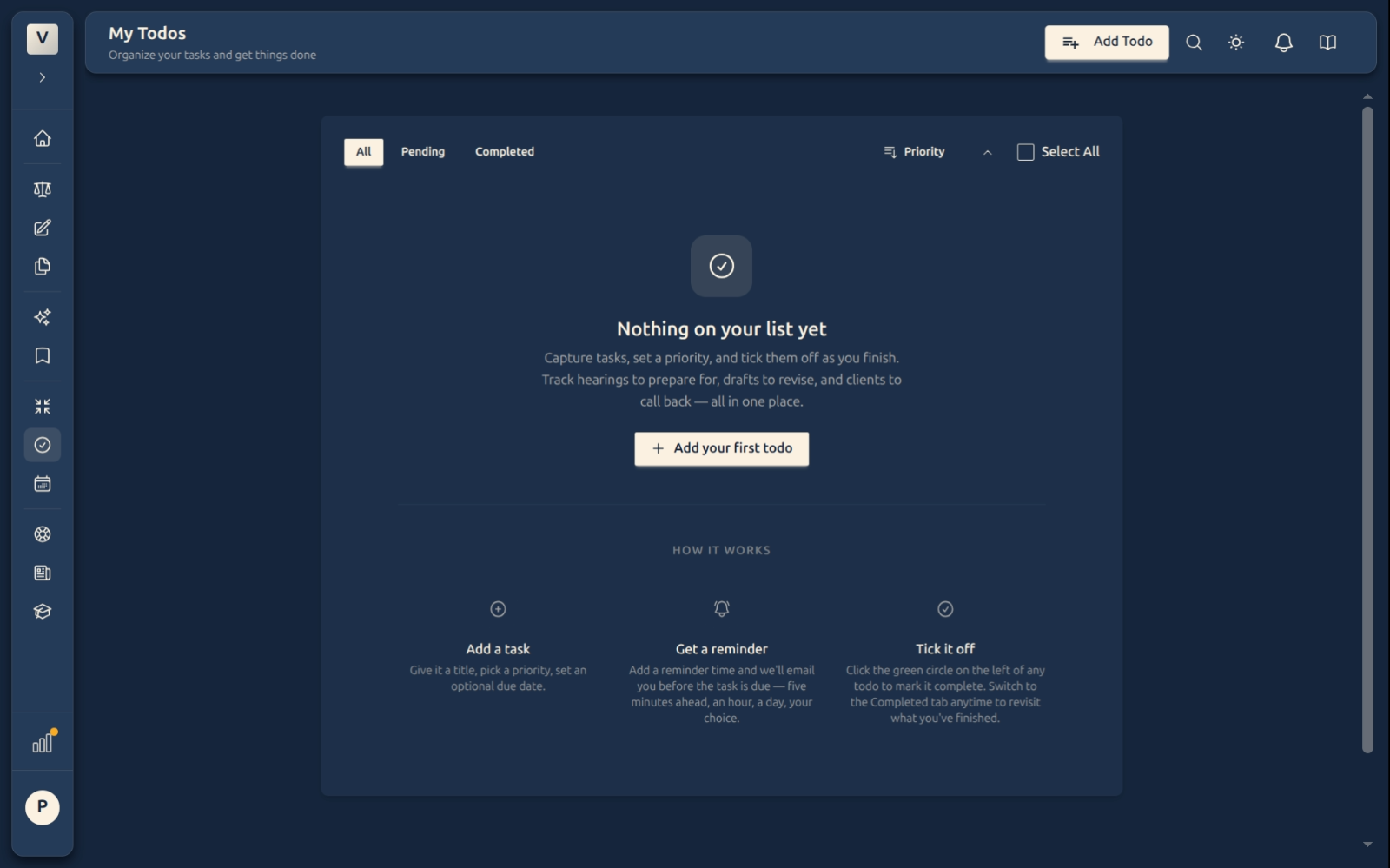
Adding a todo
Click Add Todo in the top-right. The modal asks for a few things:
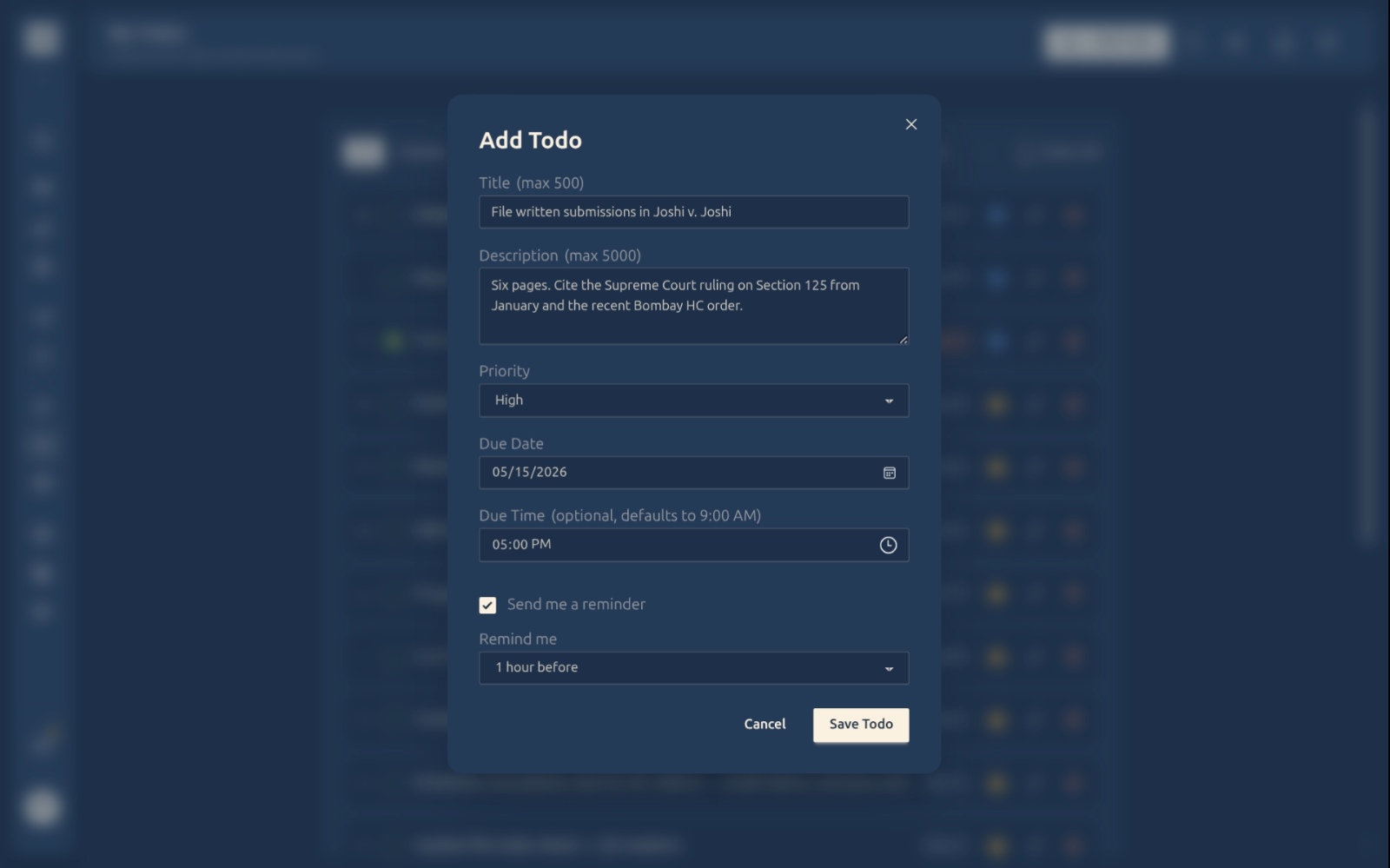
- Title — what the task is. Keep it specific. “File written submissions in Joshi v. Joshi” is better than “submissions”.
- Description (optional) — anything you’d want to read when you come back to the task: what to include, which exhibits to attach, who’s co-counsel.
- Priority — High / Normal / Low. High-priority rows show a filled star in the list, so they’re easy to spot.
- Due date and time (optional) — when the task needs to be done. Defaults to 9:00 AM in your timezone if you set a date but leave the time blank.
- Reminder (optional) — pick a date and time and we email you ahead of the due moment. Useful for hearings (“the evening before”) or filings (“an hour before the registry shuts”).
Click Save Todo and the new row appears at the top.
Reading the list
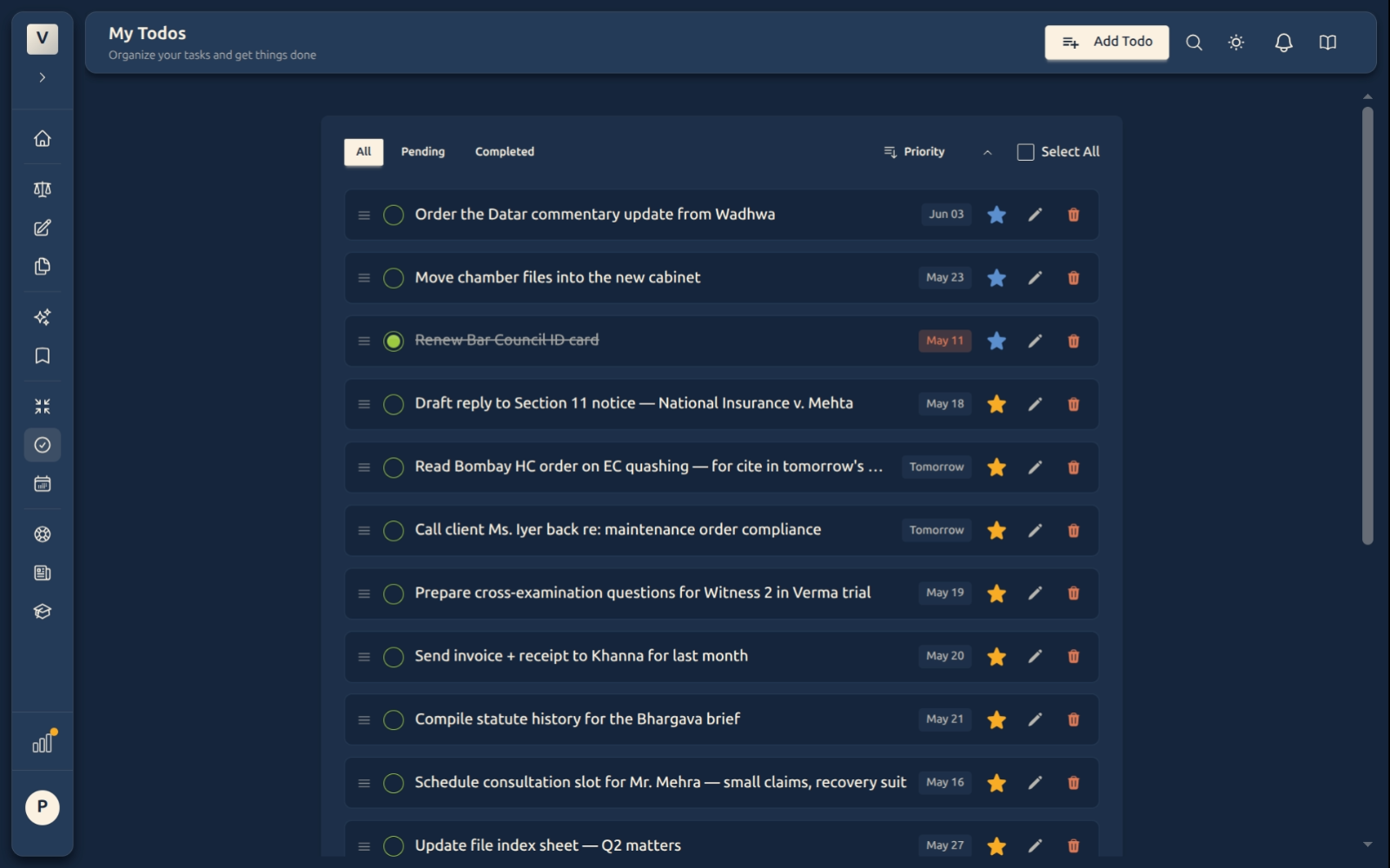
Each row shows: a drag handle (for reordering by hand), the green completion circle on the left (click to tick off), the title and any due-date pill, a priority star (blue = low, yellow = high), an edit pencil, and a delete bin. Click the title to open the read-only details modal.
Filtering and sorting
Three tabs along the top: All, Pending, Completed.
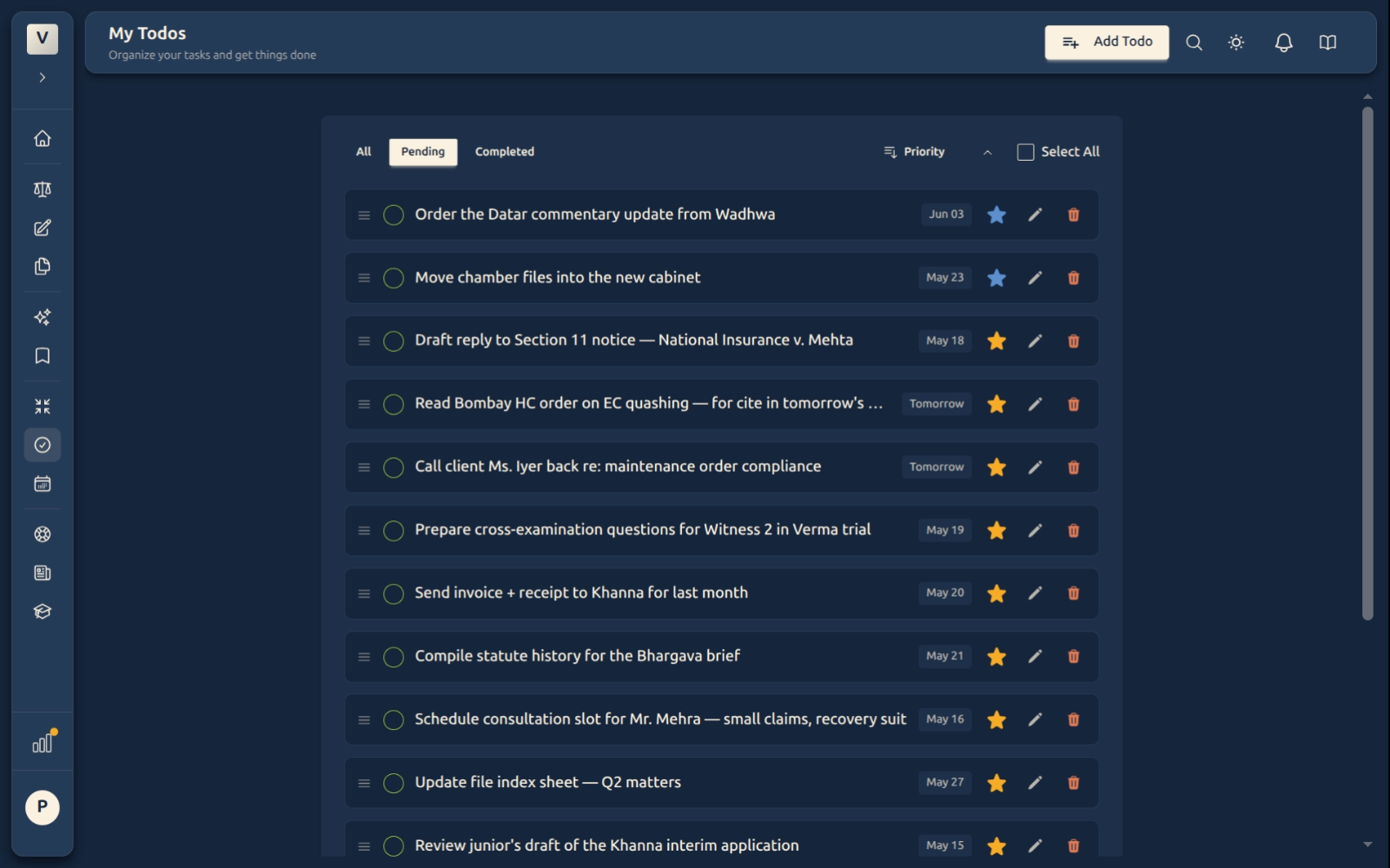
Completed tasks get a struck-through title so you can tell at a glance which ones are done. The Completed tab gathers them — useful for a week-in-review or when a client asks what’s been billed for.
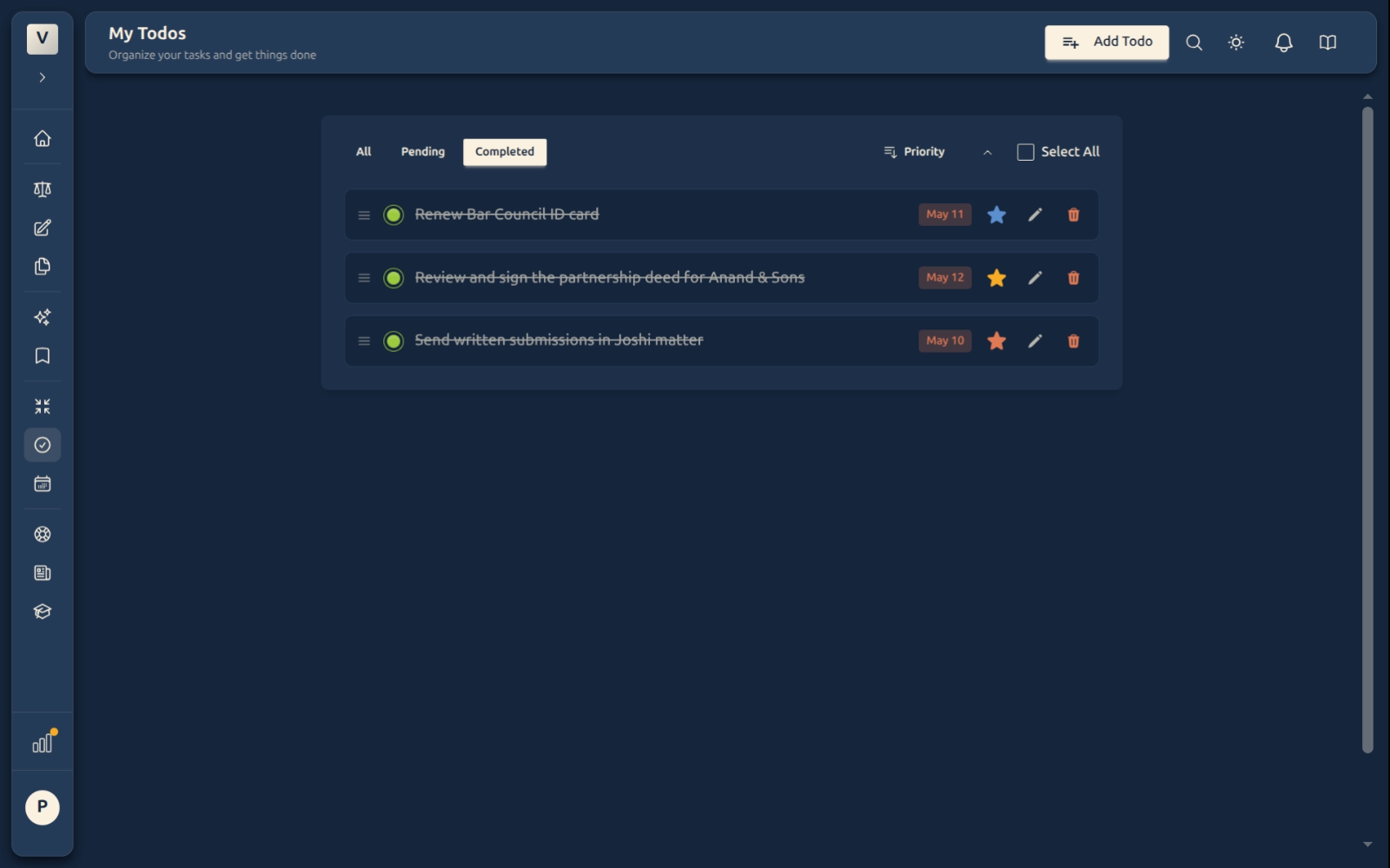
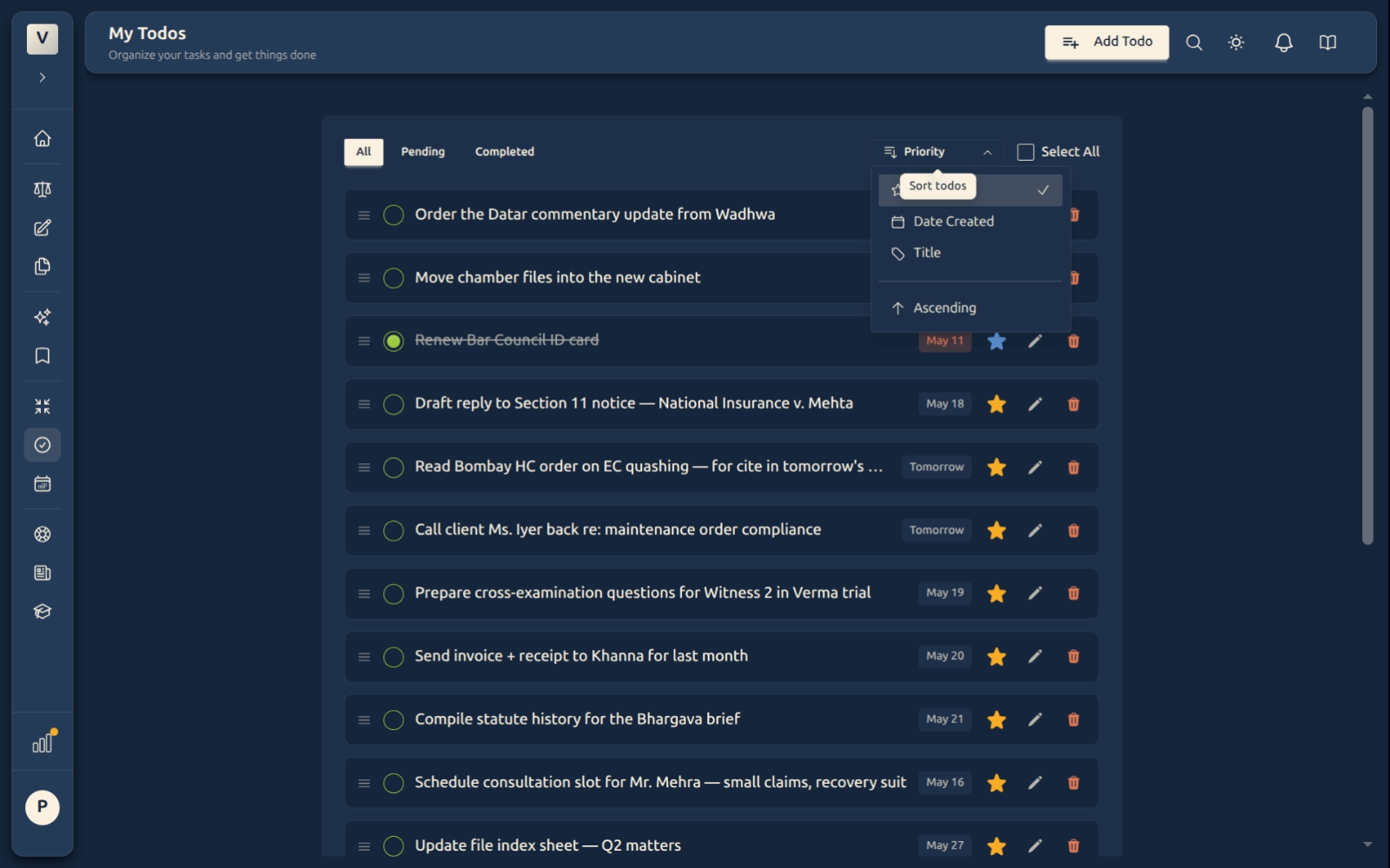
The sort dropdown on the right gives you three orderings — Priority (default), Date Created, or Title — and a one-click direction flip (ascending / descending).
Working in bulk
Tick the Select All checkbox at the top-right and the list enters selection mode. The toolbar replaces itself with three actions: mark Complete, mark Pending, or Delete every selected row.
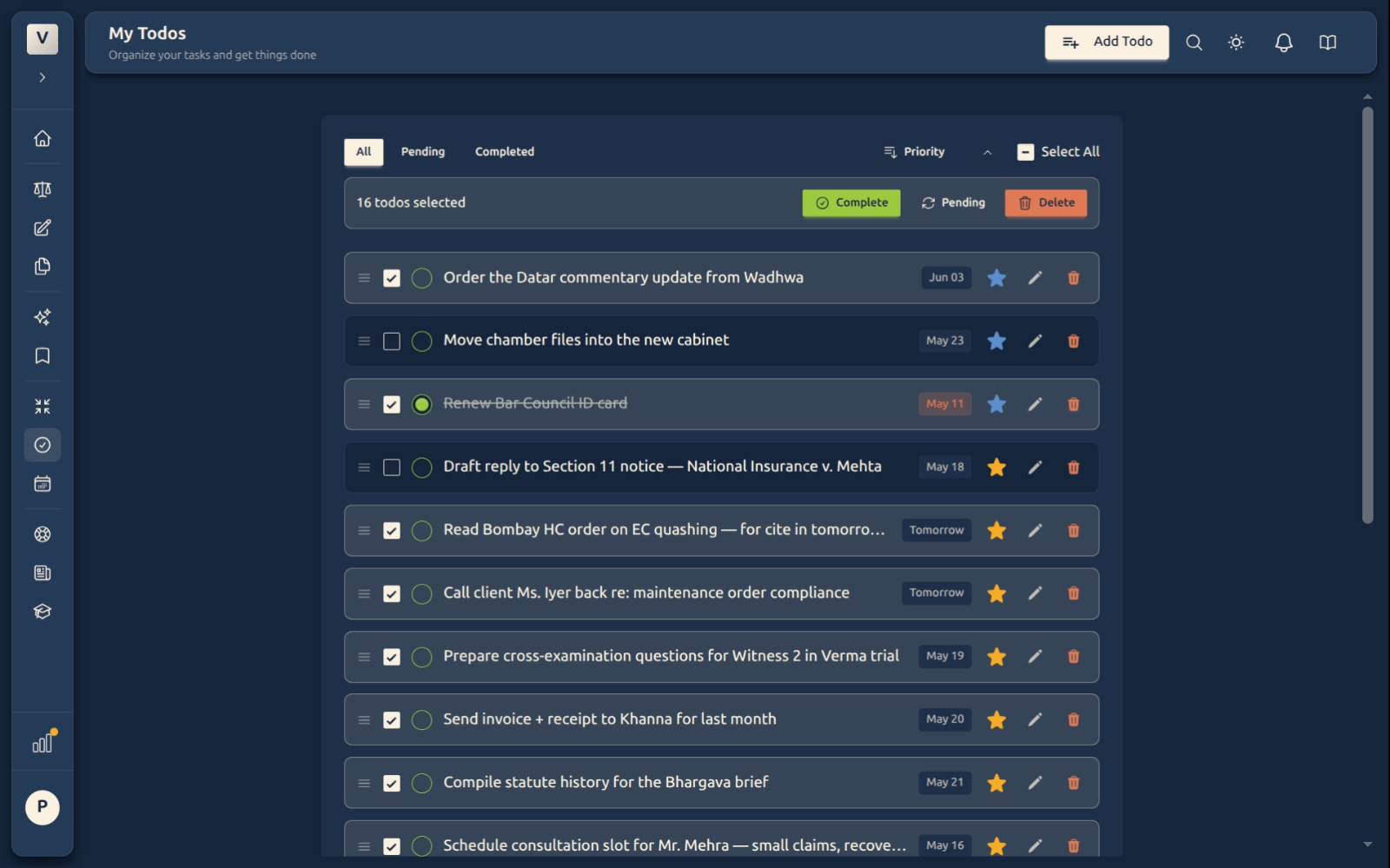
Untick a row to drop it from the selection (the header checkbox shows a dash to let you know some-but-not-all rows are picked). Click Select All again to leave selection mode entirely.
Looking at one todo
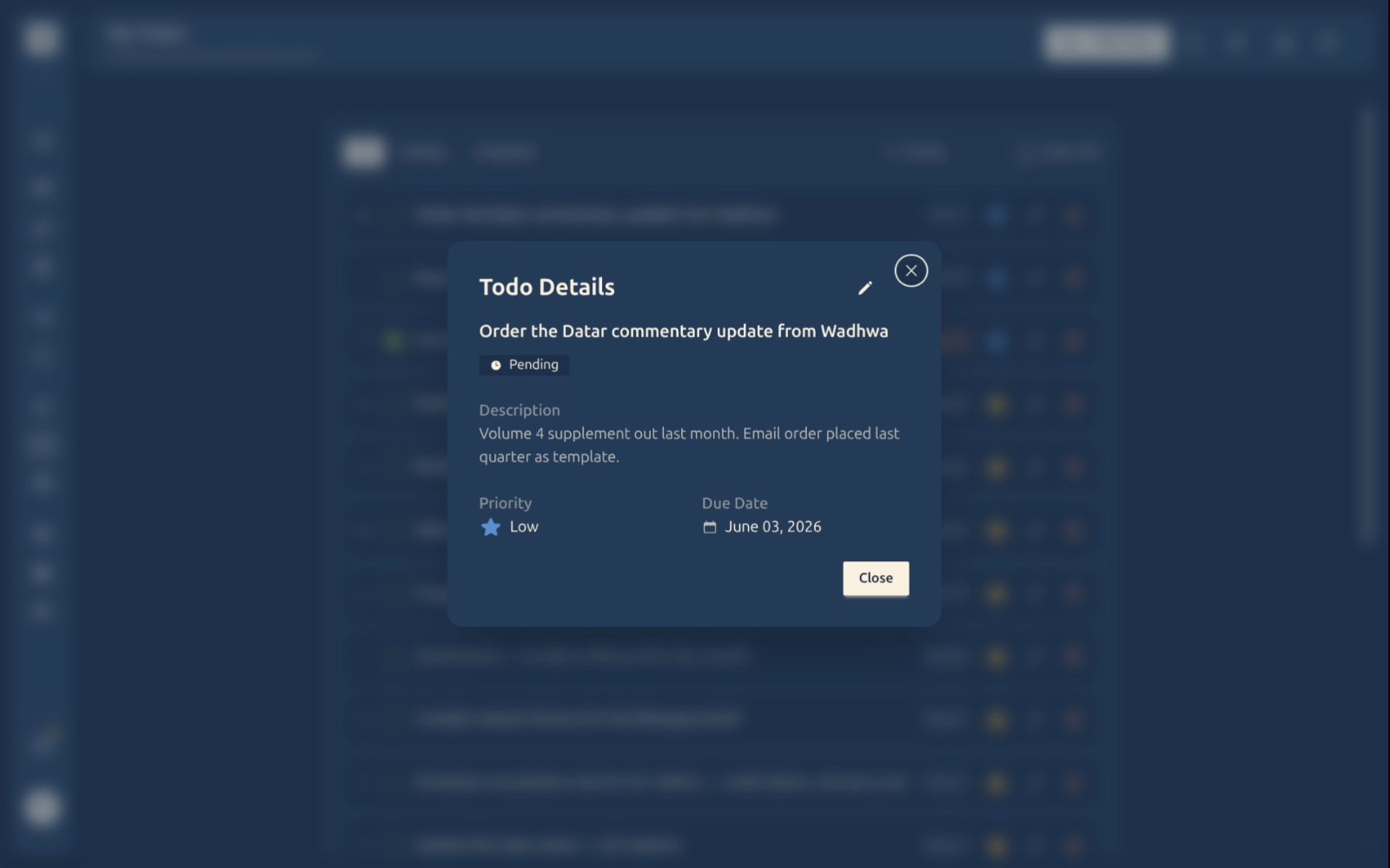
Click any row’s title and a details modal opens — read-only, with everything in one view (status, description, priority, due date). Hit the pencil to edit, or Close to dismiss.
FAQ
Does a todo with a due date show up on the Calendar?
Yes. Adding a due date creates a linked calendar event in the background so it appears on the right day. Edit the date on either side and the other updates automatically. If you don’t want the calendar entry, just leave the due date blank — the todo stays here on its own.
What happens when I set a reminder?
We send you an email at the reminder time. Most useful for things that need a head start — “prepare Iyer cross-examination notes” with a reminder the evening before, “file written submissions” with a reminder an hour before the registry shuts. If your plan doesn’t include email reminders we’ll let you know in the modal.
Can I drag tasks around to reorder?
Yes. The handle on the left of each row lets you drag a task up or down. Manual ordering sticks until you re-sort by Priority / Date Created / Title.
Can I share a todo with a colleague?
Not yet — todos are personal to your account. For shared work items use a Case or a Document instead.