Update Your Name
Change your first and last name as it appears across the platform.
What This Does
Your display name appears in the page header, your profile card, and anywhere your account is shown to collaborators. Updating it takes effect immediately everywhere — no reload needed.
Video Walkthrough
Step-by-Step Guide
Updating Your Name
-
Go to Settings → Profile tab.
-
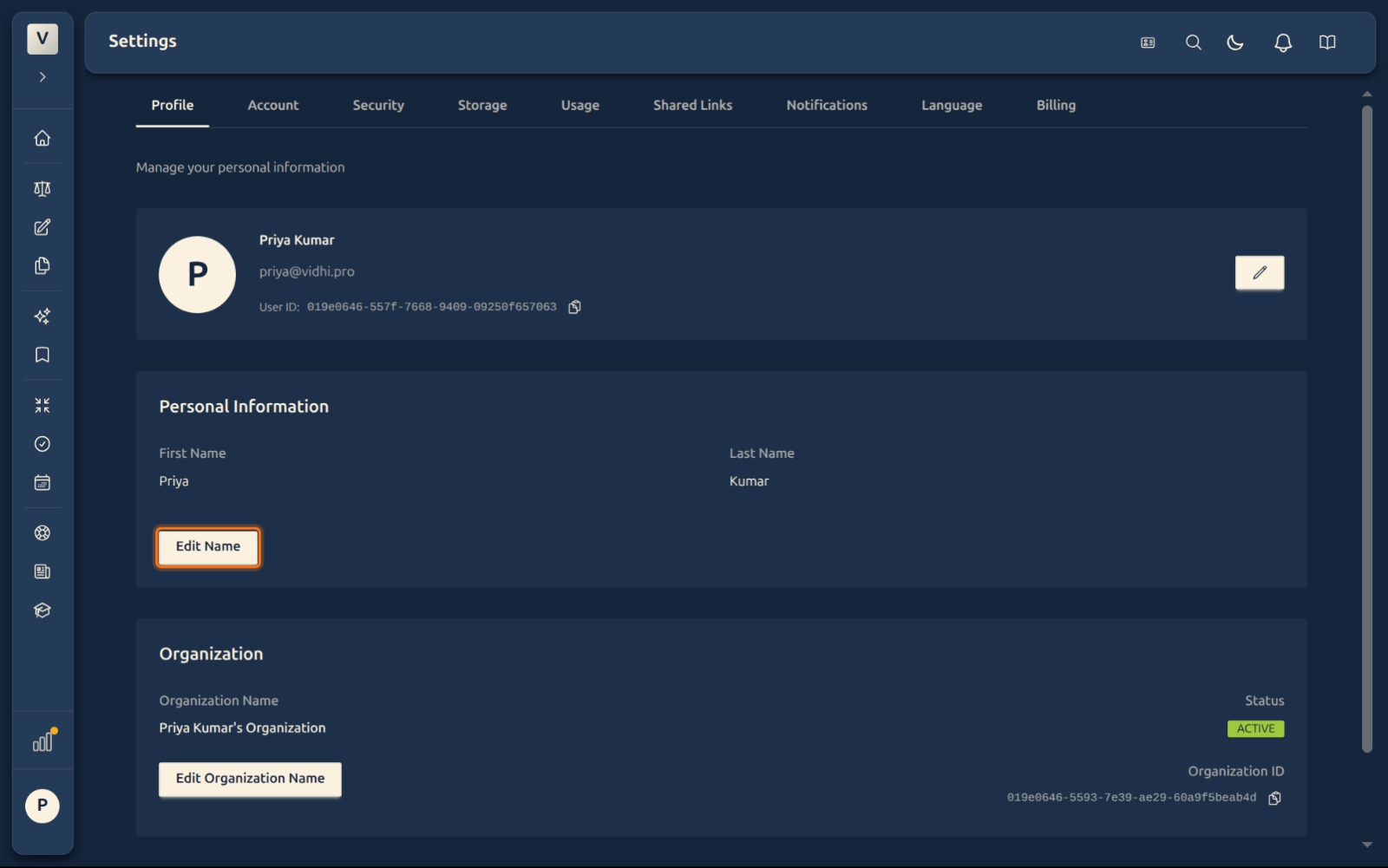
Under Personal Information, click Edit Name.
-
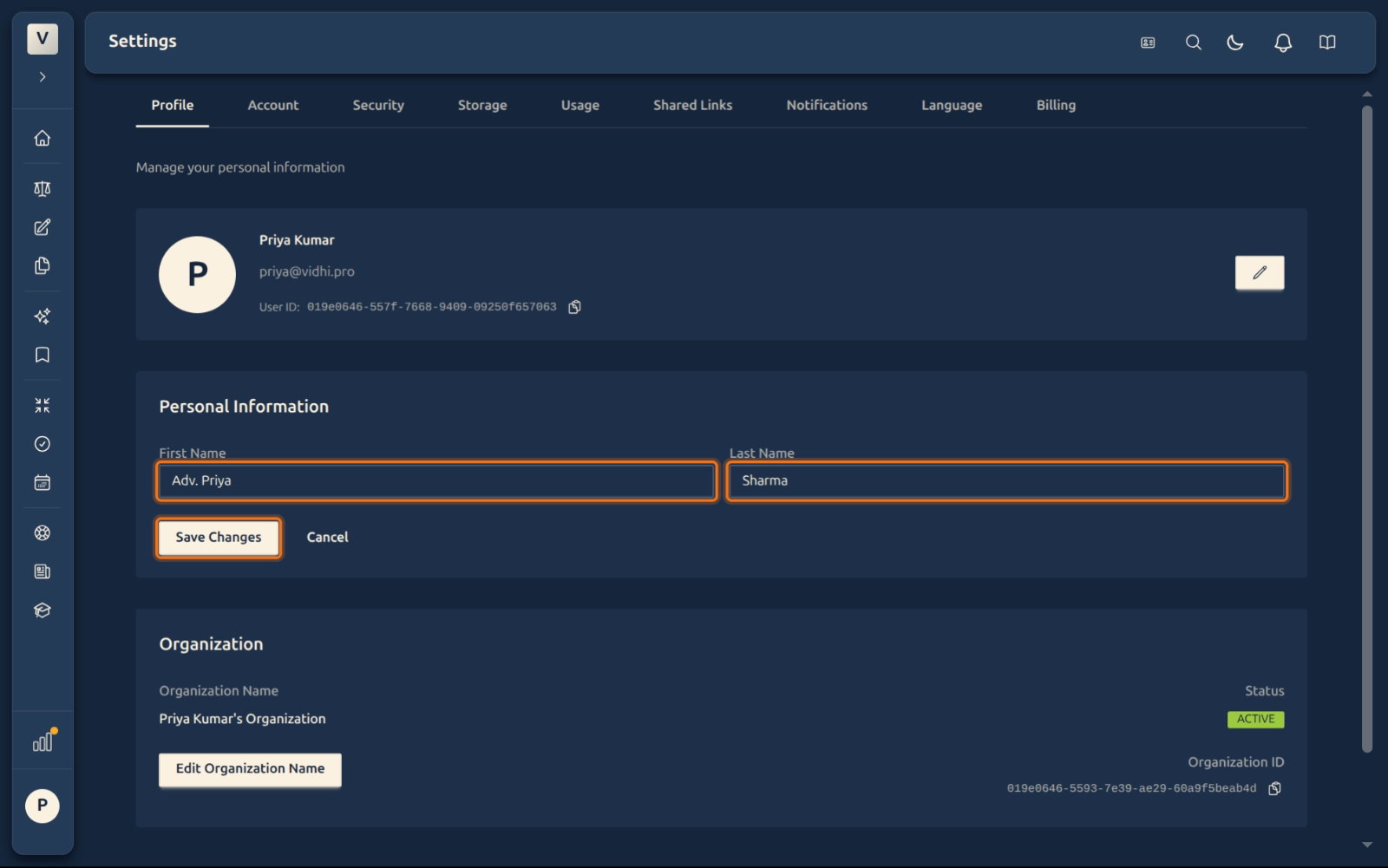
Update your First Name and/or Last Name in the fields that appear.
-
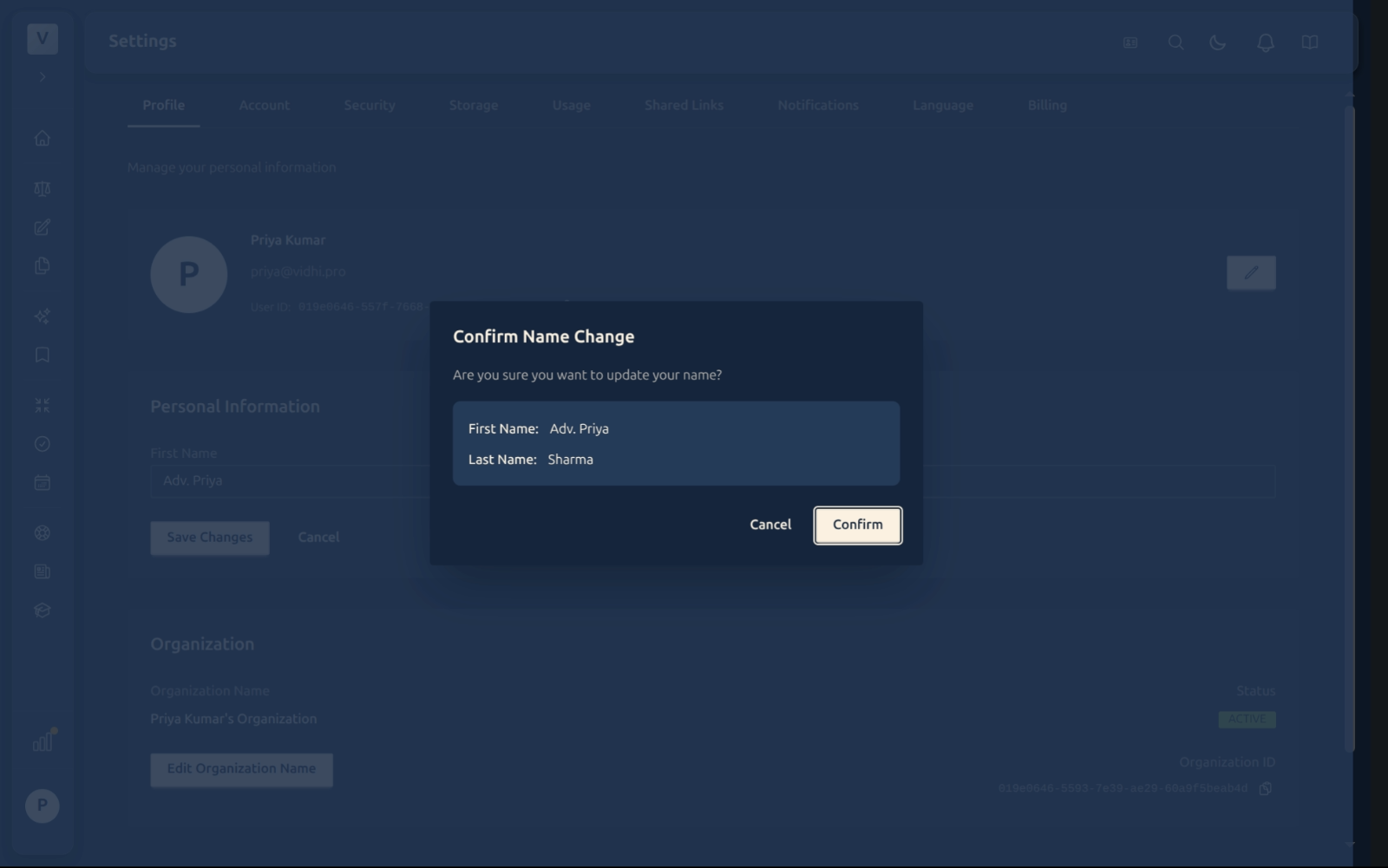
Click Save Changes. A confirmation dialog shows the new name — review it and click Confirm.
-
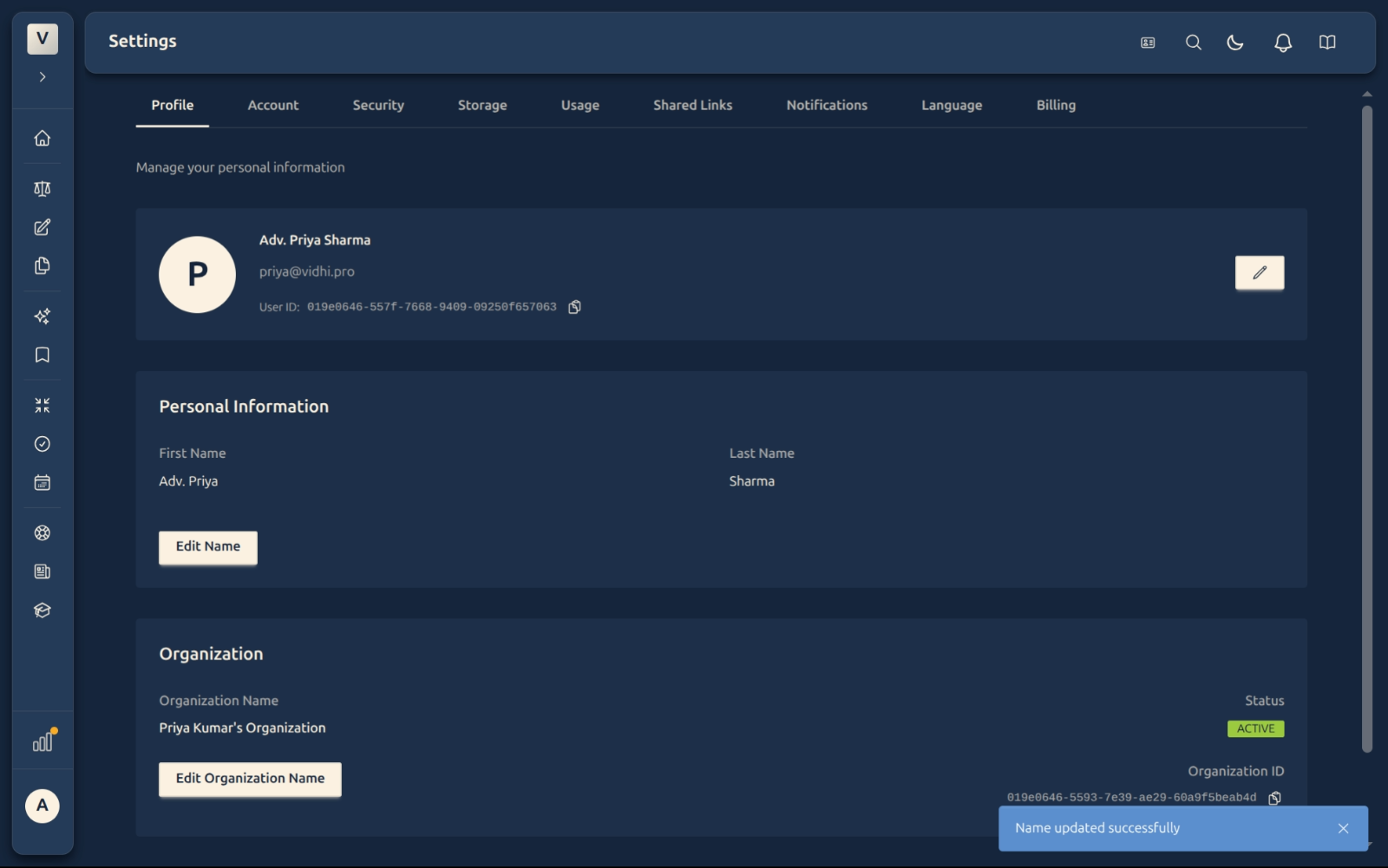
A success message confirms the change. Your name updates in the header instantly.
FAQ
Does changing my name affect my login?
No. Your login is tied to your email address, not your display name. You can change your name at any time without affecting access.
Will my colleagues see the new name immediately?
On a Firm plan, yes — the name updates in real time across the platform as soon as you confirm. On Starter and Pro plans your name updates on your own account instantly, visible wherever your profile appears.
Can I use a professional title like “Adv.” in my name?
Yes. The First Name field accepts any text, so you can enter “Adv. Priya” or “Adv. Rahul” — professional prefixes work fine.
Is there a character limit?
Names are limited to 255 characters per field, which is well beyond any practical need.