Change Your Email Address
Update the email address used to log in and receive notifications.
What This Does
Your email address is your login credential and the address Vidhi uses to send you magic links and notifications. Changing it requires verifying the new address before it takes effect — your old address stays active until you click the confirmation link.
Video Walkthrough
Step-by-Step Guide
Changing Your Email Address
-
Go to Settings → Account tab.
-
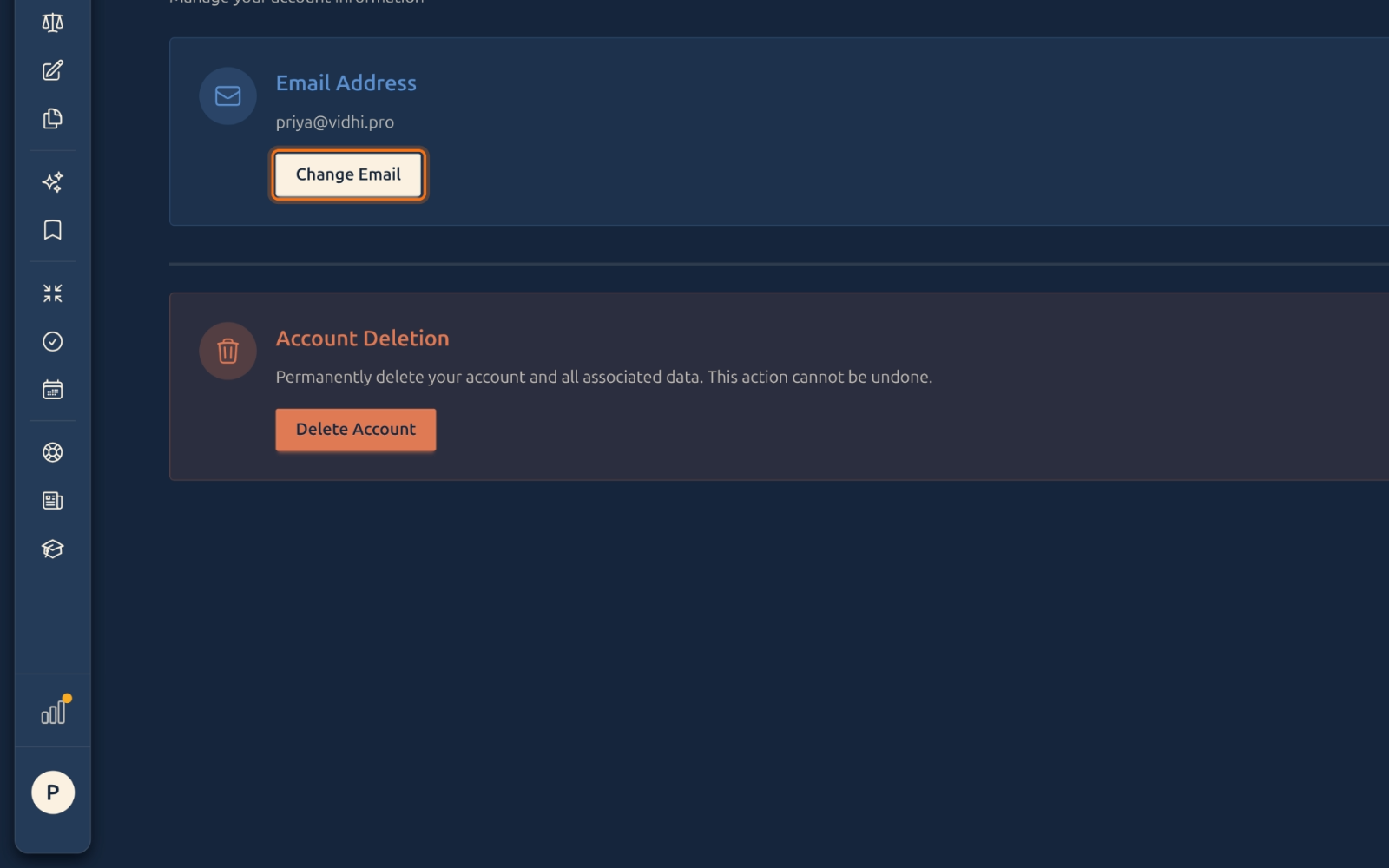
Under Email Address, click Change Email.
-
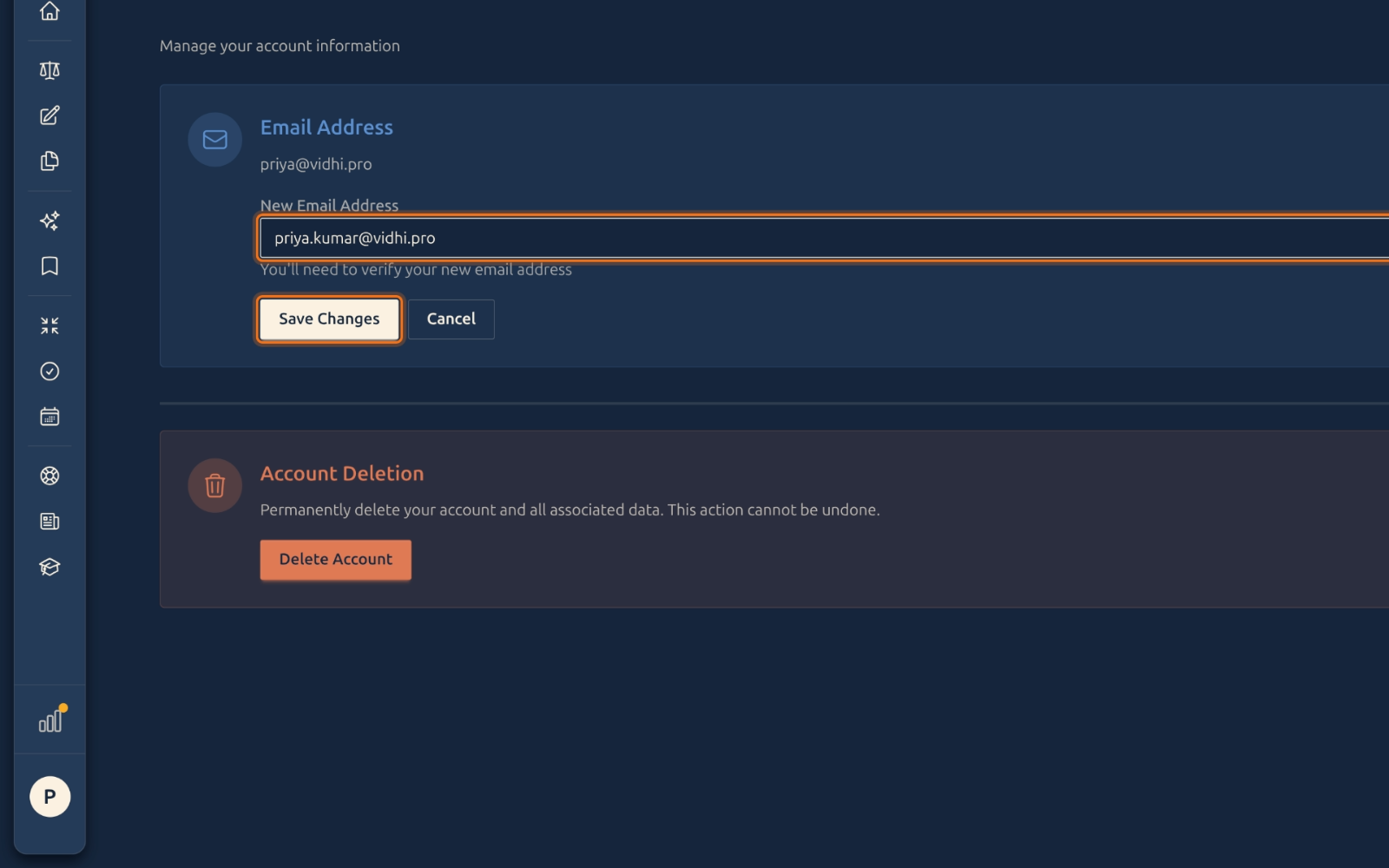
Enter the new address and click Save Changes.
-
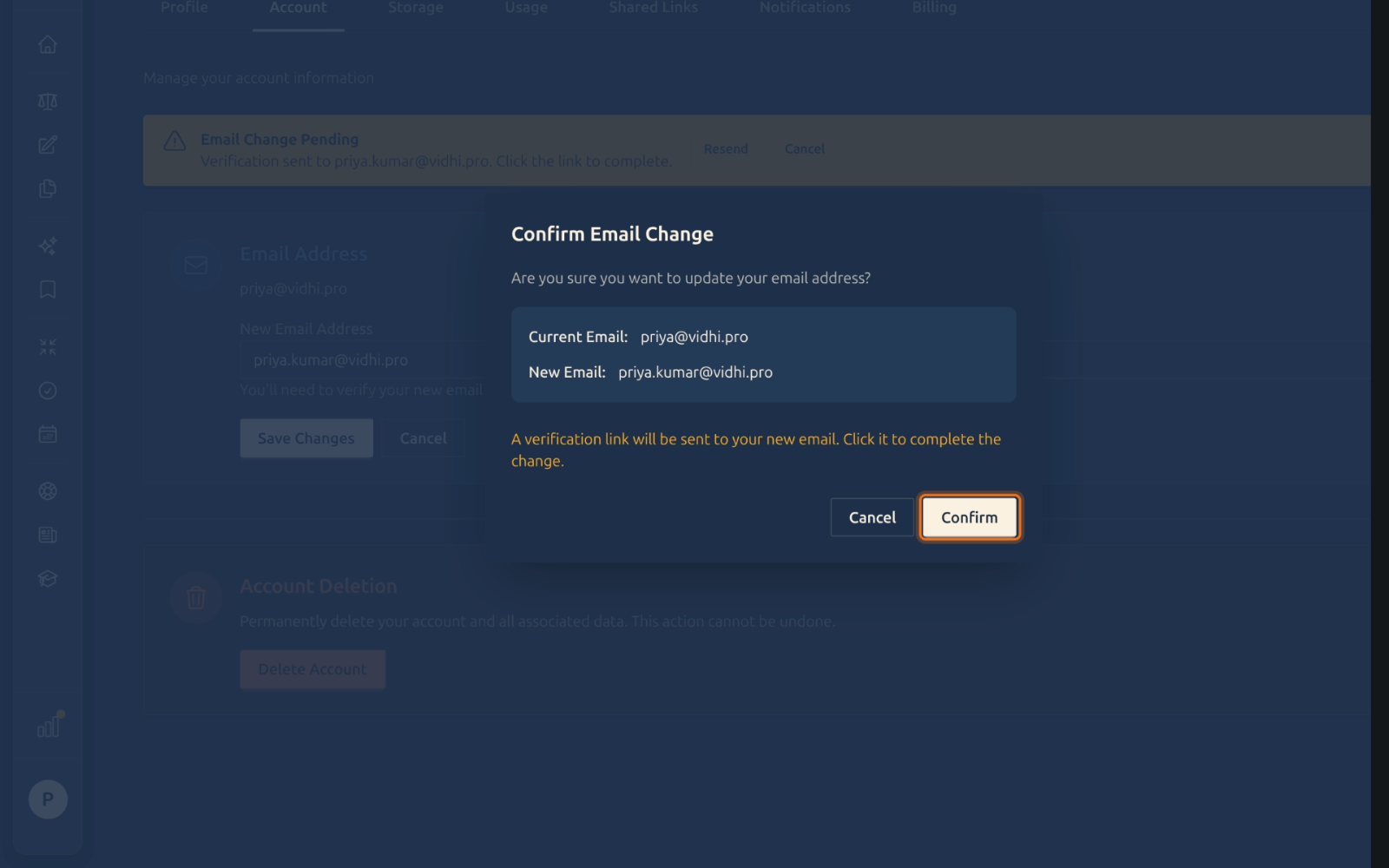
Confirm the change in the dialog.
-
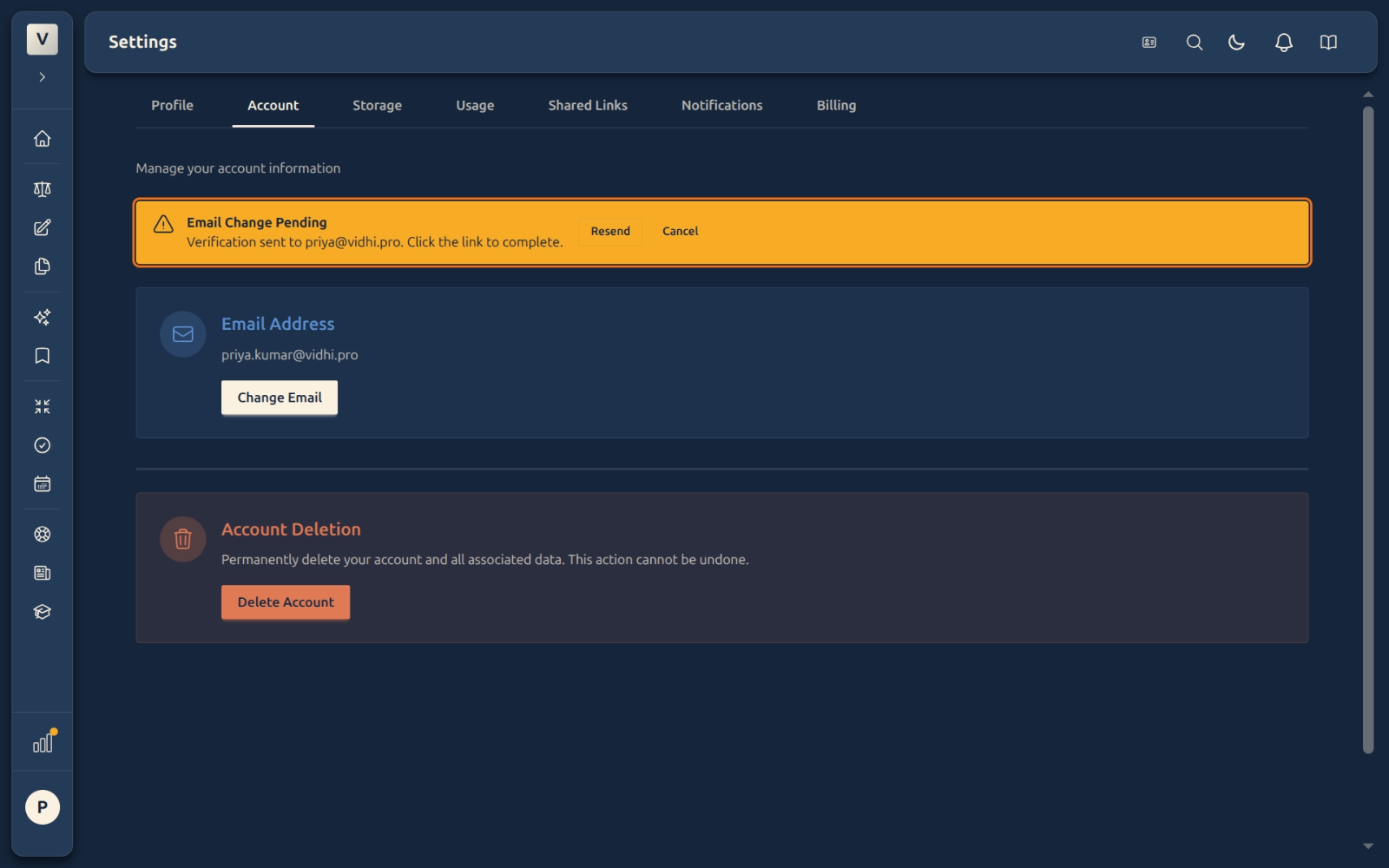
A yellow banner appears — a verification link has been sent to the new address. Your old email still works for login until you click it.
-
Open the email at the new address and click Confirm Email Change.
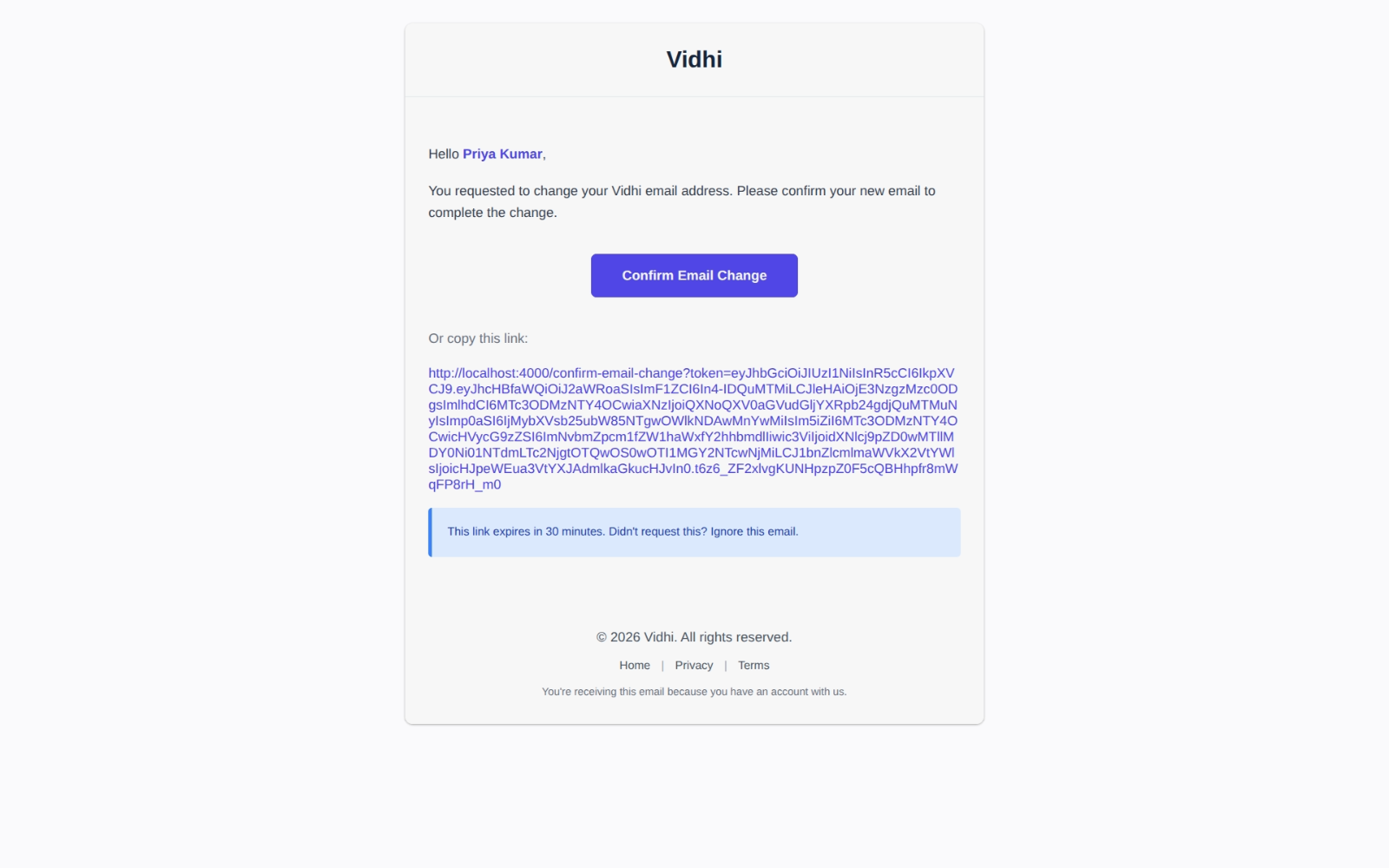
-
You are signed out automatically. Sign in with the new address.
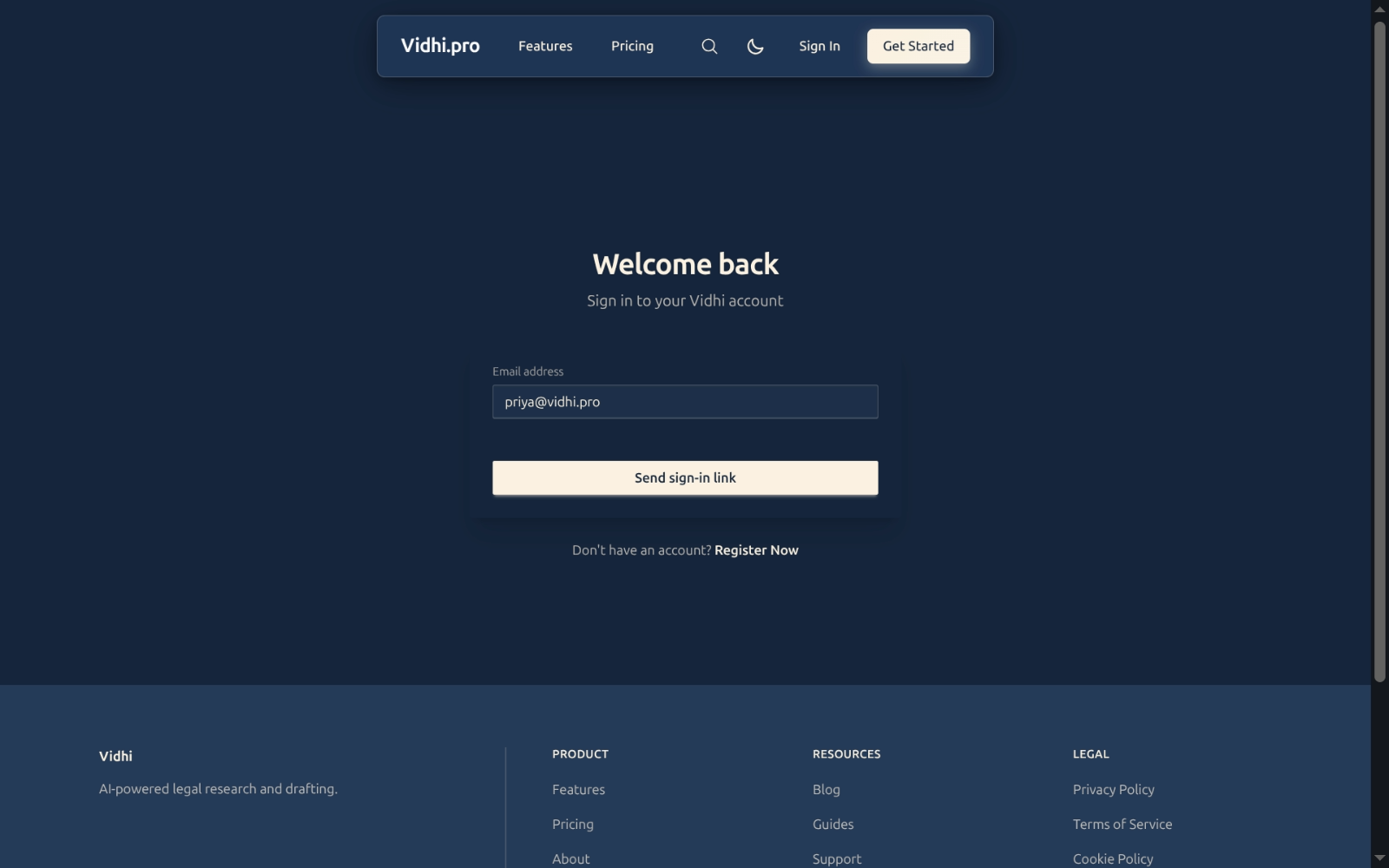
-
Done — the Account tab now shows the updated address.
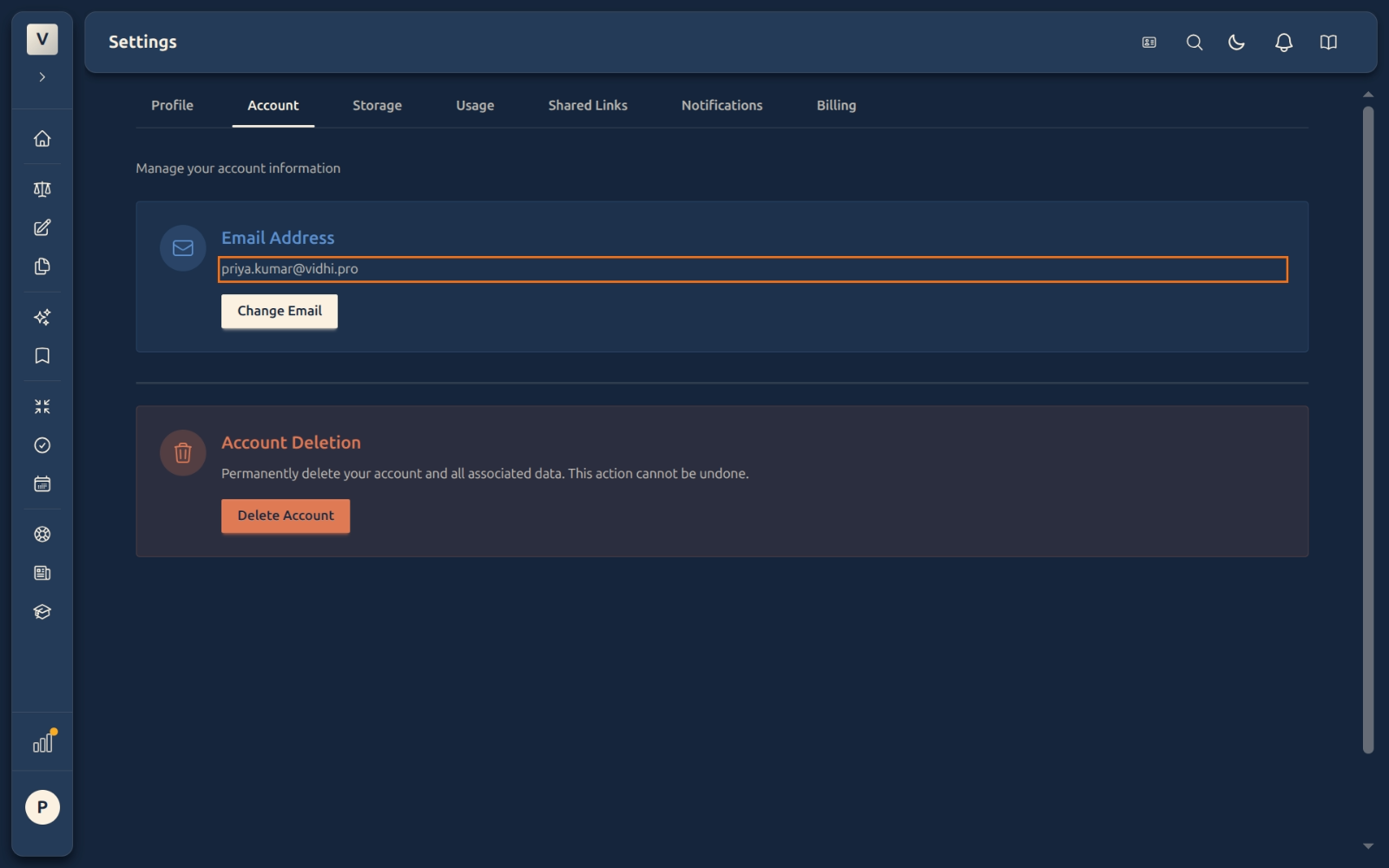
Need to cancel? If you haven’t clicked the verification link yet, return to Settings → Account and click Cancel in the yellow banner. The pending change is discarded and your old address remains active.
FAQ
Will I be logged out when I start the process?
No. Your current session stays active while the change is pending. You are only signed out after you click the verification link in the new address email.
What if I don’t receive the verification email?
Check your spam folder. If it’s not there, return to Settings → Account and click Resend in the yellow banner. The link expires in 30 minutes.
Can I change back to my old email?
Yes — simply repeat the process with your old address.
What happens if I never click the verification link?
The pending change expires after 30 minutes. Your account is unchanged — the old address remains your login.
Examples of when you’d change your email:
- Advocate Priya Sharma switches from a personal to a firm email address
- Advocate Arjun Mehta joins new chambers and needs to use his new work address