Update Your Firm Name
Change the firm name on your profile — visible to collaborators and across the platform.
What This Does
Your firm name appears on your profile and helps collaborators identify which practice or chambers you belong to. You can update it at any time from the Profile tab — it takes effect immediately across the platform.
Video Walkthrough
Step-by-Step Guide
Updating Your Firm Name
-
Go to Settings → Profile tab.
-
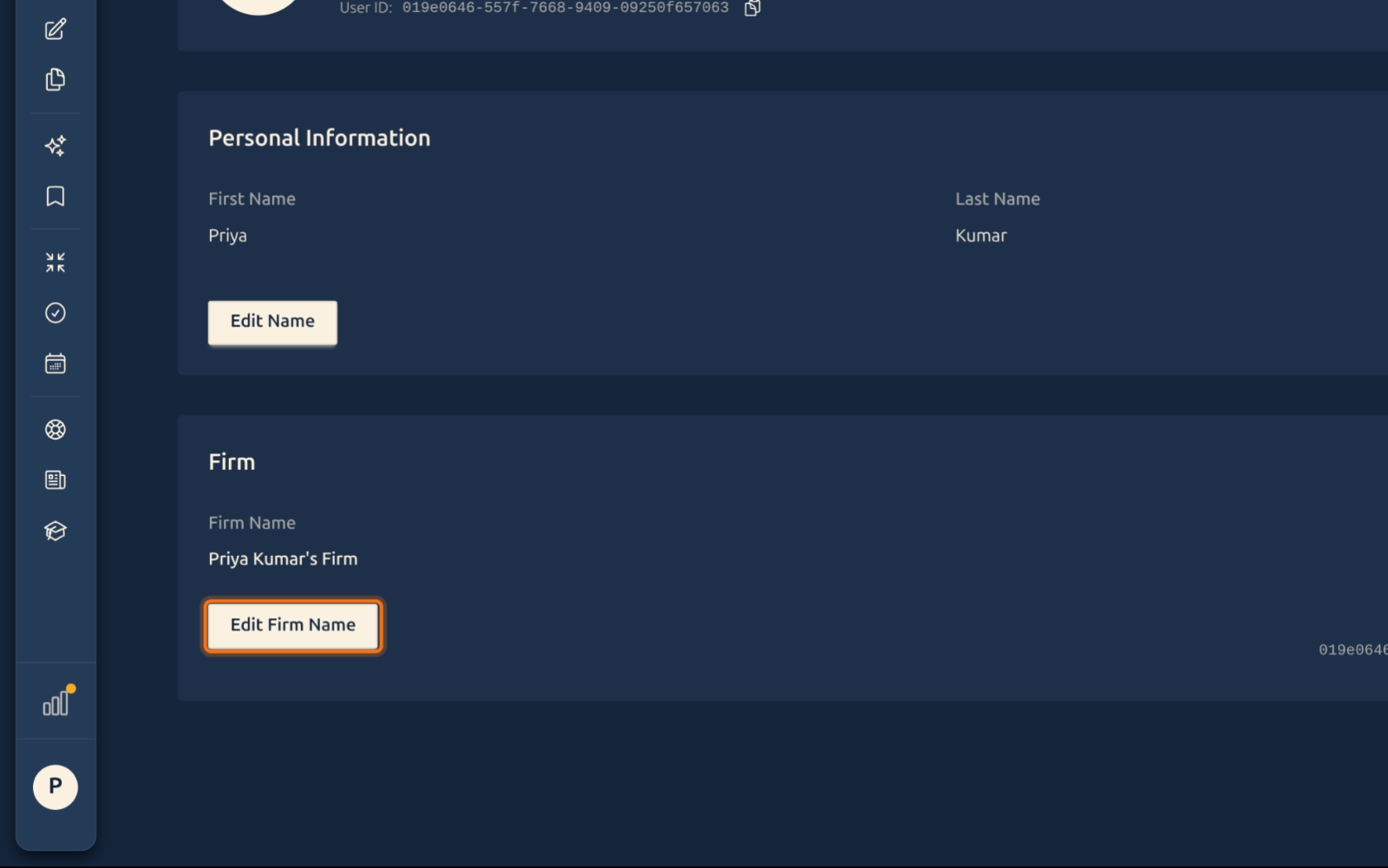
Scroll down to the Firm section.
-
Click Edit Firm Name.
-
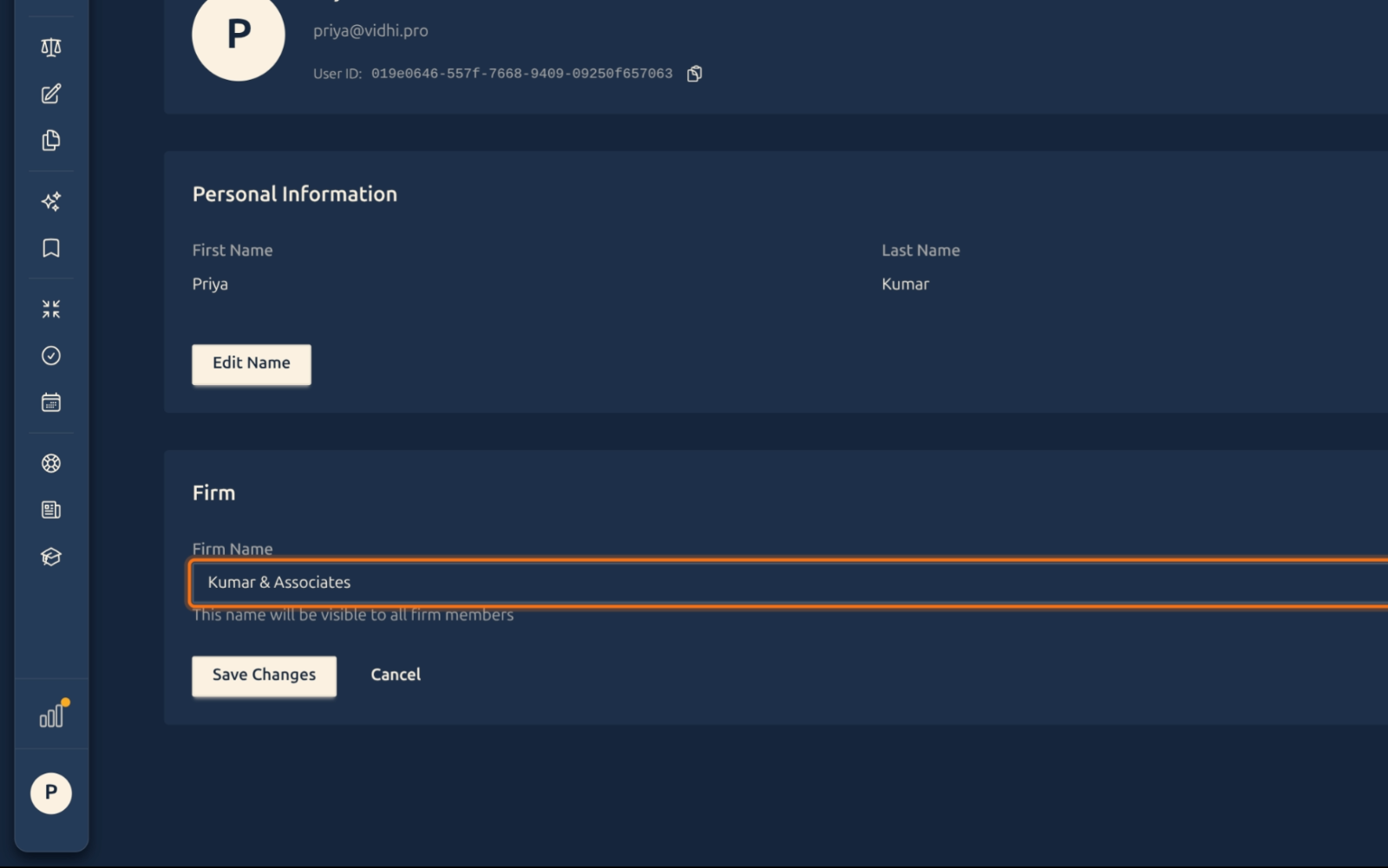
Type the new firm name in the field that appears.
-
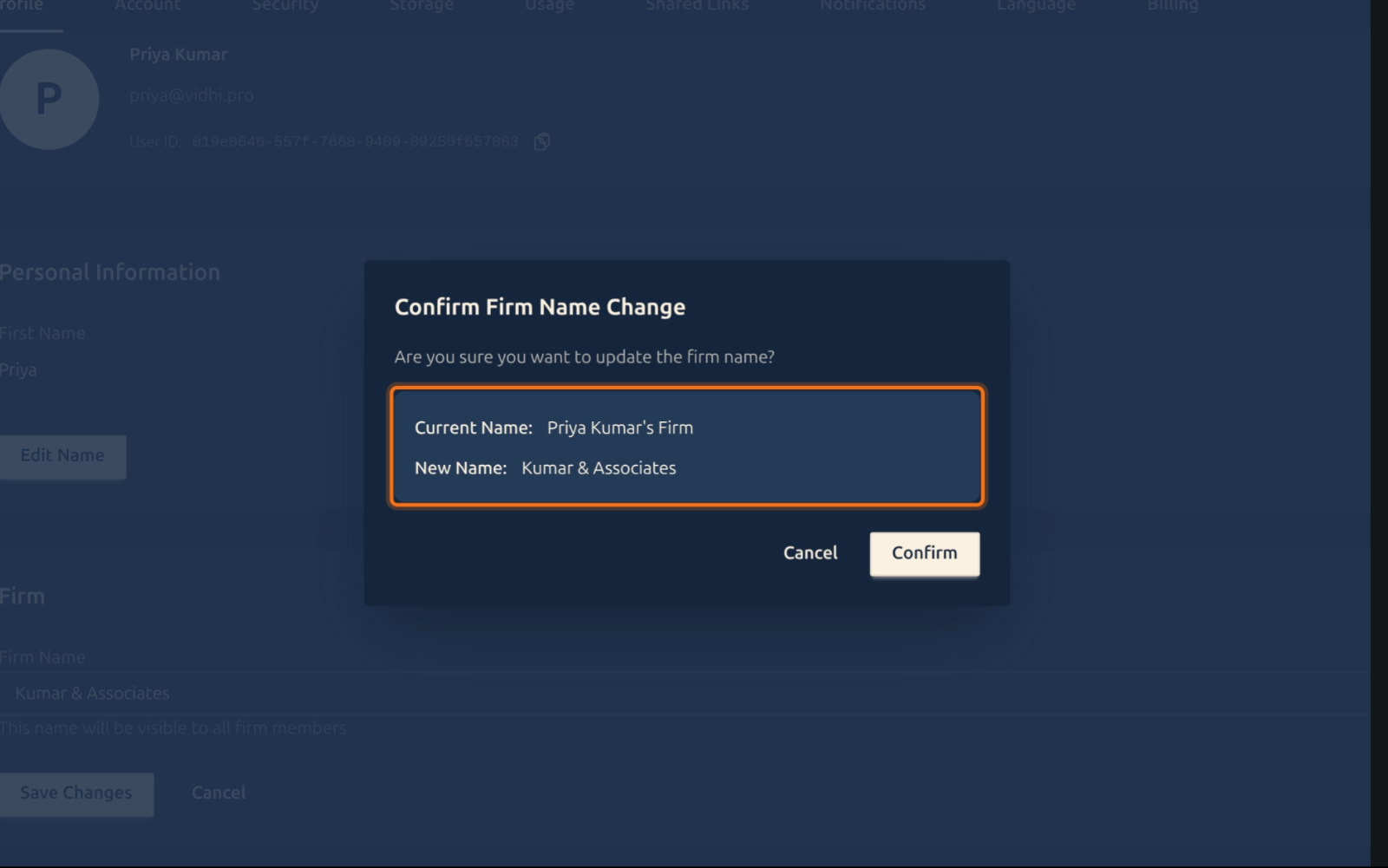
Click Save Changes. A confirmation dialog shows the new name — review it and click Confirm.
-
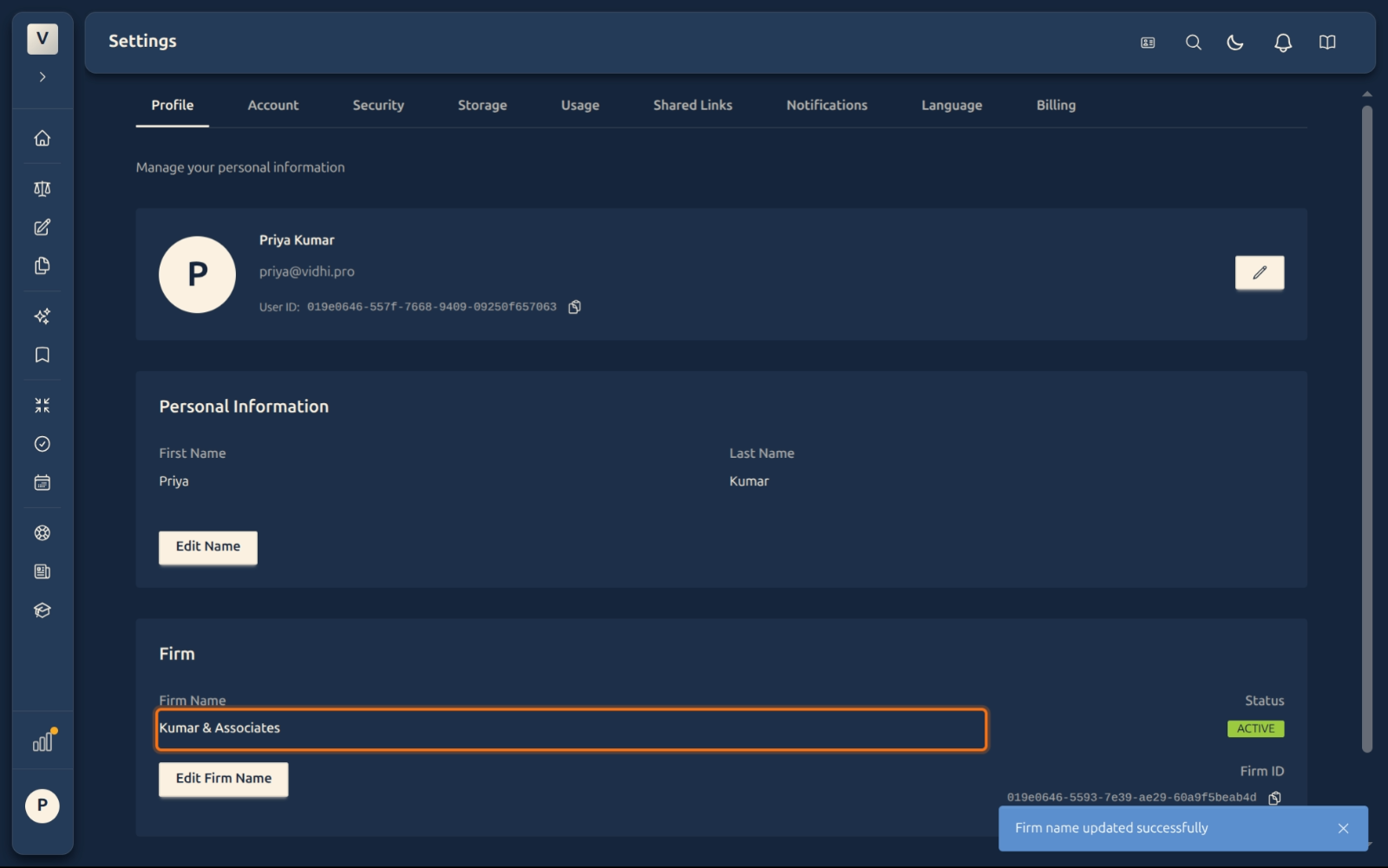
A success message confirms the change. Your firm name updates in the header instantly.
FAQ
Does changing the firm name affect my team or case access?
No. The firm name on your profile is a display label — it does not affect any case assignments, team memberships, or permissions inside the platform.
Can two users show the same firm name?
Yes. Firm names are display labels, not unique identifiers. All advocates at the same chambers (for example, “Sharma & Associates”) can each set the same firm name independently.
Examples of firm names:
- “Mehta & Associates, Advocates” (Adv. Rahul Mehta)
- “Sharma Law Chambers” (Adv. Priya Sharma)
- “Singh Legal Practice, High Court” (Adv. Arjun Singh)
- “Kapoor & Co., Advocates” (Adv. Kavita Kapoor)
Is there a character limit?
Firm names are limited to 255 characters per field — well beyond any practical need.
Who can see my firm name?
Your firm name is visible to anyone who can view your profile within the platform, including collaborators on shared cases.