Your summary history
Browse every summary you've created — search by title, filter by document type or status, bulk-delete, and manage shared links.
What This Does
This guide covers the summary history view — every summary you’ve created, sortable, filterable, and bulk-actionable. Think of it as the index for everything the Document Summariser has produced for you. The dashboard at the top shows quick stats (total summaries, this month’s count, average compression, top document type) so you can see your workload at a glance.
For how to create a new summary — paste-text or file upload — see Document Summariser. To deep-dive into one summary with version history, rewrites, and sharing, click any row to open it (or see Reading a single summary).
Step-by-Step Guide
Video Walkthrough
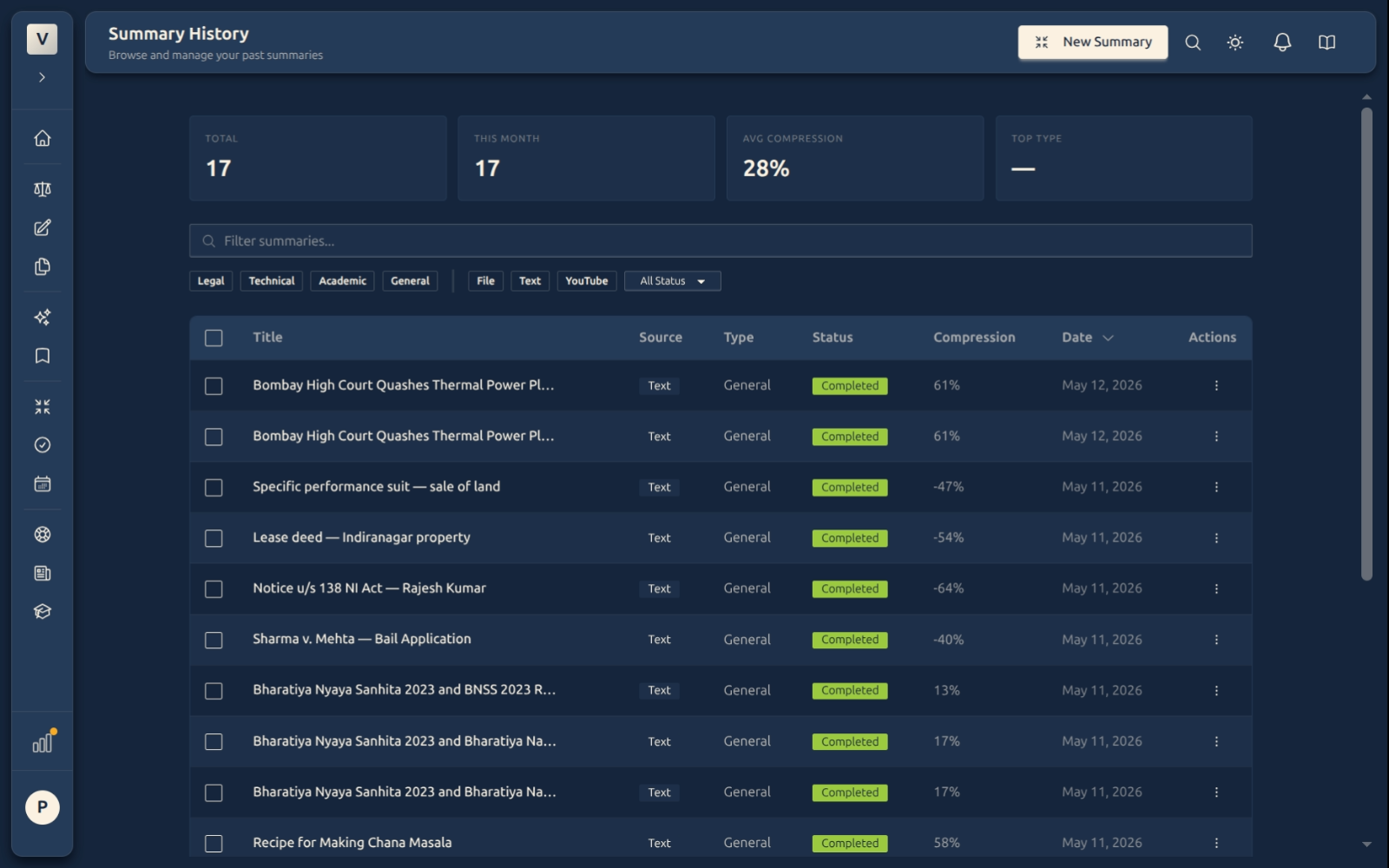
The history page is one large table with a stats strip at the top and a toolbar of filter chips and a search box just above the rows. Each row is one summary — click it to open the deep-view, tick its checkbox to bulk-act on it, or use the three-dot menu at the right for per-row actions.
Finding a summary
The toolbar above the list has the controls you need:
- Search box — matches against title and the first paragraph of each summary. Type a client name, a citation, or a case number.
- Document type chips (Legal / Technical / Academic / General) — narrows the list to the AI’s detected type.
- Source chips (File / Text) — narrows to a specific input method.
- Status chip (All / Completed / Processing / Failed) — find a summary you started earlier but didn’t wait for.
- Sort header — click a sortable column header (Title, Source, Type, Status, Date) to sort. Click again to reverse.
Bulk actions
For house-cleaning across many summaries at once:
- Tick the checkbox at the row level for each summary you want to act on, OR tick the master checkbox in the table header to select every visible row.
- The action bar at the top of the table reveals Delete selected and Clear.
- Bulk delete asks for confirmation — once confirmed, the summaries are removed permanently. Underlying source files in Documents are unaffected.
Managing shared links
Share links you generate for a summary are managed from Settings → Shared Links, alongside every other link you’ve created.
- Open Settings → Shared Links.
- Filter by type Summary to find the link you want.
- Revoke it in one click — the link stops working immediately, and anyone holding it sees a “no longer available” page.
Revoked links can’t be reactivated; generate a new share if you need one again.
Renaming and re-summarising
The row action menu also offers:
- Rename — change the title shown in the list without affecting the source.
- Re-summarise — runs the AI pipeline again on the same source. Useful if the document changed slightly, or if you want a fresh angle. Creates a new version on the existing summary.
FAQ
Are summaries deleted when I delete the underlying file from Documents?
No. Summaries are independent records. Deleting a file in Documents removes the file but the summary remains in your history with the extracted text intact. Conversely, deleting a summary doesn’t touch the file.
How far back does my history go?
Your history stays available until you delete entries, subject to your plan’s storage limits and current retention policies. Storage usage is tracked on Settings → Storage. Old summaries can be deleted from this page at any time.
Can I export my whole history as a single file?
Not yet. Per-summary export (PDF / DOCX / Markdown) is available on each summary’s deep view. For now, download summaries one at a time from each summary’s view.
How this fits with the other Summariser pages
Where summaries are created — the main Summariser page
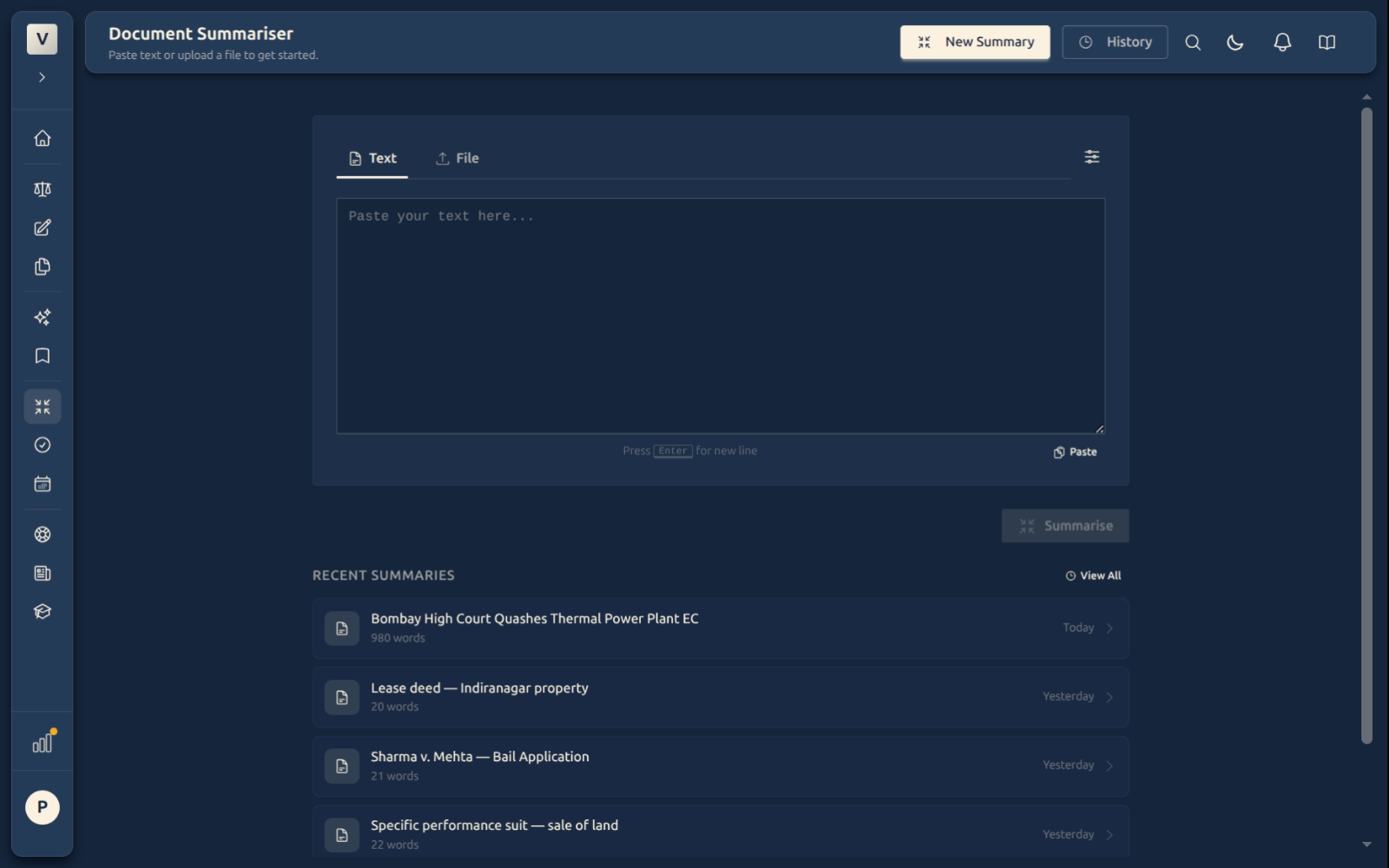
Rows arrive in this history table once you’ve created a summary on the main Summariser page — paste text or upload a file, hit Summarise, and the new entry appears here as soon as the AI finishes (or sooner, with a “Processing” status).
Reading or rewriting one row — the deep-view
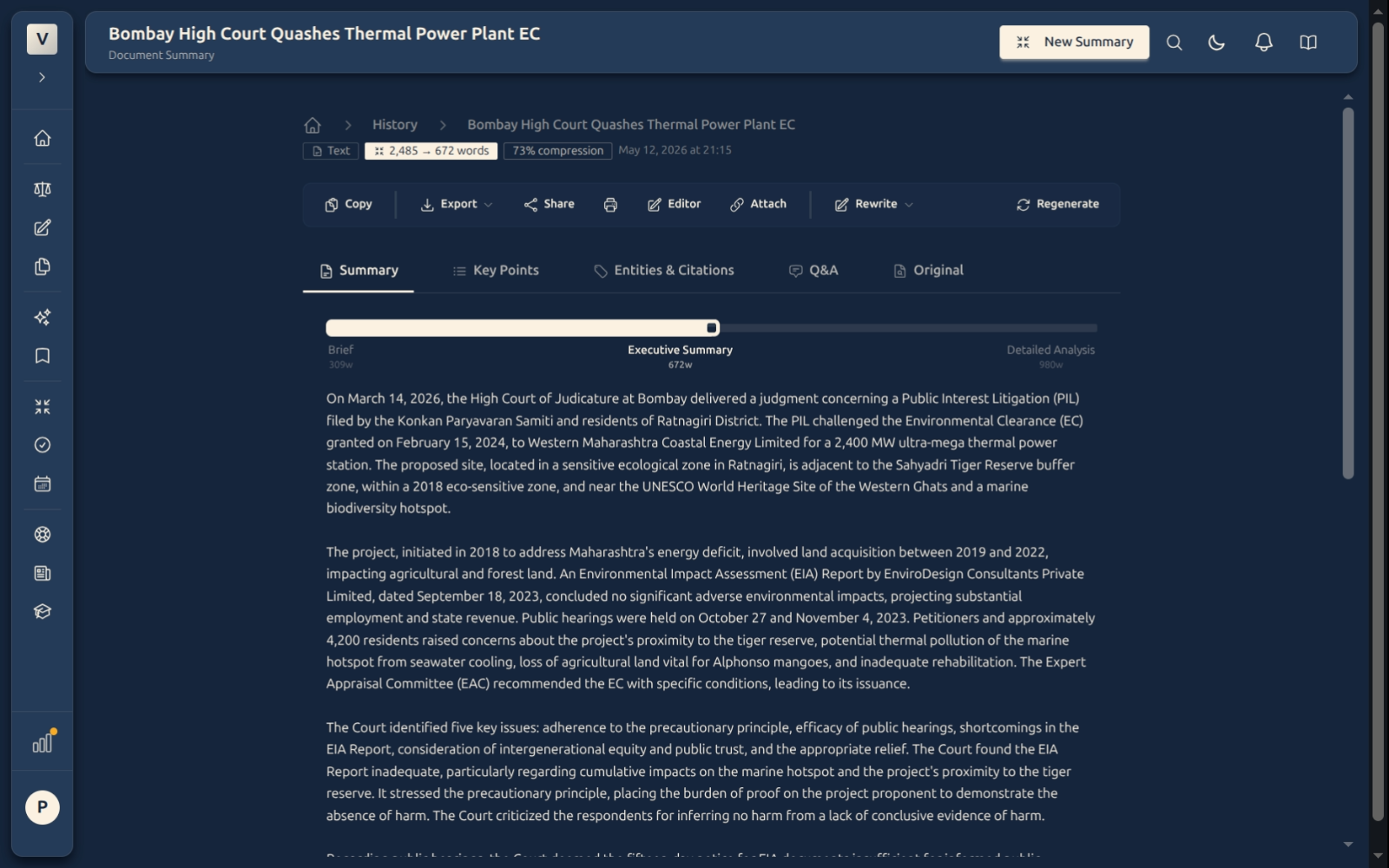
Click any row to land on Reading a single summary — that’s where you switch between Summary / Key Points / Entities / Q&A / Action Items / Sections / Original tabs, rewrite in a different tone, share a public link, or open the summary in the document editor.