Drafting — Getting Started
Your drafting desk — every document you're writing in one list, started blank or drafted with AI.
Summary
The Drafts page is your drafting desk — one list of every document you’re writing, from a one-line legal notice to a full writ petition. Each row shows the draft’s title, status, word count, how it was started, and when you last touched it. From here you start new drafts, find an existing one, and open any of them into the editor.
Starting a draft offers two ways in: a Blank page (type or paste your own content), or Draft with AI — where you describe the document in a sentence, answer a few quick questions, and the assistant writes a first version into the editor for you. Either way, the document opens in the same rich editor — where the real work (writing, formatting, AI help, review, versions) happens.
Video Walkthrough
How to use it (step by step)
-
Open your drafts — Click Drafts in the left sidebar. Every document you’re writing appears as a row, with the most recently edited near the top.
-
Start a new draft — Click New Draft (top right) and pick how you want to begin:
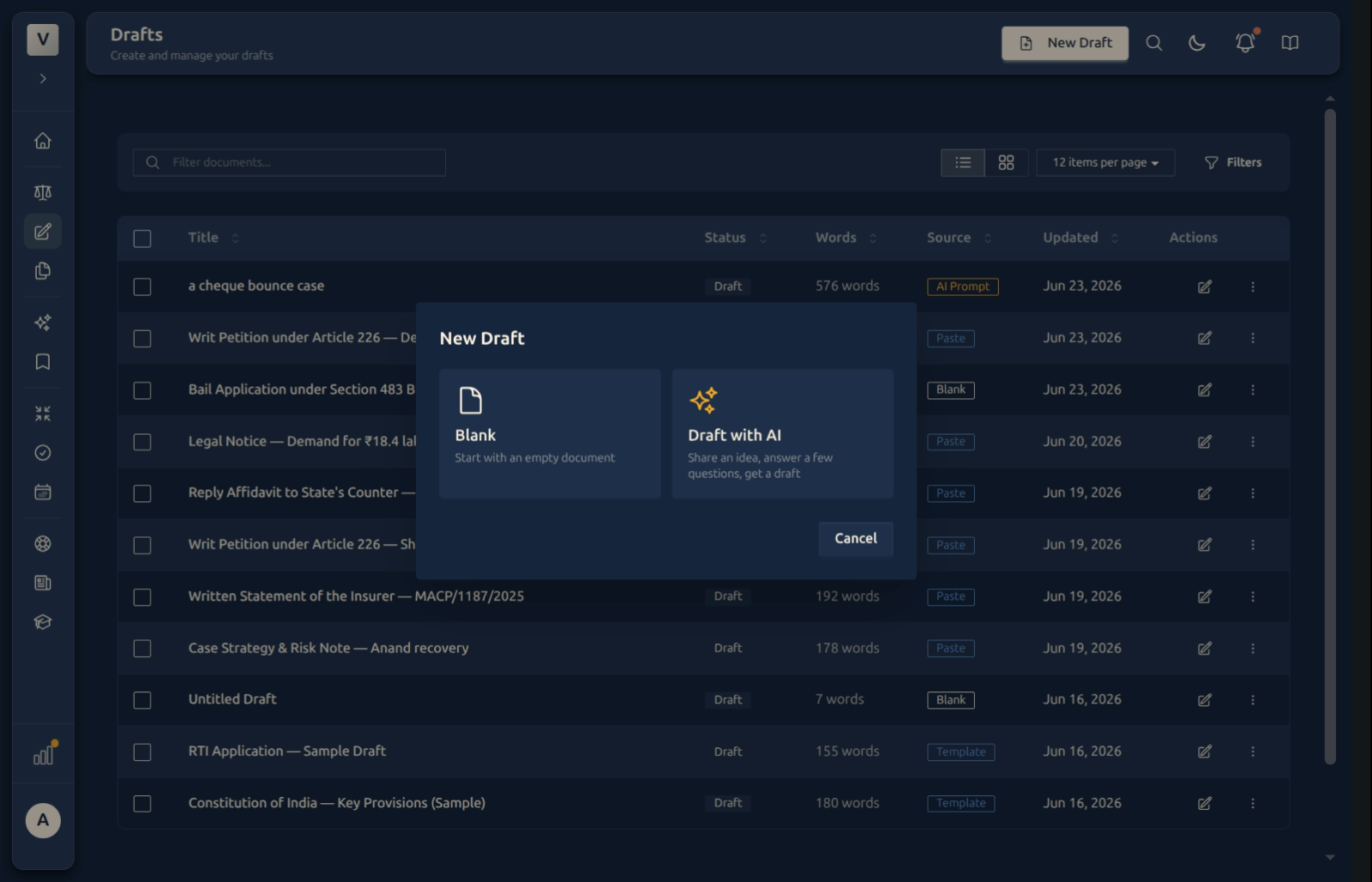
- Blank — an empty page, for when you’ll write it yourself or paste text you already have.
- Draft with AI — describe the document in a sentence, answer a few quick questions, and the assistant writes a first version straight into the editor (as tracked changes you can accept or reject).
-
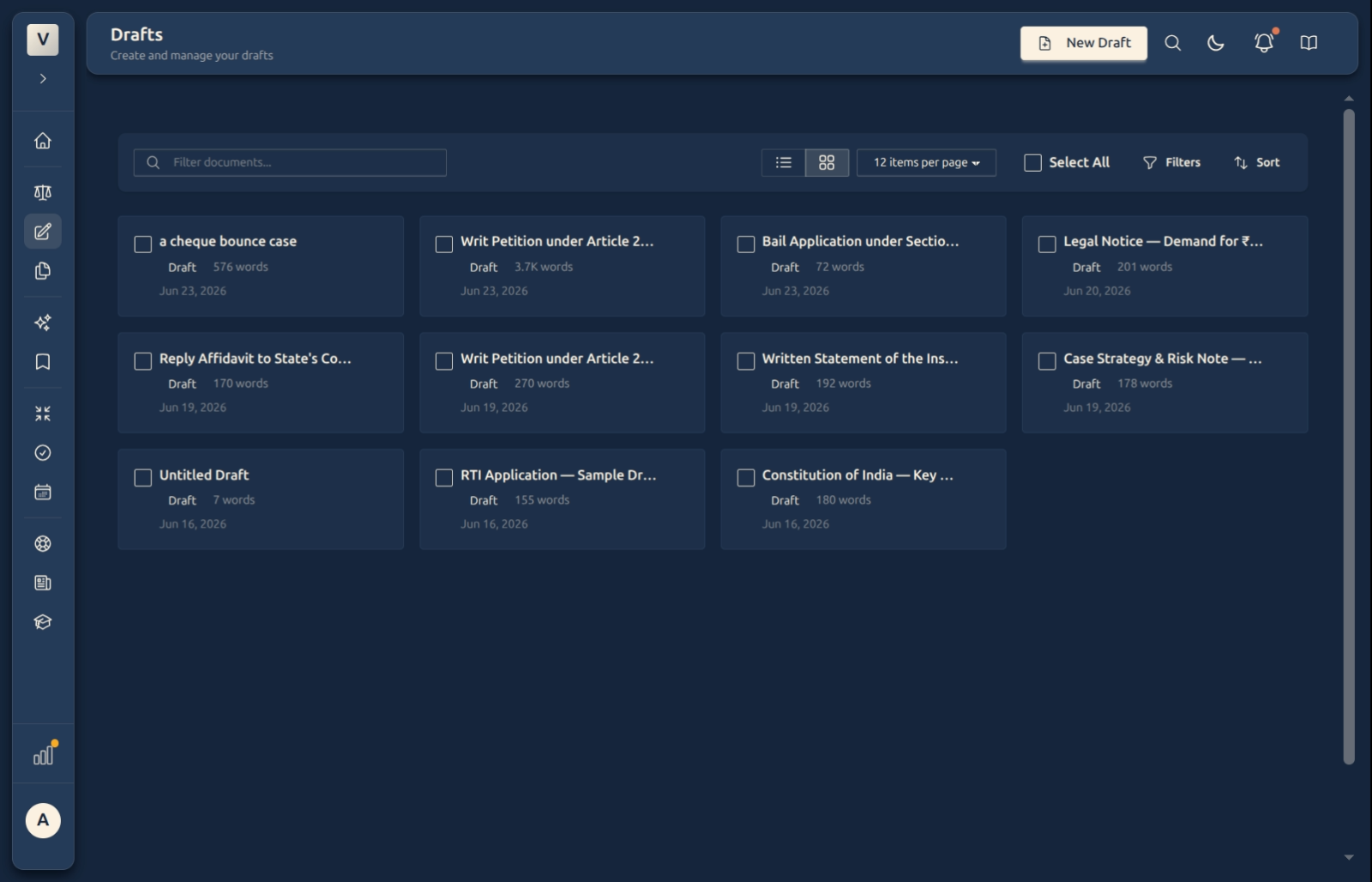
Switch list or grid — Use the list / grid toggle to change how drafts are shown. List is compact and sortable; grid shows larger cards. Use the per-page control to change how many you see at once.
-
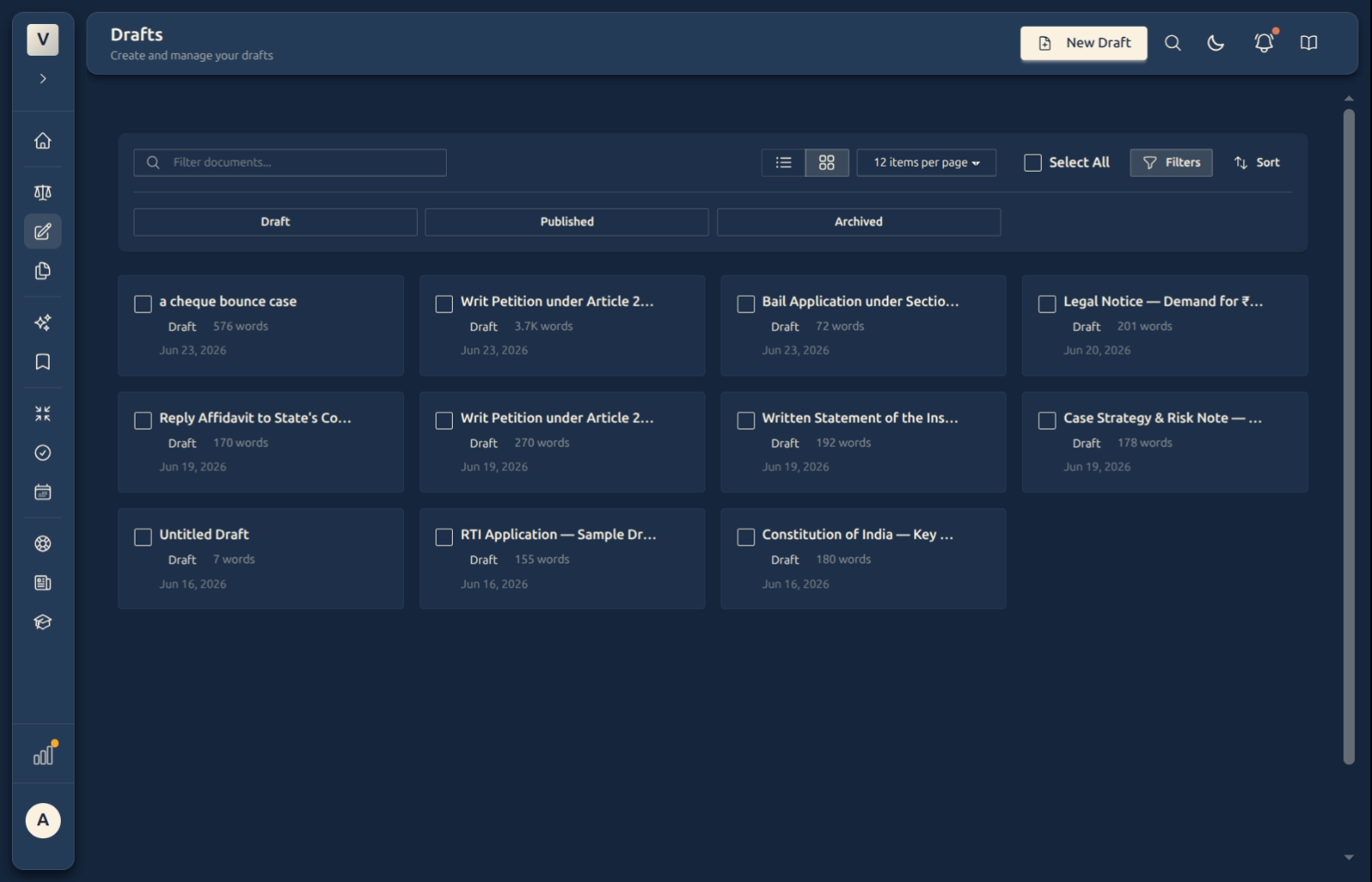
Find a draft — Start typing in the search box to match on title. Click Filters to narrow by status (Draft · Published · Archived), and click any column header (Title, Status, Words, Source, Updated) to sort.
-
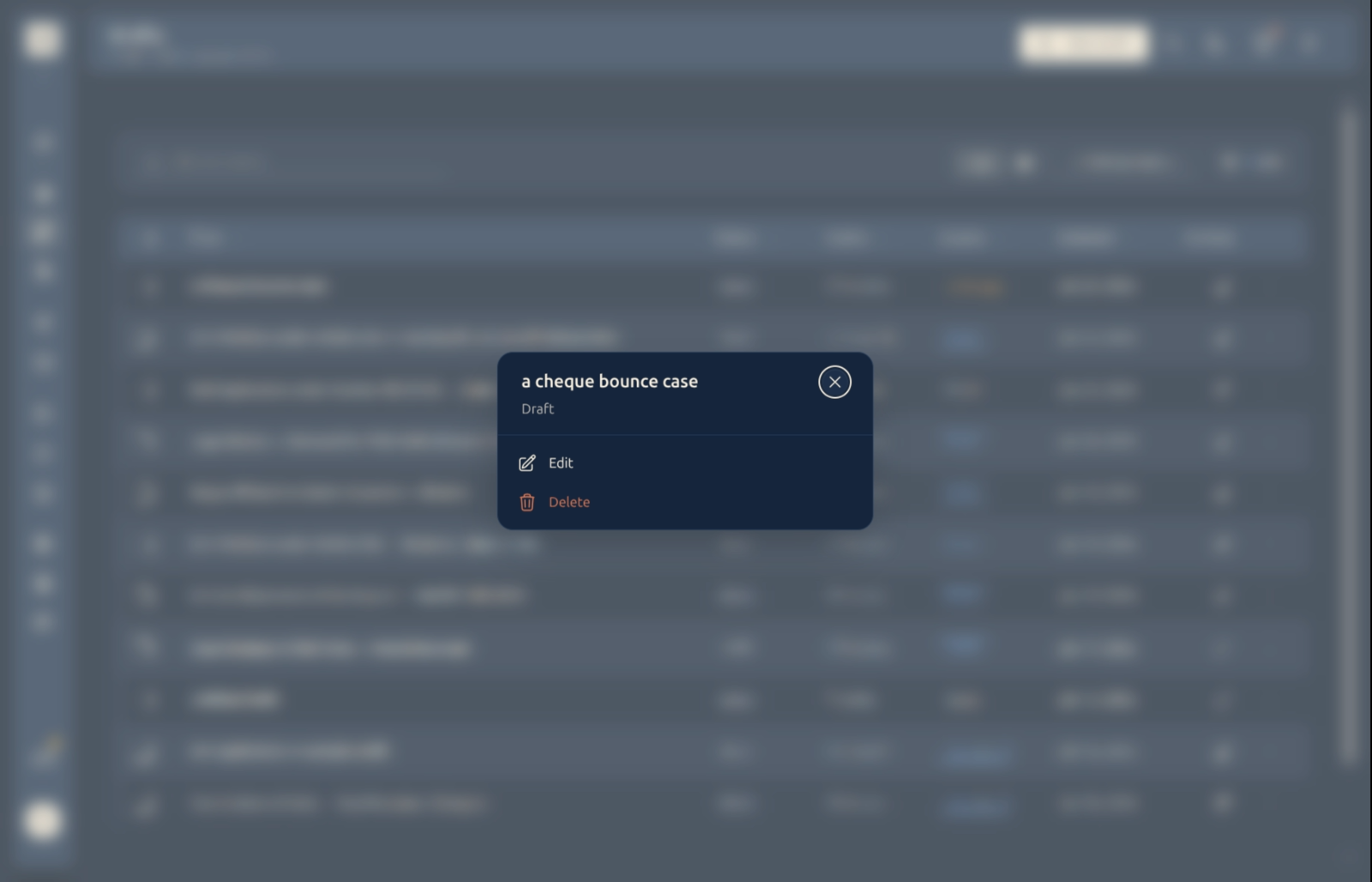
Open a draft — Click a row’s title (or the Edit pencil) to open it in the editor. To remove one, open its ⋮ more-actions menu and choose Delete.
Good to know
💡 Tip: Not sure which way to start? Blank is never wrong — you can always paste in text, or open the AI assistant and ask it to draft or rewrite a section once you’re inside the editor. The two start options are conveniences, not commitments.
Note: A draft saves itself as you type — there’s no Save button to remember. The Source column just records how the draft began (for example, Blank or AI), which is handy when you’re scanning a long list.
⚠️ Important: Delete removes a draft for good. If you’re not sure you’ll need it again, leave it in the list — drafts are cheap to keep and easy to search, and you can always tidy up later.
✅ Give drafts real names. A title like Writ Petition — Deshmukh v. State of Maharashtra (rather than Untitled Draft) makes the list, the search, and the global search far easier to scan when you’re juggling several documents at once.
FAQ
What’s the difference between Blank and Draft with AI?
They only change how the first version appears. Blank gives you an empty page to type or paste into. Draft with AI asks you for a one-line idea and a few quick questions, then writes a first draft into the editor as tracked changes you accept or reject. After that, both open the same editor and behave identically.
Can I still paste in text I already have?
Yes — open a Blank draft and paste straight into the editor. It cleans up the formatting as it comes in (for example, from Word), so you don’t need a separate “paste” mode. Meera can drop in a clause from an old matter and keep editing.
Do I need to save my work?
No. The editor saves automatically as you type, and also keeps a history of versions you can return to. There’s nothing to click — Meera can close the tab mid-sentence and pick up exactly where she left off.
What does the Source column mean?
It records how each draft was started — for example, Blank or AI. It’s just a label to help you recognise a document at a glance; it doesn’t change anything about how the draft works.
Where did my draft go — I can’t see it in the list?
It’s probably filtered or sorted out of view. Clear the search box, check the Filters (an Archived draft is hidden when only Draft status is shown), or sort by Updated to bring your most recent work to the top.
Can I get a draft back after deleting it?
No — Delete is permanent. If a draft might still be useful, keep it: change nothing, and it simply stays in the list, fully searchable. Deleting is housekeeping you should only do when you’re certain.
How do I turn a draft into a polished document?
Open it and use the editor — format it with the toolbar, ask the AI assistant to draft or tighten sections, run Review to check citations and propositions, and Export to PDF, Word, or Markdown when it’s ready. Each of those has its own guide below.
See Also
- Writing & Formatting — the editor and its toolbar: headings, lists, tables, links, and more.
- The AI Assistant — chat, scope, and track-changes to draft and edit with you.
- Review Draft — a second pair of eyes that checks citations, statutes, and propositions.