Writing & Formatting
The editor and its toolbar — headings, lists, tables, quotes, links, and a clean print view.
Summary
Open any draft and you land in the editor — a clean, full-page writing surface with a formatting toolbar across the top. This is where a document takes shape: you type the body, give it structure with headings and numbered grounds, set out dates in a table, quote a statute in a block, and add the occasional link.
Everything saves itself as you go, and a live word count sits in the corner. When you’re ready to see how it will look on paper, flip from the free-flowing Flow view to Print view, which lays the document out in pages.
Video Walkthrough
How to use it (step by step)
-
Type your document — Just start writing in the body. The draft autosaves as you type — the Saved indicator at the top confirms it — so there’s no Save button to hunt for.
-
Add structure — Use Heading 1–3 for the cause title and section headings, and the numbered or bullet list buttons for grounds and prayers. The list-styles button (Aa) switches numbering between 1. 2. 3., a. b. c., and i. ii. iii., and the indent / outdent buttons nest sub-points.
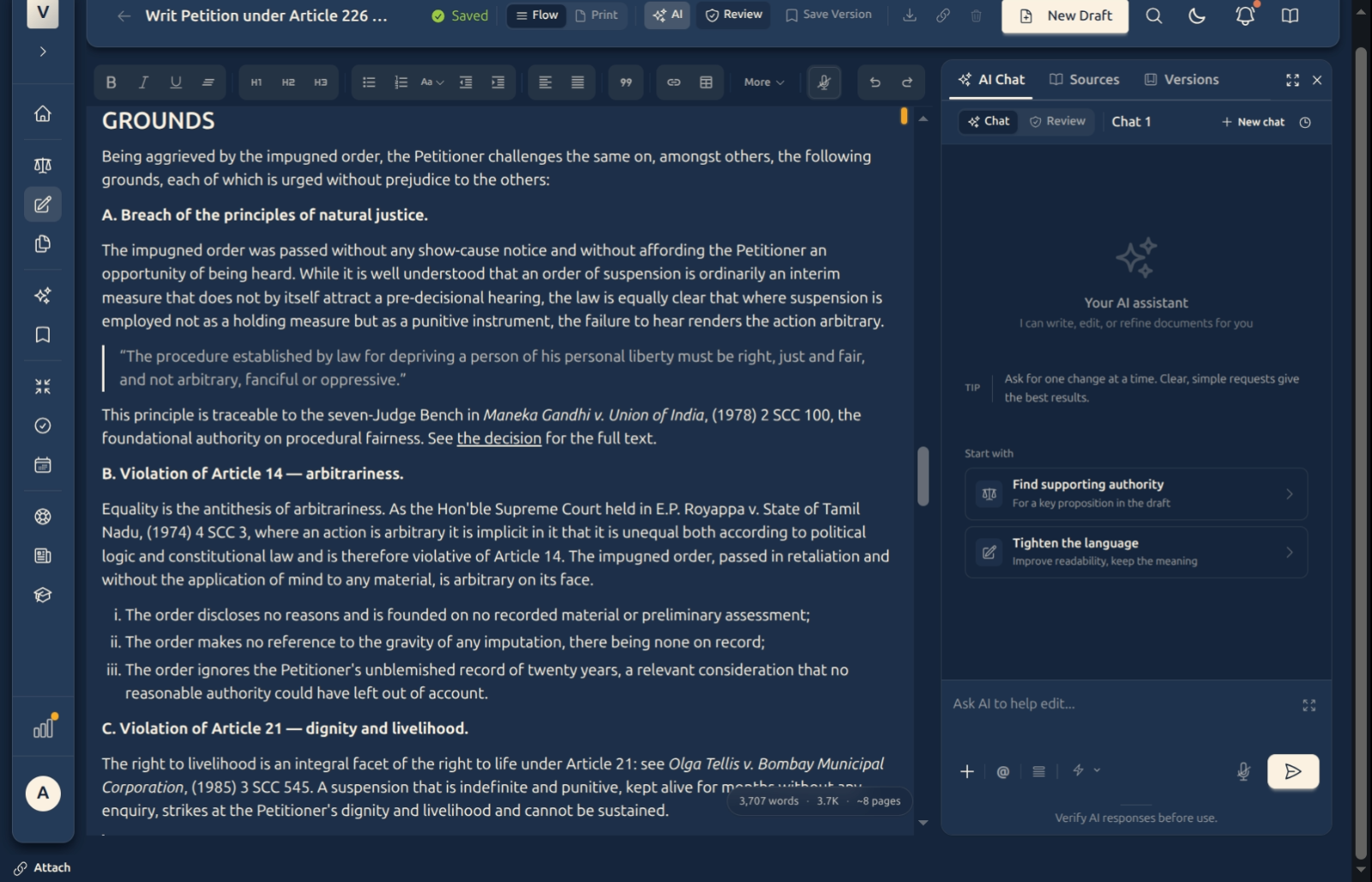
-
Insert a table or a quote — Use the table button to set out a list of dates or particulars in rows, and blockquote to set off quoted statutory or constitutional text from your own prose.
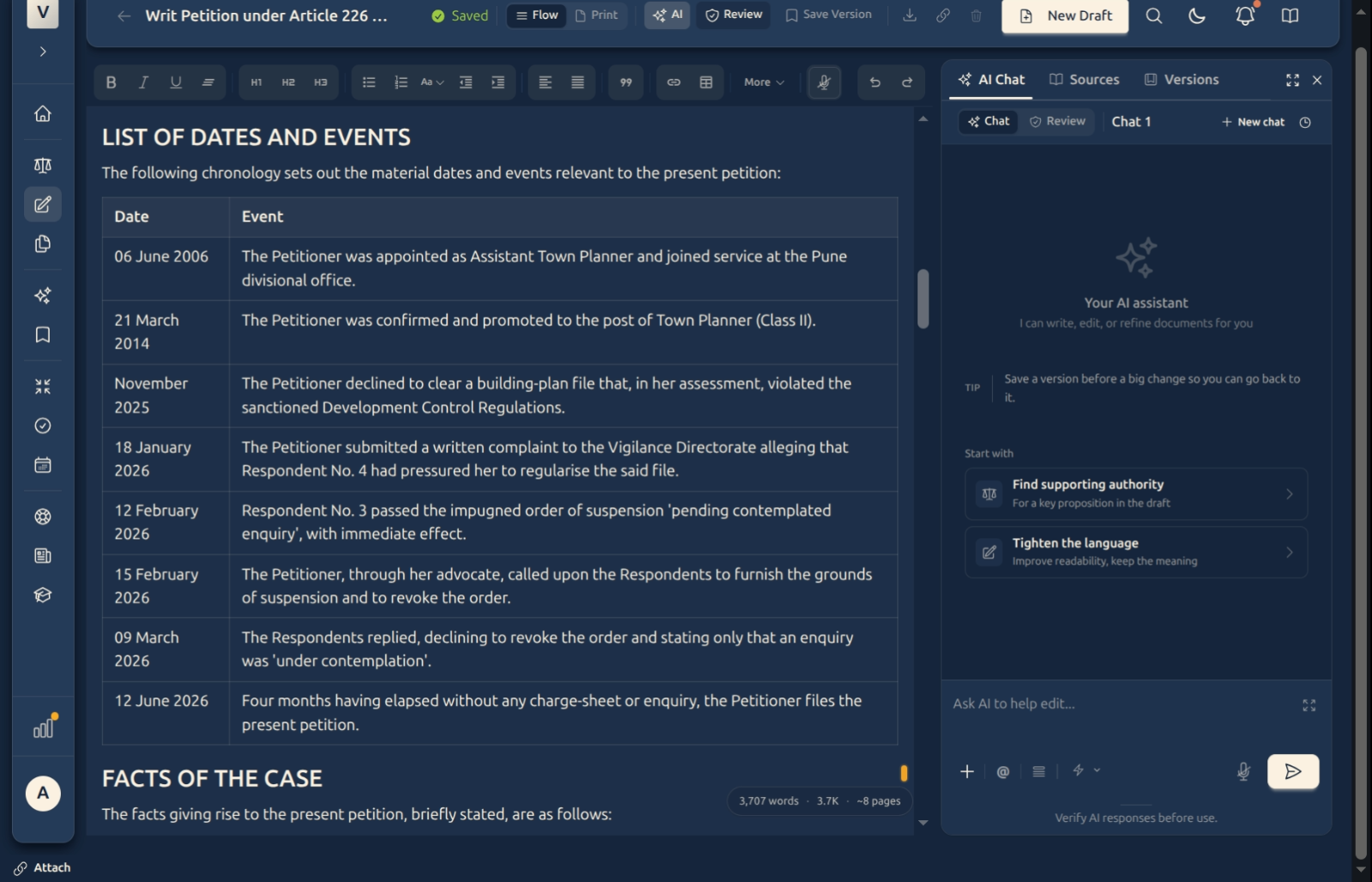
-
Add a link or image — Select some text and click the link button; a small box asks for the web address (no need to paste raw HTML). The image button works the same way with an image address.
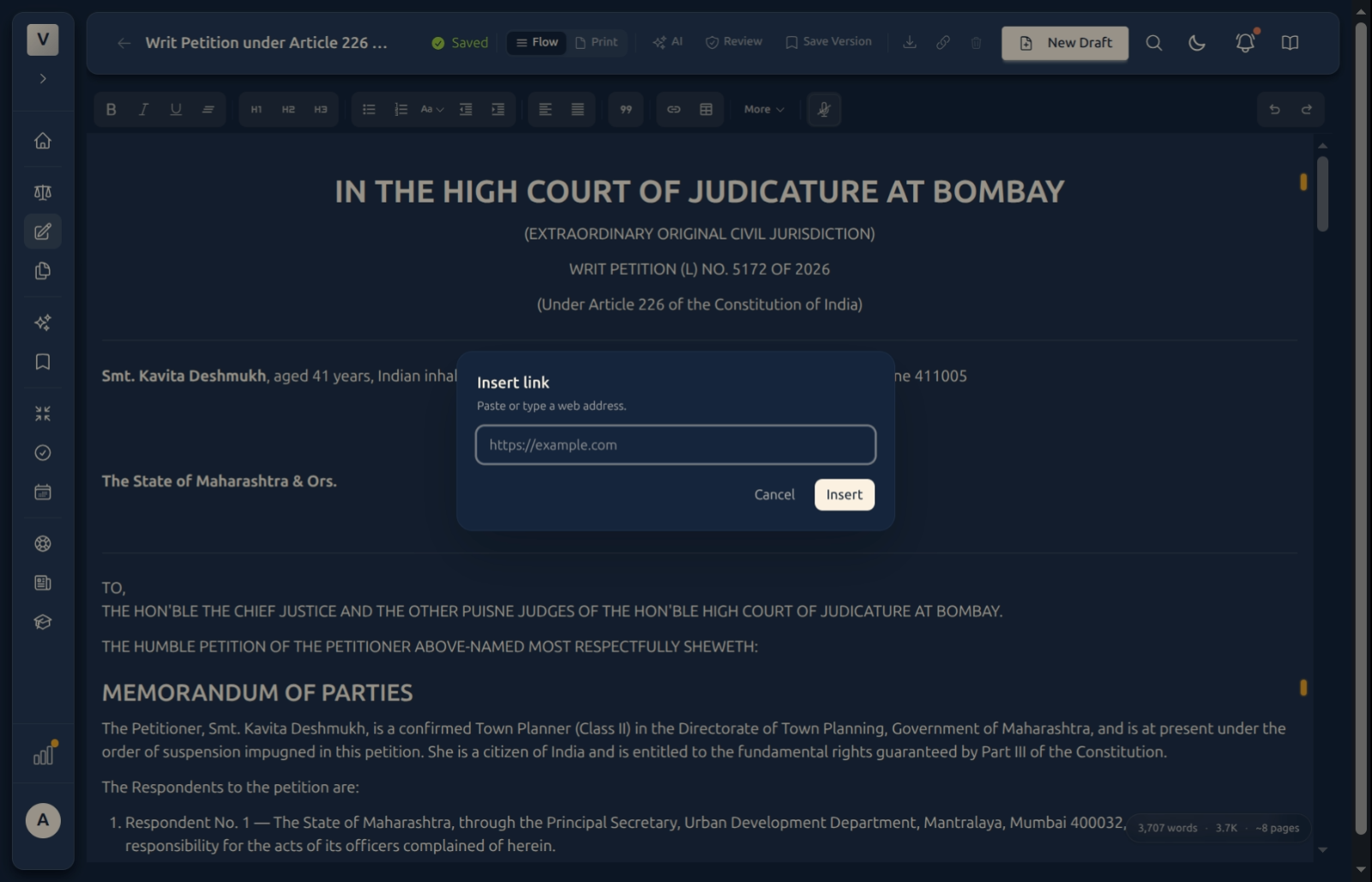
-
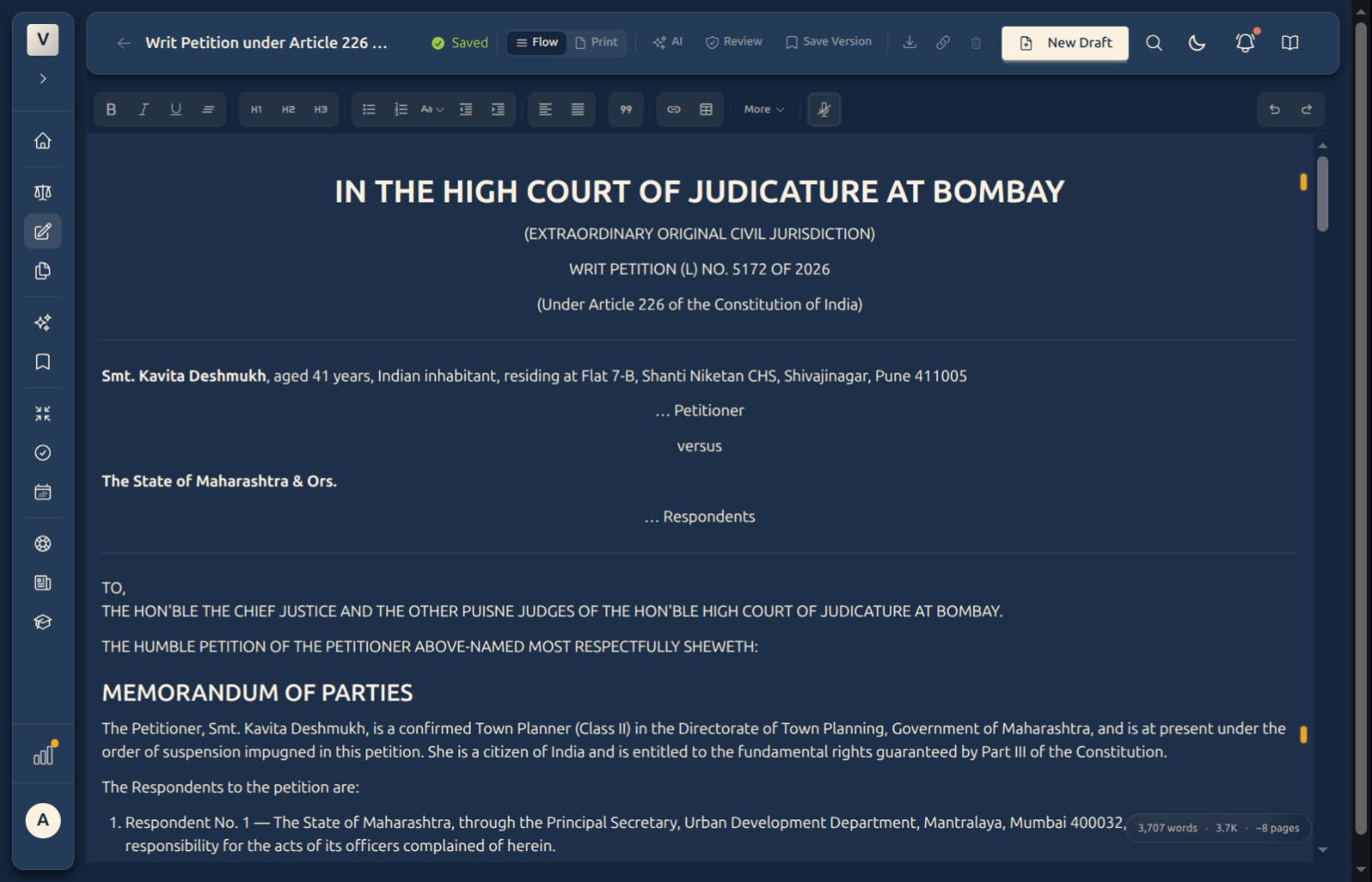
Check the layout — Switch between Flow (a relaxed writing view) and Print (paged, as it will appear on paper) using the toggle in the header. The word count in the bottom corner tracks length as you write.
Good to know
💡 Tip: The toolbar’s More menu holds the less-used tools — strikethrough, highlight, a horizontal rule, and centre / right alignment — so the main bar stays uncluttered. Undo and Redo sit at the far right (or use Ctrl/Cmd+Z).
Note: Pasting from Word or a web page is safe — the editor cleans the formatting as it comes in, keeping bold, italics, headings, and lists while dropping stray styling. So you can lift a clause from an old matter and keep editing.
⚠️ Important: Numbering is done by the list buttons, not by typing “1.” yourself. Use the numbered list so the items renumber automatically when you add, remove, or reorder a ground — far safer than hand-typed numbers that drift out of sequence.
✅ Use real headings. Marking the cause title and each section as a Heading (rather than just bolding the line) gives the document a proper outline — which also powers the section jump-list and helps the AI and the review tools understand its structure.
FAQ
Do I need to save my work?
No. The editor autosaves continuously and keeps a version history. The Saved indicator near the title confirms the latest change is stored — Meera can close the tab mid-sentence and pick up exactly where she left off.
How do I quote a section of an Act?
Use the blockquote button. It sets the quoted text off from your own argument with an indent, so it’s clear at a glance which words are the statute’s and which are yours.
Can I paste a table or text from Word?
Yes — paste straight into the editor. It keeps the structure (headings, lists, tables, bold) and strips the rest. You don’t need a separate import step for a quick paste.
What’s the difference between Flow and Print view?
Why use the numbered-list button instead of typing the numbers?
Because the list renumbers itself. If Vikram inserts a new ground in the middle, every later ground shifts up by one automatically — no manual re-typing, no numbers slipping out of order.
Where are strikethrough and highlight?
Under the More button on the toolbar, along with the horizontal rule and centre / right alignment. The everyday tools stay on the main bar; the rest live one click away.
See Also
- Drafting — Getting Started — the drafts list and the two ways to start a new one.
- The AI Assistant — ask the AI to draft, tighten, or find authority as you write.
- Review Draft — a second pair of eyes on your citations and propositions.