Versions & History
Every draft keeps a history — save named versions, compare them, and roll back any time.
Summary
A draft is never a single throw of the dice. As you write, the editor autosaves continuously and quietly keeps a history — so you can always look back, compare, and return to an earlier state. Before a big revision (or before letting the AI make a sweeping change), you can also save a named version as a deliberate checkpoint.
The Versions tab in the side panel lists them all — the current draft at the top, then earlier saves grouped by day. Open any one to preview what changed, and restore it if you want to go back. Nothing is ever truly lost.
Video Walkthrough
How to use it (step by step)
-
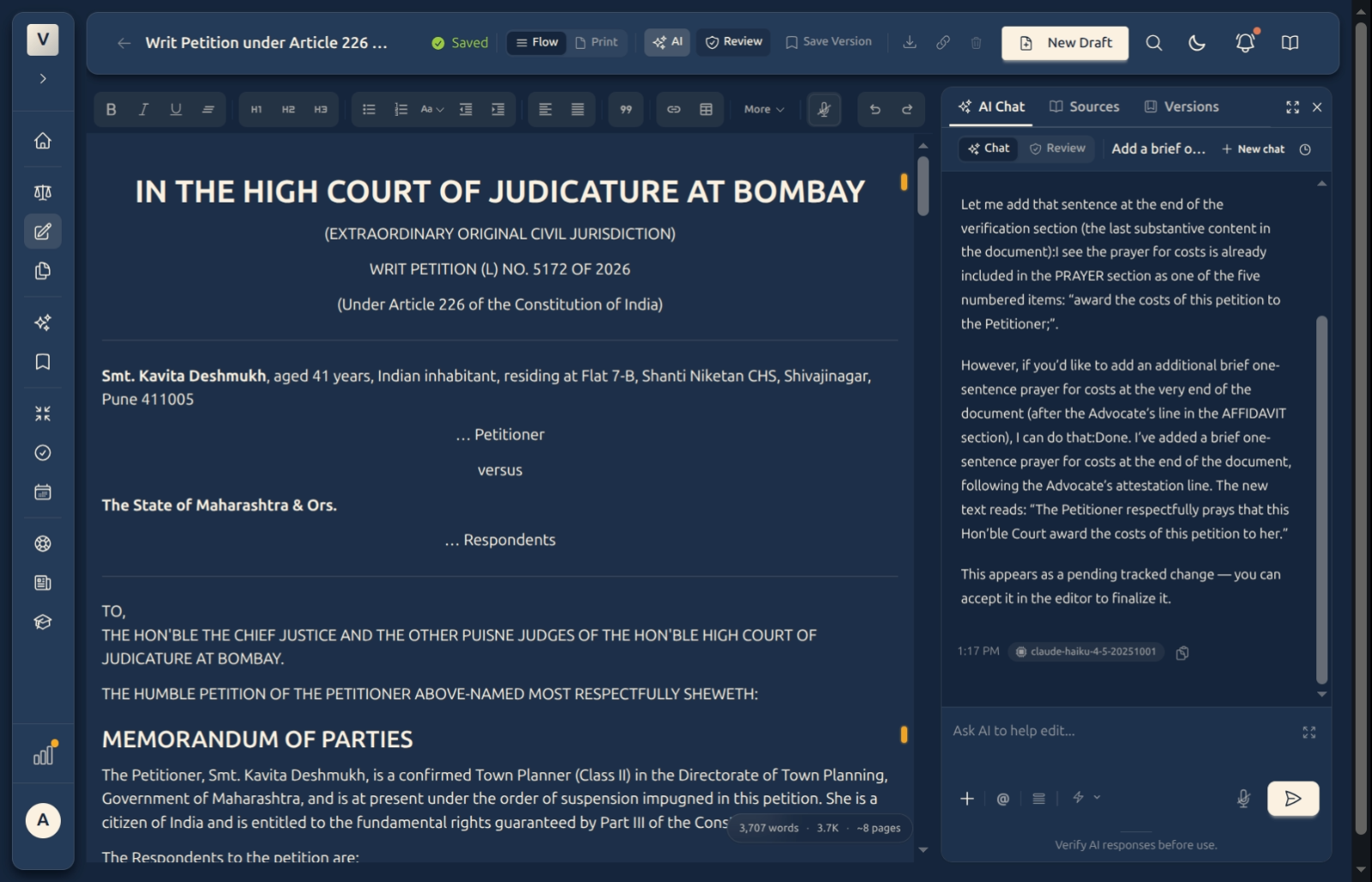
Save a checkpoint — Click Save Version in the header before a big change — a fresh draft, a major rewrite, or a sweeping AI edit. A brief Version saved confirmation appears. (Autosave keeps working in the background regardless.)
-
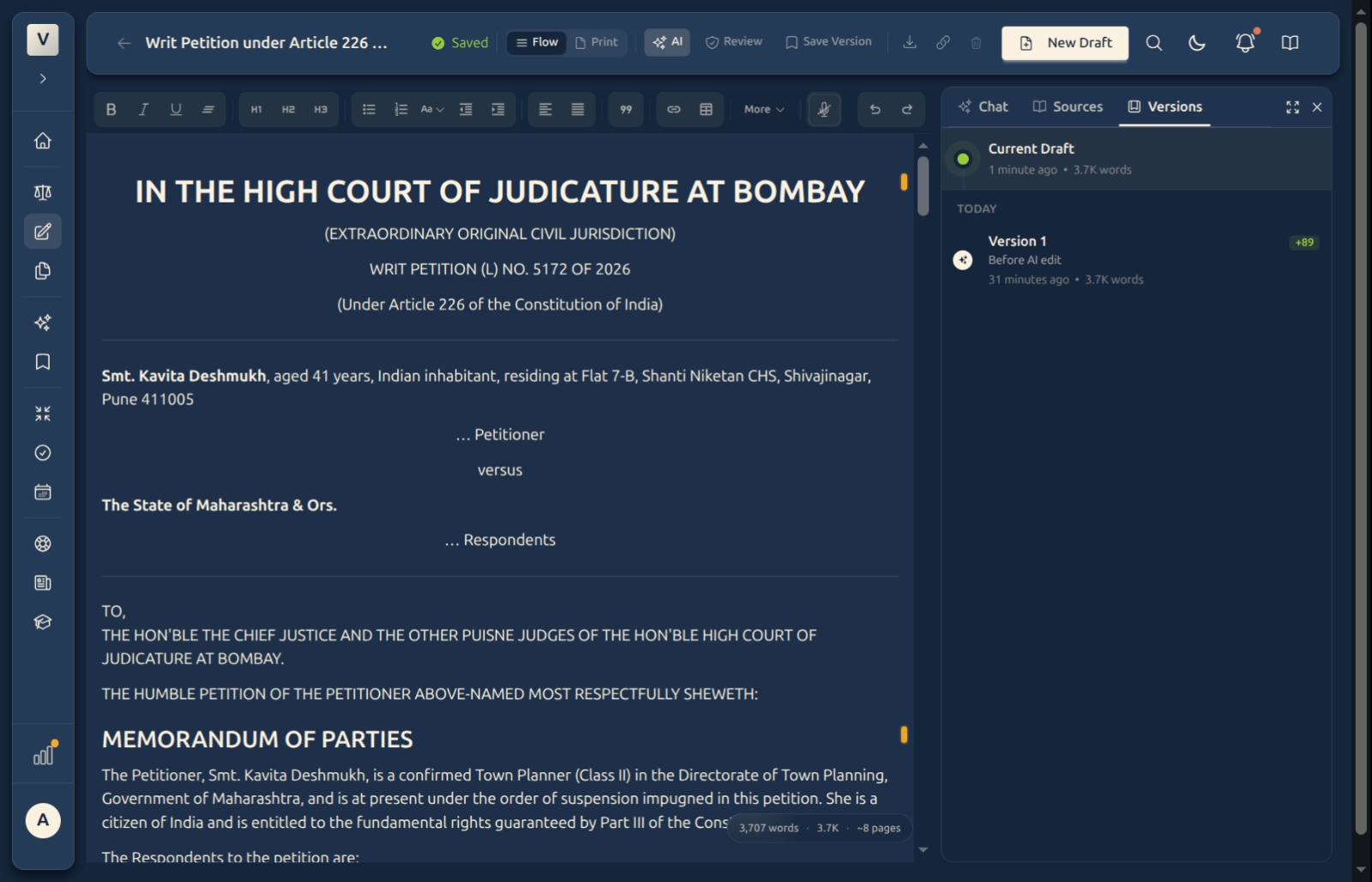
Open the history — Switch to the Versions tab in the side panel. You’ll see the Current Draft at the top, then earlier versions grouped by day, each with its time and word count.
-
Inspect a version — Click any version to open it. From there you can Preview Changes, go Back to Versions, or Restore it.
-
Preview before you restore — Preview Changes shows that version in the editor so you can see exactly how it differs from where you are now — before committing to it.
-
Restore if you want to go back — Happy with the older version? Restore it and the draft returns to that state. Your current text isn’t lost either — it’s still in the history, so you can come forward again.
Good to know
💡 Tip: Save a named version at natural milestones — “first full draft”, “after client’s comments”, “before AI rewrite”. Deliberate checkpoints are far easier to find later than scrolling through dozens of autosaves.
Note: Autosave and named versions work together. Autosave captures your work continuously so nothing is lost to a closed tab; Save Version marks a point you chose to come back to. You don’t have to save versions — but they make the history easier to navigate.
⚠️ Important: Before letting the AI make a large change — or running Review and accepting many findings — a checkpoint is your safety net. A version is saved around big AI turns automatically, but a manual Save Version beforehand gives you a clearly-labelled point to return to.
✅ Restoring is reversible. Going back to an earlier version doesn’t delete your current text — it’s still in the history. So you can restore an old draft, decide you preferred the new one, and come right back.
FAQ
Do I have to save versions myself?
No. Autosave runs continuously, so your work is always preserved. Save Version is optional — it just plants a labelled flag you can return to, which is handy before a big rewrite.
What’s the difference between autosave and Save Version?
Autosave keeps your latest text safe automatically, moment to moment. A saved version is a deliberate snapshot you create at a meaningful point — both live in the same history, but the named version is easier to find.
Can I see what changed before I restore?
Yes. Open a version and click Preview Changes — it shows that version so you can compare it with your current draft before deciding to restore.
If I restore an old version, do I lose my current draft?
No. Restoring brings back the older text, but your current draft stays in the history. You can move back and forth — nothing is deleted.
Does the AI create versions too?
A checkpoint is saved around large AI edits, so you can roll back an AI change cleanly. For your own peace of mind, a manual Save Version before a big AI request gives you an extra, clearly-named point to return to.
See Also
- The AI Assistant — large AI edits are checkpointed so you can always roll back.
- Review Draft — save a version before accepting a batch of findings.
- Writing & Formatting — autosave runs as you write; the Saved indicator confirms it.