Review Draft
A structured second pass that checks your citations, statutes, and propositions before you file.
Summary
Review Draft is a careful second reading of your document — the kind a diligent junior would give it before it goes out. You start a review and it works through the draft in the background, then reports back a list of findings grouped by what it checked: Statutes, Citations, Propositions, Drafting, and Coverage.
You keep writing while it runs. When it’s done, you work through the findings one at a time — open each, read why it was flagged, discuss it with the assistant if you want, and mark it Resolved or Dismiss it. It’s a checklist, not a gatekeeper: the judgment stays yours.
Video Walkthrough
How to use it (step by step)
-
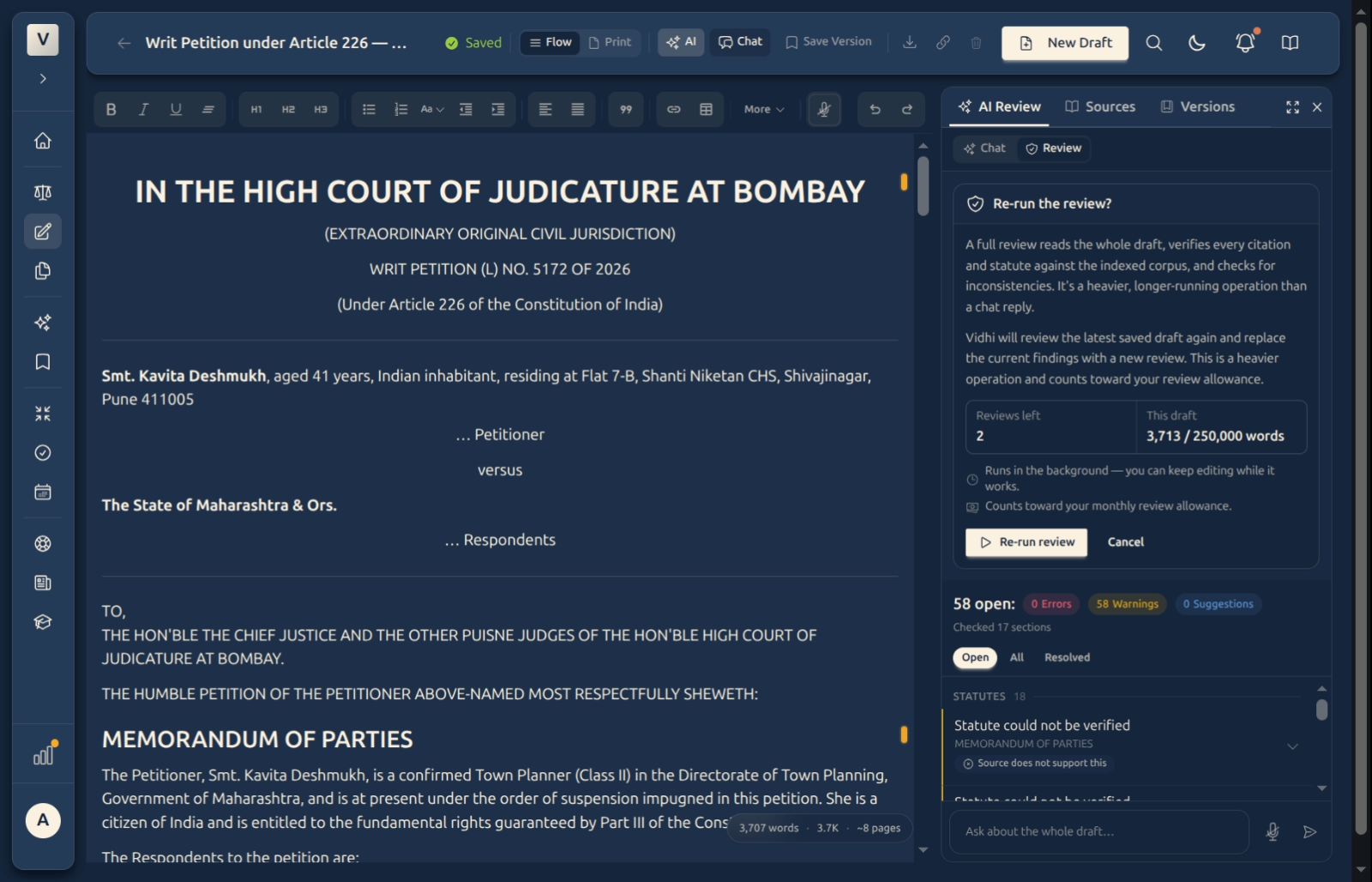
Start a review — Click Review in the header to open the review panel, then Start review. You can optionally attach statutes, judgments, or notes for it to check against first. (Save the draft first if prompted.)
-
Keep working while it runs — The review runs in the background — the panel shows Reviewing draft… while it reads the document, with a Cancel option if you change your mind. You can keep editing; you don’t have to wait on it.
-
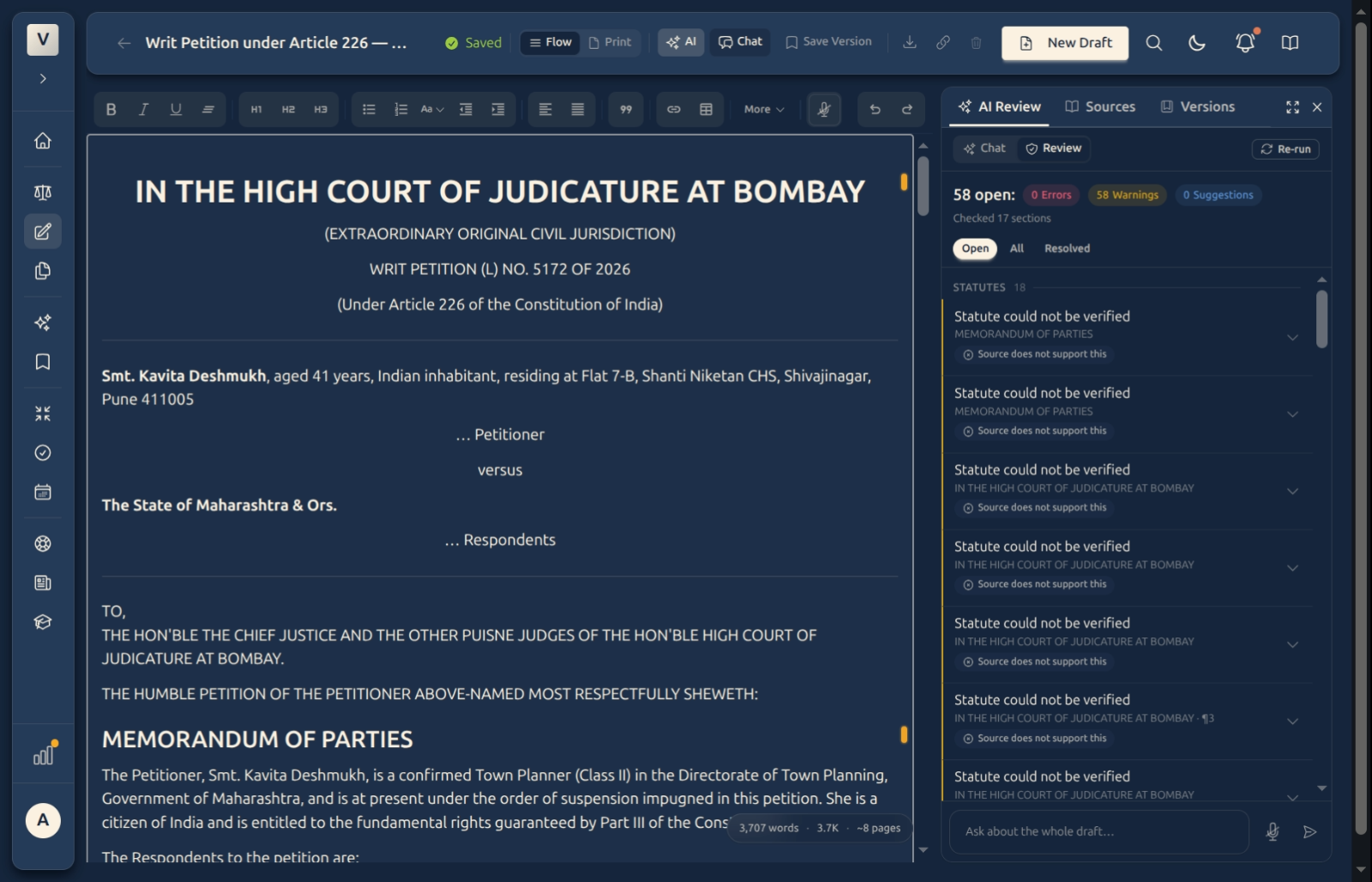
Read the findings — When it finishes, the findings appear grouped by category — Statutes, Citations, Propositions, and so on — each with a short explanation of why it was flagged and where in the document it sits.
-
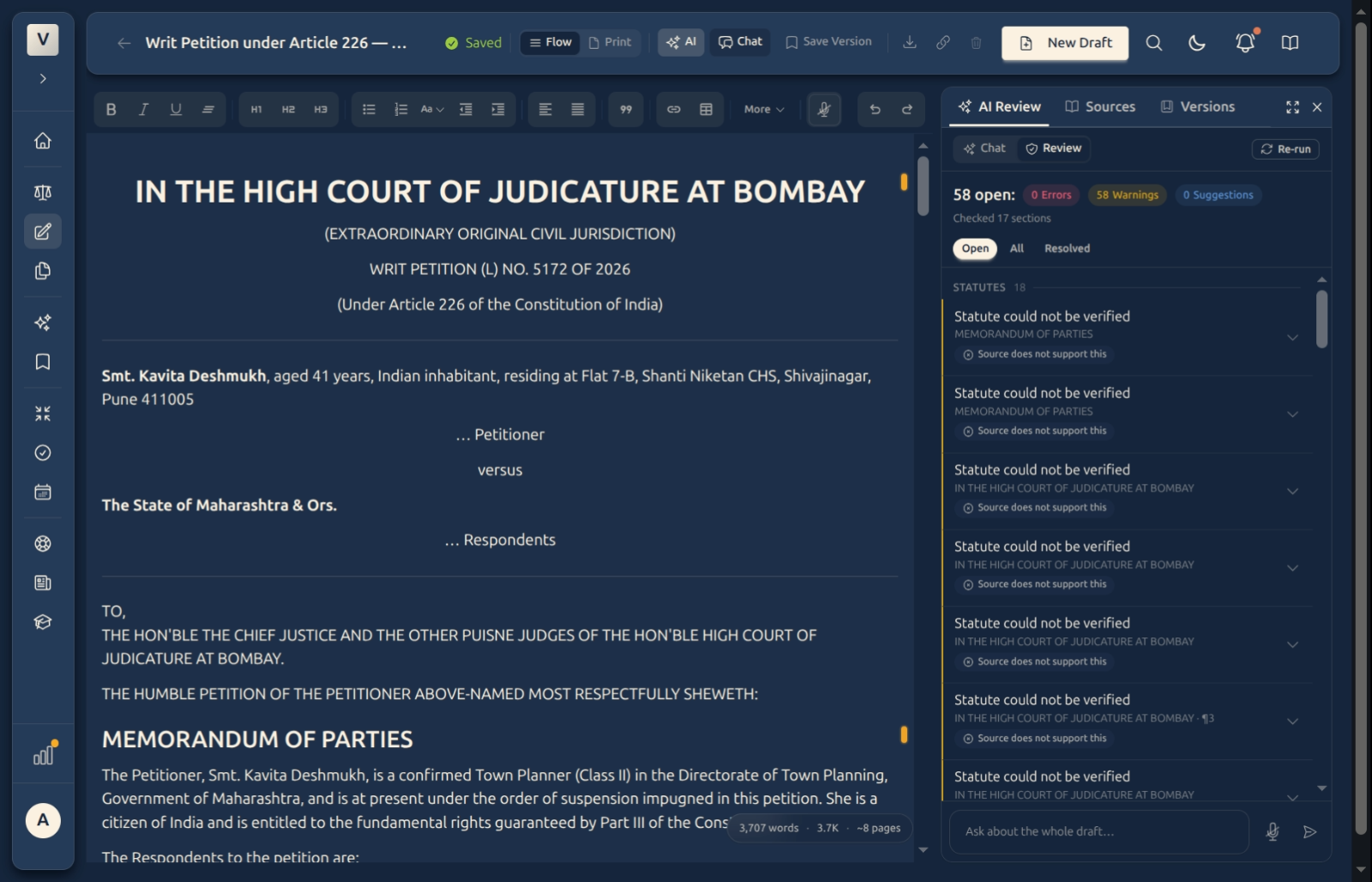
Work through each one — Open a finding to see the detail. Resolve it once you’ve fixed or accepted it, or Dismiss it if it doesn’t apply. Use the Open / All / Resolved filters to keep track of what’s left.
-
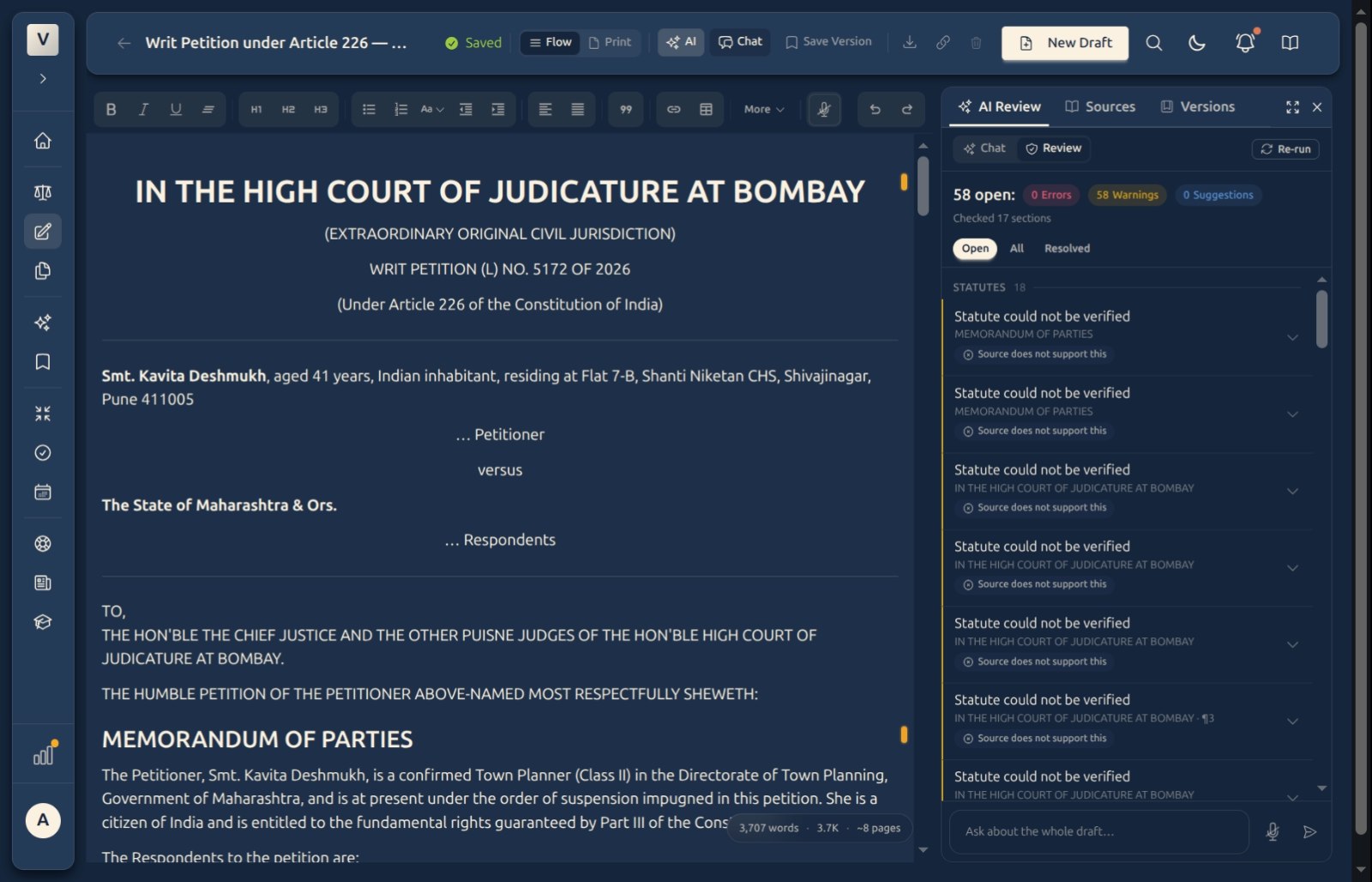
Discuss a finding — Not sure about a flag? Each finding has a small Ask the AI box, so you can ask why it was raised or how to address it, right where the finding sits.
Good to know
💡 Tip: Review earns its keep on a substantive draft with real citations and propositions — a half-page note has little for it to check. Run it once your argument and authorities are roughly in place, then again after a big revision.
Note: Review is metered — there’s a monthly allowance, shown in the panel before you start. A short draft uses the same one run as a long one, so it’s worth running when the document is reasonably complete rather than on every small edit.
⚠️ Important: Findings are prompts to check, not verdicts. A flagged citation means “confirm this”, not “this is wrong” — verify the authority and the law yourself before you act. The final document is always your responsibility.
✅ Resolve as you go. Mark each finding Resolved or Dismiss it as you deal with it, and use the Open filter to see only what’s left — so a long list never feels overwhelming and nothing slips through.
FAQ
What does a review actually check?
It reads the whole draft and flags things worth a second look, grouped into Statutes (provisions you cite), Citations (case references), Propositions (claims that may need support), Drafting (clarity and structure), and Coverage (gaps an argument like this usually addresses).
Does a finding mean something is wrong?
No — a finding is a prompt to verify, not a verdict. For example, a citation may be flagged simply because it couldn’t be confirmed against the available sources. Treat each one as “check this” and use your own judgment.
Can I keep editing while it runs?
Yes. The review runs in the background and the panel shows its progress. Carry on writing; the findings appear when it’s done.
What if I disagree with a finding?
Why does it say a citation “could not be verified”?
That means it couldn’t confirm the reference against the sources available to it — not that the citation is wrong. Check the citation against your own copy of the report or the official record.
How many reviews can I run?
There’s a monthly allowance, shown in the panel before each run. Because one run covers the whole document, it’s best used on a fairly complete draft rather than after every small change.
See Also
- The AI Assistant — fix a flagged passage right in the document with tracked changes.
- Writing & Formatting — strong headings and structure help the review read your draft.
- Versions & History — a checkpoint is saved around big changes, so you can always roll back.