Document Summariser
Read long judgments, contracts, and pleadings in minutes — get the key points, parties, dates, and obligations pulled out for you.
What This Does
The Document Summariser reads long legal documents — judgments, contracts, briefs, statutes, notices — and gives you back a structured summary, typically within seconds for short documents. Paste the text or upload a file, and you get back a prose summary, a list of key points, every party / court / citation / statute mentioned, and any action items the document calls for. Built for Indian-legal practice rhythms: it recognises Indian courts and citation formats, handles bilingual mixed text, and rather than refusing because something “isn’t legal,” it summarises what’s there. You can ask for a shorter or longer version on demand, and re-run the summary at any time — earlier versions are kept so you can compare.
This guide covers the main Summariser workflow — creating a new summary. To deep-link into one finished summary (with version history and rewrite tools), open it and see Reading a single summary. To browse and manage everything you’ve summarised, see Your summary history.
Video Walkthrough
Step-by-Step Guide
Creating a summary
There are two ways to feed in a document. Pick whichever fits the form you have.
-
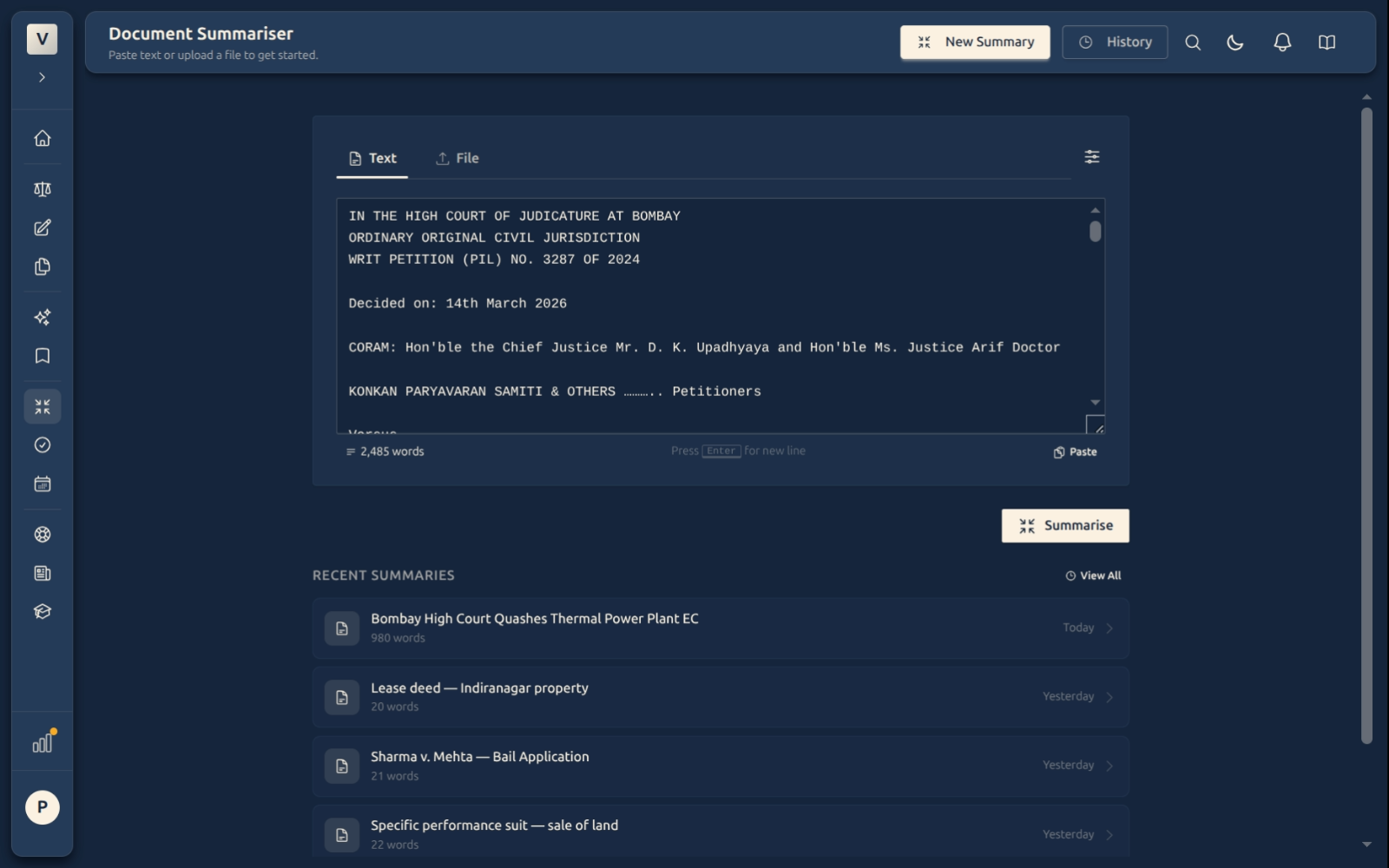
Paste text. The default tab. Just paste — a judgment, a contract clause, a notice. Word count appears below as you type so you know what you’re sending.
-
Upload a file. Switch to the File tab. PDF, DOCX, and plain text are supported. We extract the text and then summarise — your original file stays in your storage; the summary references it.
-
Optional settings. Click the small adjustments icon next to the input tabs to open the options panel. Choose your output language if your firm prefers non-English.
-
Click Summarise. Processing happens in the background. You can navigate away — the summary will still be there in your history when it finishes.
What happens while it works
The Summariser runs through several stages — extracting the text, classifying the document type, building a high-level outline, then drafting the summary at different compression levels. A progress bar shows roughly where it is.
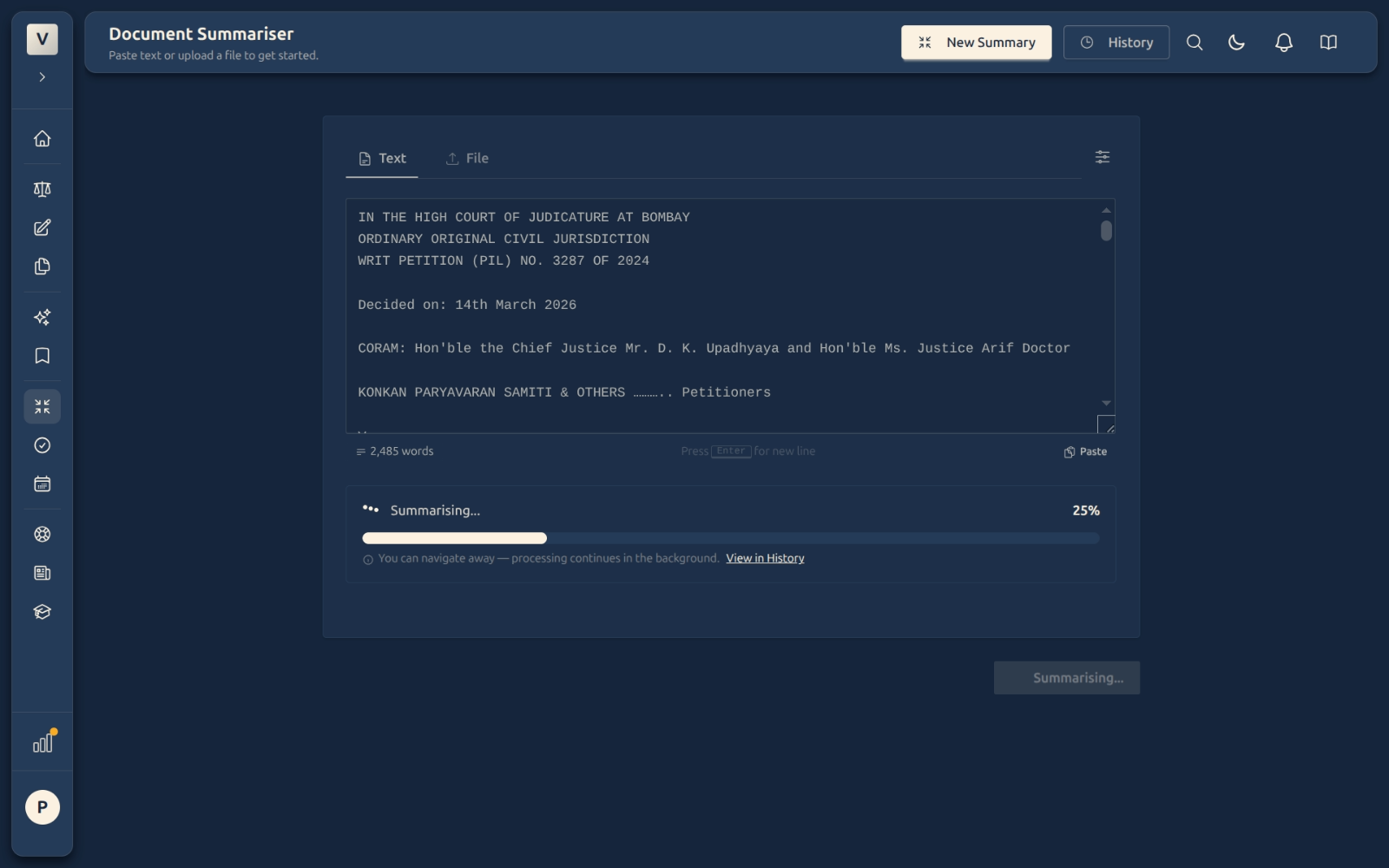
Navigate away anytime. A second tab, another matter — it doesn’t matter. The summary finishes in the background and appears in your history when ready. You can also drop in on
/summaries/historyto see anything still processing.
Reading the results
When it’s done, the page switches to the results view. Seven tabs across the top organise everything the AI extracted; cycle through them as you read.
-
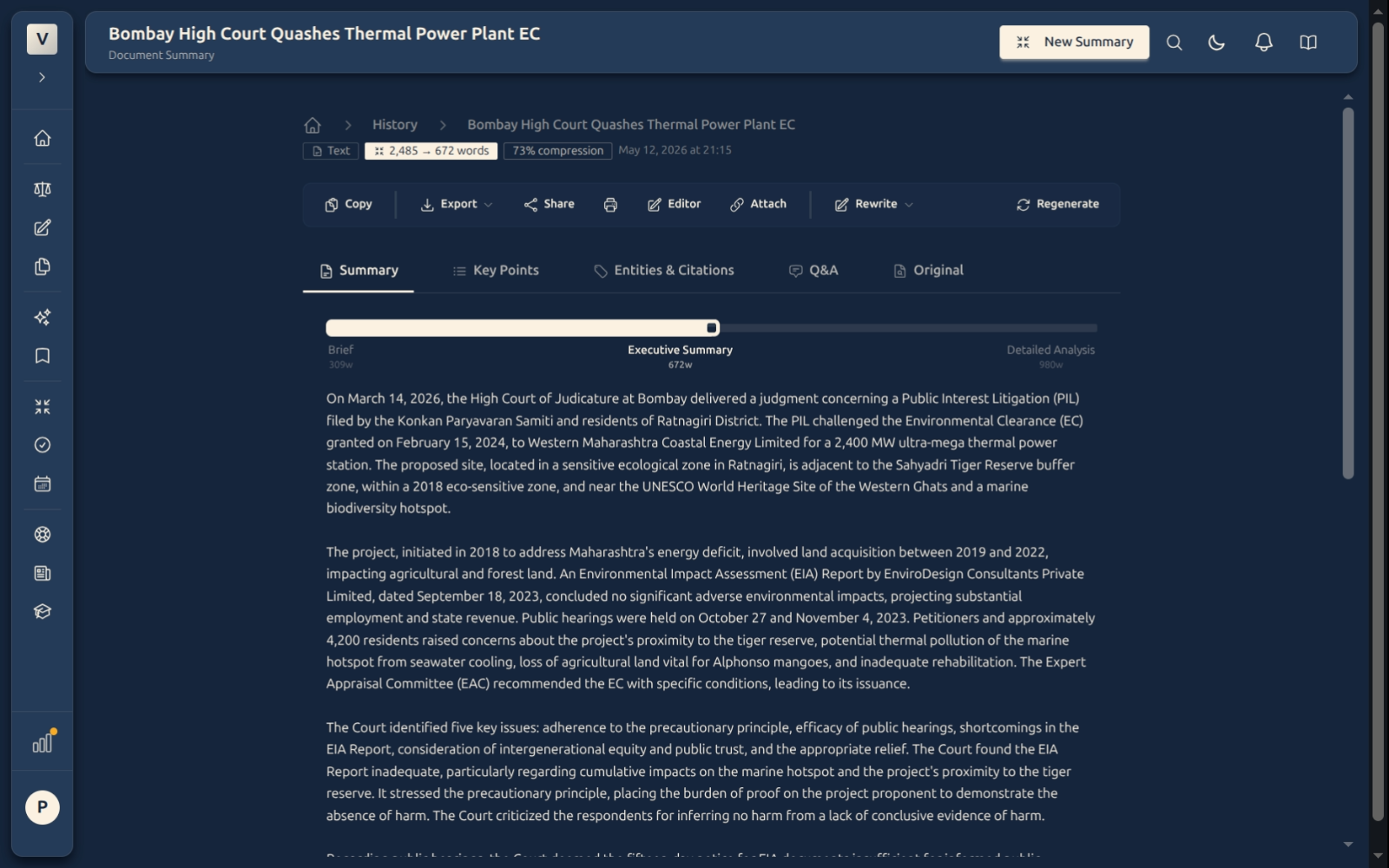
Summary — a single prose paragraph, the kind of thing you’d dictate to your junior over chai. A slider at the bottom lets you switch between summary lengths (e.g. “two lines / one paragraph / one page”) if you want shorter or longer.
-
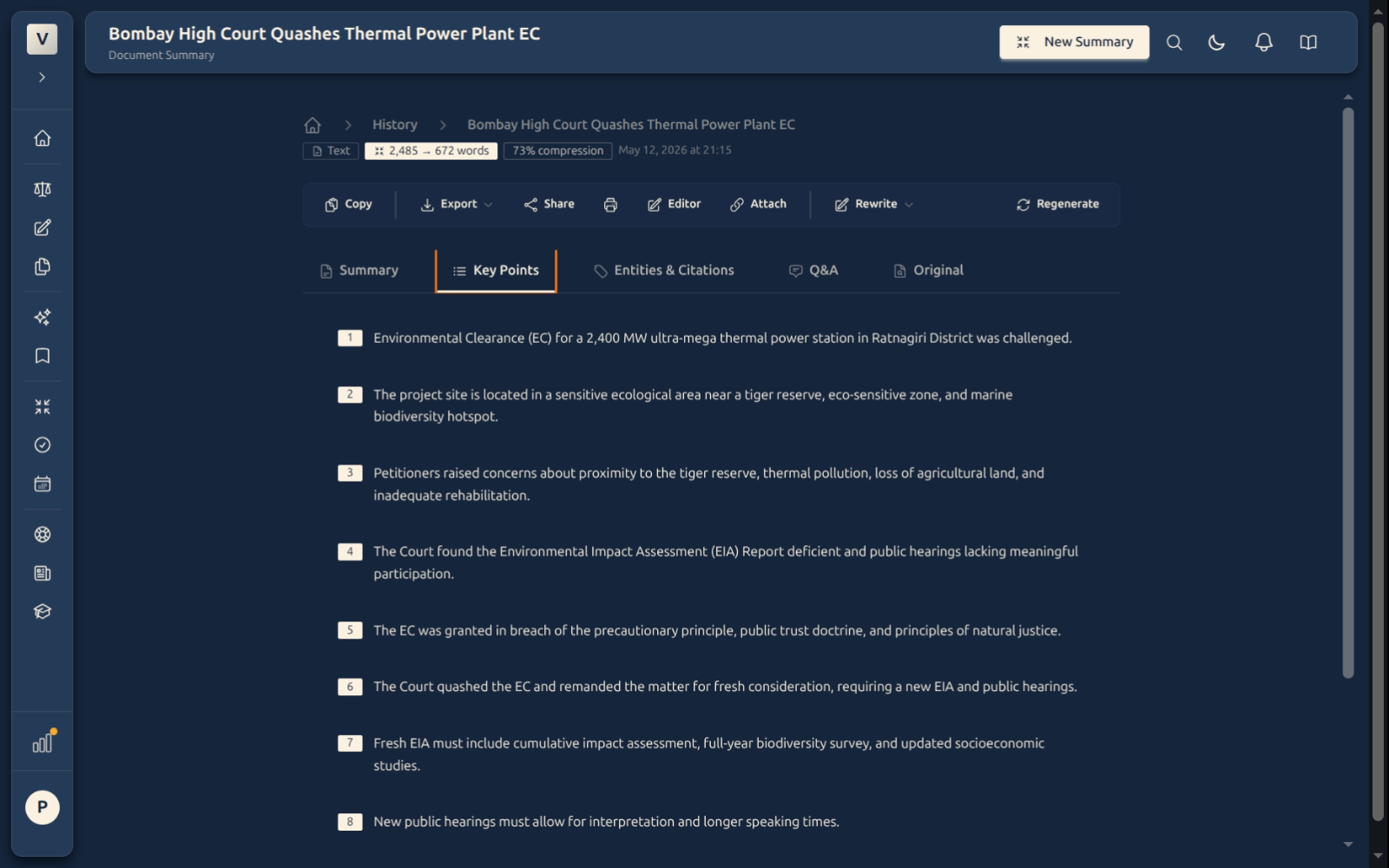
Key Points — bullet-list of the 5–8 most important findings or clauses. Good for forwarding to a client.
-
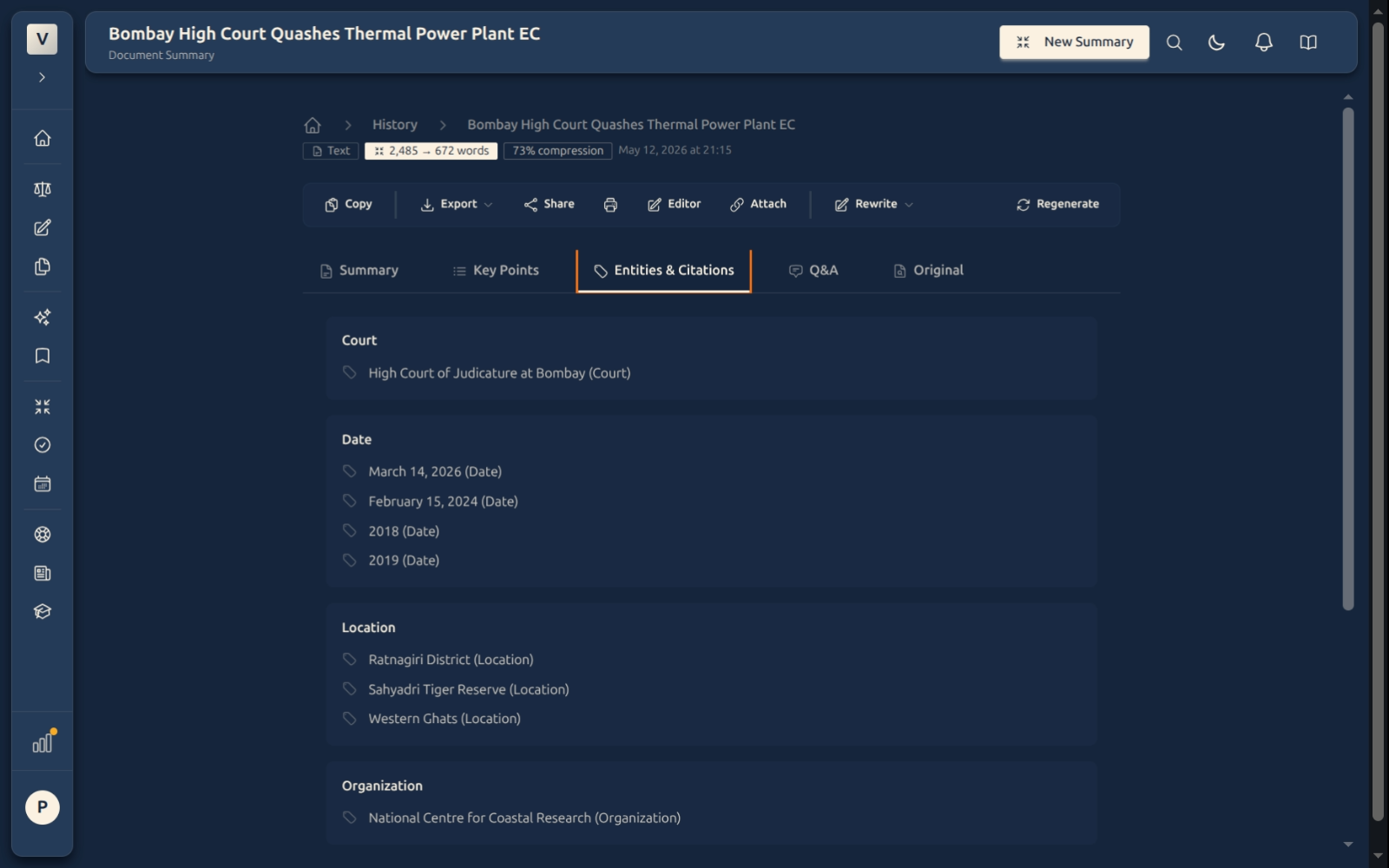
Entities & Citations — every party, court, judge, statute, citation, and date the AI extracted, grouped by type. Useful when you want to copy a citation block into a brief.
-
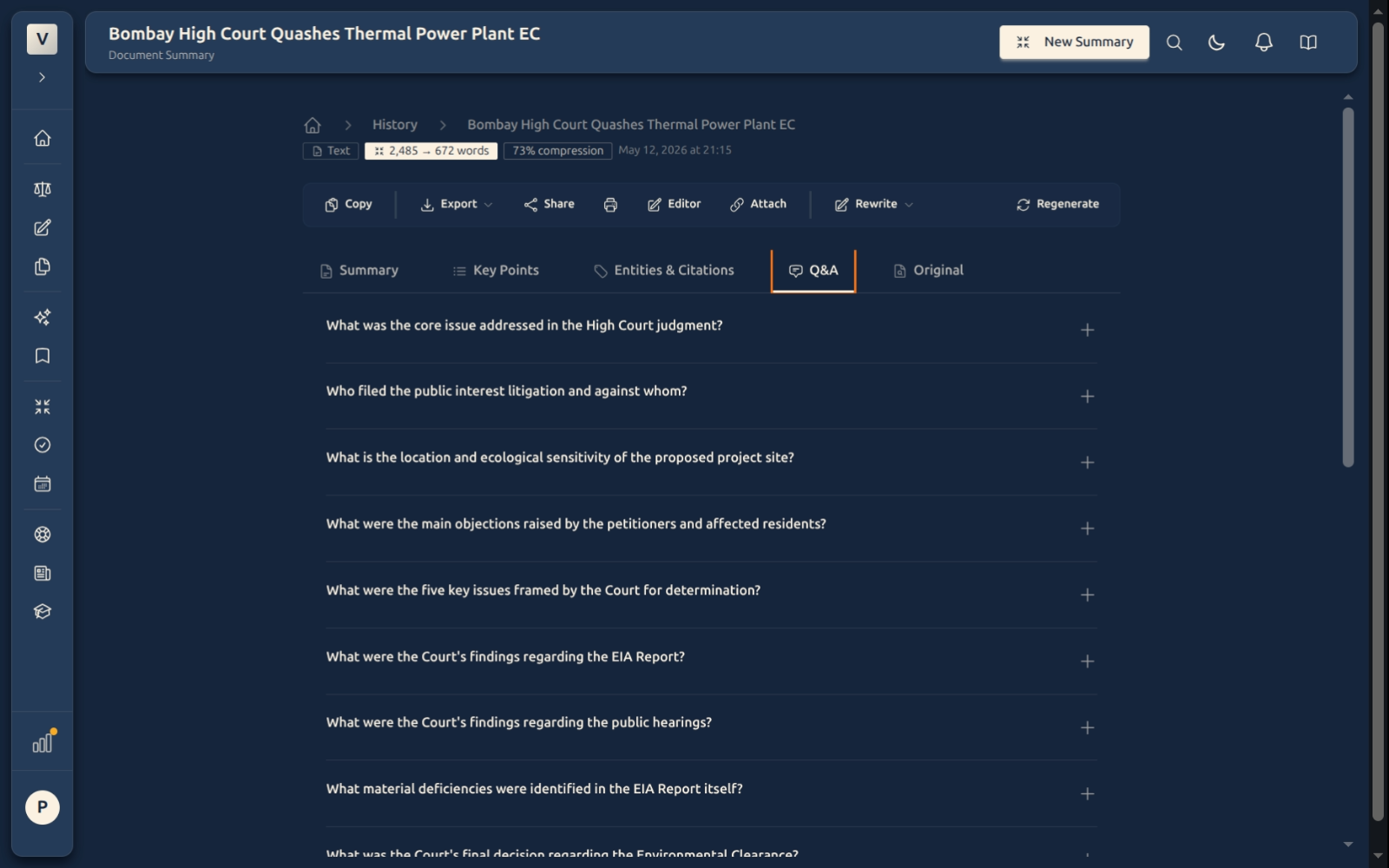
Q&A (judgments/statutes only) — likely client questions with model answers drawn from the document. Helpful when you need a phone-friendly response.
-
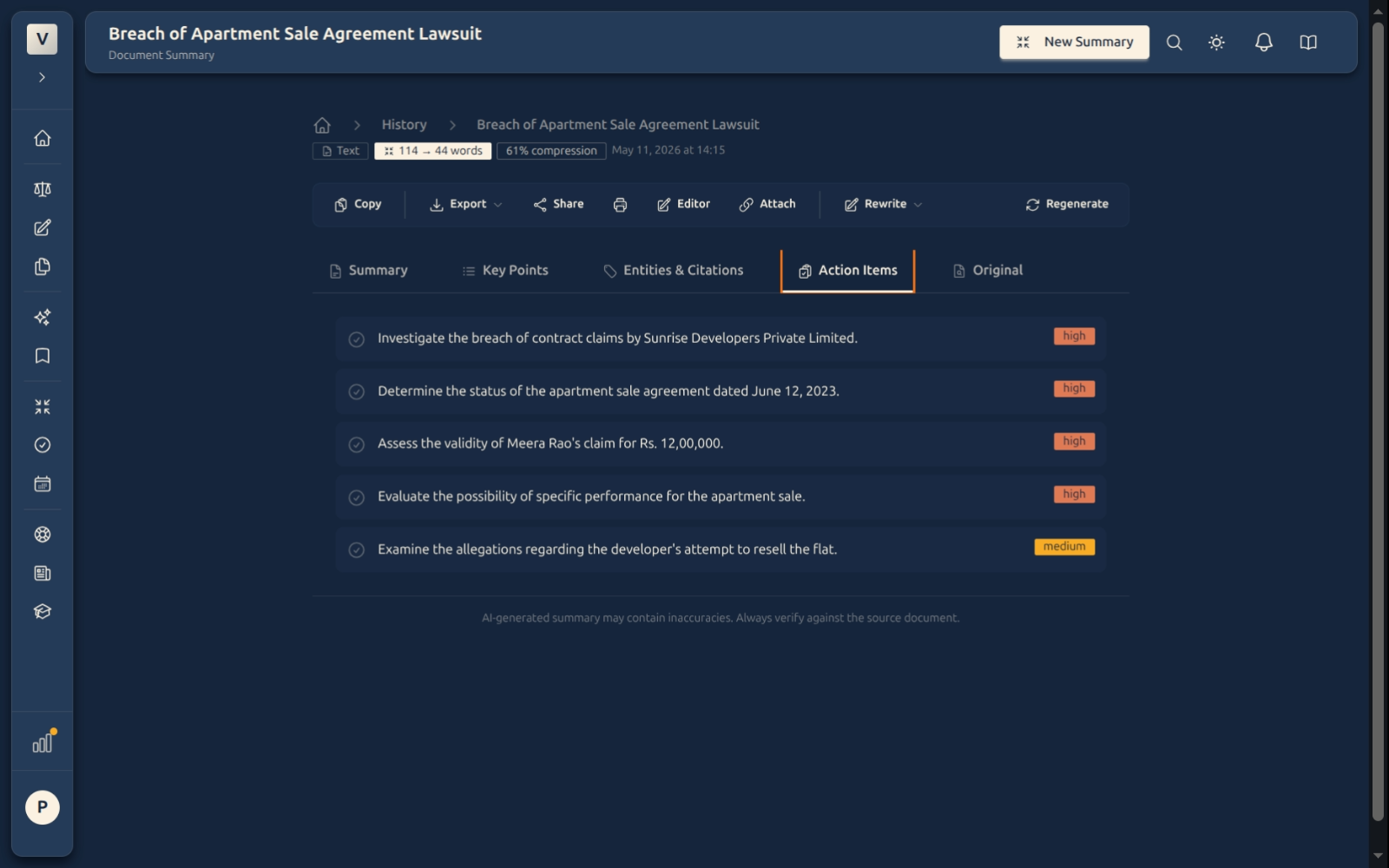
Action Items (briefs/notices/contracts only) — tasks the document calls for: filing deadlines, notice periods, contractual obligations. Each tagged with priority.
-
Sections — if the document has named sections (e.g. “Issues for Determination” in a judgment, “Indemnity” in a contract), each is summarised separately. Useful for navigating a 50-page document.
-
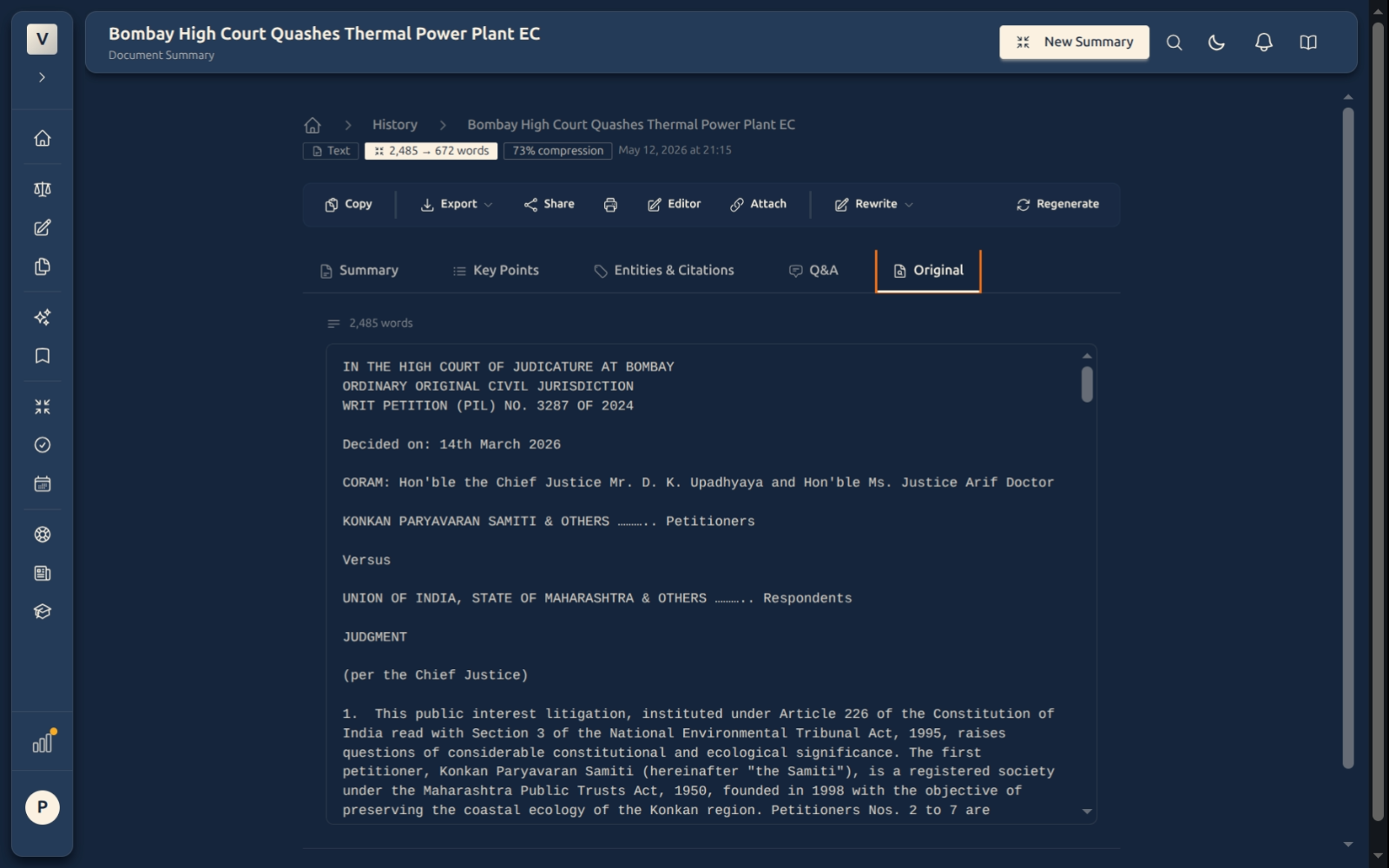
Original — the raw source text, in case you want to verify a point.
Rewriting and re-summarising
Two buttons at the top right give you control over the output.
-
Re-summarise — generates a fresh summary of the same document. Useful when you want a different angle.
-
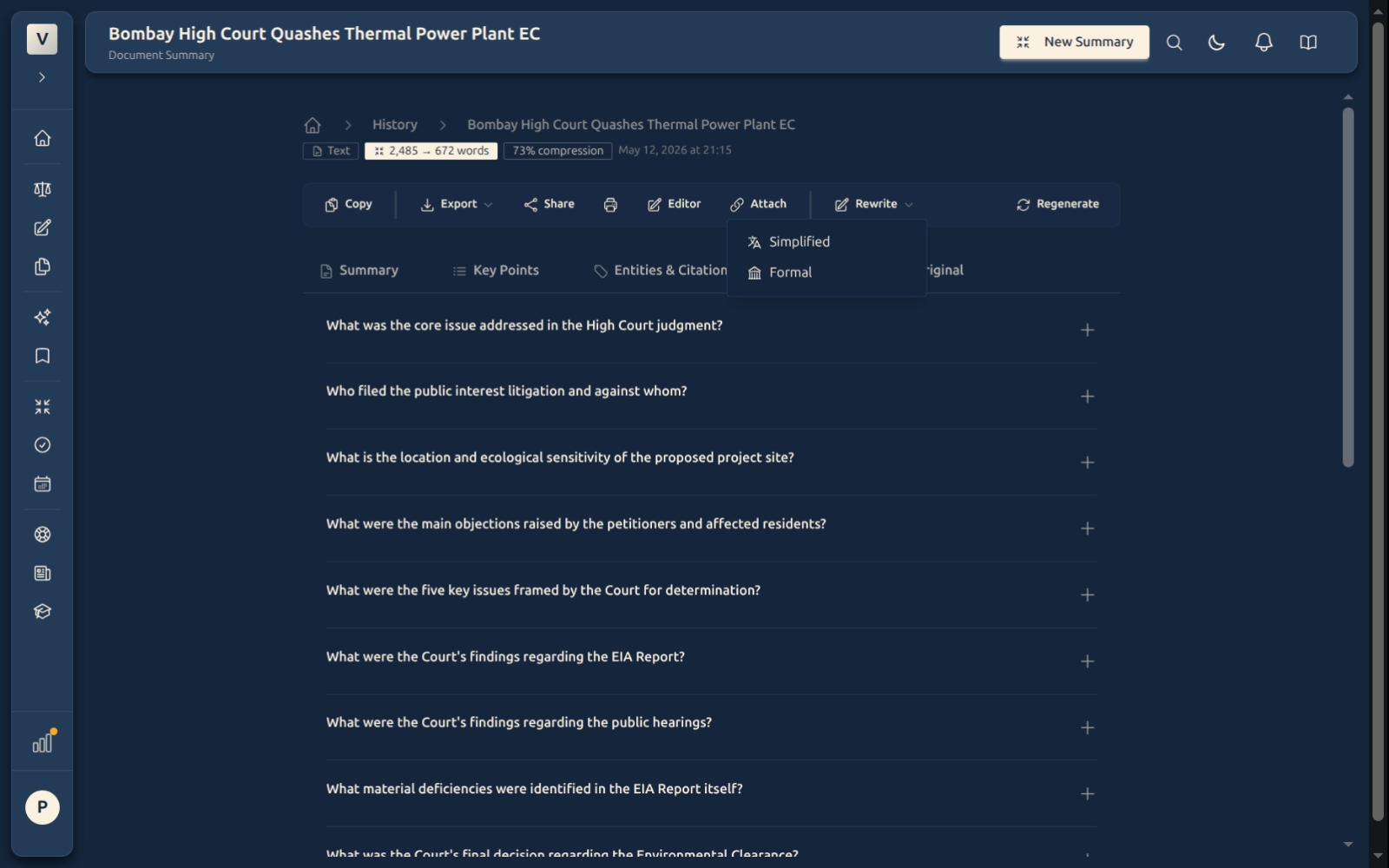
Rewrite — keeps the same content but presents it in a different tone. Click the button to see the preset tones you can apply (e.g. plainer prose for a client, more formal prose for a filing). Each rewrite is saved as a new version, so the original stays available on the single-summary view.
Exporting, sharing, and printing
- Copy — copies the entire summary as Markdown to your clipboard.
- Export — PDF, DOCX, or Markdown file. Pick whichever your matter management system accepts.
- Share — generate a public read-only link to send to a client. They can read but not edit. Revoke it anytime from the Shared Links tab in Settings.
- Print — print-friendly layout that drops the navigation chrome.
- Editor — open the summary in the document editor for marking up and turning into a draft brief.
Managing past summaries
Every summary you create is saved automatically. To browse what you’ve done before — find by client name, filter by document type, delete in bulk, or share an old summary — head to the history page.
Things to keep in mind
- Verify before you rely. The AI is fast and usually right, but it’s not infallible. For any summary you cite in court or send to a client, spot-check the key facts and citations against the original.
- Long documents take longer. A 2-page notice summarises in under 10 seconds. A 200-page judgment can take 2–3 minutes. The progress bar runs through several stages; don’t reload the page mid-flight.
- Quotas reset monthly. Your plan includes a fair-use quota for summaries. The Settings → Usage page shows how much you’ve used this month. Once the quota resets on the 1st, you start fresh.
- Confidentiality. Documents you summarise are processed by an AI provider. See the privacy policy and terms for current data-handling commitments (including training and retention). Don’t paste anything sealed or under a confidentiality regime that prohibits third-party processors.
FAQ
How accurate is the summary?
For typical Indian-legal documents — judgments from the SC and HCs, IBC petitions, commercial contracts, statutory notices — accuracy on facts and citations is high. Subtle legal reasoning (which test was applied, which dictum is the ratio) is best captured in the Key Points + Sections tabs, where the AI has more structure to work with. Always cross-check critical citations against the original before filing.
What languages does it support?
English is the default. Hindi, Tamil, Telugu, Bengali, Marathi, and Kannada are also supported as output languages — the AI translates the gist into the chosen language while preserving English legal terms (e.g. “Section 138 NI Act” stays as-is). Hindi handwritten / non-OCR’d content needs to be transcribed before summarising — that’s a separate Transcribe workflow.
Can I summarise a 300-page judgment?
Yes. Long documents are handled section by section and then stitched into a top-level summary. Fair use applies — if you’re routinely summarising book-length material you may need a Firm plan with a higher monthly quota.
What happens to my source text?
For paste-text inputs, the text is stored on the summary row in your private account scope; see the privacy and security policy for data-handling details. For file uploads, the file lives in your storage bucket — only you and your firm (on Firm plans) can access it. Summaries you delete are removed from the database; the underlying file is independent and you control it separately from Documents.
Will the same document give the same summary if I run it twice?
Mostly, yes. There’s a content-hash cache that returns the same result if you re-paste the exact same text within a short window. Beyond that, the AI is deterministic enough that two runs of the same document produce very similar output — wording may vary slightly, structure and facts won’t.