Notifications
Your inbox of in-app alerts — filter by read state, open the item behind an alert, mark things read, and clear what you're done with.
Summary
Notifications is your in-app inbox — the running list of alerts the app raises for you: a draft review finishing, a share being opened, a reminder coming due. The bell in the top bar carries a dot whenever something’s unread; click it, or open this page, to see the full list. Each alert links back to whatever it’s about, so you can go straight from “draft review complete” to the draft itself.
Video Walkthrough
How to use it (step by step)
-
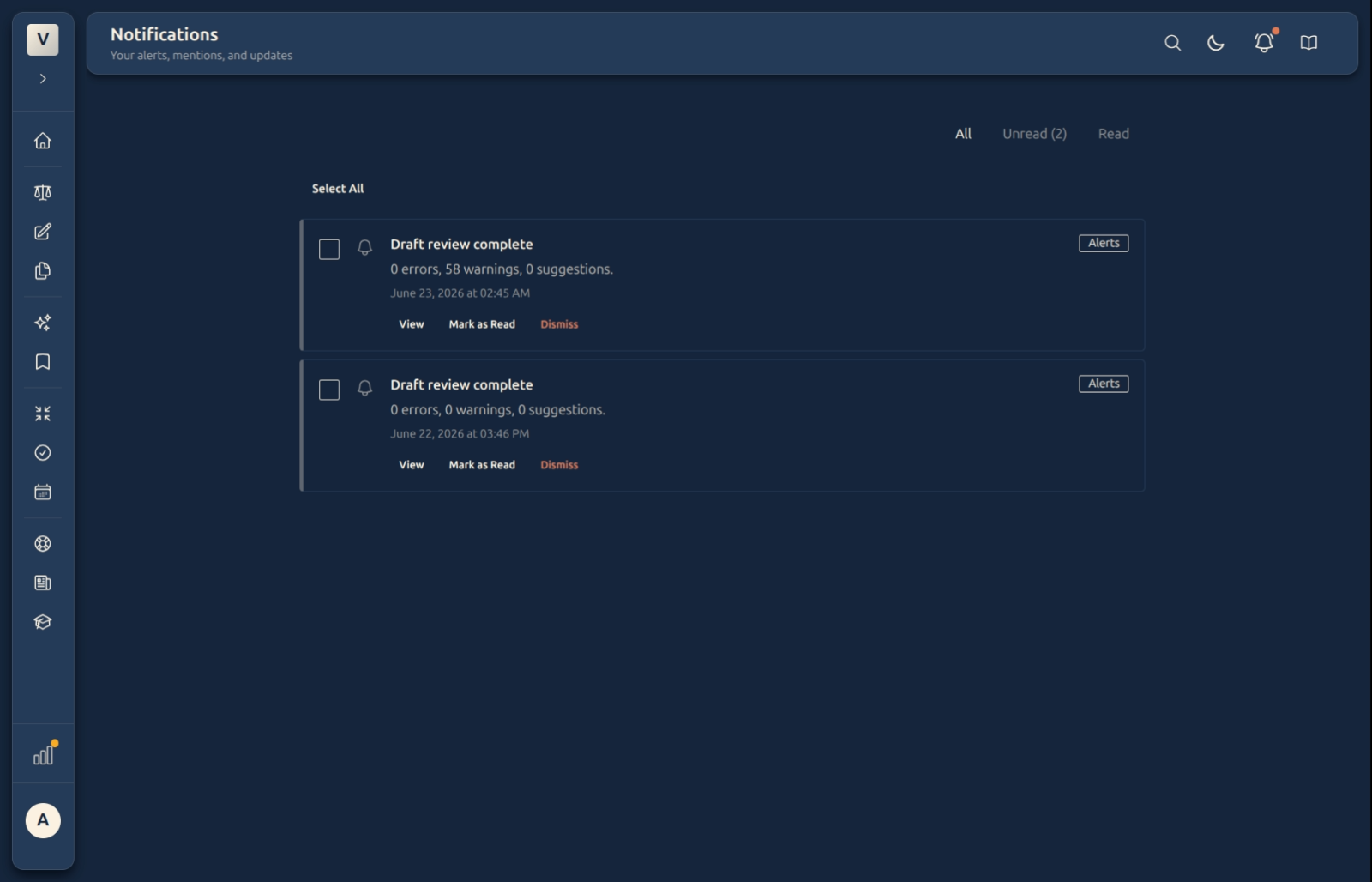
Open your notifications. Click the bell in the top bar — a dot on it means you have unread alerts — or go to Notifications directly. Each alert shows a type badge (like Alerts), a title, a one-line summary, and when it arrived.
-
Filter by state. The All / Unread / Read tabs at the top narrow the list. Unread shows a count, so Priya can see at a glance how many alerts still need her eyes; Read is the archive of what she’s already handled.
-
Act on a single alert. Each card has three actions: View jumps to whatever the alert is about (the draft, the case, the shared link), Mark as Read clears its unread status without leaving the page, and Dismiss removes it from the list.
-
Clear several at once. Tick Select All (or the checkbox on individual cards) to enter selection mode, then mark them read or dismiss them in one go — handy after a busy day when Rohan wants a clean slate.
Good to know
💡 Tip: Mark as Read keeps the alert (it just moves to the Read tab), while Dismiss removes it. Use read for “noted, keep it” and dismiss for “done, clear it.”
Note: The bell’s dot reflects your unread count, so once you’ve read or dismissed everything, it goes quiet. The number in the Unread tab is the same count.
✅ Alerts, not settings. This page is the inbox of things that happened. To choose which alerts and emails you receive, go to Settings → Notifications — that’s the preferences side.
FAQ
What’s the difference between Mark as Read and Dismiss?
How do I get to whatever an alert is about?
Click View on the card — it opens the underlying item, like the finished draft or the case the reminder belongs to.
Why does the bell have a dot sometimes?
The dot means you have unread notifications. It clears once you’ve read or dismissed them all; the Unread tab shows the exact count.
Can I clear a whole pile at once?
Yes — Select All, then mark read or dismiss the selection in one action.
How do I stop getting a certain kind of alert?
That’s a preference, not an inbox action — open Settings → Notifications to choose which alerts and emails you receive.
See Also
- Settings → Notifications — choose which alerts and emails you get.
- Your Dashboard — your at-a-glance home for cases, events, and todos.