Getting around — the sidebar & top bar
The two things on every screen — the sidebar for moving between tools, and the top bar for search, theme, alerts, and help.
Summary
Two pieces of the screen never change, whatever page you’re on: the sidebar down the left, and the top bar across the top. The sidebar is how you move between tools; the top bar is for the things you reach for anywhere — search, light/dark theme, your alerts, and help. Learn these once and the whole app opens up.
Video Walkthrough
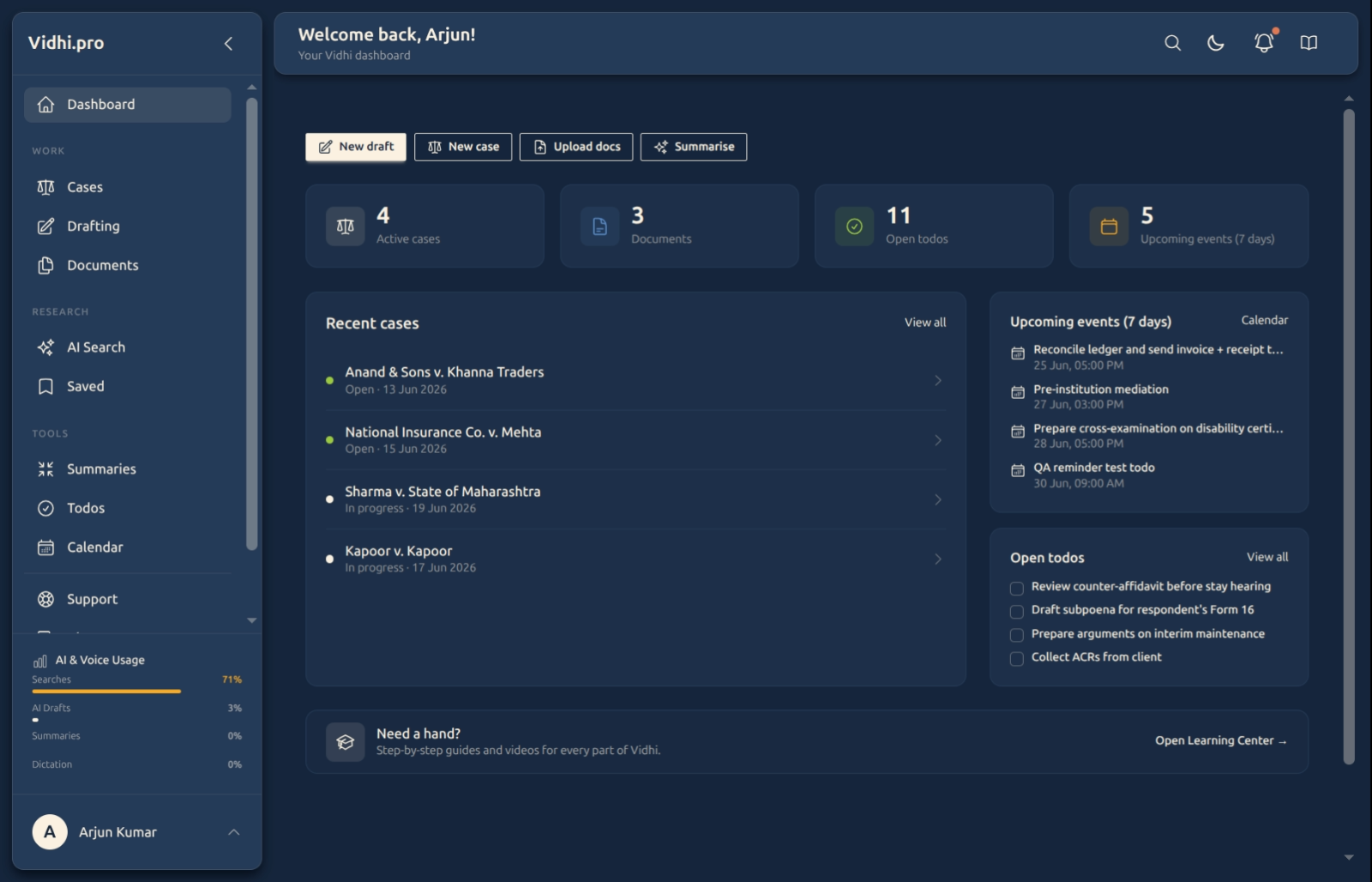
The sidebar — moving between tools
The sidebar lists everything you can open, grouped so it’s easy to scan: Work (Cases, Drafting, Documents), Research (AI Search, Saved), and Tools (Summaries, Todos, Calendar). At the very top, the collapse arrow shrinks the sidebar to icons only — handy when Priya wants more room for a long document; click it again to bring the labels back. Near the bottom sits your AI & Voice Usage meter (a quick read on how much of your plan you’ve used this period), and your profile menu, where the Learning Center, settings, and sign-out live.
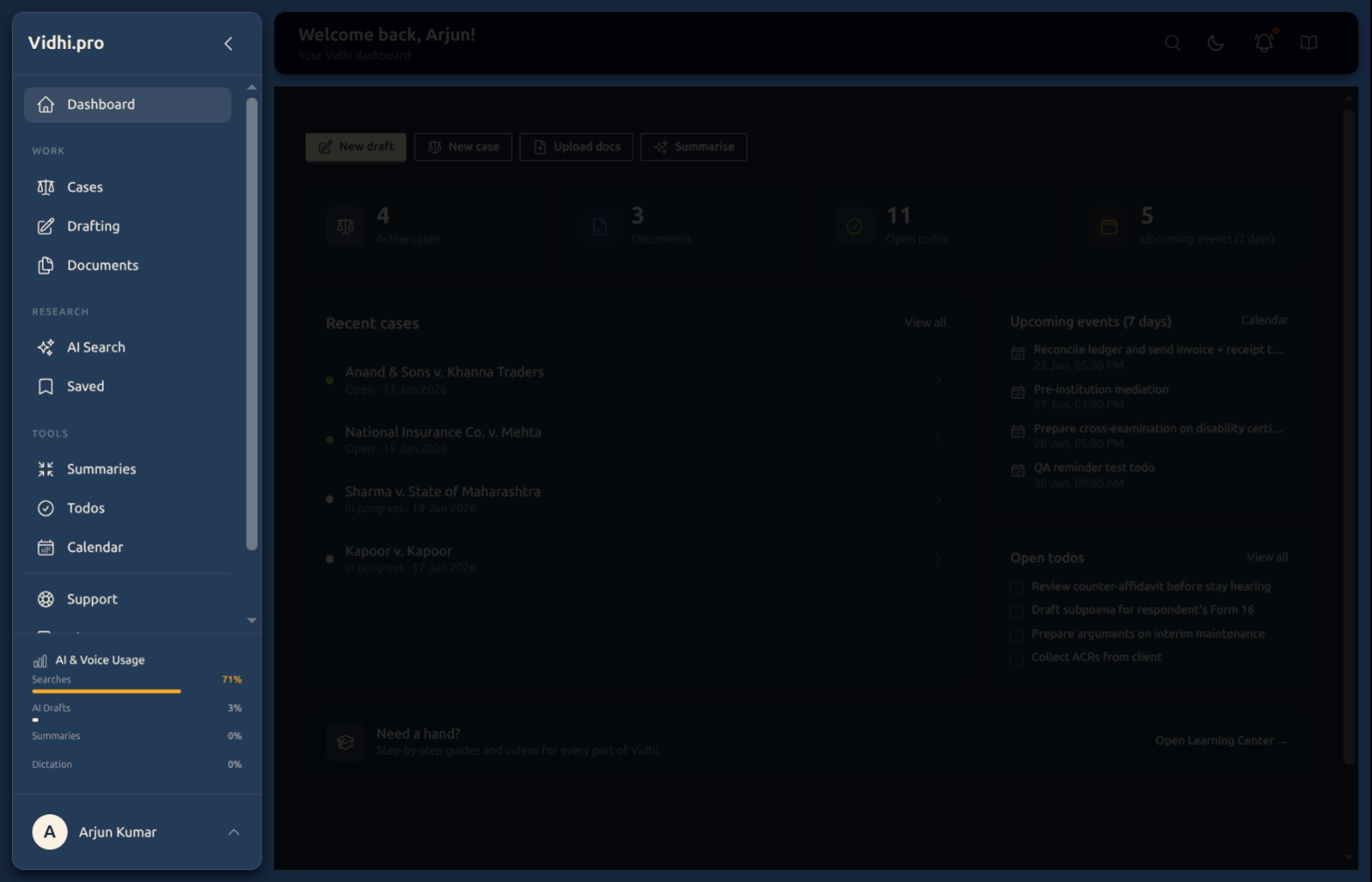
The top bar — search, theme, alerts, help
On the right of the top bar are four controls that work from any page:
- Search (magnifying glass) — looks across your whole workspace: cases, drafts, documents, even help guides. The fastest way to jump to a known thing.
- Theme (sun/moon) — switches between light and dark. Pick whichever is easier on your eyes; everything, including these guides, follows your choice.
- Notifications (bell) — your alerts inbox. A dot means something’s unread; click to read or clear it.
- Help (book) — opens the Help drawer for the page you’re on, so Rohan can get step-by-step help without losing his place.
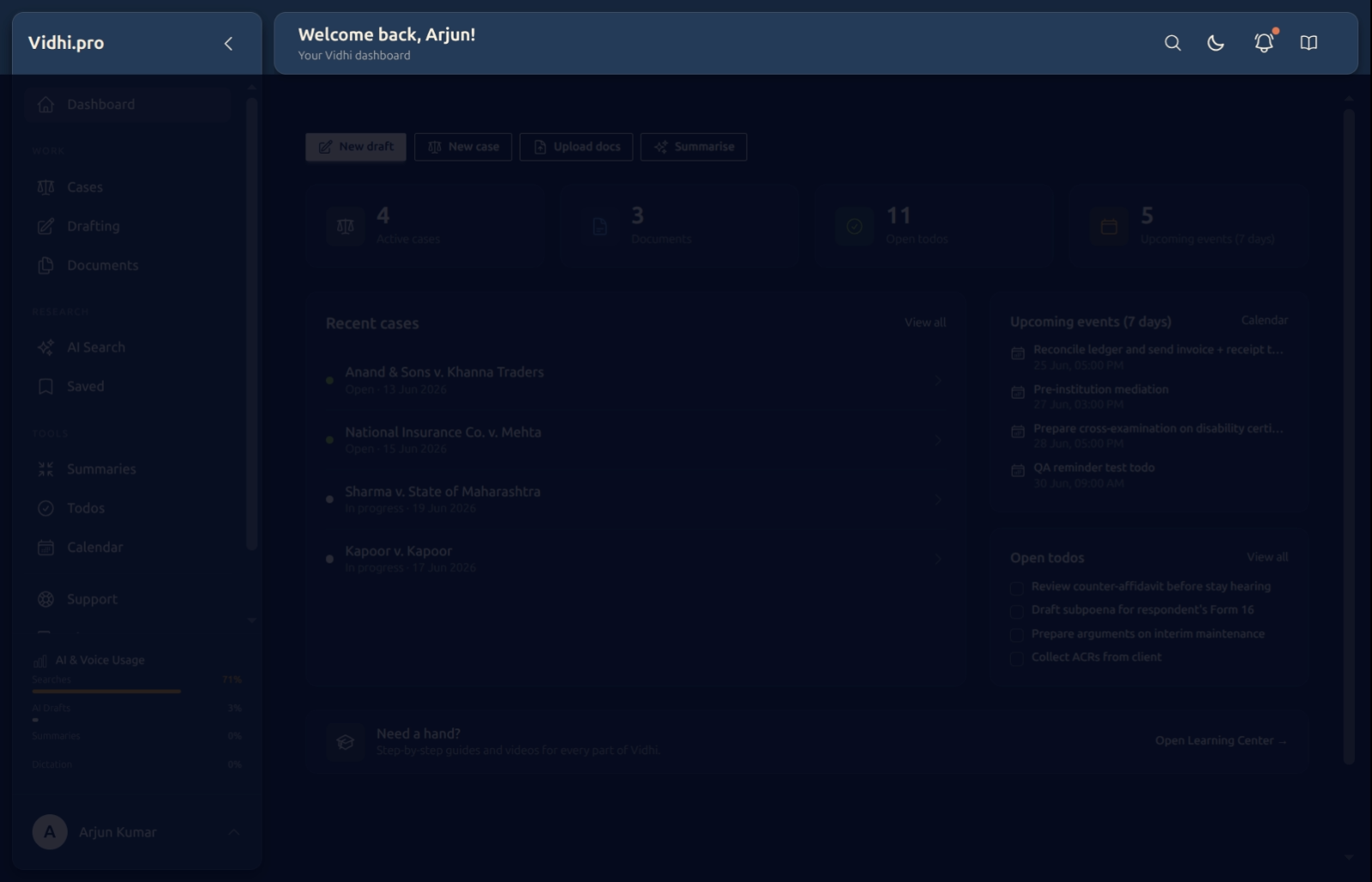
Good to know
💡 Tip: Collapse the sidebar when you need to concentrate on one document, and bring it back when you’re navigating. Your choice sticks between visits.
Note: The book (help) opens guides for the current page; the Learning Center in the sidebar holds every guide. Two doors to the same library — one contextual, one complete.
✅ Search lives in the top bar. There’s no separate search page to find — the box up top is always one click away, on every screen.
FAQ
How do I get more room for my work?
Click the collapse arrow at the top of the sidebar — it shrinks to icons. Aditi collapses it while drafting and expands it to navigate.
How do I switch to dark (or light) mode?
Use the sun/moon toggle in the top bar. The whole app — and the guides — follow your choice, and it’s remembered next time.
What does the dot on the bell mean?
You have unread notifications. Click the bell to open your alerts and read or dismiss them.
Where’s the search?
In the top bar (the magnifying glass), on every page. It searches your whole workspace, including help guides.
What’s the difference between the book icon and the Learning Center?
The book opens help for the page you’re on right now; the Learning Center (in the sidebar) is the full guide library. Use the book in the moment, the Learning Center to browse.
See Also
- Getting Started — a tour of the platform.
- Your Dashboard — your at-a-glance home.
- Global Search — what the top-bar search can find.