Case Todos Tab
A checklist for one case — add tasks with a due date and a reminder, and tick them off as you go.
Summary
The Todos tab is a checklist that belongs to one case. It’s where the concrete next-steps for that matter live — call the client back, collect the affidavits, file before Friday — each with an optional due date and a reminder, kept right beside the case instead of lost in a notebook or a separate app.
Think of it as the action list clipped to the inside of one case file: short, specific tasks for this matter, set to remind you in time, and ticked off one by one as you finish them.
Video Walkthrough
How to use it (step by step)
-
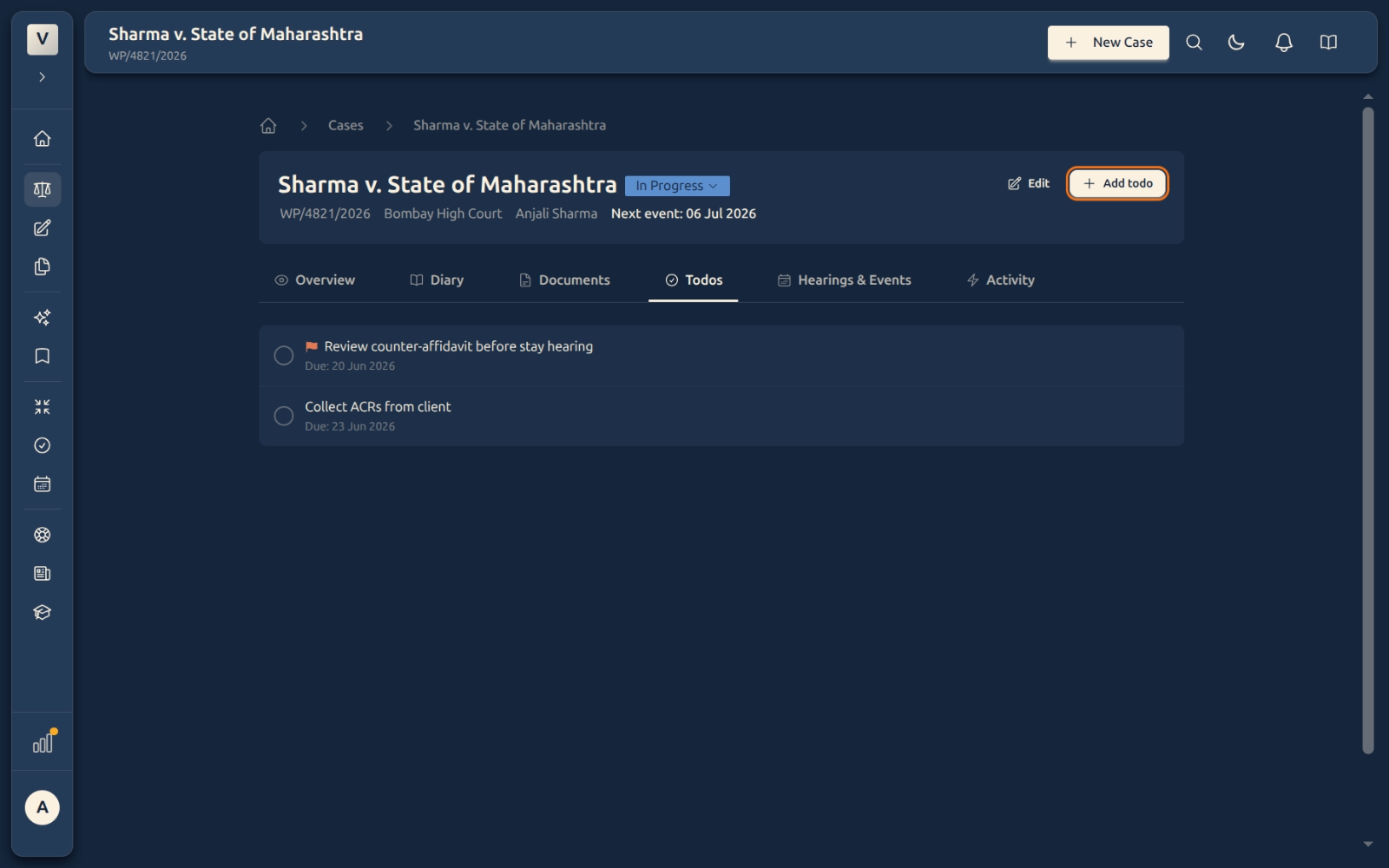
Open the Todos tab — From any case, click Todos in the tab row. You’ll see the checklist for that matter.
-
Add a todo — Click Add todo (top right). A small form opens.
-
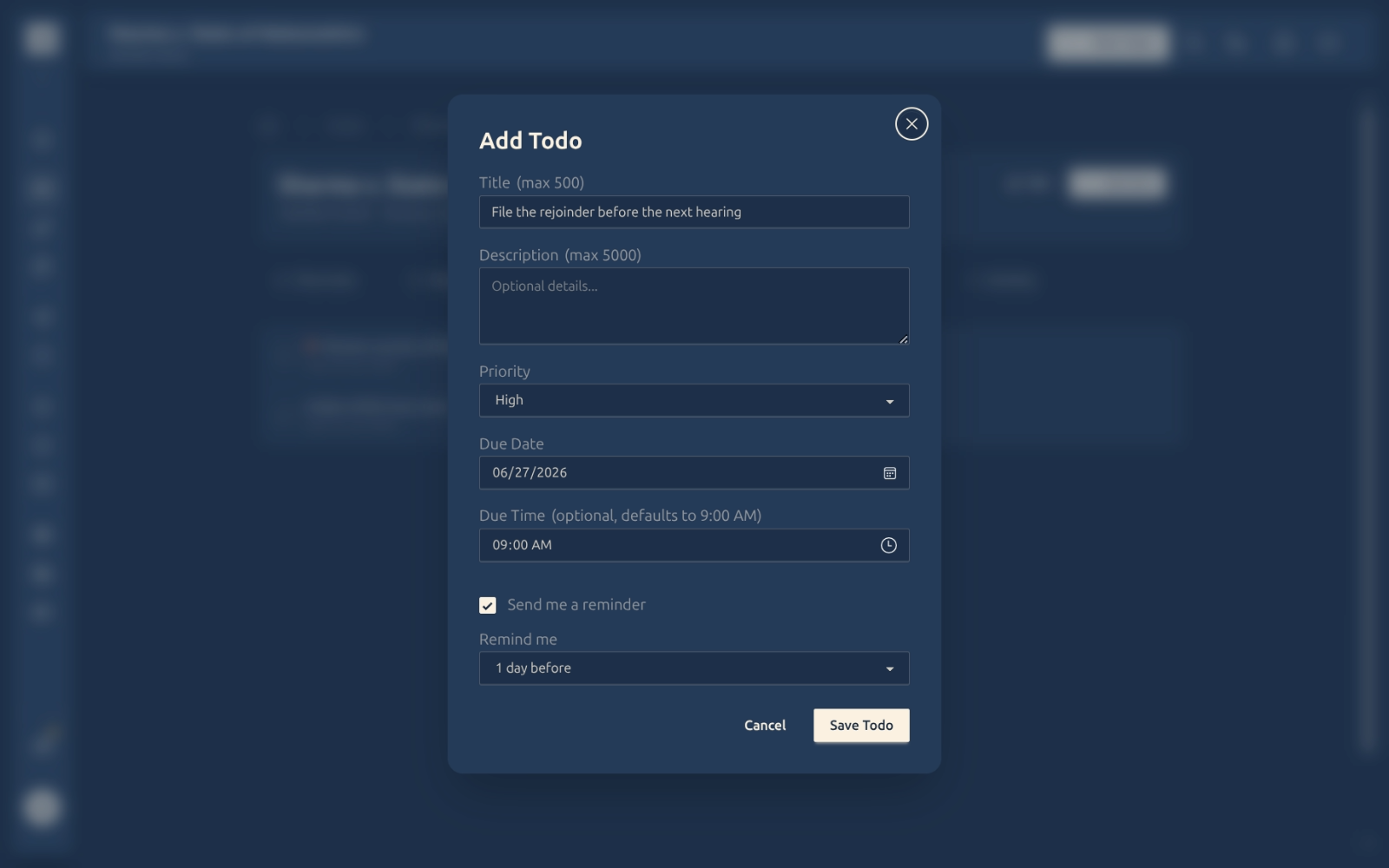
Fill in the details — Give the task a title (the only required field), and optionally a description, a priority (High, Normal, Low), and a due date and time. Then click Save Todo.
-
Set a reminder — Tick Send me a reminder and choose how far ahead — 5 minutes, an hour, a day, or a custom time. We’ll email you before the task is due, so nothing slips.
-
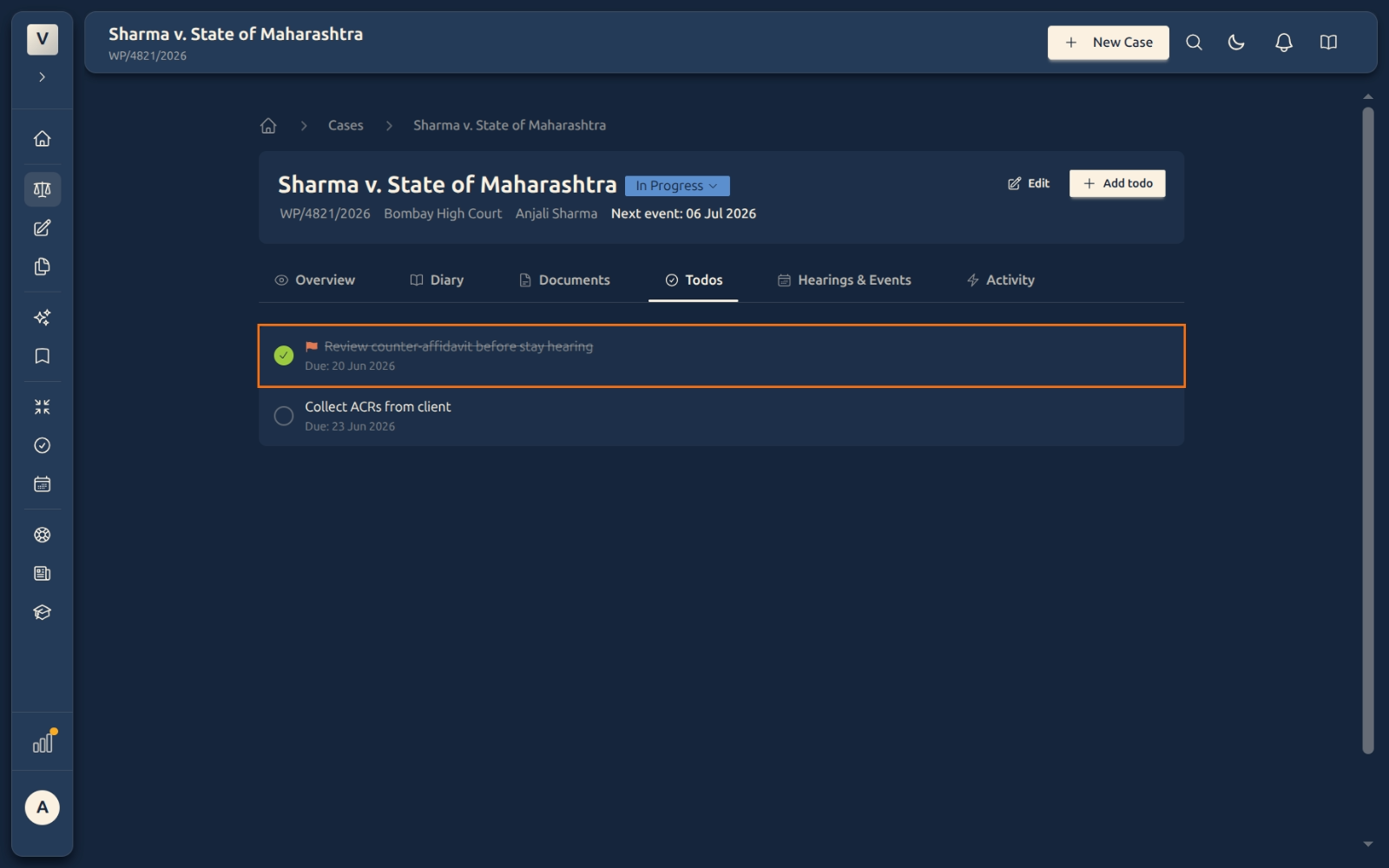
Tick it off — Click the circle to the left of a task when it’s done. Completed items get a green check and a line through them, so you can see at a glance what’s left.
-
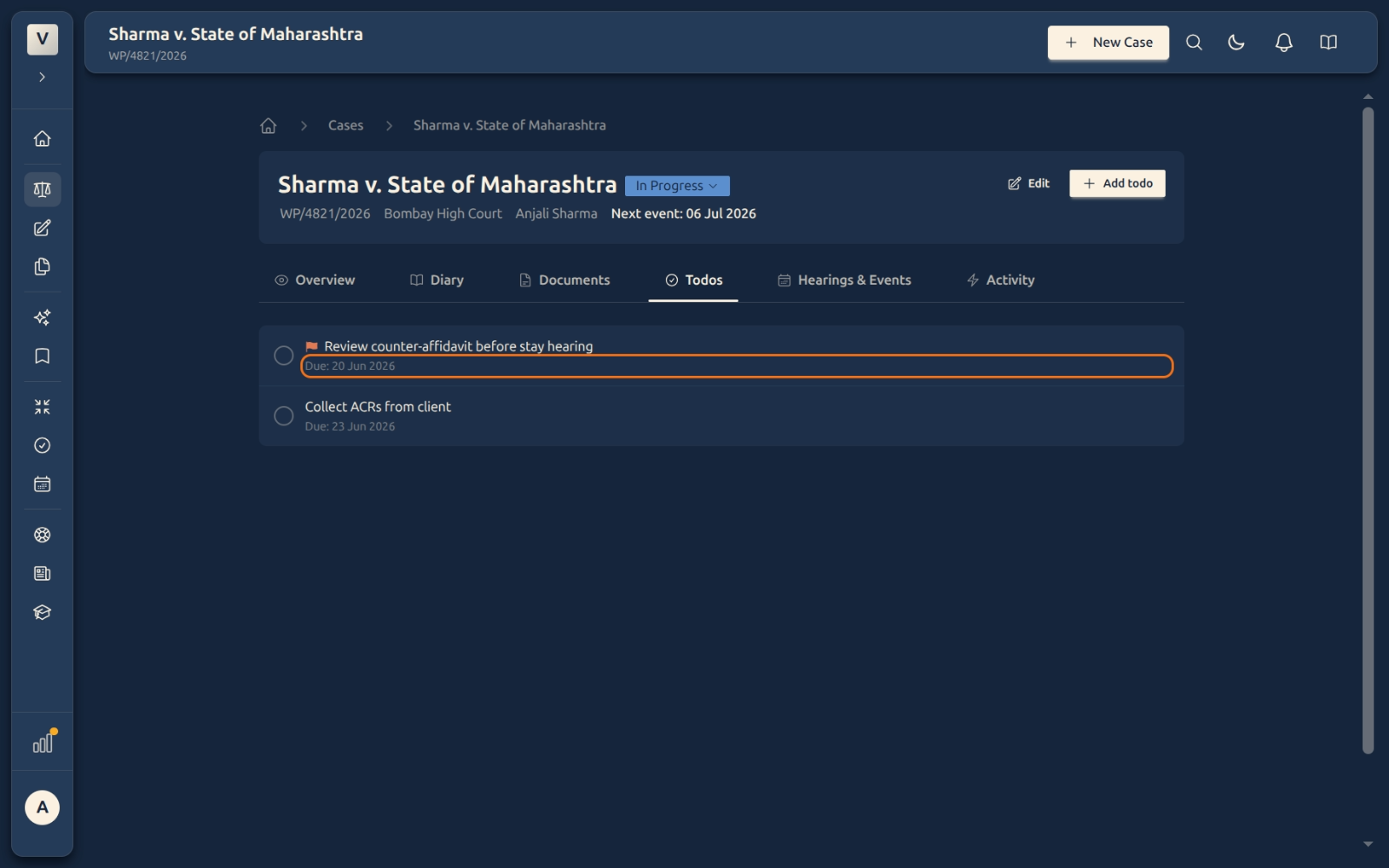
Open one to change or remove it — Click any task to see its details. From there, the pencil lets you edit the title, due date, priority, or reminder, and Delete removes the task for good once you confirm.
Good to know
💡 Tip: Keep each todo small and specific — Email Mrs. Sharma the draft beats Sort out the Sharma matter. Short, clear tasks are the ones that actually get ticked off.
Note: These todos belong to this case only. They’re separate from your practice-wide Todo List — so the checklist on Arjun’s bail matter never gets tangled up with the tasks on Priya’s property dispute.
⚠️ Important: Ticking a todo off isn’t final — click the circle again to bring it back. Nothing is deleted, so a task checked off by mistake is one click away from returning.
✅ Use due dates and reminders together. A todo with a due date shows the date in the list and feeds your reminder — so Meera can set File the rejoinder for Friday with a one-day-ahead nudge and trust it to surface in time.
FAQ
How is this different from the main Todo List?
The main Todo List is your personal, practice-wide list. The Todos tab here is scoped to one case — only the tasks for that matter — so each case carries its own checklist. The add form is the same one you know from the Todo List, so reminders and due dates work exactly the way you’d expect.
Can I set a due date and time?
Yes. In the Add todo form, pick a due date and, if you like, a due time (it defaults to 9:00 AM). The date then shows under the task in the list.
How do reminders work?
Tick Send me a reminder in the form and choose how far ahead — five minutes, an hour, a day, or a custom time. We email you before the task is due. Reminders depend on notifications being enabled on your plan; if they aren’t, you’ll see a short note in the form.
What happens when I tick a todo off?
It gets a green check and a strikethrough but stays in the list. Click the circle again to mark it active once more — Vikram can un-tick a task he closed too early without losing it.
Can I change or delete a todo after creating it?
Yes. Click the task to open it, then use the pencil to edit the title, description, priority, due date, or reminder. To remove a task entirely, click Delete and confirm — unlike ticking it off, deleting can’t be undone, so it’s best kept for todos added by mistake.
Do these todos show up anywhere else?
They live with the case. Opening the matter and going to the Todos tab is where you’ll always find them, so the checklist and the case never drift apart.
See Also
- Case Diary Tab — the dated record of what’s already happened on the matter.
- Case Hearings & Events Tab — scheduled dates and deadlines that drive the case’s next event.