Case Hearings & Events Tab
The case's calendar — every hearing, filing deadline, and meeting in one timeline, with the next date always in view.
Summary
The Hearings & Events tab is the calendar for one case — every court date, filing deadline, and client meeting for the matter, kept in a single timeline. It splits into Upcoming and Past, flags the very next date, and feeds the case’s Next event so you always know what’s coming.
Think of it as the cause-list page pinned inside one case file: dated, ordered, and impossible to lose track of — with a reminder waved in front of you before each date arrives.
Video Walkthrough
How to use it (step by step)
-
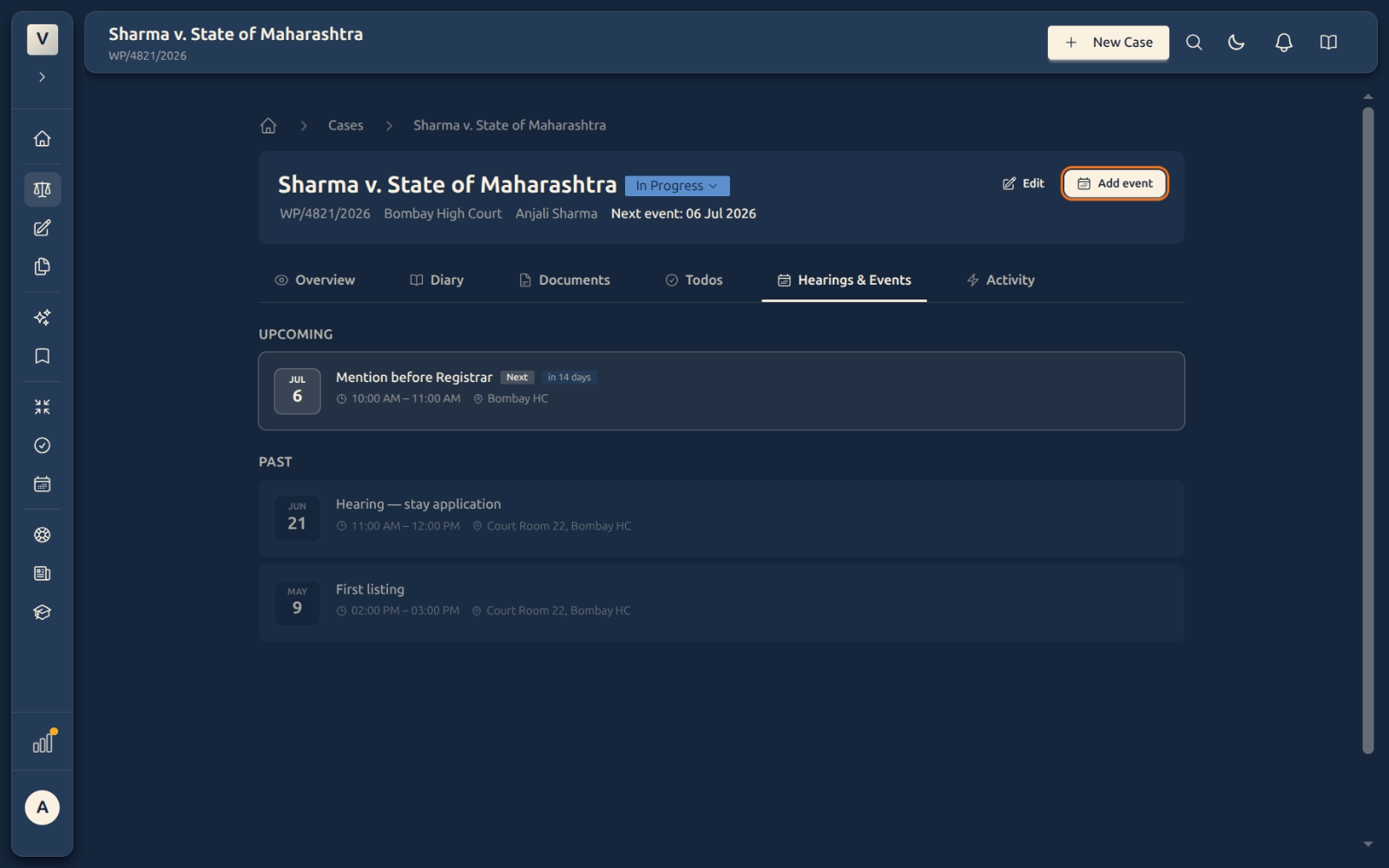
Open the Hearings & Events tab — From any case, click Hearings & Events in the tab row. You’ll see the matter’s dates split into Upcoming and Past, newest dates first.
-
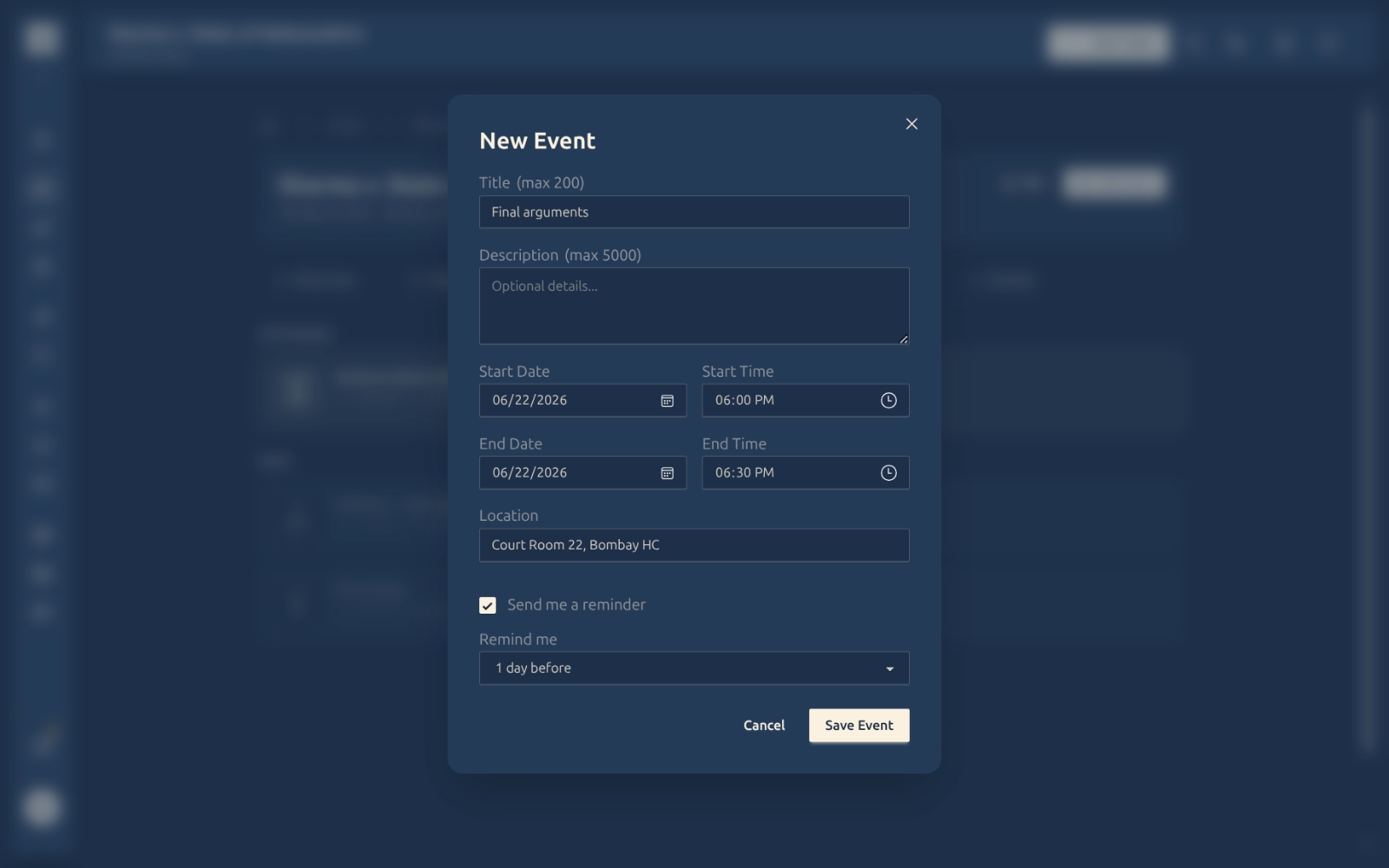
Add an event — Click Add event (top right). Give it a title (e.g. Final arguments), set the start and end date and time, and optionally a location and a description. Click Save Event.
-
Set a reminder — Tick Send me a reminder and choose how far ahead — an hour, a day, or a custom time. We’ll email you before the date so a listing never slips.
-
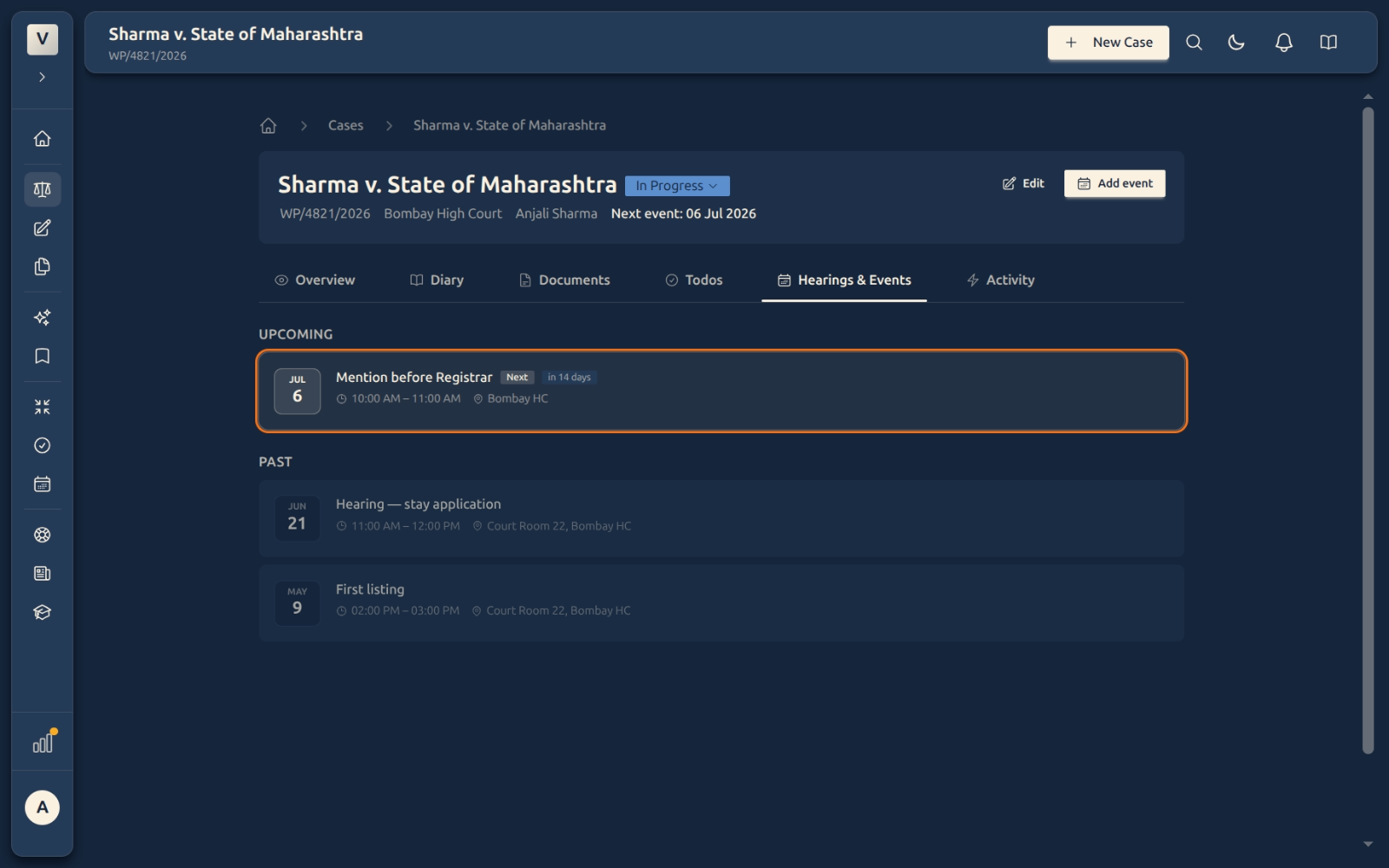
See what’s next — The first upcoming date is tagged Next and shows how many days away it is. That same date appears as the case’s Next event on the Overview tab and in the Cases list.
-
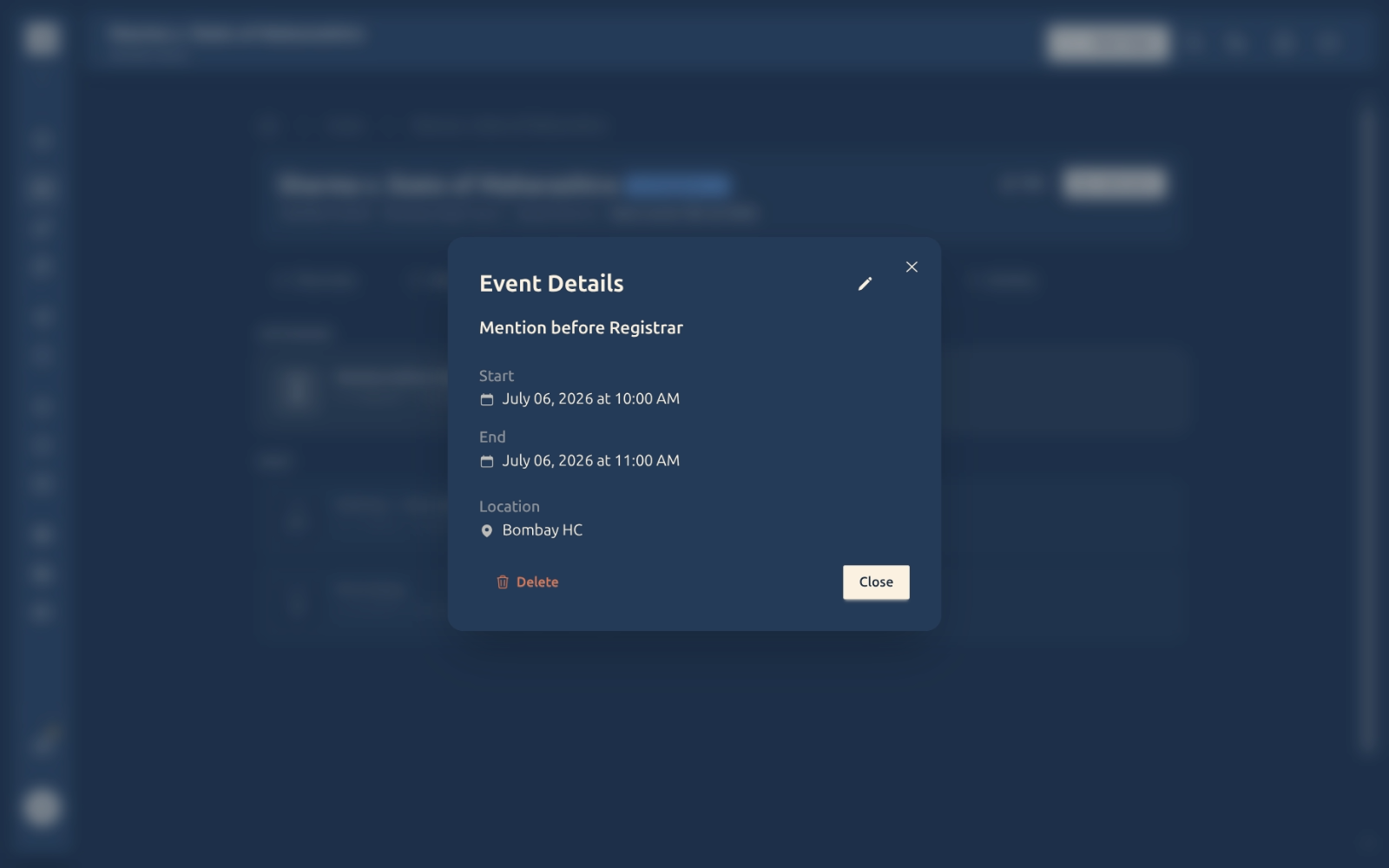
Open an event to change or remove it — Click any event to see its details. From there the pencil lets you edit it, and Delete removes it once you confirm.
Good to know
💡 Tip: Every date you add here also lands in the case Diary on its own — so the dated story of the matter and its calendar stay in step without you copying anything across.
Note: Past events never disappear — they drop into the Past section, dimmed but fully readable, so the case keeps a complete record of every date it has been to court.
⚠️ Important: The case’s Next event is read straight from this tab — it’s the earliest upcoming date. Keep dates here current and the Overview tab and the Cases list always show the right one; for example, Priya’s Mention before Registrar surfaces the moment the last hearing passes.
✅ Add the reminder when you add the date. A one-day-ahead nudge on File the rejoinder or Bail hearing means Arjun gets an email in time to prepare — far safer than trusting memory on a busy cause list.
FAQ
How is this different from the Diary tab?
The Diary is the record of what has already happened; Hearings & Events is the schedule of what’s coming and what’s been. They stay linked — an event you add here shows up in the Diary timeline automatically, so you don’t log it twice.
Where does the “Next event” on the Overview tab come from?
From this tab. It’s the earliest event whose date is still in the future. Add or move a date here and the Overview tab and the Cases list update to match.
Can I get reminded before a hearing?
Yes. Tick Send me a reminder in the event form and pick how far ahead — an hour, a day, or a custom time — and we’ll email you. Reminders depend on notifications being enabled on your plan; if they aren’t, you’ll see a short note in the form.
What happens to a hearing once it’s over?
Nothing is lost — it simply moves from Upcoming to Past and dims slightly. Meera can still open it to read the location, notes, and timing whenever she needs the history.
Do I set the times in my own timezone?
Yes. Dates and times are shown and entered in your timezone, so 10:00 AM means 10:00 your time. The platform stores the moment correctly behind the scenes.
Can two events sit on the same day?
Yes — add as many as the matter needs. Vikram can list a morning mention and an afternoon final hearing on the same date, and both show in order under that day.
See Also
- Case Diary Tab — the dated record of everything that’s already happened on the matter.
- Case Todos Tab — the case’s checklist of tasks, each with its own due date and reminder.