Case Overview Tab
The home screen for a single case — title, status, key parties, notes, and a quick edit button.
Summary
The Overview tab is the home screen for one case. It shows the most important facts at a glance — the case title, its current status, the court, the parties, your notes, and tags. From here you can change the status in one click, edit any detail, or jump to the other tabs (Diary, Documents, Todos, Hearings, Activity).
Think of it as the front page of a physical case file: open the folder and the key information is right on top.
Video Walkthrough
How to use it (step by step)
-
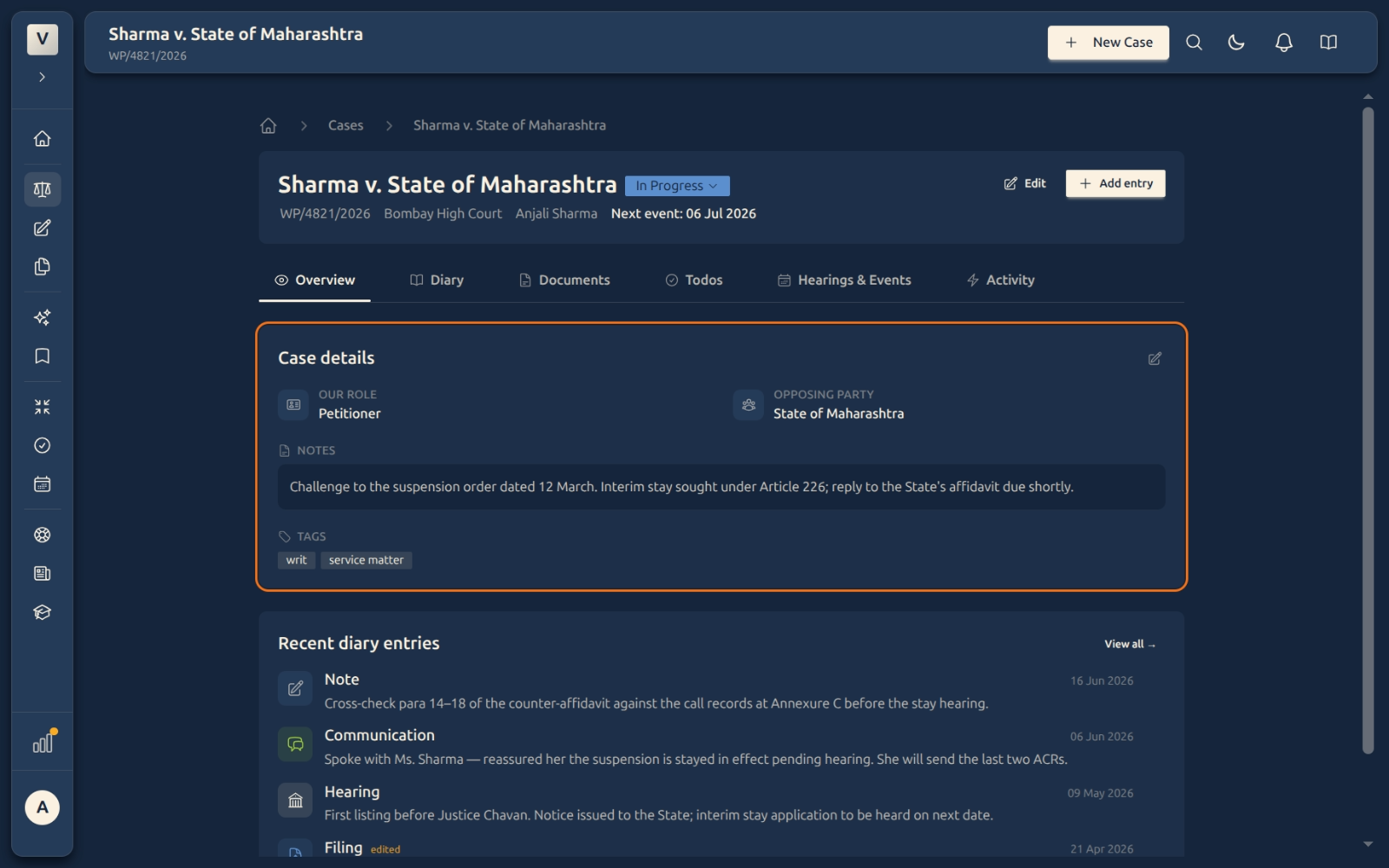
Open a case — From the Cases list, click any case (for example, Anjali Sharma v. State of Maharashtra or Rohit Mehta’s insurance matter). It opens on the Overview tab, with the key facts — role, parties, notes, and tags — right on top.
-
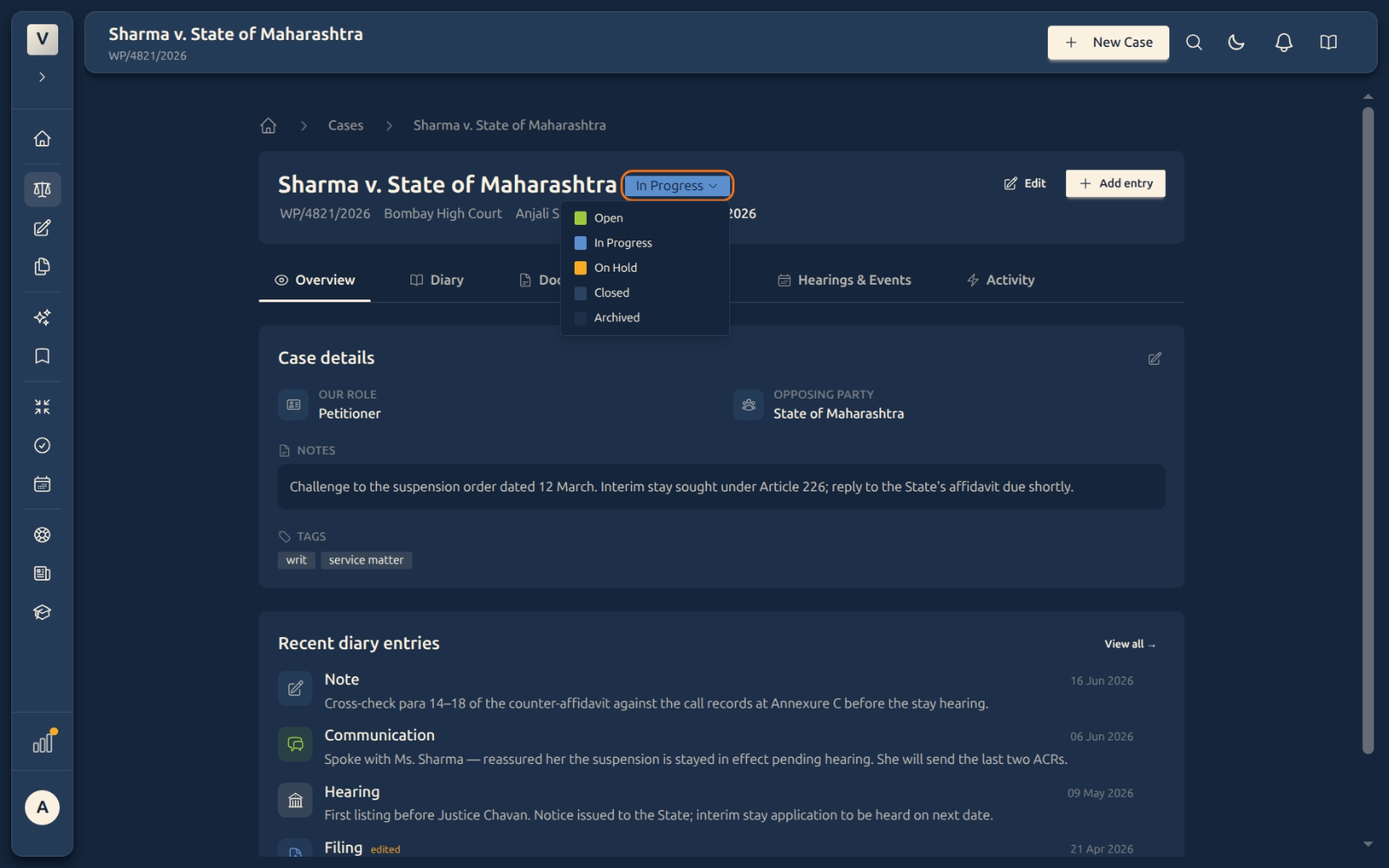
Change the status — Click the coloured status badge next to the title (e.g. In Progress) and pick a new status from the dropdown: Open, In Progress, On Hold, Closed, or Archived. It saves instantly.
-
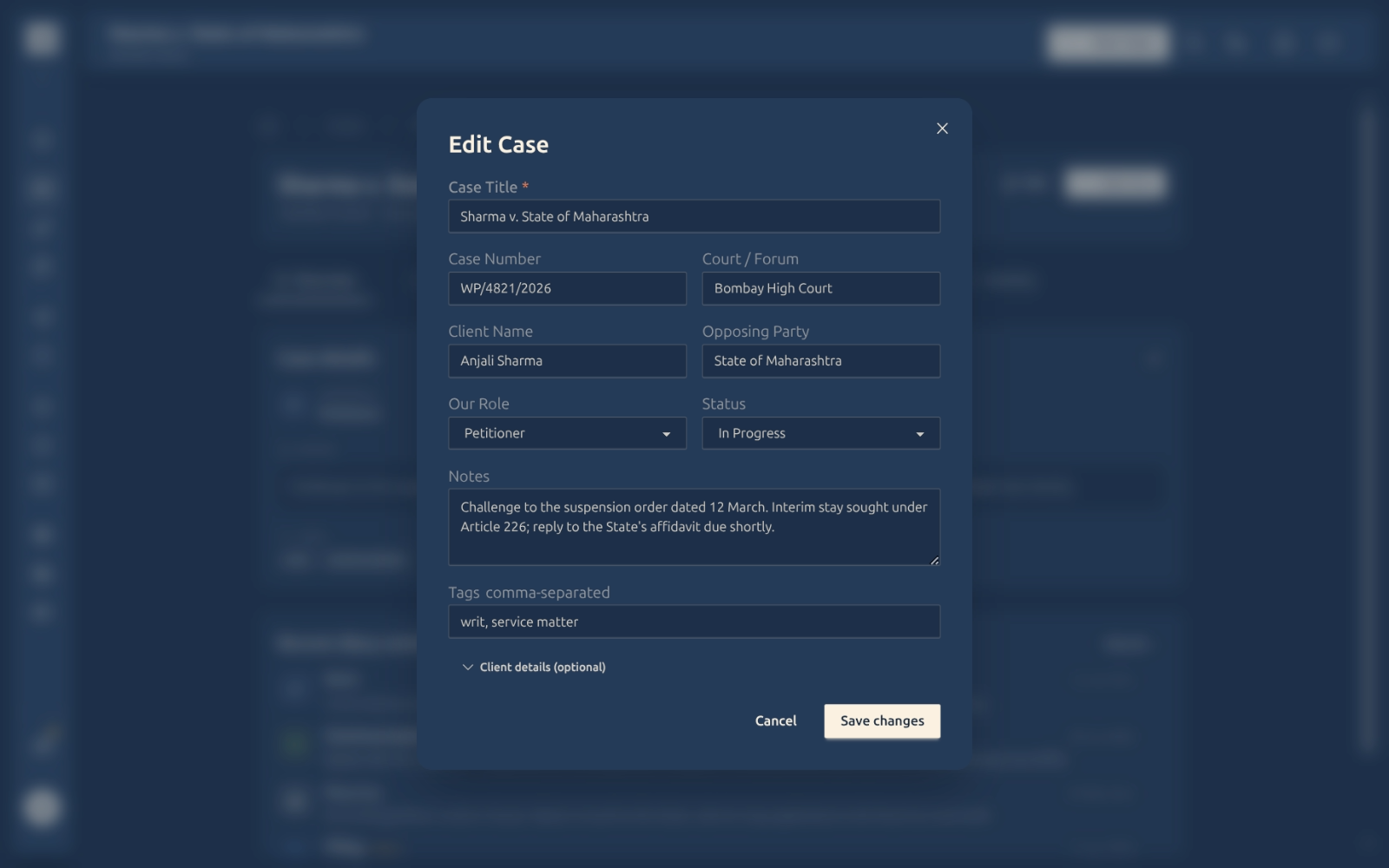
Edit case details — Click the Edit button (top right) or the small pencil on the Case details card to change the title, case number, court, client, opposing party, your role, notes, or tags.
-
Add a quick note — Click Add entry to record a note or update without leaving the page (this also appears in the Diary tab).
-
Move between tabs — Use the tab row (Overview · Diary · Documents · Todos · Hearings & Events · Activity) to manage the rest of the case.
Good to know
💡 Tip: The status badge is also a button. You don’t need to open Edit just to mark a case Closed — click the badge and choose.
Note: Closed and Archived cases stay fully searchable and readable — nothing is deleted. Archiving simply moves a matter out of your active view.
⚠️ Important: Editing the title or parties updates the case everywhere — including search and the case list — so keep the title clear (e.g. “Sharma v. State of Maharashtra” rather than just “Sharma”).
✅ Tags help you group cases. Add short labels like writ, service matter, or bail — you can then find every matter of that type from the global search.
FAQ
Where does the information on this tab come from?
It’s whatever you entered when you created the case, plus anything you’ve edited since. Use the Edit button to change any of it.
Can I change the status without opening the edit form?
Yes — click the status badge next to the case title and pick the new status. It saves immediately.
What’s the difference between Closed and Archived?
Both take a matter out of your active work. Use Closed when a case has concluded; use Archived to tuck away anything you want out of sight. Either way it stays searchable.
I added a note with “Add entry” — where did it go?
It’s saved to the case and shown on the Diary tab, which is the running record of everything that happens on the matter.
Do tags do anything, or are they just labels?
They’re searchable. Tag matters with the same label (say bail) and you can pull up all of them at once from search.